> ## Documentation Index
> Fetch the complete documentation index at: https://craft-support.mintlify.site/llms.txt
> Use this file to discover all available pages before exploring further.
# Import from Notion
> Import your Notion workspace, pages, and databases directly into Craft — no file export needed.
## How to Start the Import
Open Craft (native app or web).
Click the **Import** icon at the bottom of the left sidebar and select **Import from Notion**. This opens the import page at [docs.craft.do/import/notion](https://docs.craft.do/import/notion).
## Set Up Your Notion Connection
The import page will guide you through four steps to connect your Notion workspace:
Go to [Notion Connections](https://www.notion.so/profile/integrations) to manage your connections.
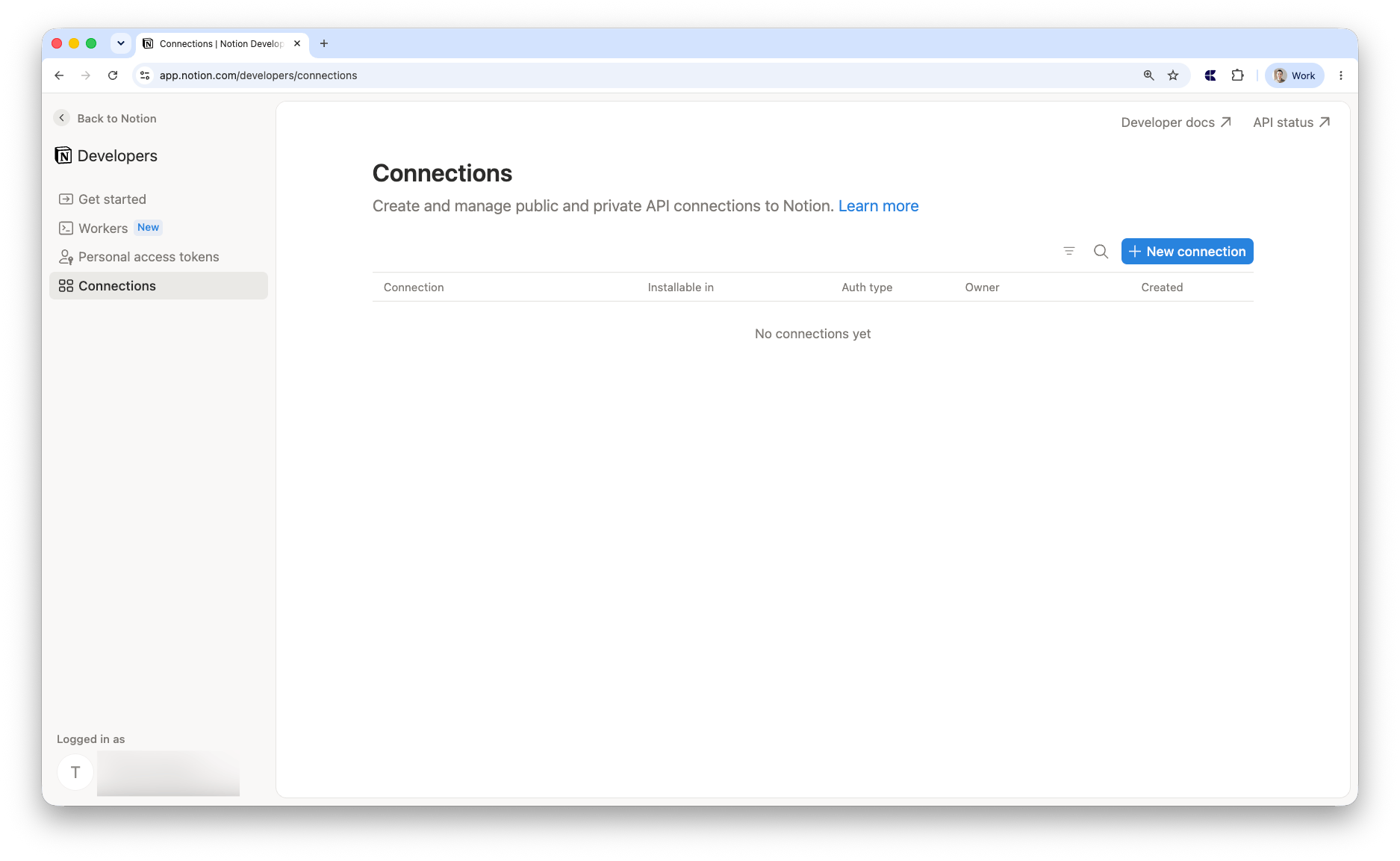 Give it any name, select **Access token**, choose your workspace, and hit **Save**.
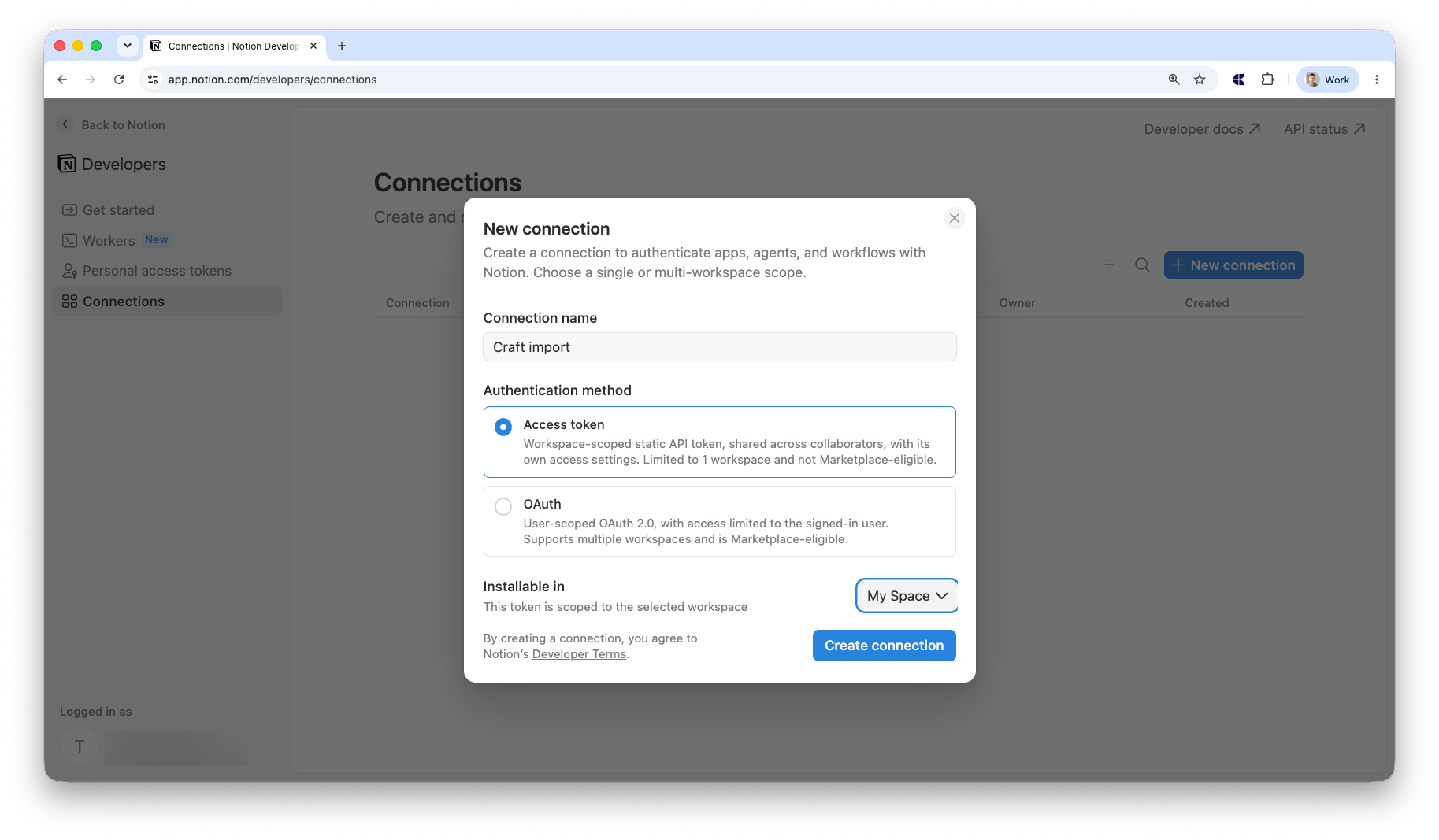 When creating your connection, make sure to configure the following capabilities:
* **Read content** — this is **required** for the import to work. Without it, Craft cannot access your Notion pages.
* **Read comments** — enable this if you want to import comments from your Notion pages. This must be selected **before** starting the import.
You can configure capabilities in the **Capabilities** section of your connection settings.
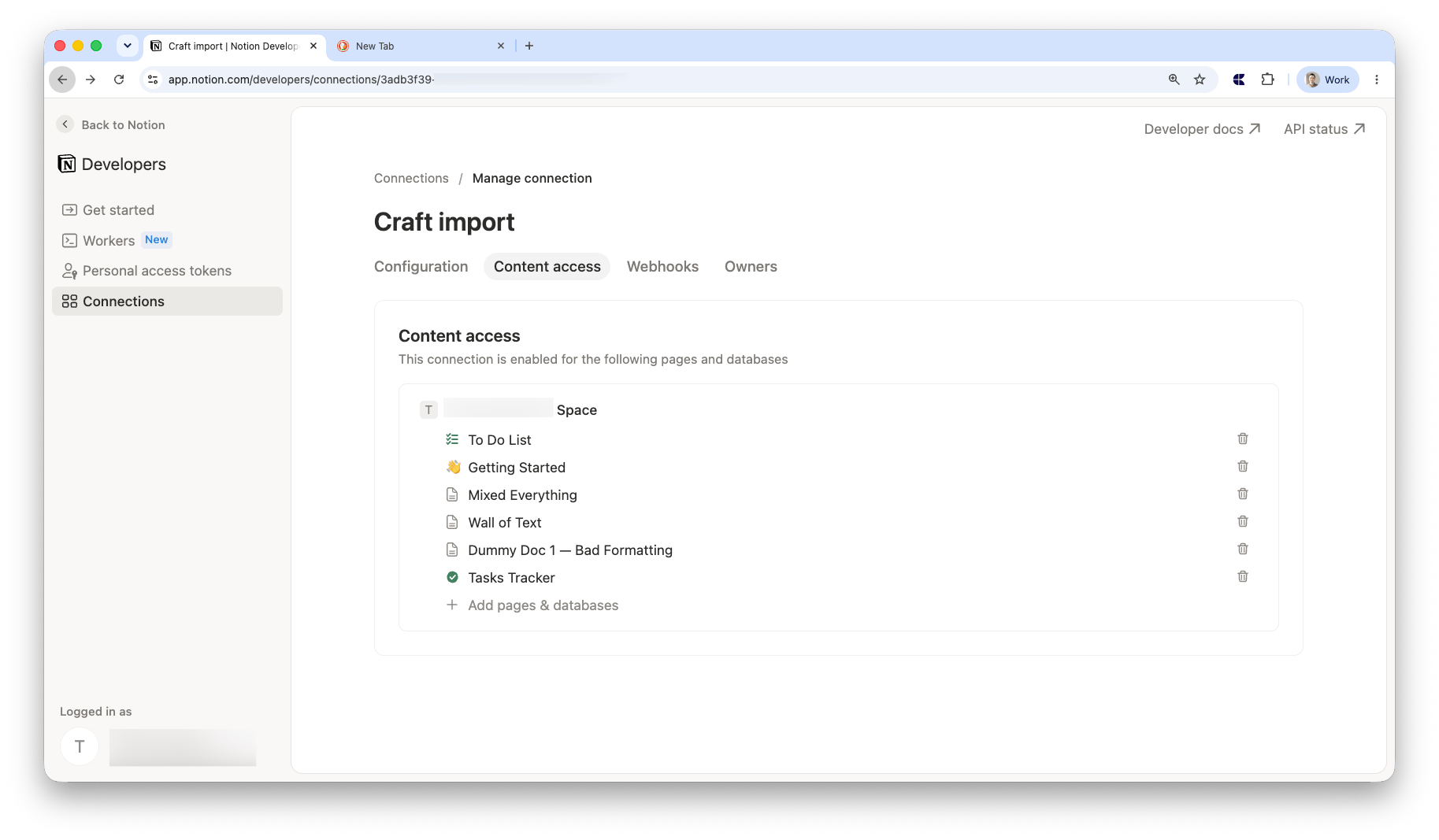
Add the pages and databases you want to import. You have to add every page individually — you cannot select the entire workspace at once. Only pages you grant access to will be included in the import.
When creating your connection, make sure to configure the following capabilities:
* **Read content** — this is **required** for the import to work. Without it, Craft cannot access your Notion pages.
* **Read comments** — enable this if you want to import comments from your Notion pages. This must be selected **before** starting the import.
You can configure capabilities in the **Capabilities** section of your connection settings.
Add the pages and databases you want to import. You have to add every page individually — you cannot select the entire workspace at once. Only pages you grant access to will be included in the import.
 Go back to the **Configuration** tab and copy the **Access token**.
## Import Your Documents
Paste your Access token into the field on the import page.
Select the **Craft Space** where you want your Notion documents to appear. Optionally select a **destination folder** to organize your imported documents.
Optionally toggle **Include comments** to import Notion comments alongside your pages (requires the **Read comments** capability — see above).
Click **Import**. You'll see a progress bar as your documents are imported. You can close the page at any time — the import will continue in the background.
## After the Import
Once complete, you'll see a confirmation with a button that takes you to Craft, where you'll find your imported documents.
## Limitations
* **Linked databases** are not imported. Only original databases and standalone pages are included. Linked (mirrored) database views will be skipped.
## Troubleshooting
Double-check that you copied the full Access token from the **Configuration** tab in your Notion connection settings.
Make sure you selected the individual pages and databases you want to import in the **Content access** tab of your Notion connection settings. You have to select each page individually. Also verify that **Read content** is enabled under **Capabilities**.
Try restarting the import. If the issue persists, contact support.
Go back to the **Configuration** tab and copy the **Access token**.
## Import Your Documents
Paste your Access token into the field on the import page.
Select the **Craft Space** where you want your Notion documents to appear. Optionally select a **destination folder** to organize your imported documents.
Optionally toggle **Include comments** to import Notion comments alongside your pages (requires the **Read comments** capability — see above).
Click **Import**. You'll see a progress bar as your documents are imported. You can close the page at any time — the import will continue in the background.
## After the Import
Once complete, you'll see a confirmation with a button that takes you to Craft, where you'll find your imported documents.
## Limitations
* **Linked databases** are not imported. Only original databases and standalone pages are included. Linked (mirrored) database views will be skipped.
## Troubleshooting
Double-check that you copied the full Access token from the **Configuration** tab in your Notion connection settings.
Make sure you selected the individual pages and databases you want to import in the **Content access** tab of your Notion connection settings. You have to select each page individually. Also verify that **Read content** is enabled under **Capabilities**.
Try restarting the import. If the issue persists, contact support.