> ## Documentation Index
> Fetch the complete documentation index at: https://craft-support.mintlify.site/llms.txt
> Use this file to discover all available pages before exploring further.
# Calendar view
> Use the Calendar view in Craft's sidebar to see daily notes, scheduled tasks, and synced events (Apple Calendar, Google Calendar, Outlook) for any day.
The Calendar view shows your daily notes, scheduled tasks, and synced events for any day in one place.
## Accessing the Calendar view
To access the Calendar view, open Craft and navigate to the **Calendar** tab in the **sidebar**.
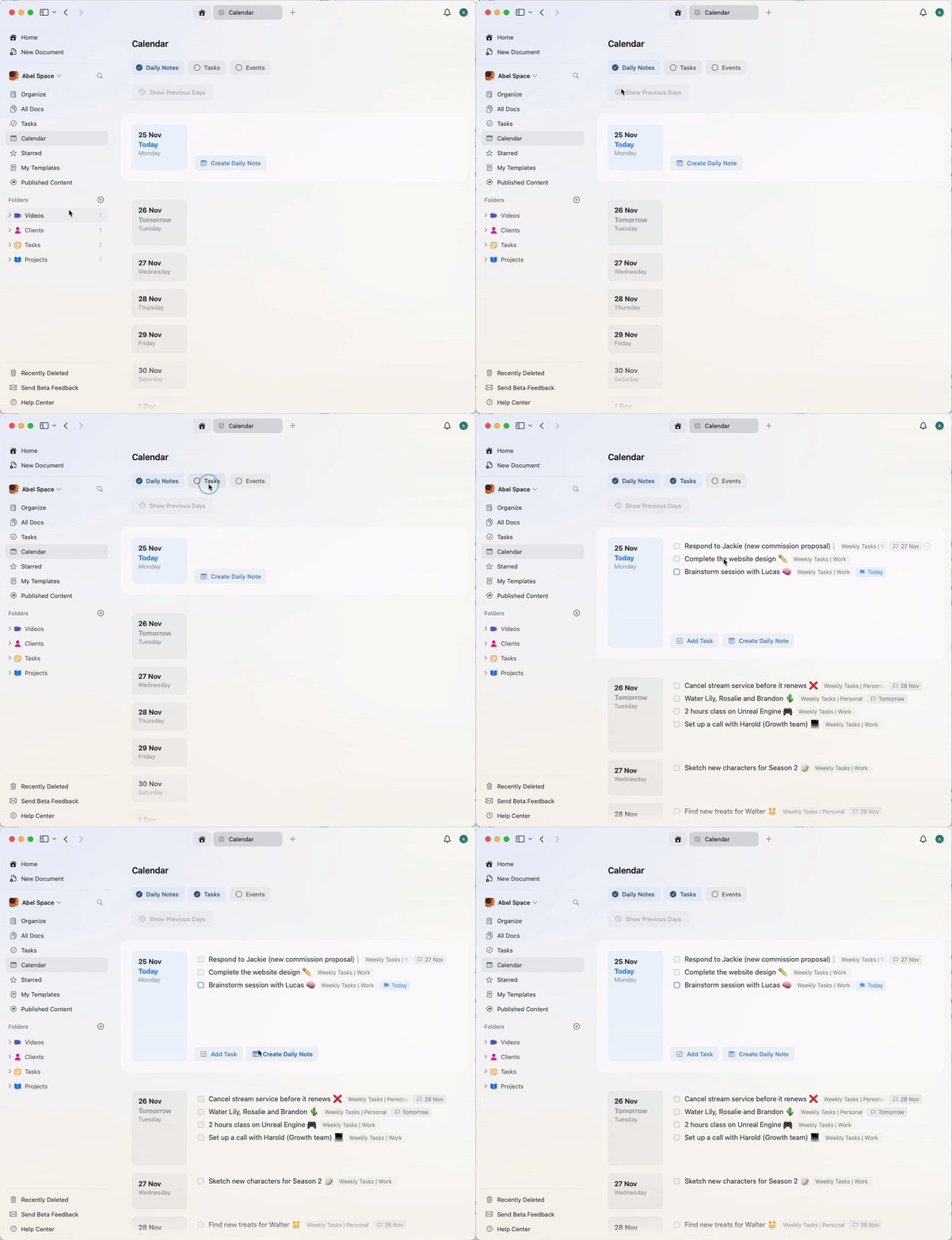
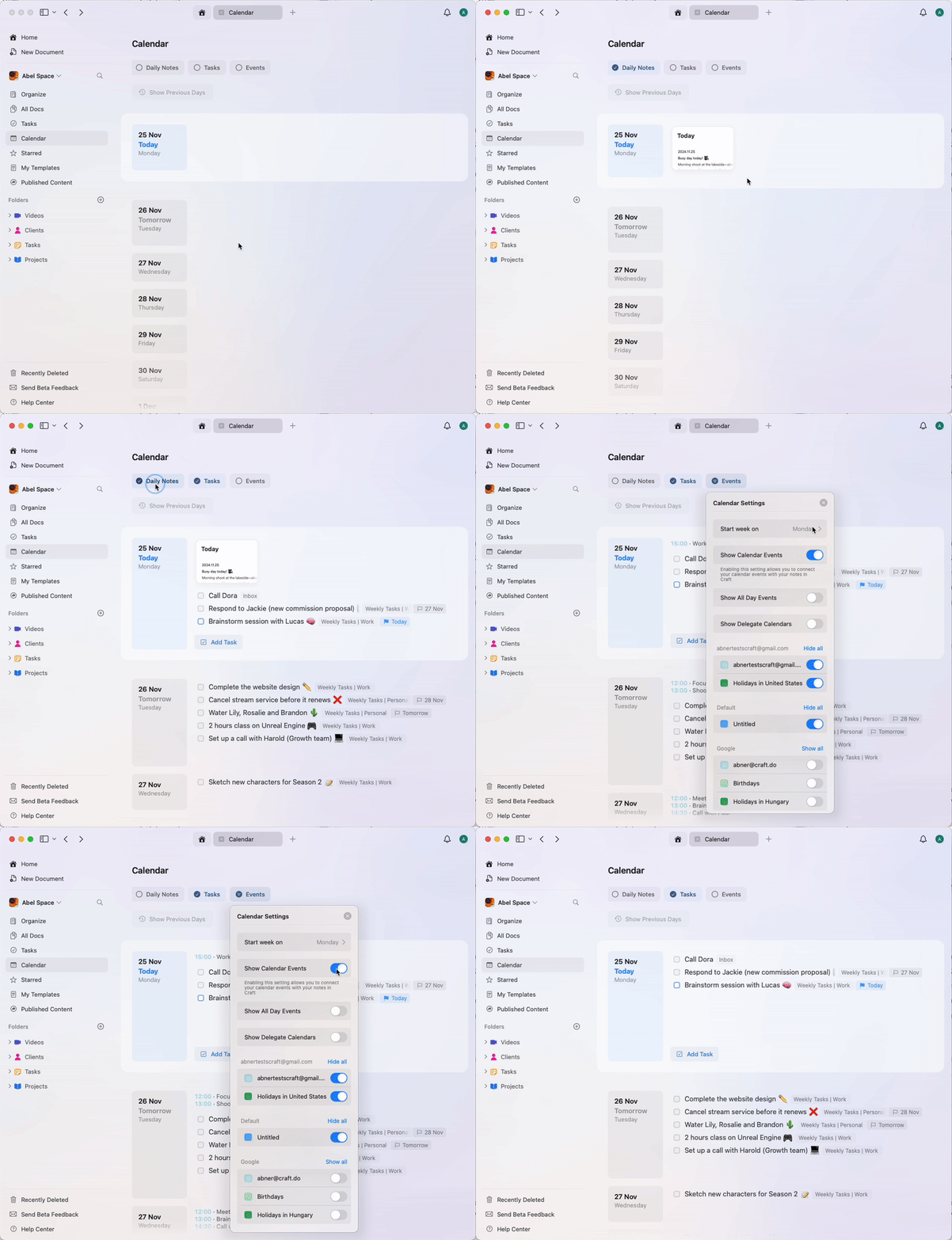
In the Calendar view, you'll see:
* **Daily Notes** - Your document for capturing thoughts or plans for the day
* **Tasks** - All tasks with a scheduled date will appear here
* **Events** - Any synced events from your external calendar are shown in a list format
 ## Setting up calendar integration
Calendar integration is only available through Apple Calendar on Mac, iPhone, and iPad. This feature is not available for the Windows or Web app. Google Calendar and Outlook events are supported indirectly — connect those accounts to Apple Calendar first, and they will appear in Craft automatically. See the [Using Google Calendar](#using-google-calendar) and [Using Outlook](#using-outlook) sections below.
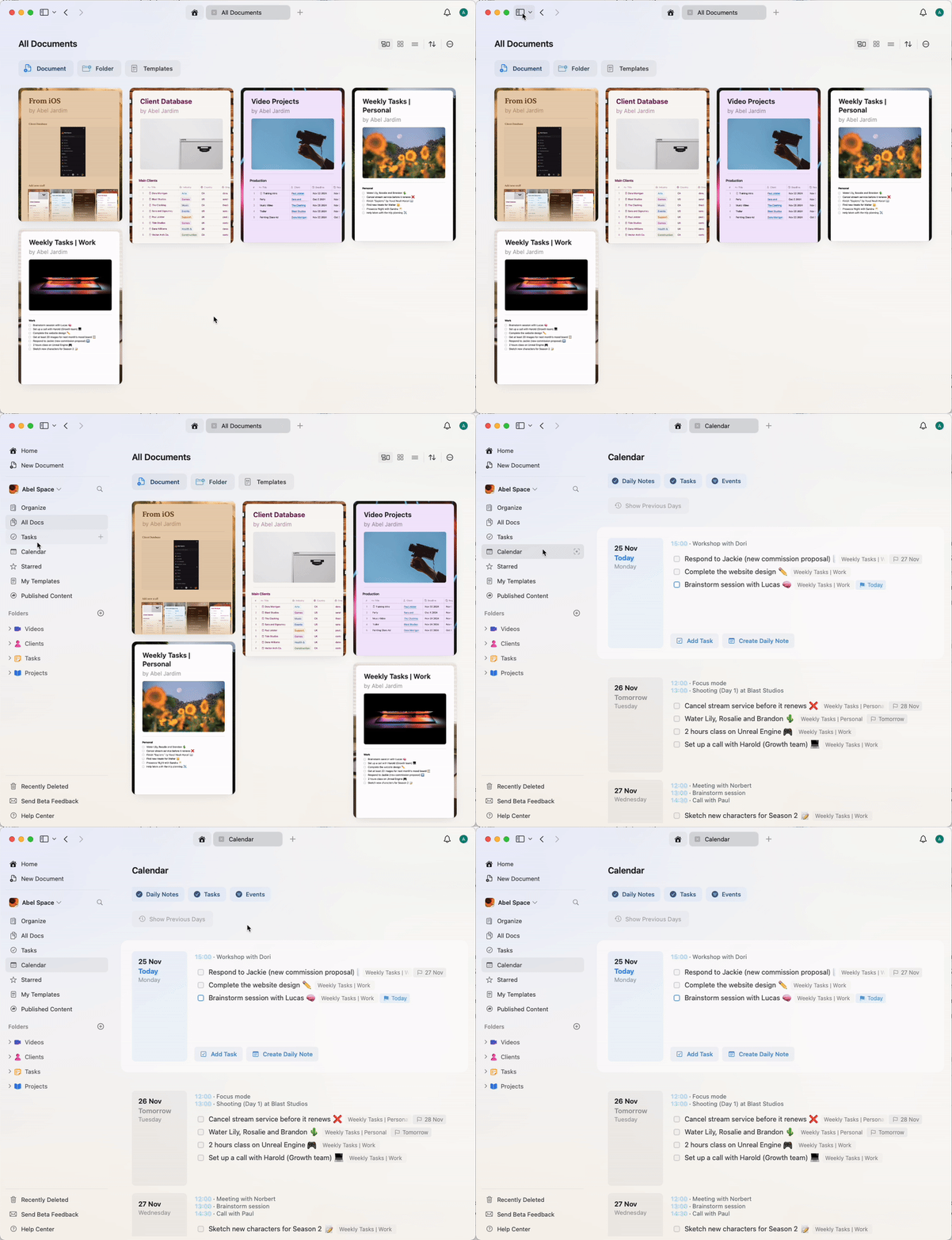
### Enable the Calendar view in the sidebar
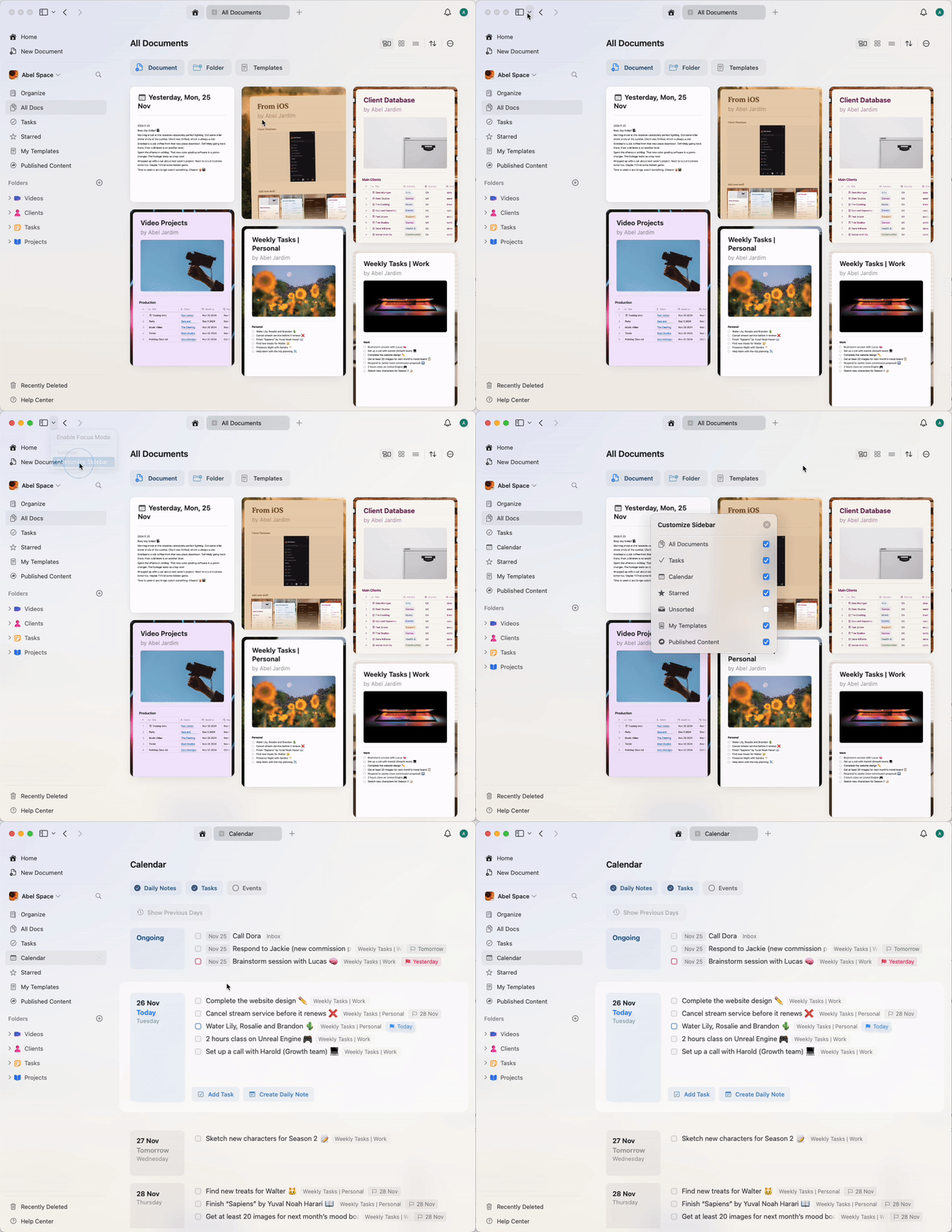
If you can't see the Calendar view in your left sidebar, enable it via the customization options for the sidebar dropdown.
## Setting up calendar integration
Calendar integration is only available through Apple Calendar on Mac, iPhone, and iPad. This feature is not available for the Windows or Web app. Google Calendar and Outlook events are supported indirectly — connect those accounts to Apple Calendar first, and they will appear in Craft automatically. See the [Using Google Calendar](#using-google-calendar) and [Using Outlook](#using-outlook) sections below.
### Enable the Calendar view in the sidebar
If you can't see the Calendar view in your left sidebar, enable it via the customization options for the sidebar dropdown.
 ### Connect your calendar
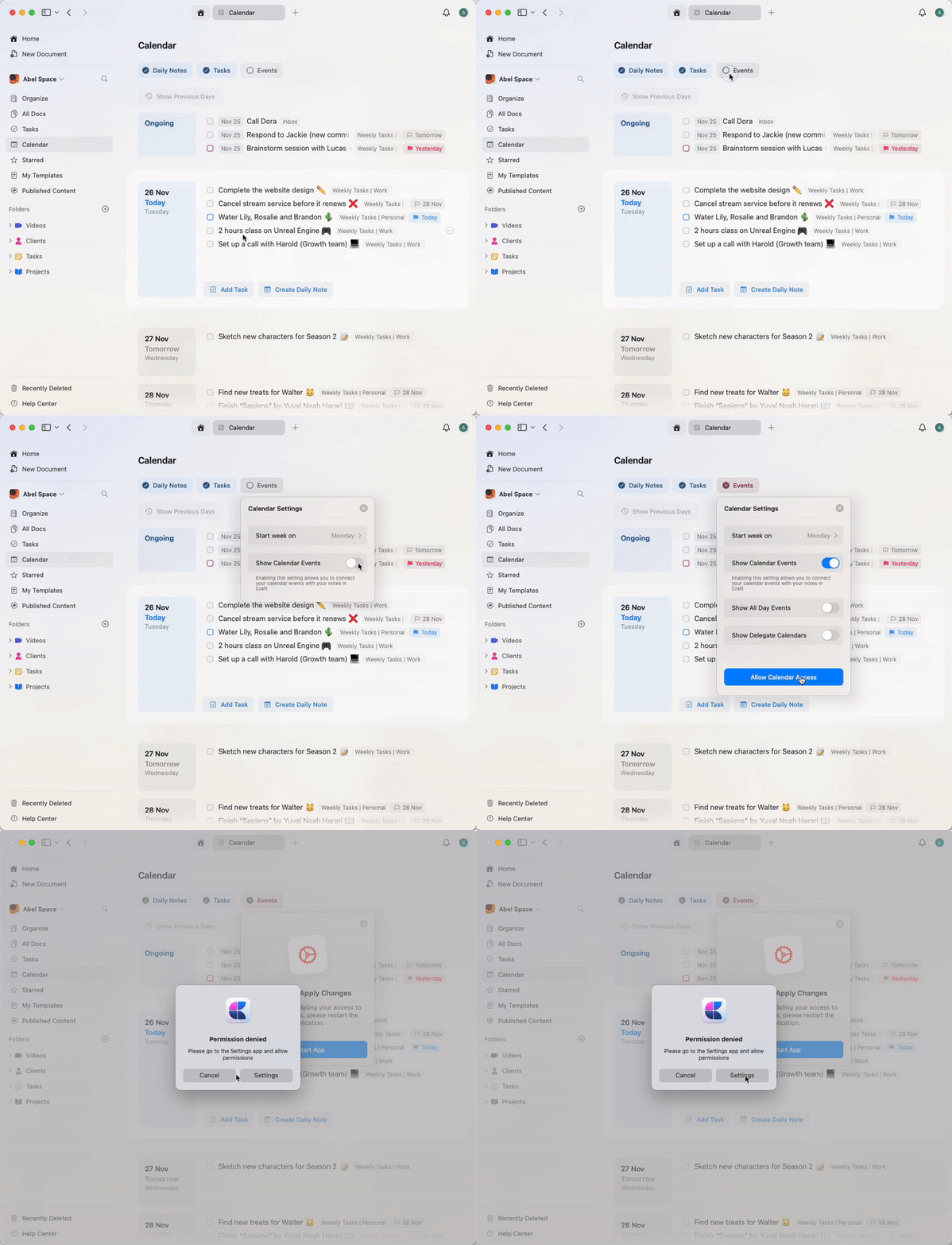
Navigate to the Calendar view in the sidebar
Click the **Events** button and attempt to enable "Show Calendar Events"
You will be prompted to allow Craft to access your calendar via your Mac settings
Grant permission for Craft to access your calendar
Restart Craft to apply the changes
After restarting, return to Calendar view and enable events to sync your calendar
Customize which calendars will be visible if you have multiple calendars connected to your Apple Calendar
### Connect your calendar
Navigate to the Calendar view in the sidebar
Click the **Events** button and attempt to enable "Show Calendar Events"
You will be prompted to allow Craft to access your calendar via your Mac settings
Grant permission for Craft to access your calendar
Restart Craft to apply the changes
After restarting, return to Calendar view and enable events to sync your calendar
Customize which calendars will be visible if you have multiple calendars connected to your Apple Calendar
 ### Using Google Calendar
While Craft does not support direct integration with Google Calendar, you can still sync your Google Calendar events with Craft by adding it to Apple Calendar on your Mac, iPhone, or iPad.
Open **System Settings**
Go to **Internet Accounts > Add Account > Google**
Sign in with your Google account
Check the box for **Calendars** to enable sync
Open **Settings**
Go to **Calendar > Accounts > Add Account > Google**
Sign in with your Google account
Toggle **Calendar** on to sync
Once Google Calendar is synced with Apple Calendar, it will be available inside Craft when you enable Calendar Integration.
### Using Outlook
While Craft does not support direct integration with Outlook, you can sync your Outlook calendar with Craft by adding your Microsoft account to Apple Calendar on your Mac, iPhone, or iPad.
Open the **Calendar** app and choose **Calendar > Add Account** from the menu bar (this opens **System Settings > Internet Accounts**)
Click **Add Account…** and enter your Outlook or Microsoft 365 email address
In the **Microsoft Exchange** dialog, enter your name and email and click **Sign In**
Complete Microsoft's sign-in flow (you may be asked to verify your email with a code)
Check the box for **Calendars** to enable sync
Open **Settings**
Go to **Calendar > Accounts > Add Account > Microsoft Exchange**
Sign in with your Microsoft credentials
Toggle **Calendar** on to sync
Once your Outlook calendar is synced with Apple Calendar, it will be available inside Craft when you enable Calendar Integration.
## Adding and managing tasks
You can manage tasks directly from the Calendar view.
### Enable task list
Enable the task list to see all scheduled tasks for the selected day. From here, you can complete or reschedule tasks.
### Using Google Calendar
While Craft does not support direct integration with Google Calendar, you can still sync your Google Calendar events with Craft by adding it to Apple Calendar on your Mac, iPhone, or iPad.
Open **System Settings**
Go to **Internet Accounts > Add Account > Google**
Sign in with your Google account
Check the box for **Calendars** to enable sync
Open **Settings**
Go to **Calendar > Accounts > Add Account > Google**
Sign in with your Google account
Toggle **Calendar** on to sync
Once Google Calendar is synced with Apple Calendar, it will be available inside Craft when you enable Calendar Integration.
### Using Outlook
While Craft does not support direct integration with Outlook, you can sync your Outlook calendar with Craft by adding your Microsoft account to Apple Calendar on your Mac, iPhone, or iPad.
Open the **Calendar** app and choose **Calendar > Add Account** from the menu bar (this opens **System Settings > Internet Accounts**)
Click **Add Account…** and enter your Outlook or Microsoft 365 email address
In the **Microsoft Exchange** dialog, enter your name and email and click **Sign In**
Complete Microsoft's sign-in flow (you may be asked to verify your email with a code)
Check the box for **Calendars** to enable sync
Open **Settings**
Go to **Calendar > Accounts > Add Account > Microsoft Exchange**
Sign in with your Microsoft credentials
Toggle **Calendar** on to sync
Once your Outlook calendar is synced with Apple Calendar, it will be available inside Craft when you enable Calendar Integration.
## Adding and managing tasks
You can manage tasks directly from the Calendar view.
### Enable task list
Enable the task list to see all scheduled tasks for the selected day. From here, you can complete or reschedule tasks.
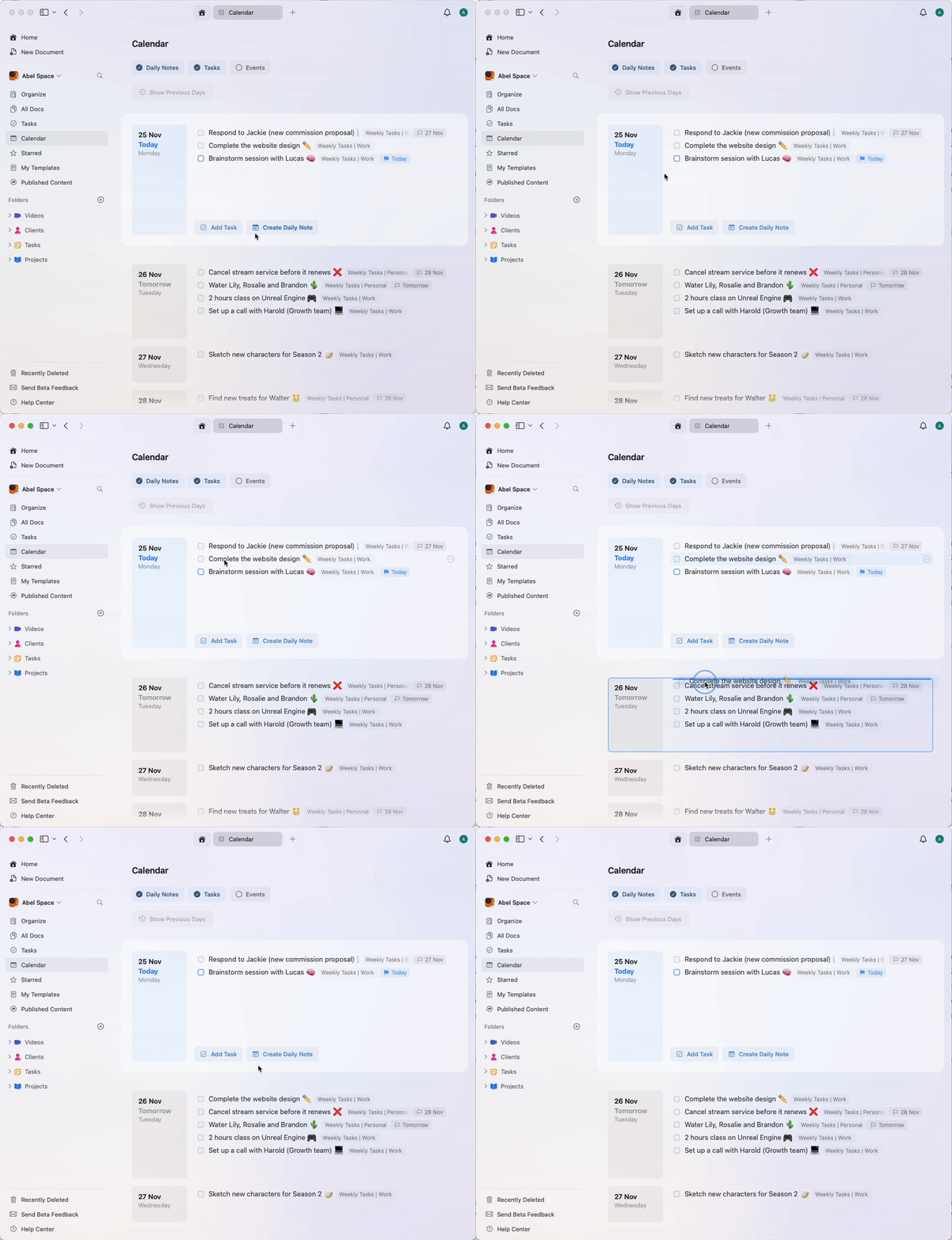
 ### Reschedule tasks
Drag and drop a task to another day to reschedule it.
### Reschedule tasks
Drag and drop a task to another day to reschedule it.
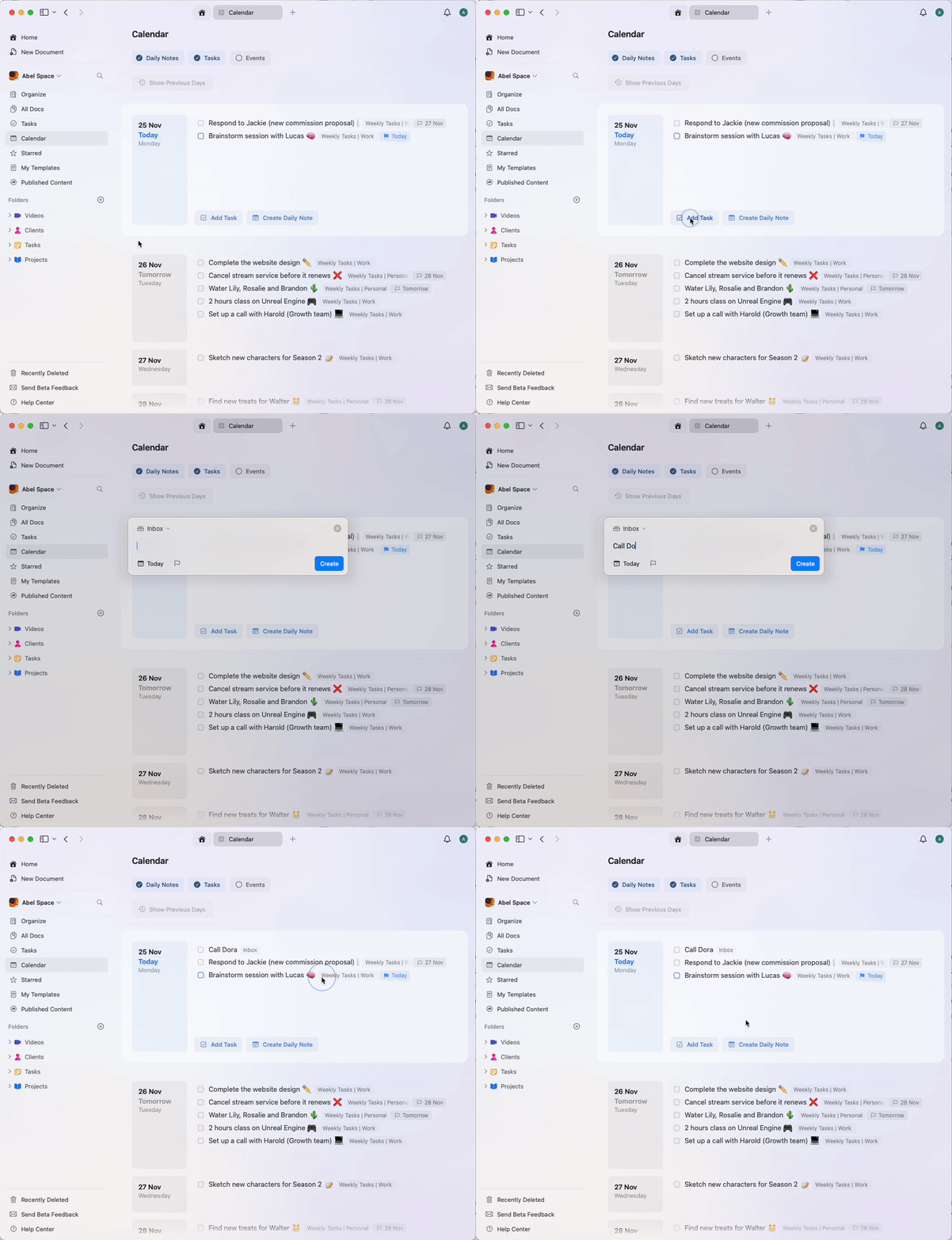
 ### Adding a task
You can add a new task directly within the daily note, and Craft automatically assigns today's date to it.
### Adding a task
You can add a new task directly within the daily note, and Craft automatically assigns today's date to it.
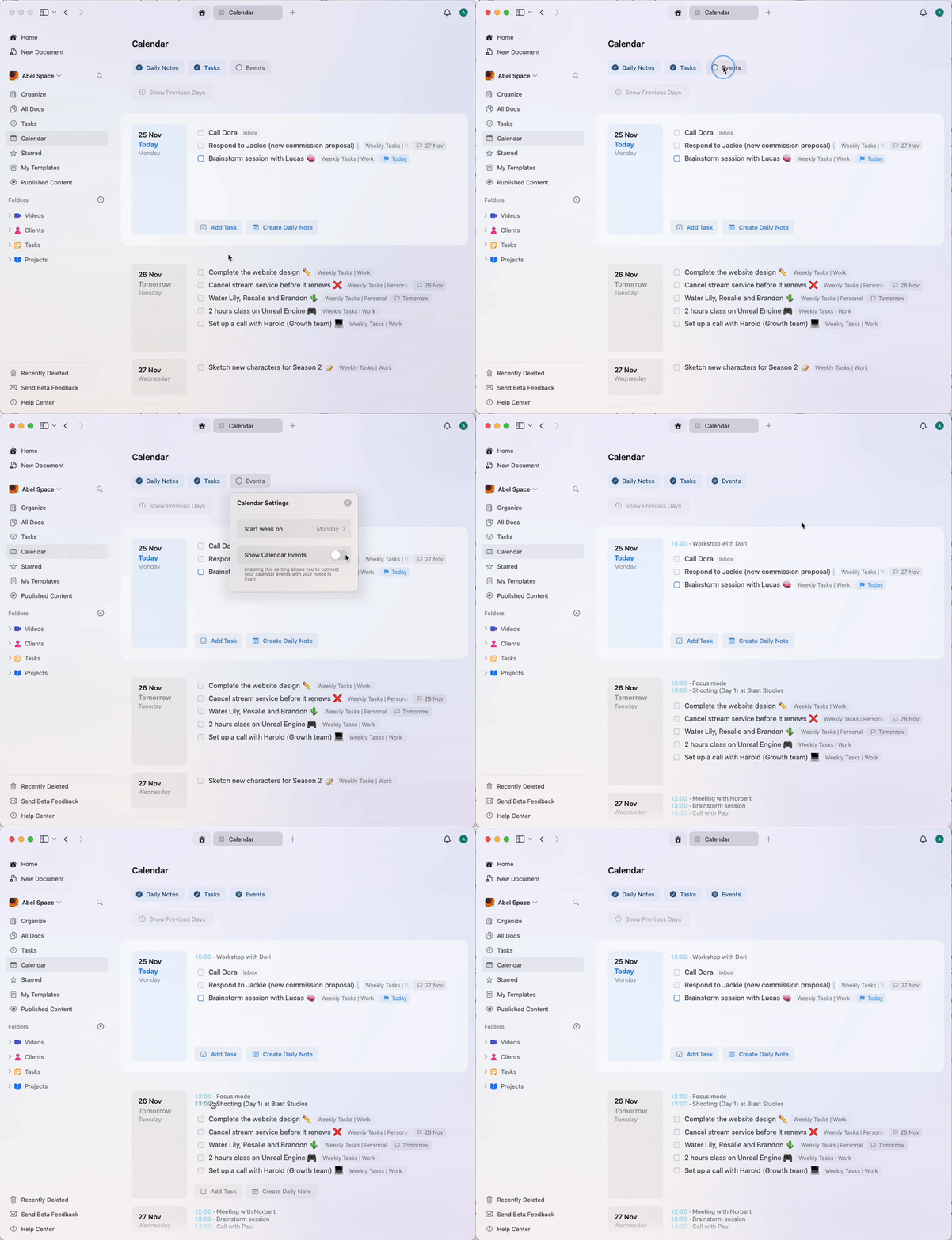
 ## Viewing events
Turn on the events option to see meetings, appointments, and calendar events for the selected day. All events synced from your external calendar appear automatically.
## Viewing events
Turn on the events option to see meetings, appointments, and calendar events for the selected day. All events synced from your external calendar appear automatically.
 ## Customizing the Calendar view
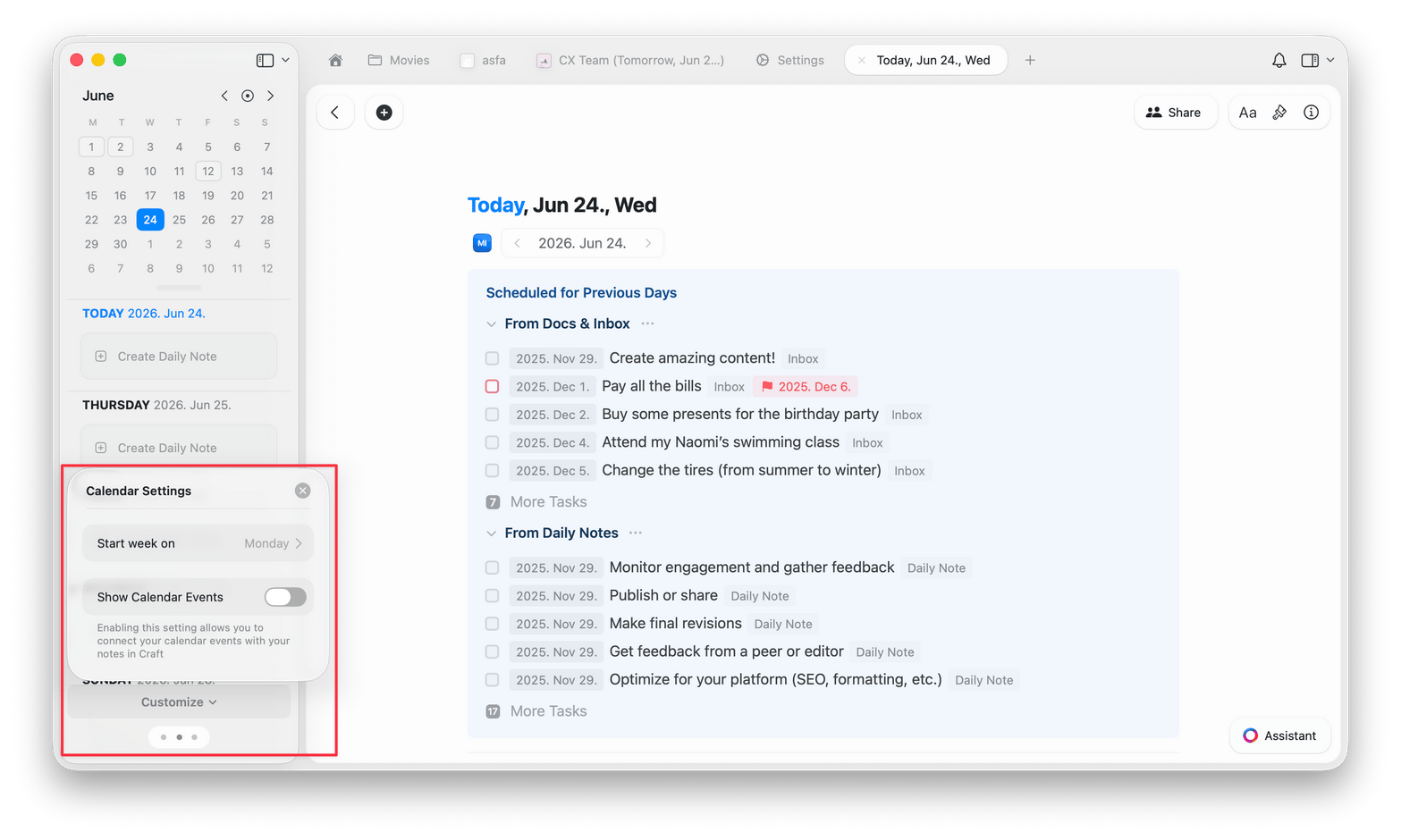
Use the settings in the Calendar tab to enable or disable daily notes, tasks, and events.
You can also control which day the week begins. On macOS and iOS, open Calendar → **Customize** and select your preferred day from the **Start week on** dropdown. On Web and Windows, the first day of the week follows your device's locale settings.
## Customizing the Calendar view
Use the settings in the Calendar tab to enable or disable daily notes, tasks, and events.
You can also control which day the week begins. On macOS and iOS, open Calendar → **Customize** and select your preferred day from the **Start week on** dropdown. On Web and Windows, the first day of the week follows your device's locale settings.
 ## Event notes
Once your calendar is synced to Craft, you can create Event Notes for any future or past events. These notes have the same editing and styling features as any other document in Craft.
### Creating event notes
Make sure your calendar is synced to Craft
Open a Daily Note or create a new one
Switch to Calendar View in the left sidebar
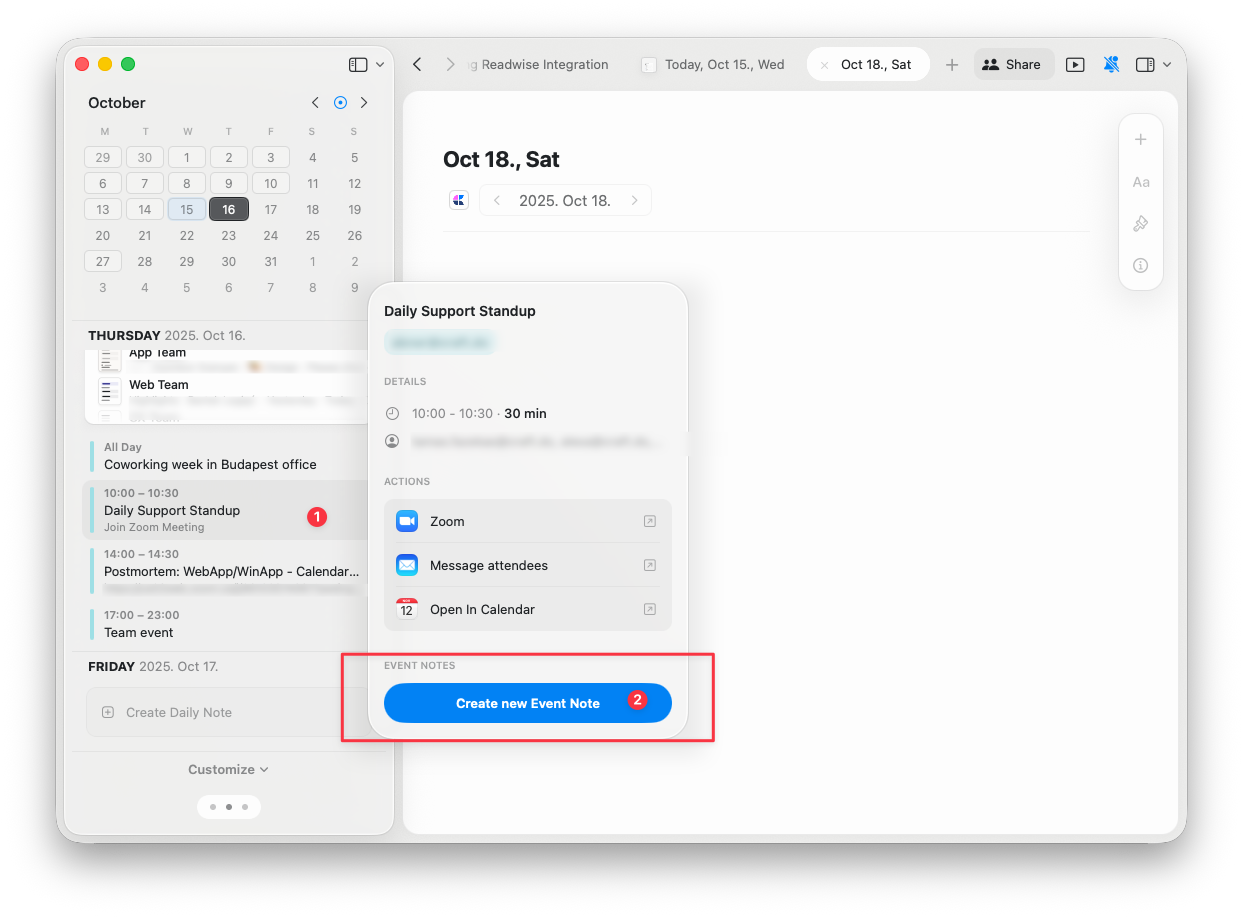
Click the desired event and select "Create New Event Note"
## Event notes
Once your calendar is synced to Craft, you can create Event Notes for any future or past events. These notes have the same editing and styling features as any other document in Craft.
### Creating event notes
Make sure your calendar is synced to Craft
Open a Daily Note or create a new one
Switch to Calendar View in the left sidebar
Click the desired event and select "Create New Event Note"
 It is not possible to create event notes if your calendar is not synced to Craft.
### Where event notes are stored
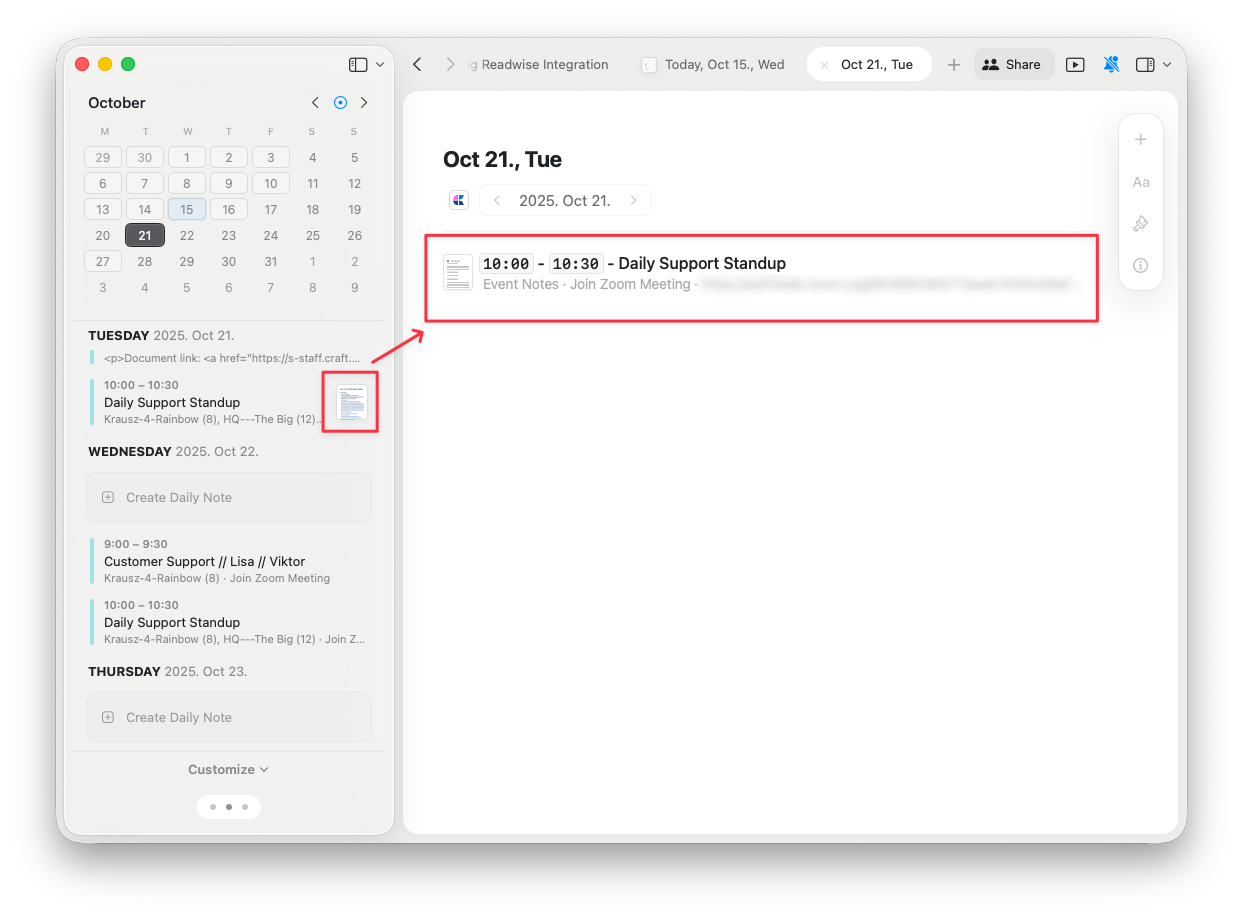
The new Event Note will be automatically added to the Daily Note of the corresponding date as a subpage:
It is not possible to create event notes if your calendar is not synced to Craft.
### Where event notes are stored
The new Event Note will be automatically added to the Daily Note of the corresponding date as a subpage:
 ### Recurring event notes
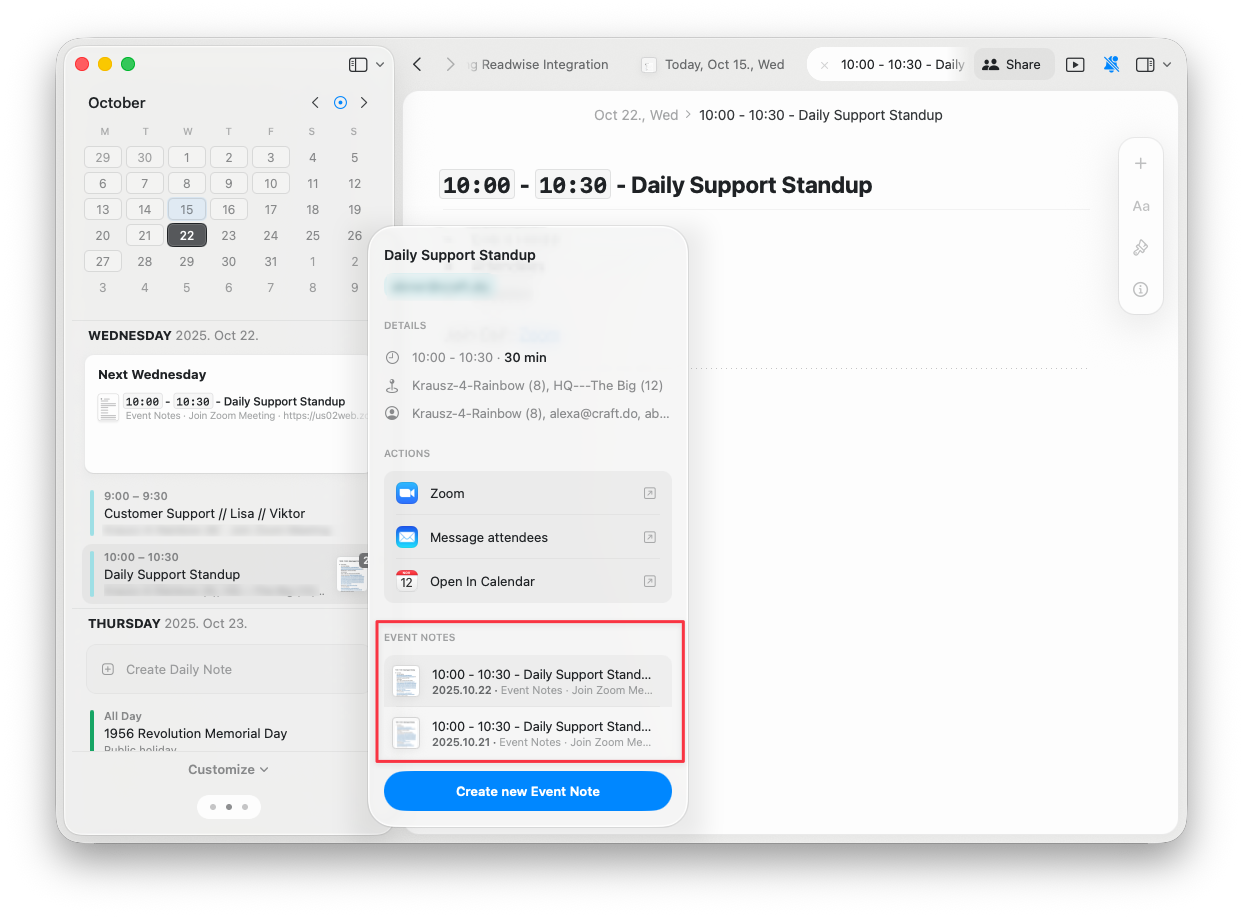
If you accepted a recurring event invitation in a single batch, all Event Notes you create for that event are visible in every past and future occurrence of the same event:
### Recurring event notes
If you accepted a recurring event invitation in a single batch, all Event Notes you create for that event are visible in every past and future occurrence of the same event:
 ### What happens to event notes if you disable calendar or delete the event?
If you delete or disable the calendar events in Craft, your Event Notes turn into subpages. They remain stored in the daily notes corresponding to the date of the excluded event.
### Why am I missing event notes for a recurring event?
Any change in a recurring event will be tracked as a new recurring event in Craft, hence the previous Event Notes won't get carried over into the new event.
## Troubleshooting
If you're not seeing your calendar events in the Craft app, try these steps:
**Step 1: Restart the Craft app**
For macOS users:
1. Close the Craft app if it's open
2. Open Activity Monitor from Applications > Utilities
3. Find Craft in the list, select it, and click the "X" button to stop it
4. Reopen the Craft app
A complete restart of the app is necessary after enabling the connection with your calendar for the changes to take effect.
**Step 2: Verify macOS Calendar settings**
If restarting doesn't solve the issue, check your macOS Calendar settings:
* Go to **System Settings > Internet Accounts**
* Select your calendar account (e.g., Google) and ensure it's correctly authenticated
* If necessary, sign in again to refresh the authentication
**Step 3: Adjust calendar refresh rate**
Adjusting the refresh rate can help ensure your events sync properly:
1. Open the Calendar app
2. Navigate to **Calendar > Settings > Accounts**
3. Select the account that's not showing events in Craft
4. Set the "Refresh Calendars" option to "Every minute" for more frequent updates
Make sure the Craft app is updated to the latest version.
**Problem**: Event notes created on iOS/macOS aren't syncing across all platforms with an Outlook calendar integration.
**Reason**: The event note identifiers are created in MS Exchange for different devices, which creates challenges on Craft's side. This appears to be by design in Microsoft Exchange, and since we don't have control over the identifier creation, it's not something we can resolve at this time.
As a workaround, try creating event notes on the platform where you'll primarily access them.
For general troubleshooting, sync, or platform-specific issues, see the [Troubleshooting Guide](/en/introduction/troubleshooting).
## Related articles
Capture thoughts and plans with automatically organized daily pages
Manage tasks across your documents with a centralized hub
Set up Apple Calendar integration with Craft
Get notified about important deadlines and events
Understand how event notes work with Craft's page structure
### What happens to event notes if you disable calendar or delete the event?
If you delete or disable the calendar events in Craft, your Event Notes turn into subpages. They remain stored in the daily notes corresponding to the date of the excluded event.
### Why am I missing event notes for a recurring event?
Any change in a recurring event will be tracked as a new recurring event in Craft, hence the previous Event Notes won't get carried over into the new event.
## Troubleshooting
If you're not seeing your calendar events in the Craft app, try these steps:
**Step 1: Restart the Craft app**
For macOS users:
1. Close the Craft app if it's open
2. Open Activity Monitor from Applications > Utilities
3. Find Craft in the list, select it, and click the "X" button to stop it
4. Reopen the Craft app
A complete restart of the app is necessary after enabling the connection with your calendar for the changes to take effect.
**Step 2: Verify macOS Calendar settings**
If restarting doesn't solve the issue, check your macOS Calendar settings:
* Go to **System Settings > Internet Accounts**
* Select your calendar account (e.g., Google) and ensure it's correctly authenticated
* If necessary, sign in again to refresh the authentication
**Step 3: Adjust calendar refresh rate**
Adjusting the refresh rate can help ensure your events sync properly:
1. Open the Calendar app
2. Navigate to **Calendar > Settings > Accounts**
3. Select the account that's not showing events in Craft
4. Set the "Refresh Calendars" option to "Every minute" for more frequent updates
Make sure the Craft app is updated to the latest version.
**Problem**: Event notes created on iOS/macOS aren't syncing across all platforms with an Outlook calendar integration.
**Reason**: The event note identifiers are created in MS Exchange for different devices, which creates challenges on Craft's side. This appears to be by design in Microsoft Exchange, and since we don't have control over the identifier creation, it's not something we can resolve at this time.
As a workaround, try creating event notes on the platform where you'll primarily access them.
For general troubleshooting, sync, or platform-specific issues, see the [Troubleshooting Guide](/en/introduction/troubleshooting).
## Related articles
Capture thoughts and plans with automatically organized daily pages
Manage tasks across your documents with a centralized hub
Set up Apple Calendar integration with Craft
Get notified about important deadlines and events
Understand how event notes work with Craft's page structure