> ## Documentation Index
> Fetch the complete documentation index at: https://craft-support.mintlify.site/llms.txt
> Use this file to discover all available pages before exploring further.
# Tasks
> Manage every task across your documents from one place. Capture, schedule, organize, and complete tasks with the Inbox, Today, Upcoming, and All tabs.
At Craft, documents are at the heart of everything we do. Tasks bring your to-dos to the surface so you can manage them across all of your documents, while keeping each task connected to the content it belongs to.
A task starts as a checkbox block. It has a title, can carry up to three dates (a **schedule**, a **deadline**, and a **reminder**), and can follow a **repeat rule**. It can live anywhere: inside a document, in a daily note, or on its own in the Inbox.
Because a task is a block like any other, it can hold more than a title. Nest notes, links, or even other tasks beneath it and it grows into a full page, and you can tag it so it turns up in the same filters and searches as the rest of your content.
A task is more than a checkbox in one place, though. The same task spans your whole space and shows up wherever it is relevant, so you act on it from whichever view you happen to be in and it stays in sync everywhere.
Craft's task system is inspired by the GTD (Getting Things Done) framework, helping you capture, organize, and complete tasks efficiently.
## One task, every view
Because a task is more than a checkbox in a single spot, the same task surfaces wherever it is relevant. Give it a schedule and it appears on your **Calendar** next to your events, and inside the **daily note** for that day. Check it off in one place and it updates everywhere, so you never have to hunt down a duplicate.
## The four tabs at a glance
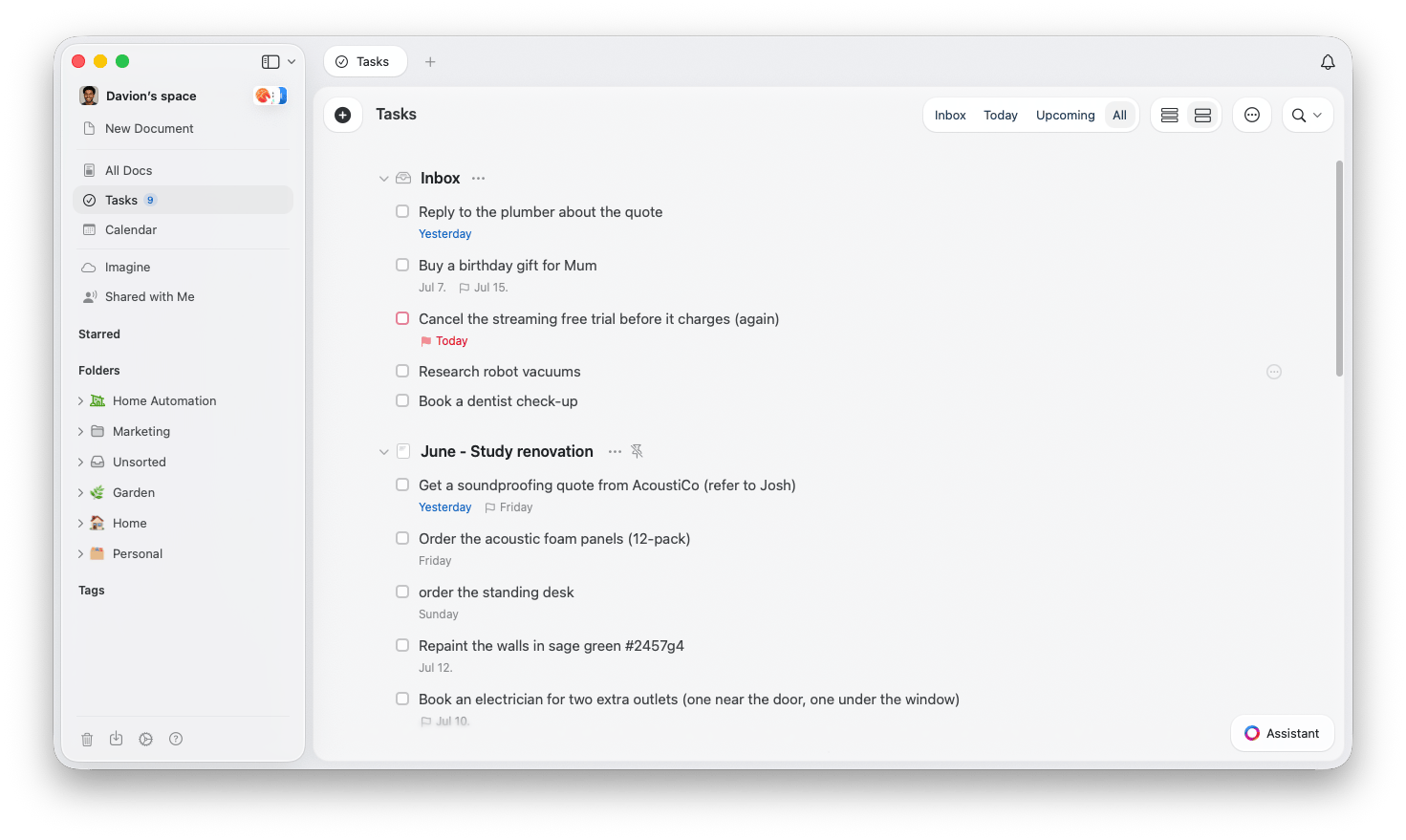
Open Tasks from the sidebar to see everything in one place. The view is organized into four tabs:
* **Inbox** - Capture tasks quickly without tying them to a document. [Learn how to create tasks](/en/plan-and-do/tasks/creating-tasks).
* **Today** - Everything scheduled for today, including tasks that rolled over from earlier. [See the Tasks views](/en/plan-and-do/tasks/tasks-views).
* **Upcoming** - Tasks scheduled for the days, weeks, and months ahead. [See the Tasks views](/en/plan-and-do/tasks/tasks-views).
* **All** - Every task across every document, grouped by the document it lives in. [See the Tasks views](/en/plan-and-do/tasks/tasks-views).
## Good to know
Your **Calendar** is its own section in the sidebar, not a tab inside Tasks. It shows scheduled tasks alongside events and daily notes. See the [Calendar](/en/plan-and-do/calendar) article for details.
Tasks reopens on the tab you last used, so you land back where you left off each time you open it.
You can show a running count of today's tasks right next to the Tasks item in the sidebar. It is off by default. Open the **...** menu on the Tasks sidebar item and choose **Show Today's Tasks Count** to turn it on.
For now, these task features live in the Mac and iPhone/iPad apps. Tasks also work on Windows and the web app, with similar functionality but a reduced set of capabilities and view options.
## Related articles
The Inbox and every way to create a task
Schedules, deadlines, reminders, and recurring tasks
The Inbox, Today, Upcoming, and All tabs
Multi-select, bulk edit, completing tasks, and the Logbook
View your tasks, events, and daily notes in one place
Get notified about important tasks and deadlines
Organize your daily tasks with automatic daily pages
 ## One task, every view
Because a task is more than a checkbox in a single spot, the same task surfaces wherever it is relevant. Give it a schedule and it appears on your **Calendar** next to your events, and inside the **daily note** for that day. Check it off in one place and it updates everywhere, so you never have to hunt down a duplicate.
## The four tabs at a glance
Open Tasks from the sidebar to see everything in one place. The view is organized into four tabs:
* **Inbox** - Capture tasks quickly without tying them to a document. [Learn how to create tasks](/en/plan-and-do/tasks/creating-tasks).
* **Today** - Everything scheduled for today, including tasks that rolled over from earlier. [See the Tasks views](/en/plan-and-do/tasks/tasks-views).
* **Upcoming** - Tasks scheduled for the days, weeks, and months ahead. [See the Tasks views](/en/plan-and-do/tasks/tasks-views).
* **All** - Every task across every document, grouped by the document it lives in. [See the Tasks views](/en/plan-and-do/tasks/tasks-views).
## Good to know
## One task, every view
Because a task is more than a checkbox in a single spot, the same task surfaces wherever it is relevant. Give it a schedule and it appears on your **Calendar** next to your events, and inside the **daily note** for that day. Check it off in one place and it updates everywhere, so you never have to hunt down a duplicate.
## The four tabs at a glance
Open Tasks from the sidebar to see everything in one place. The view is organized into four tabs:
* **Inbox** - Capture tasks quickly without tying them to a document. [Learn how to create tasks](/en/plan-and-do/tasks/creating-tasks).
* **Today** - Everything scheduled for today, including tasks that rolled over from earlier. [See the Tasks views](/en/plan-and-do/tasks/tasks-views).
* **Upcoming** - Tasks scheduled for the days, weeks, and months ahead. [See the Tasks views](/en/plan-and-do/tasks/tasks-views).
* **All** - Every task across every document, grouped by the document it lives in. [See the Tasks views](/en/plan-and-do/tasks/tasks-views).
## Good to know