> ## Documentation Index
> Fetch the complete documentation index at: https://craft-support.mintlify.site/llms.txt
> Use this file to discover all available pages before exploring further.
# Formatting
> Master text formatting in Craft with the formatting toolbar, slash menu, markdown, and keyboard shortcuts.
Craft gives you multiple ways to format text, from the visual formatting toolbar to keyboard-driven markdown commands. Whether you prefer clicking, typing, or a mix of both, there's a method that fits your style.
## Text, Block, and Page Formatting
This section covers **text formatting**: inline styles and special elements applied to the text itself. It sits alongside two other levels of styling in Craft:
* **Text formatting** (this section) – Inline styles like bold, italic, and highlights, plus special elements like dates, emoji, and links
* **Block formatting** – Structural elements like headings, lists, quotes, and code blocks (see [Blocks and Pages](/en/write-and-edit/blocks-and-pages))
* **Page styling** – Visual design including colors, backgrounds, and fonts (see [Styling](/en/write-and-edit/styling))
## Four Ways to Format Text
Select any text and the formatting toolbar appears with options for bold, italic, highlights, links, and more. The most visual way to format – nothing to memorize.
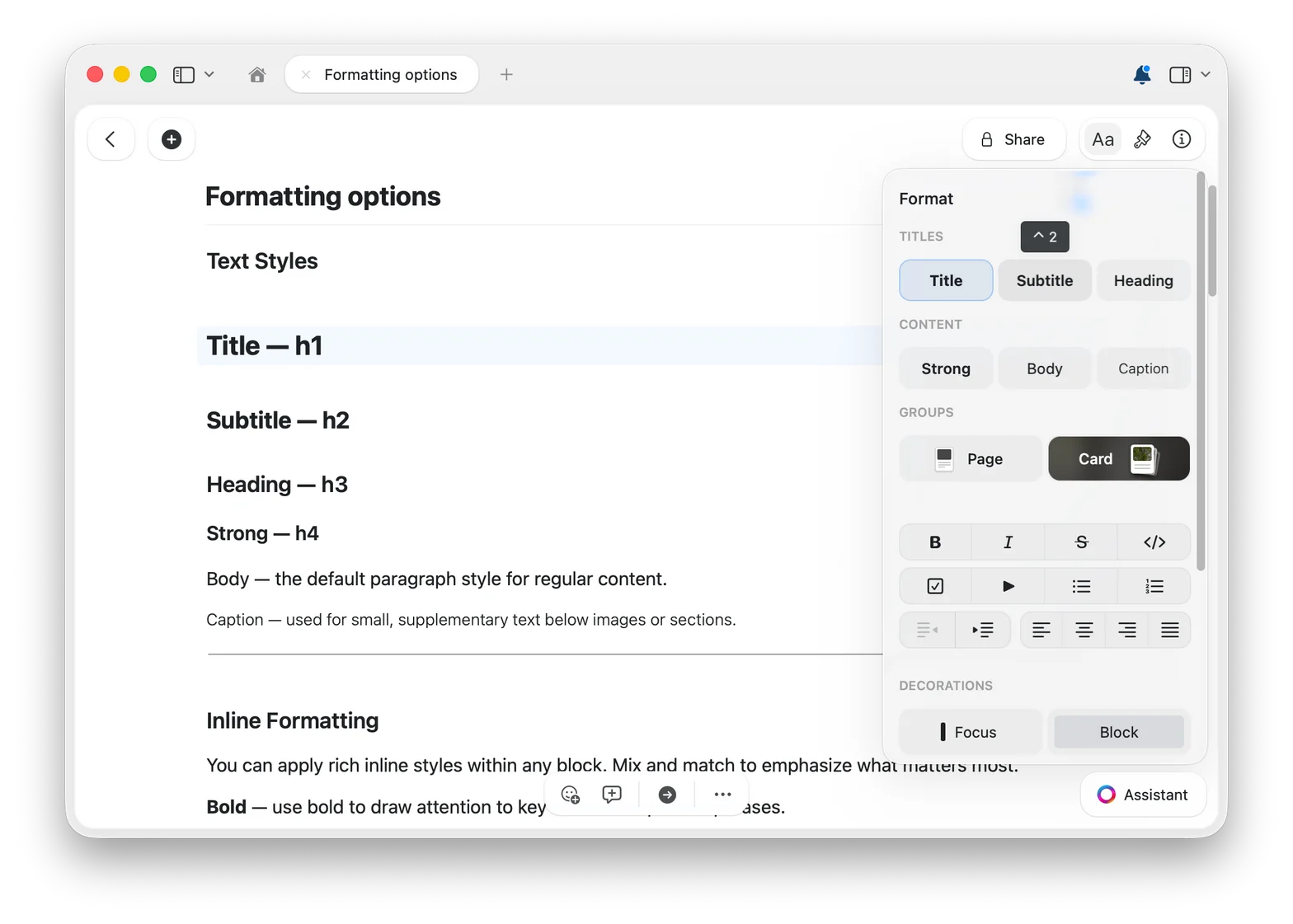
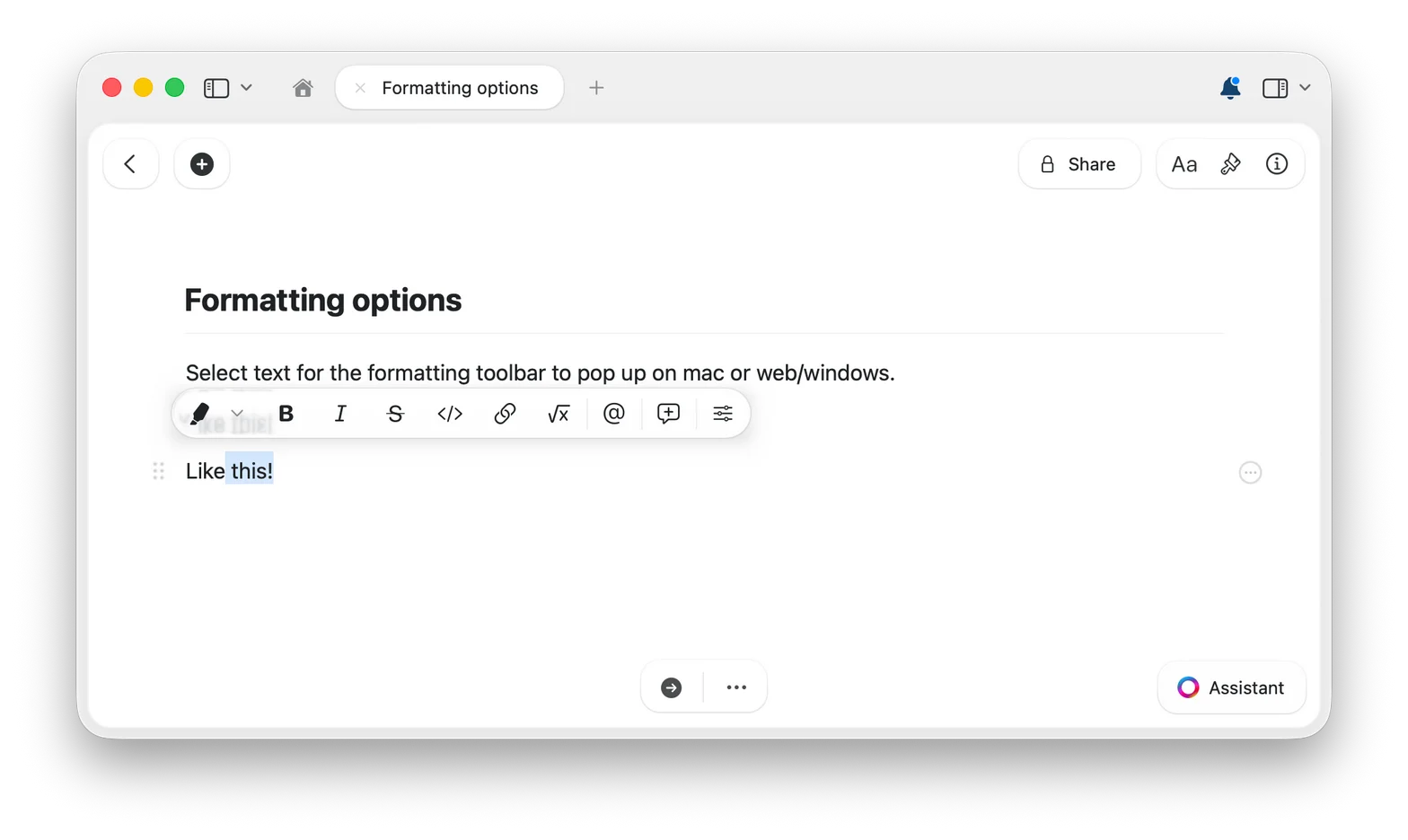 For every text and block style in one place, open the **Format panel** with the `Aa` button in the top-right corner.
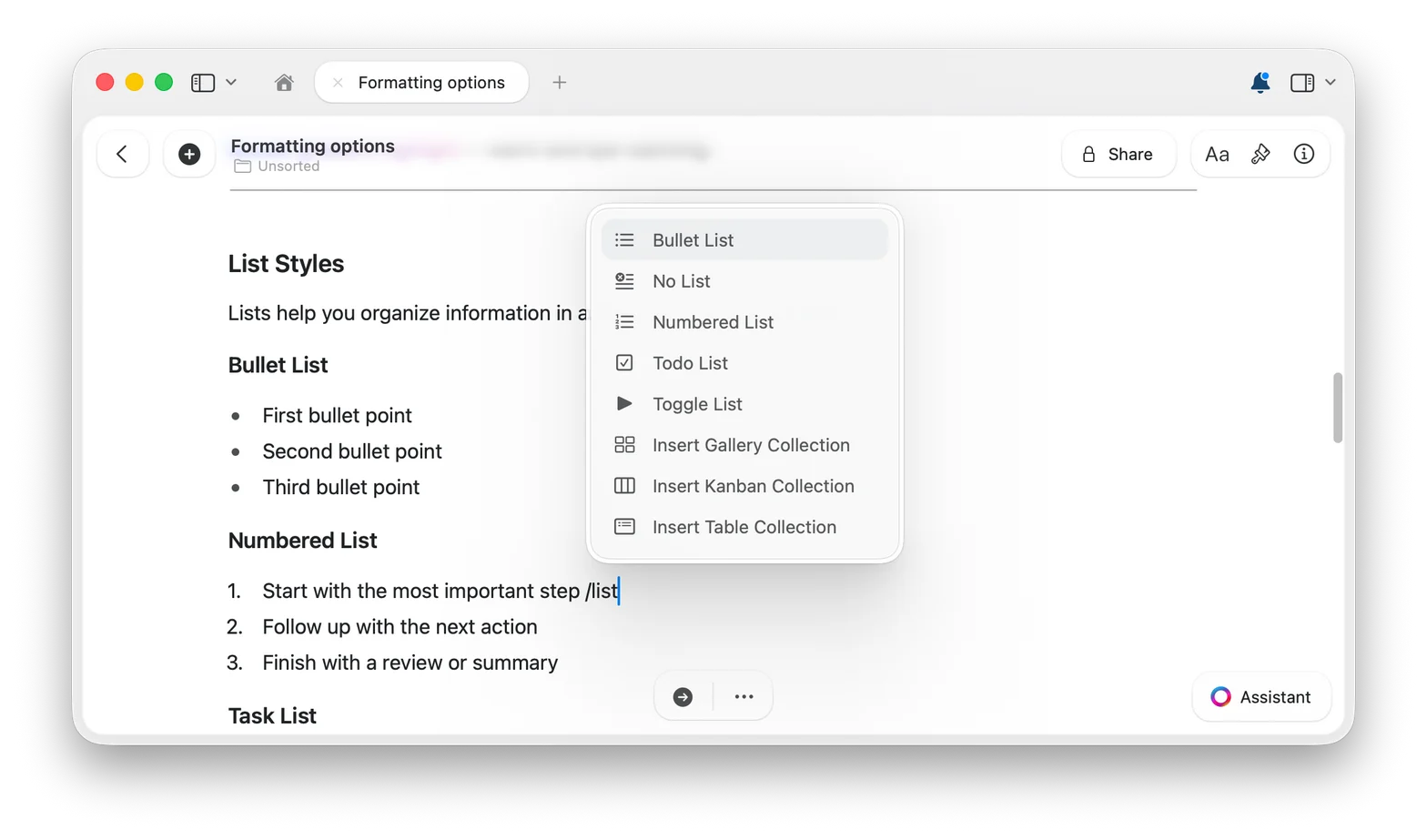
 Type `/` to open the command menu, then keep typing to filter for the style or action you need. A great way to discover what Craft can do.
 [Learn more about the slash menu](/en/introduction/slash-menu)
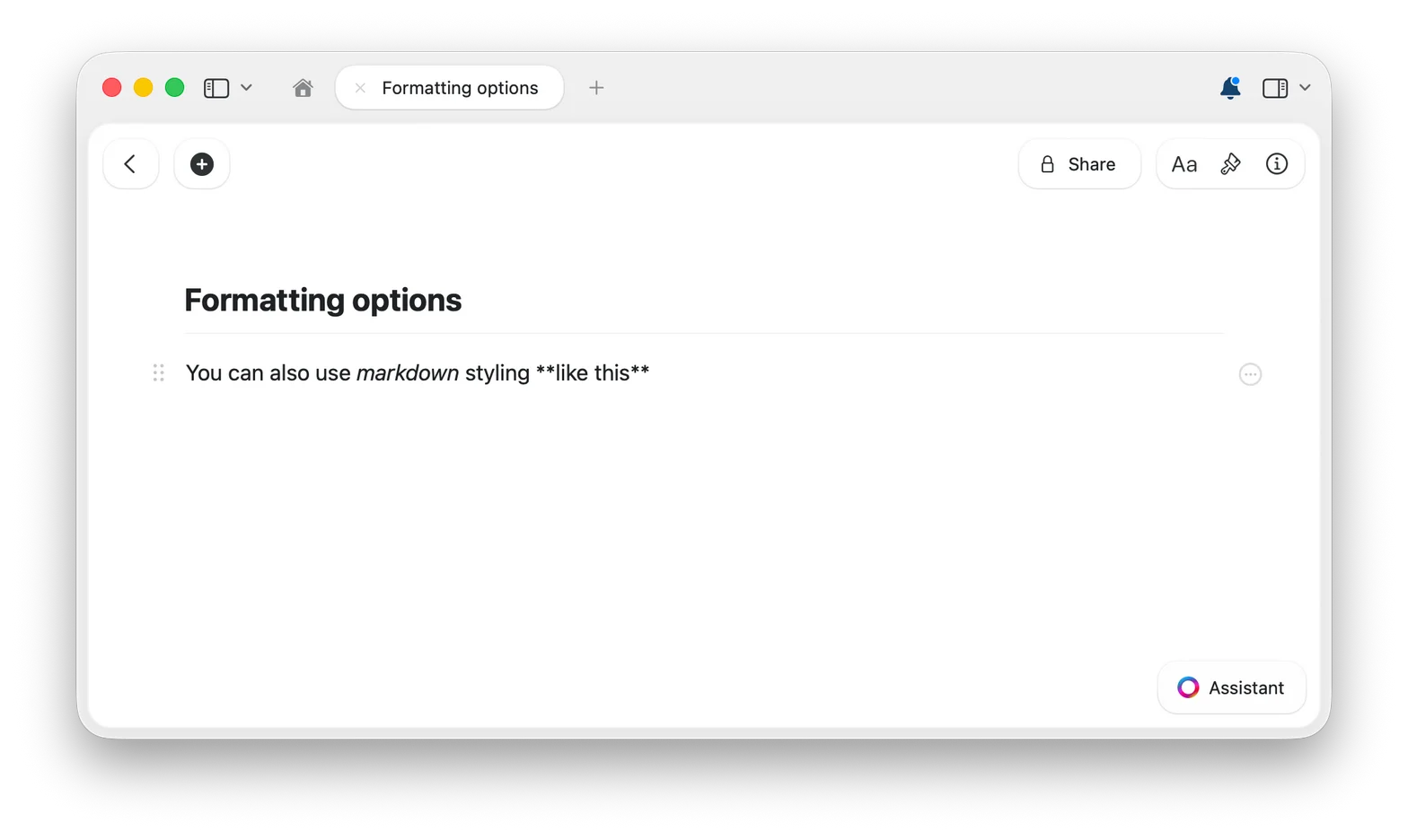
Use familiar markdown syntax as you write – type `**bold text**` and it turns into **bold text** the moment you close the asterisks.
[Learn more about the slash menu](/en/introduction/slash-menu)
Use familiar markdown syntax as you write – type `**bold text**` and it turns into **bold text** the moment you close the asterisks.
 [See all markdown shortcuts](/en/write-and-edit/formatting/markdown-shortcuts)
Quick commands like `Cmd+B` for bold or `Cmd+I` for italic are the fastest method once memorized. On Mac, click the question mark button in the bottom right corner to see all available shortcuts. On other platforms, hover over toolbar buttons to reveal their keyboard shortcuts.
[See all markdown shortcuts](/en/write-and-edit/formatting/markdown-shortcuts)
Quick commands like `Cmd+B` for bold or `Cmd+I` for italic are the fastest method once memorized. On Mac, click the question mark button in the bottom right corner to see all available shortcuts. On other platforms, hover over toolbar buttons to reveal their keyboard shortcuts.
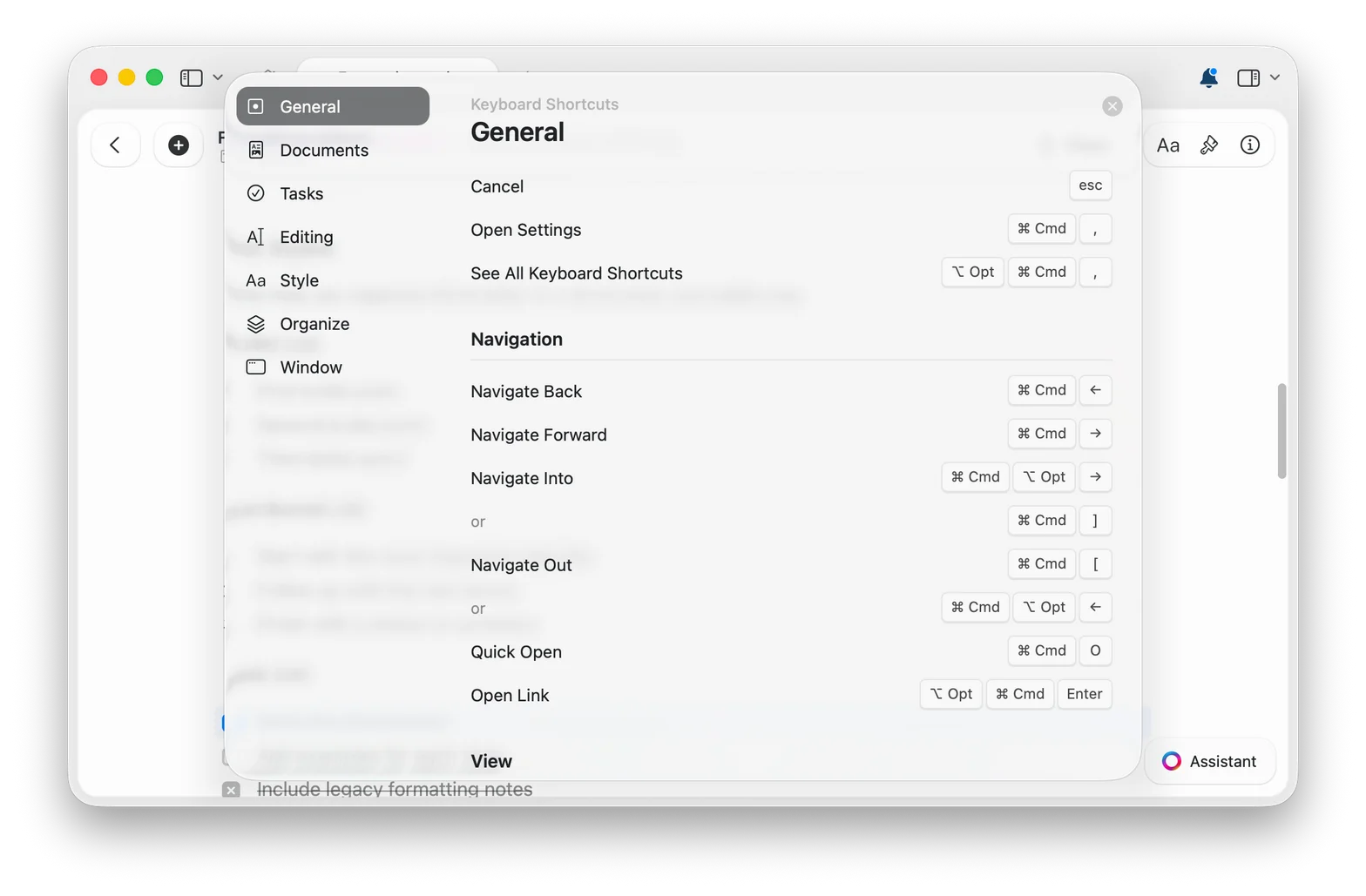 [Browse all keyboard shortcuts](/en/introduction/shortcuts)
All four methods work together – mix and match based on what you're doing.
## All Formatting Features
Configure spell checking in 34 languages, globally or per document
Format text as you write with markdown syntax
Access every feature without leaving your keyboard
Search and replace text across your documents
Wrap selected text in brackets, parentheses, or braces
Insert date badges that link to daily notes
Insert emoji by typing `:` followed by the emoji name
Format mathematical notation, formulas, and footnotes
Write equations using LaTeX notation – inline or as standalone blocks
[Browse all keyboard shortcuts](/en/introduction/shortcuts)
All four methods work together – mix and match based on what you're doing.
## All Formatting Features
Configure spell checking in 34 languages, globally or per document
Format text as you write with markdown syntax
Access every feature without leaving your keyboard
Search and replace text across your documents
Wrap selected text in brackets, parentheses, or braces
Insert date badges that link to daily notes
Insert emoji by typing `:` followed by the emoji name
Format mathematical notation, formulas, and footnotes
Write equations using LaTeX notation – inline or as standalone blocks