> ## Documentation Index
> Fetch the complete documentation index at: https://craft-support.mintlify.site/llms.txt
> Use this file to discover all available pages before exploring further.
# AIプロバイダに接続する
> Craft AIクレジットの代わりに、ご自身のOpenAIまたはAnthropicの認証情報をCraft Assistantで使用します。
Craft Assistantはデフォルトでは Craft AIクレジットを使用しますが、代わりにご自身のAIプロバイダアカウントを接続できます。接続済みのプロバイダを使用した場合、Craft AIクレジットは消費されません。
この機能は **macOS** および **iOS** でのみ利用できます。現在、WebおよびWindowsでは利用できません。
## 利用可能なプロバイダ
| プロバイダ | 接続方法 |
| ------------- | ---------------------------- |
| **OpenAI** | ChatGPTでサインインするか、APIキーを貼り付ける |
| **Anthropic** | APIキーを貼り付ける |
| **ローカルモデル** | デバイス上で実行、接続不要 |
| **Craft** | デフォルト、Craft AIクレジットを使用 |
接続済みのプロバイダを使用した場合、会話はそのプロバイダのAPIを通じて実行されます。Craft AIの使用量には影響しません。
## プロバイダを接続する
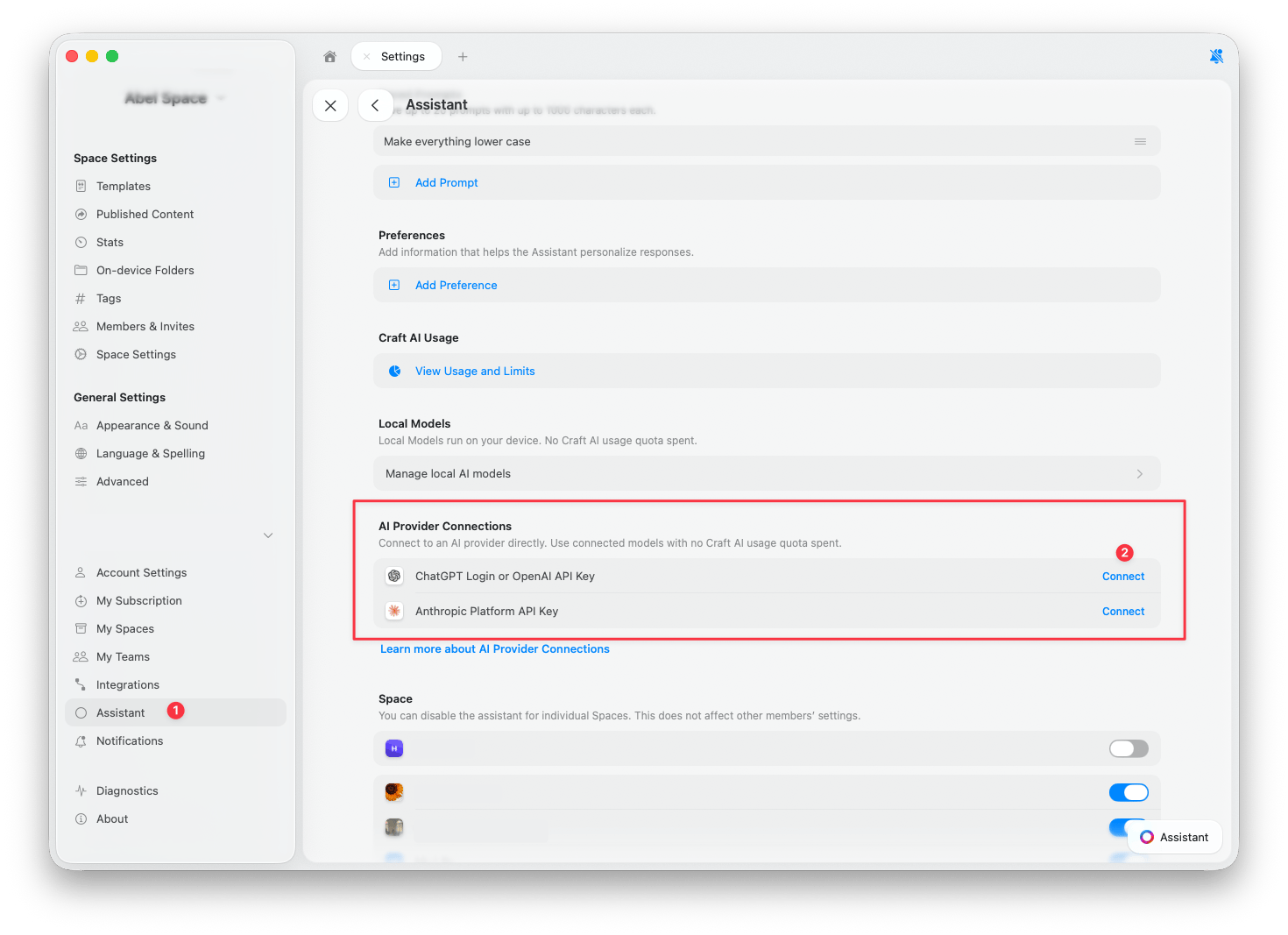
**設定** > **アシスタント** に移動します。
**AIプロバイダ接続** セクションまでスクロールします。
追加したいプロバイダの横にある **接続** をタップします。
アシスタントパネルを開き、新しいプロバイダが選択されていることを確認します。新しい会話は自動的に接続済みのプロバイダを使用しますが、すでに開いているチャットでは引き続きCraftが使用されている場合があります。変更方法については、[プロバイダを切り替える](#プロバイダを切り替える) をご覧ください。
 ### OpenAI
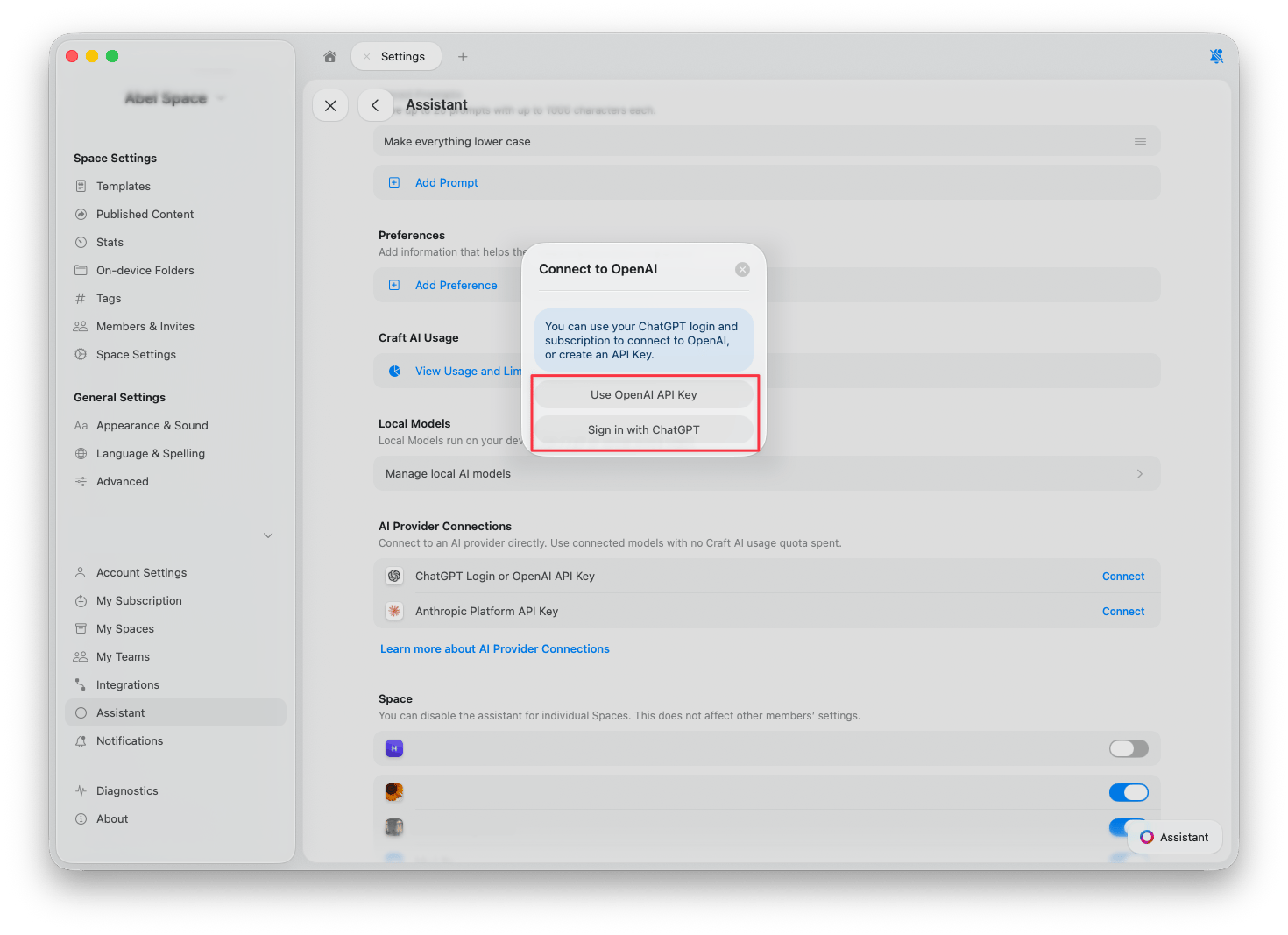
OpenAIの接続方法は2つあります。
* **ChatGPTでサインイン**: 既存のChatGPTアカウントとサブスクリプションを使用します。APIキーは不要です。
* **OpenAI APIキーを使用**: [OpenAI Platform](https://platform.openai.com/api-keys) からAPIキーを貼り付けます。使用料はOpenAIアカウントに請求されます。
### OpenAI
OpenAIの接続方法は2つあります。
* **ChatGPTでサインイン**: 既存のChatGPTアカウントとサブスクリプションを使用します。APIキーは不要です。
* **OpenAI APIキーを使用**: [OpenAI Platform](https://platform.openai.com/api-keys) からAPIキーを貼り付けます。使用料はOpenAIアカウントに請求されます。
 ### Anthropic
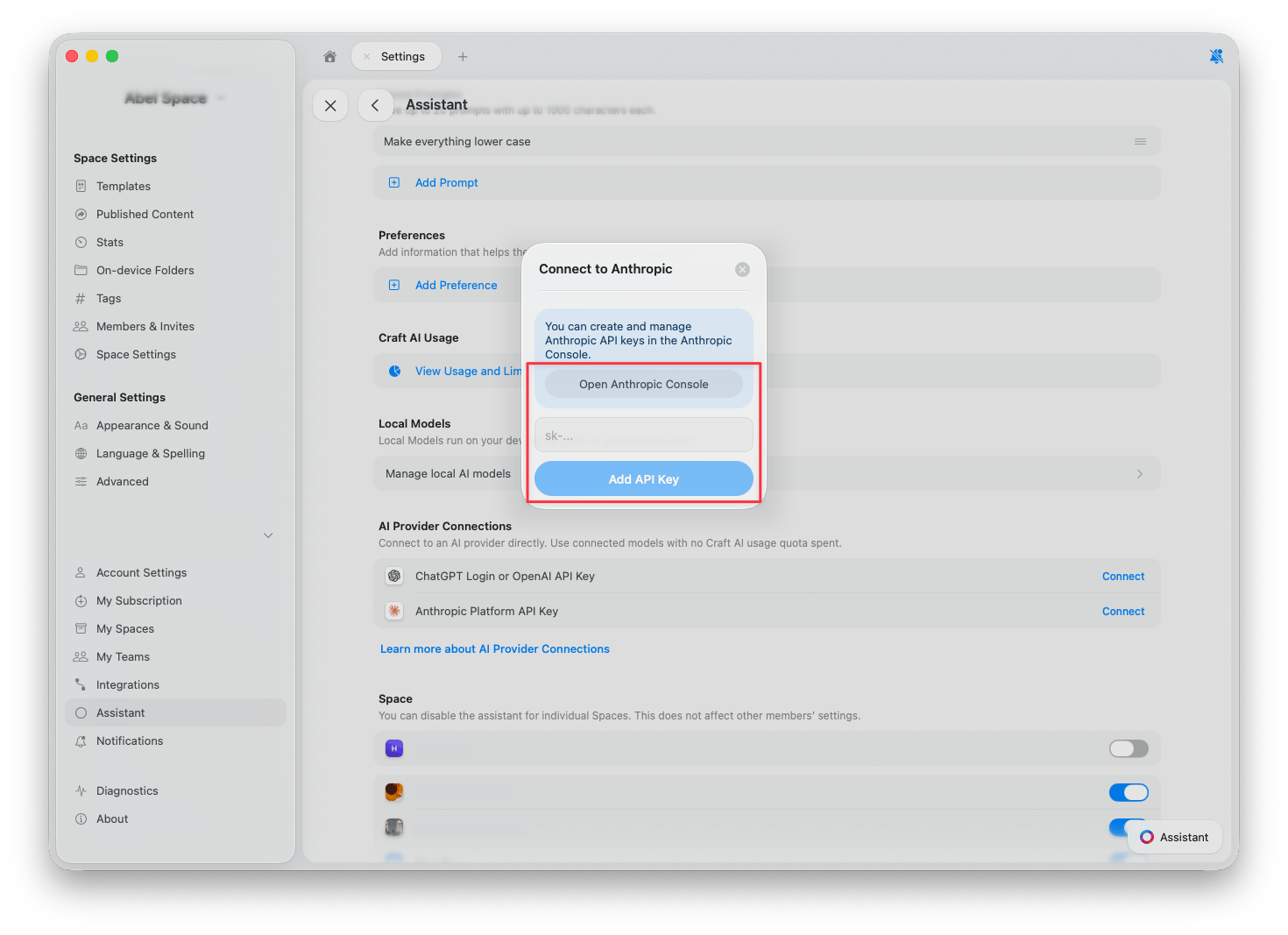
Anthropicに接続するには、[Anthropic Console](https://console.anthropic.com/) からAPIキーを貼り付けます。使用料はAnthropicアカウントに請求されます。
### Anthropic
Anthropicに接続するには、[Anthropic Console](https://console.anthropic.com/) からAPIキーを貼り付けます。使用料はAnthropicアカウントに請求されます。
 ## プロバイダを切り替える
プロバイダを接続すると、アシスタントパネルから直接プロバイダとモデルを切り替えられます。
任意のドキュメントまたはSpaceビューからアシスタントを開きます。
入力フィールドの下にある **アシスタントボタン** をタップします。
ポップアップから **モデル** を選択します。接続済みのプロバイダのモデルがCraftのモデルと並んで表示されます。
## プロバイダを切り替える
プロバイダを接続すると、アシスタントパネルから直接プロバイダとモデルを切り替えられます。
任意のドキュメントまたはSpaceビューからアシスタントを開きます。
入力フィールドの下にある **アシスタントボタン** をタップします。
ポップアップから **モデル** を選択します。接続済みのプロバイダのモデルがCraftのモデルと並んで表示されます。
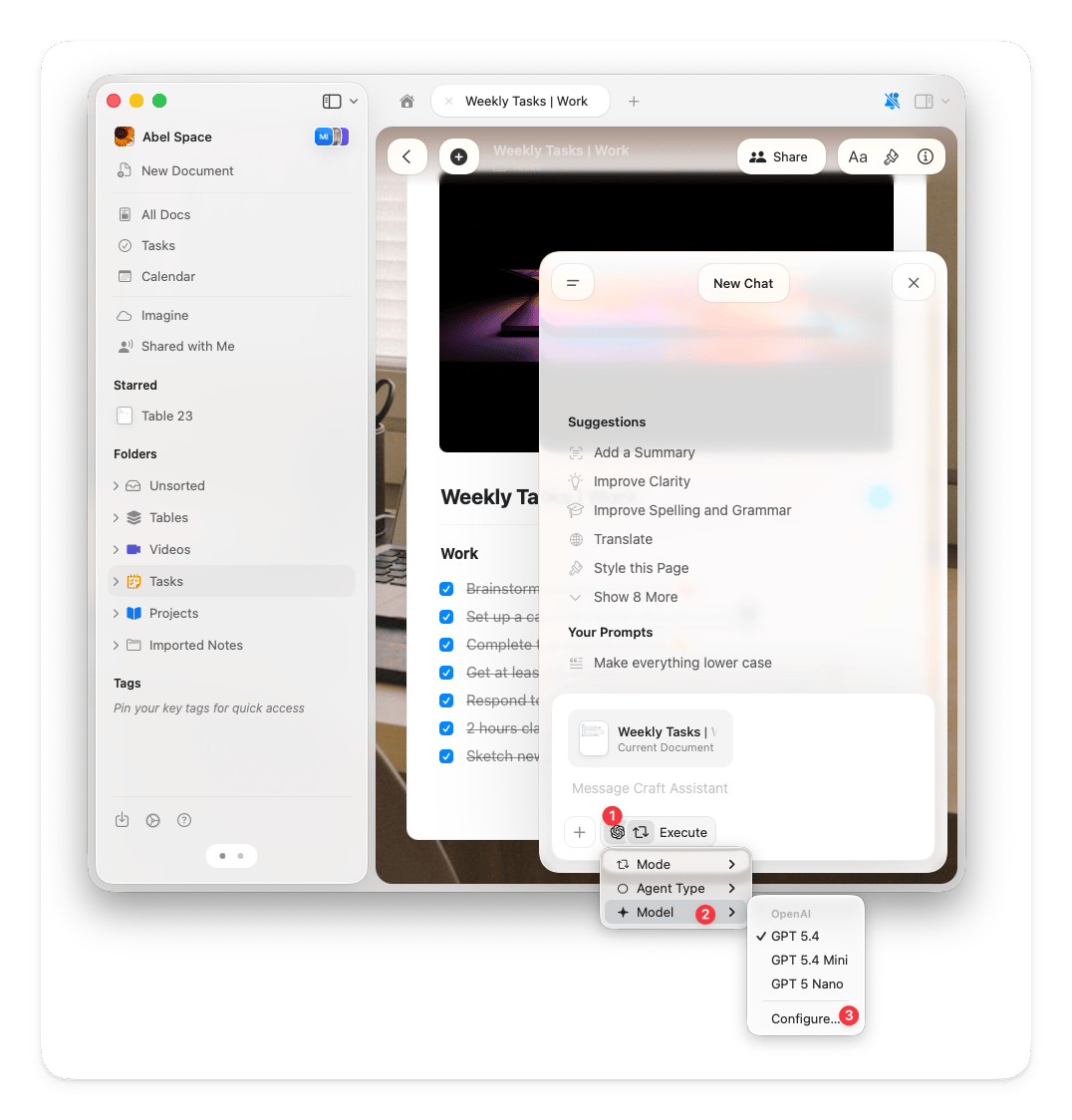 アクティブなプロバイダを変更するには、モデルリストの下部にある **設定** をタップし、**プロバイダ** ドロップダウンからプロバイダを選択します。
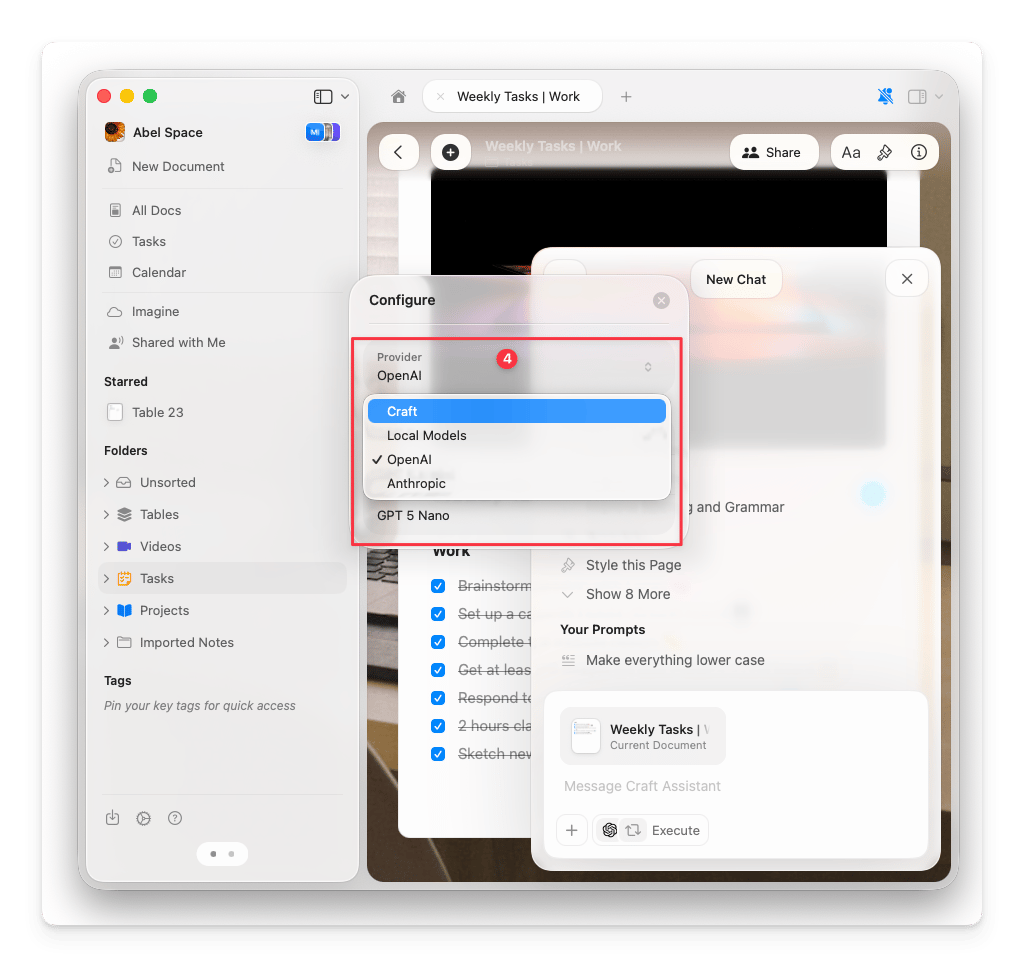 チャット内のバッジを確認することで、どのプロバイダがアクティブかを確認できます。モデル名の横にプロバイダのロゴが表示されるため、会話がCraftクレジットを使用しているか、ご自身のプロバイダを使用しているかを常に確認できます。
## 接続を削除する
**設定** > **アシスタント** に移動します。
**AIプロバイダ接続** セクションで、削除したいプロバイダを見つけます。
接続の横にある **3点ボタン** をタップし、**削除** をタップします。
チャット内のバッジを確認することで、どのプロバイダがアクティブかを確認できます。モデル名の横にプロバイダのロゴが表示されるため、会話がCraftクレジットを使用しているか、ご自身のプロバイダを使用しているかを常に確認できます。
## 接続を削除する
**設定** > **アシスタント** に移動します。
**AIプロバイダ接続** セクションで、削除したいプロバイダを見つけます。
接続の横にある **3点ボタン** をタップし、**削除** をタップします。
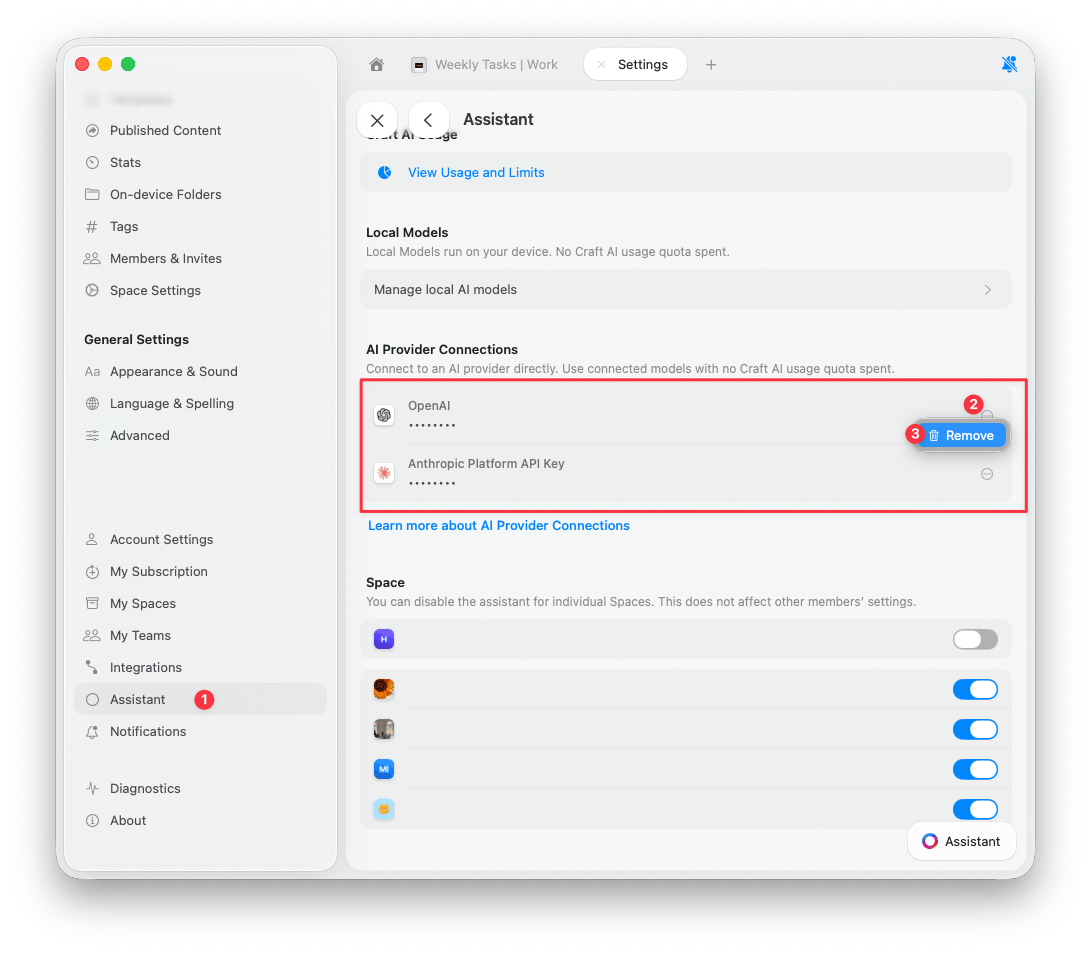 接続を削除すると、アシスタントはCraft AIクレジットに切り替わります。