> ## Documentation Index
> Fetch the complete documentation index at: https://craft-support.mintlify.site/llms.txt
> Use this file to discover all available pages before exploring further.
# 從 Notion 匯入
> 直接將您的 Notion 工作區、頁面和資料庫匯入 Craft,無需匯出檔案。
## 如何開始匯入
開啟 Craft(原生應用程式或網頁版)。
點擊左側側邊欄底部的**匯入**圖示,然後選擇**從 Notion 匯入**。這將開啟位於 [docs.craft.do/import/notion](https://docs.craft.do/import/notion) 的匯入頁面。
## 設定您的 Notion 連線
匯入頁面將引導您完成四個步驟以連接您的 Notion 工作區:
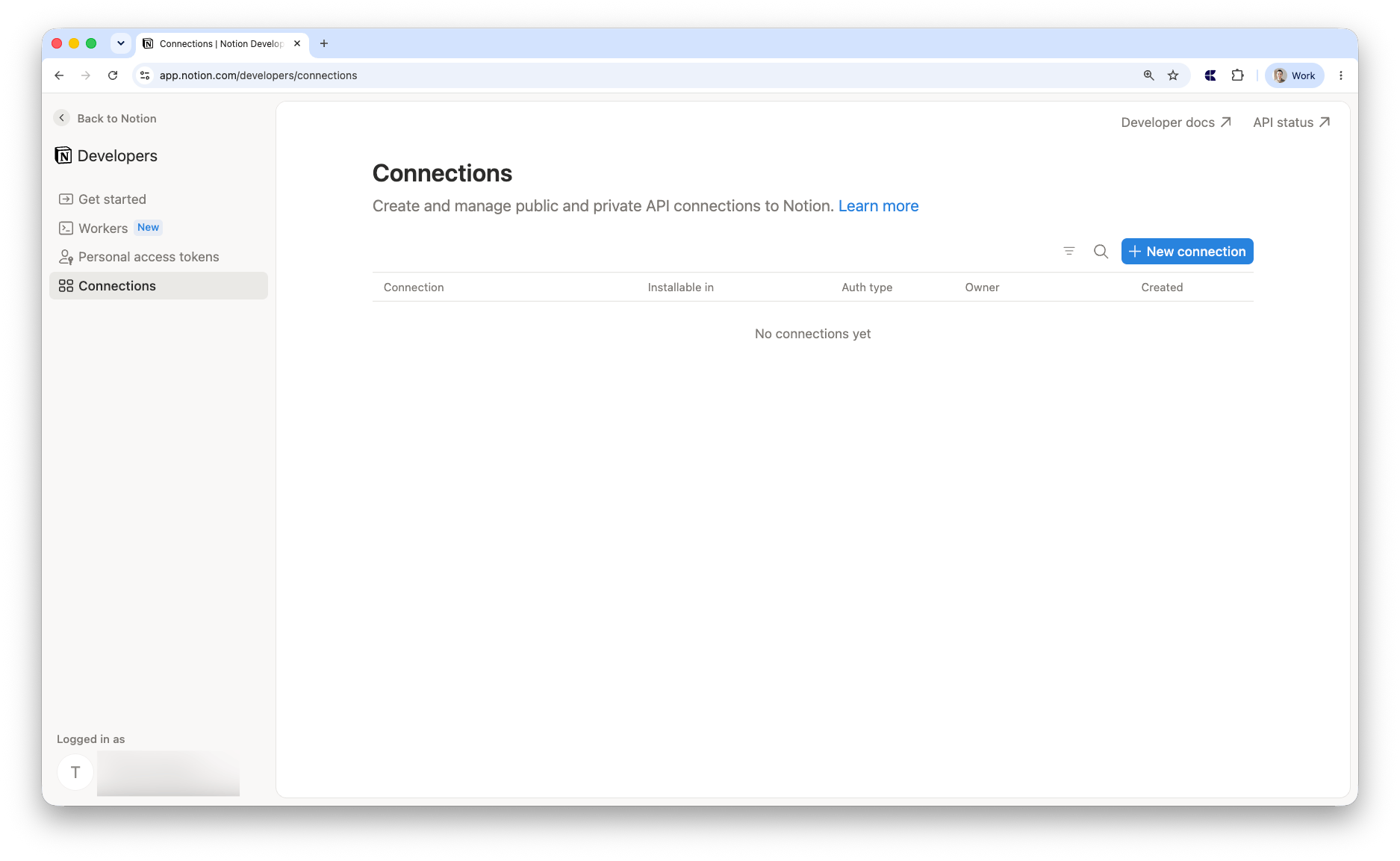
前往 [Notion Connections](https://www.notion.so/profile/integrations) 管理您的連線。
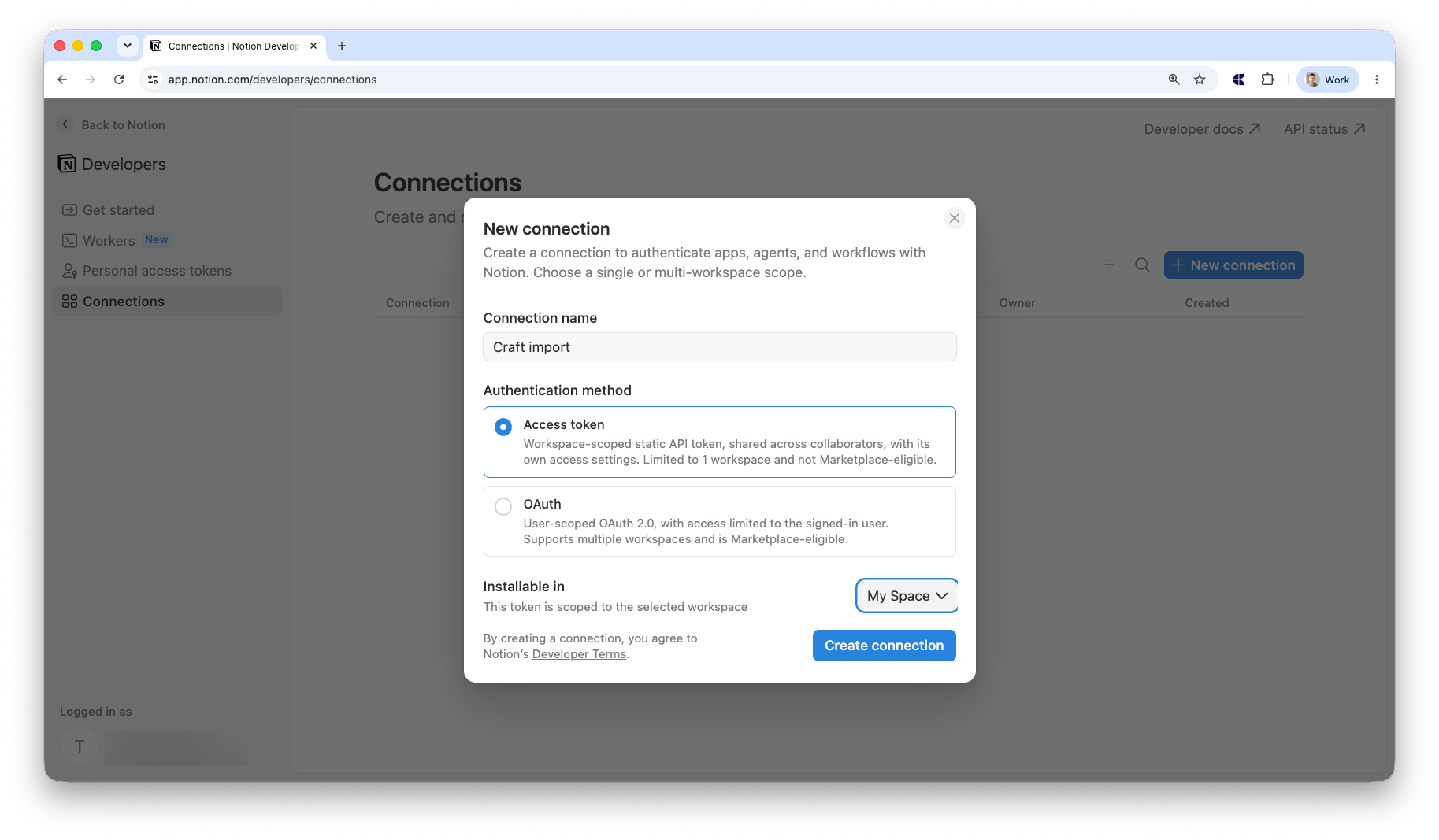
 為其命名,選取 **Access token**,選擇您的工作區,然後點擊 **Save**。
 建立連線時,請確保設定以下功能權限:
* **Read content** — 這是匯入所**必需**的。若未啟用,Craft 將無法存取您的 Notion 頁面。
* **Read comments** — 若您希望匯入 Notion 頁面中的留言,請啟用此項。此項必須在**開始匯入前**選取。
您可以在連線設定的 **Capabilities** 區段中進行設定。
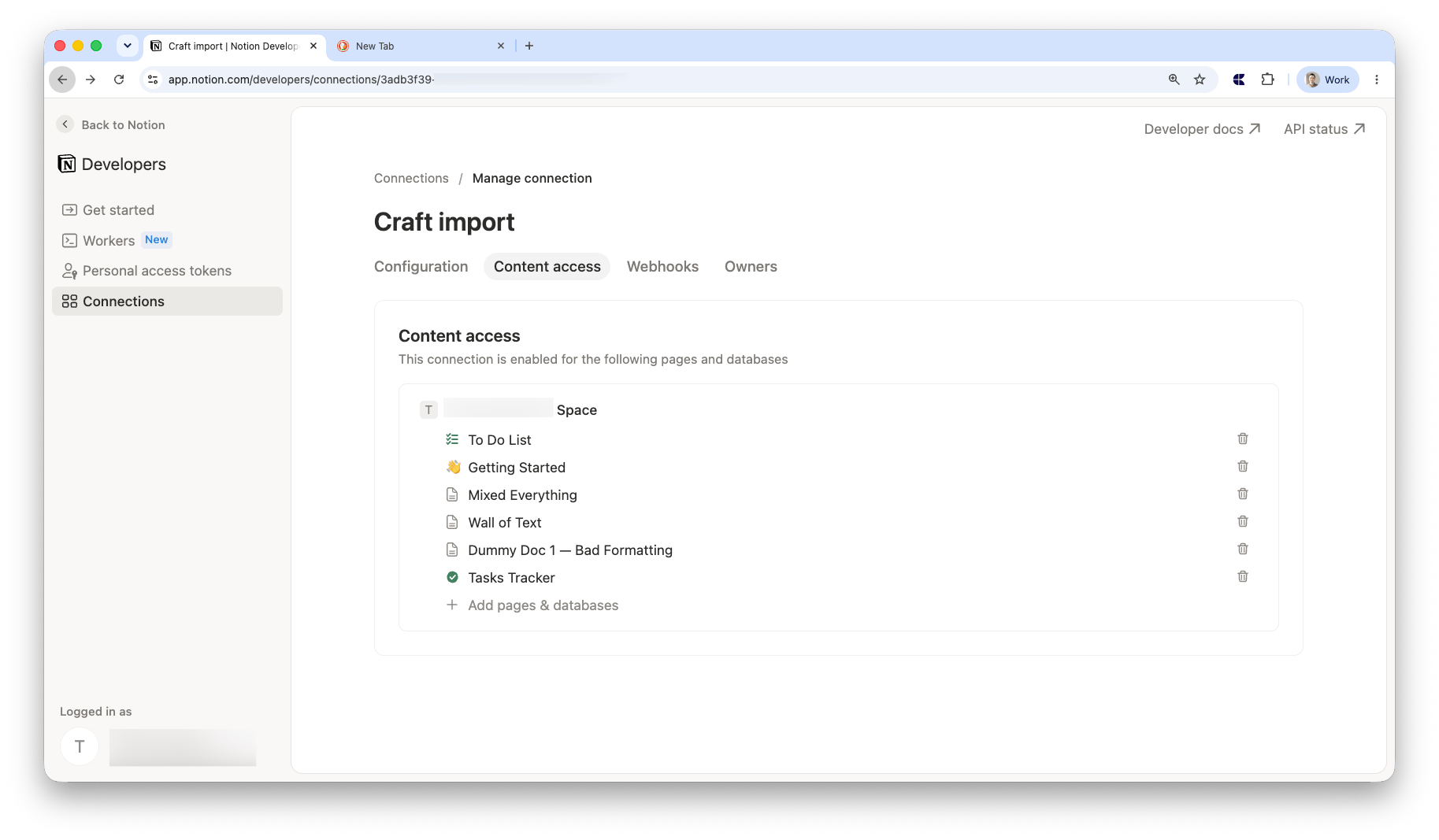
新增您要匯入的頁面和資料庫。您必須逐一新增每個頁面,不能一次選取整個工作區。只有您授予存取權限的頁面才會包含在匯入中。
建立連線時,請確保設定以下功能權限:
* **Read content** — 這是匯入所**必需**的。若未啟用,Craft 將無法存取您的 Notion 頁面。
* **Read comments** — 若您希望匯入 Notion 頁面中的留言,請啟用此項。此項必須在**開始匯入前**選取。
您可以在連線設定的 **Capabilities** 區段中進行設定。
新增您要匯入的頁面和資料庫。您必須逐一新增每個頁面,不能一次選取整個工作區。只有您授予存取權限的頁面才會包含在匯入中。
 返回 **Configuration** 分頁並複製 **Access token**。
## 匯入您的文件
將您的 Access token 貼入匯入頁面上的欄位中。
選擇您希望 Notion 文件出現的 **Craft Space**。您也可以選擇性地指定**目標資料夾**,以整理匯入的文件。
您可以選擇性地開啟 **Include comments**,以將 Notion 留言連同頁面一起匯入(需要 **Read comments** 功能權限——請參閱上方說明)。
點擊 **Import**。您將看到一個進度條顯示文件的匯入進度。您可以隨時關閉頁面——匯入將在背景繼續進行。
## 匯入完成後
完成後,您將看到確認訊息和一個按鈕,點擊後可前往 Craft 查看已匯入的文件。
## 限制
* **關聯資料庫**不會被匯入。僅包含原始資料庫和獨立頁面。關聯(鏡像)資料庫檢視將被略過。
## 疑難排解
請再次確認您是否從 Notion 連線設定的 **Configuration** 分頁中完整複製了 Access token。
請確認您已在 Notion 連線設定的 **Content access** 分頁中選取要匯入的個別頁面和資料庫。您必須逐一選取每個頁面。並確認已在 **Capabilities** 下啟用 **Read content**。
請嘗試重新啟動匯入。如果問題仍然存在,請聯絡支援。
返回 **Configuration** 分頁並複製 **Access token**。
## 匯入您的文件
將您的 Access token 貼入匯入頁面上的欄位中。
選擇您希望 Notion 文件出現的 **Craft Space**。您也可以選擇性地指定**目標資料夾**,以整理匯入的文件。
您可以選擇性地開啟 **Include comments**,以將 Notion 留言連同頁面一起匯入(需要 **Read comments** 功能權限——請參閱上方說明)。
點擊 **Import**。您將看到一個進度條顯示文件的匯入進度。您可以隨時關閉頁面——匯入將在背景繼續進行。
## 匯入完成後
完成後,您將看到確認訊息和一個按鈕,點擊後可前往 Craft 查看已匯入的文件。
## 限制
* **關聯資料庫**不會被匯入。僅包含原始資料庫和獨立頁面。關聯(鏡像)資料庫檢視將被略過。
## 疑難排解
請再次確認您是否從 Notion 連線設定的 **Configuration** 分頁中完整複製了 Access token。
請確認您已在 Notion 連線設定的 **Content access** 分頁中選取要匯入的個別頁面和資料庫。您必須逐一選取每個頁面。並確認已在 **Capabilities** 下啟用 **Read content**。
請嘗試重新啟動匯入。如果問題仍然存在,請聯絡支援。