

How to Set It Up
1
Open any Craft app (Mac, iPad, iPhone, or Web). If you’re using the Web app on a desktop, you can also access the setup page directly via this link: Email to Craft Settings page.
2
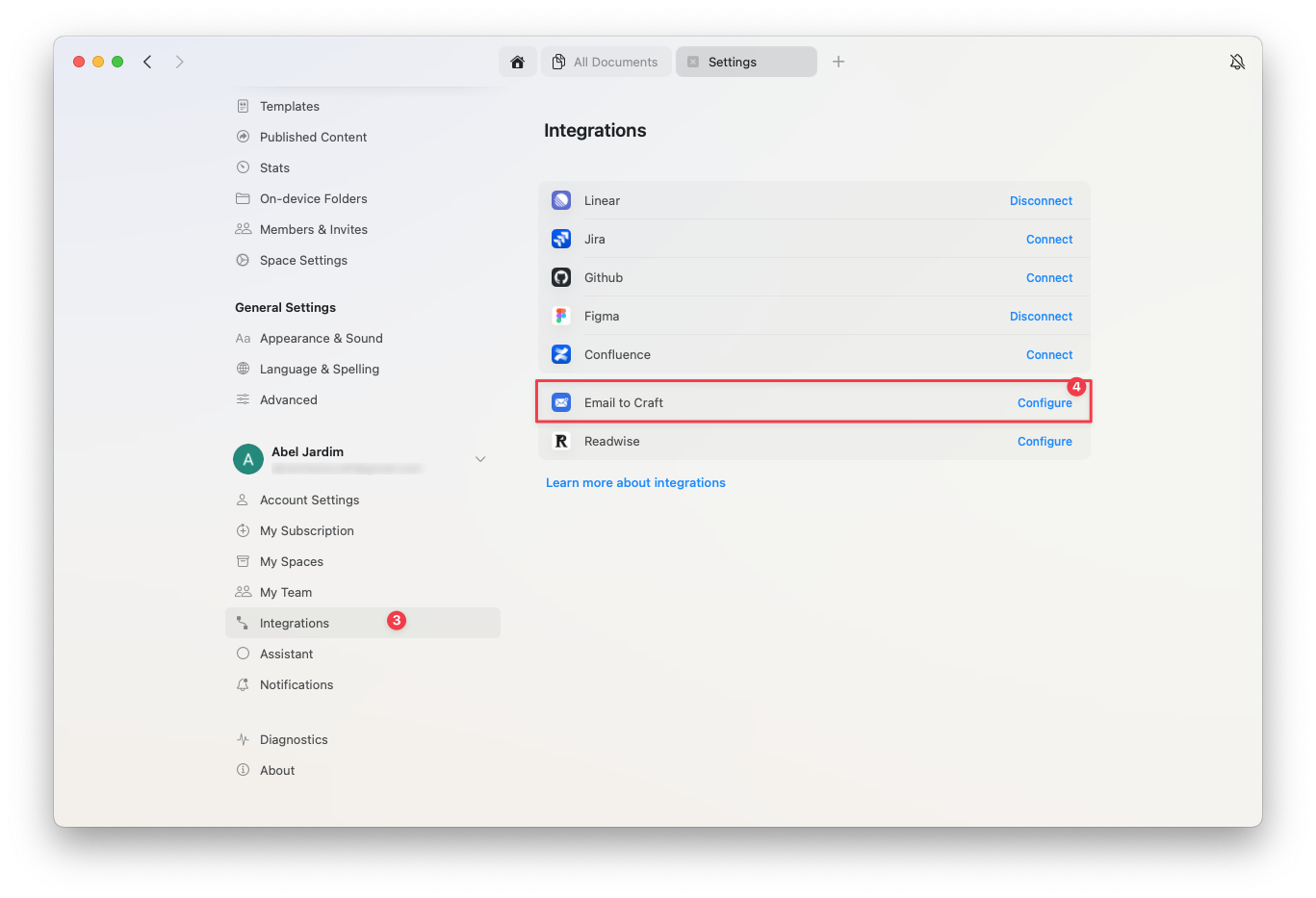
Go to Settings → Integrations → Email to Craft → Configure.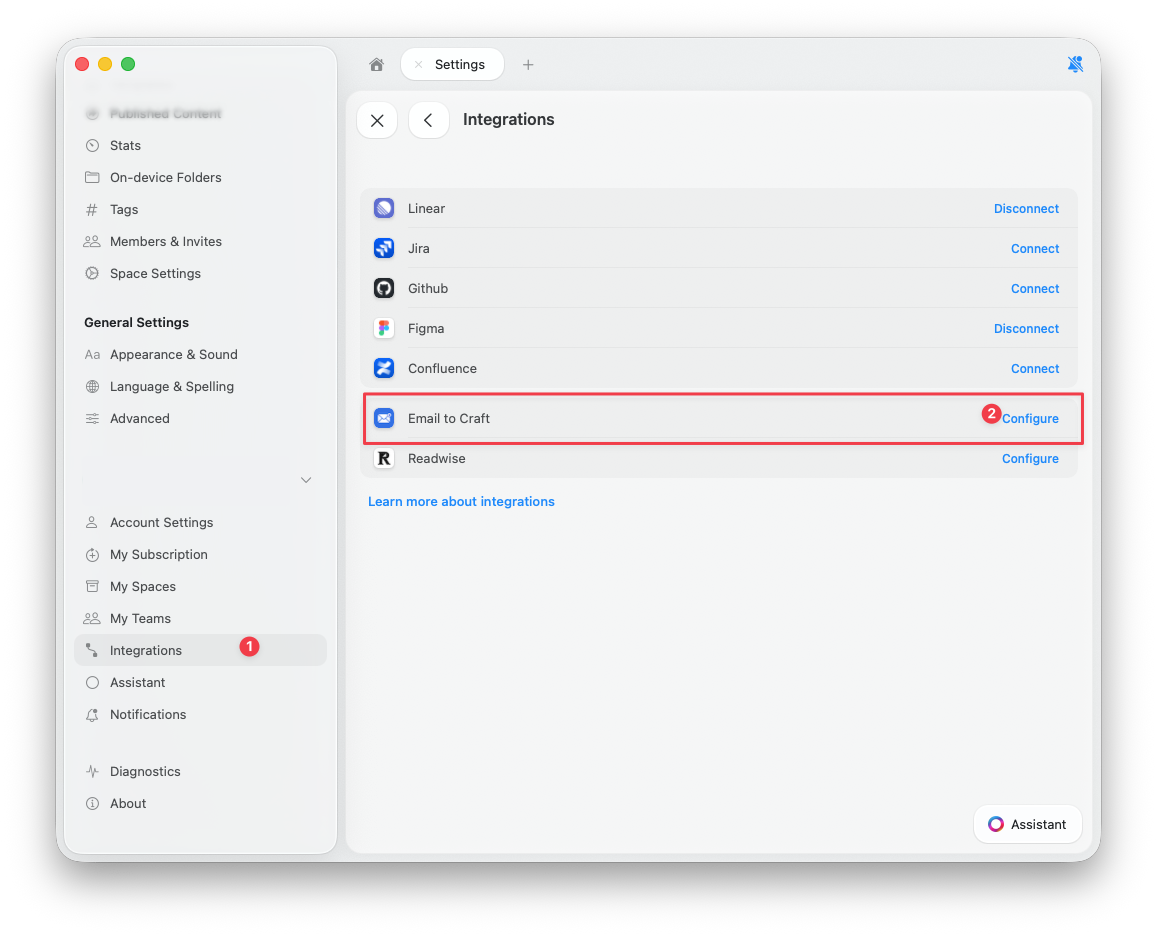
3
Select the Craft space where you want to receive forwarded emails and enable the Email to Craft feature.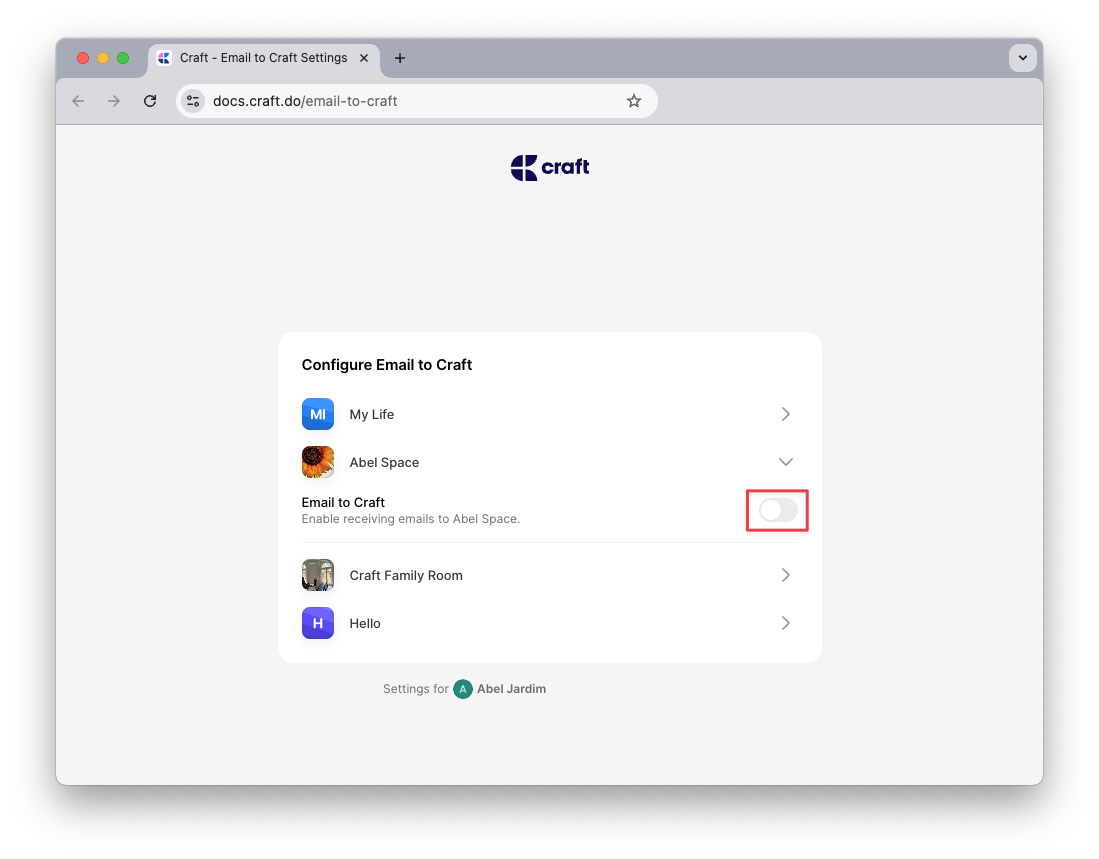
4
A unique email address will be generated – this is where you’ll forward emails to import them into Craft.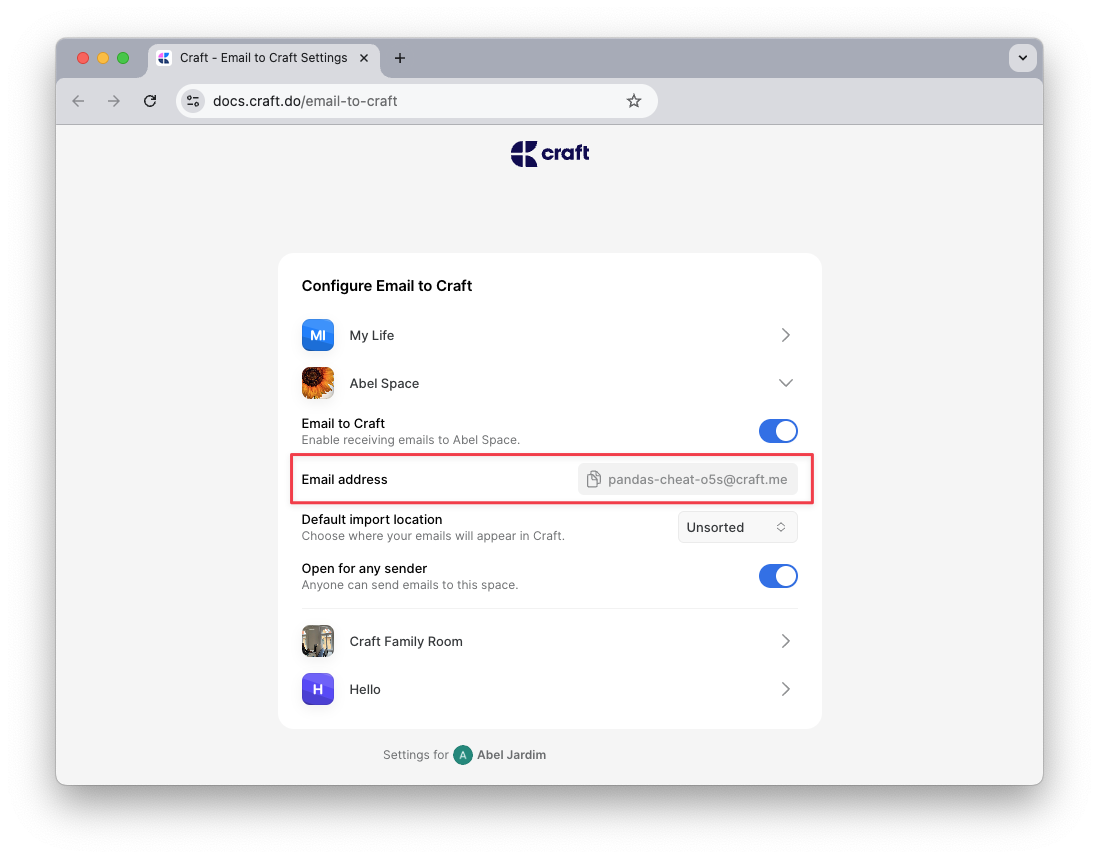
5
From the same settings page, you can also define the default behavior for how incoming emails are handled.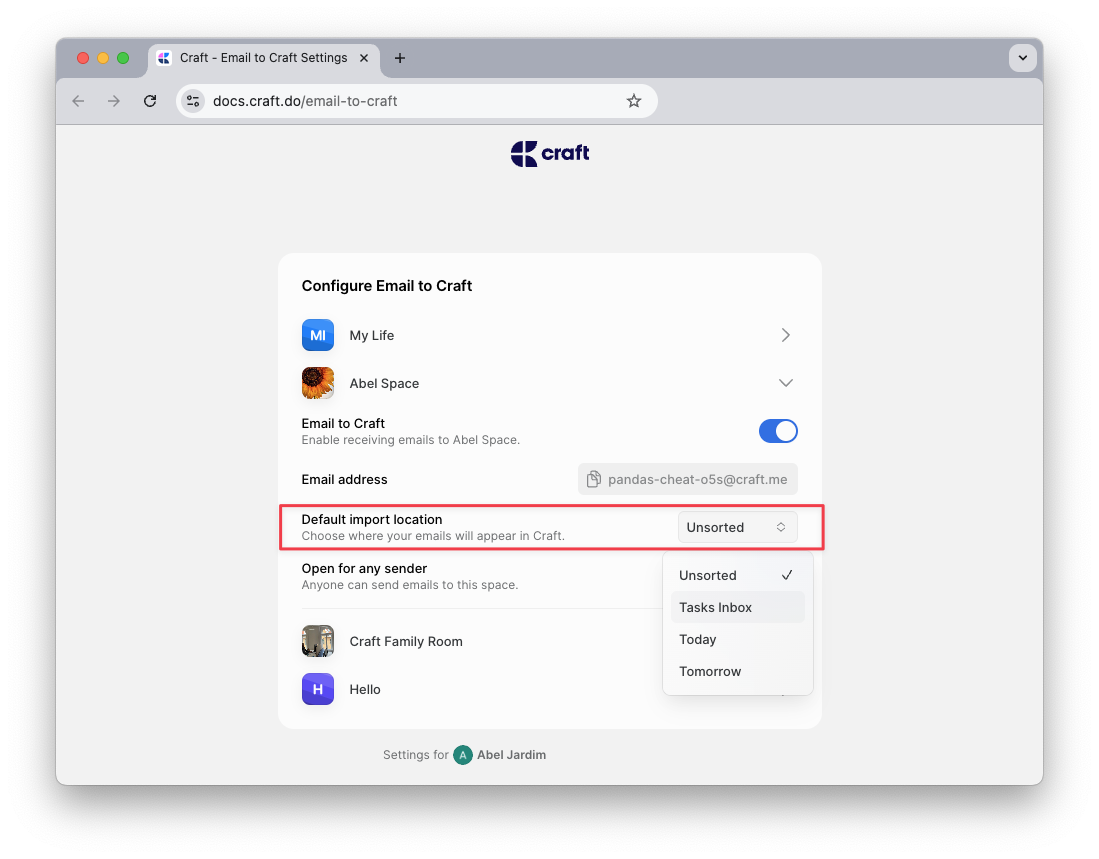
How It Works
Craft uses simple markers in the subject line to determine what should happen to the forwarded email. These include task markers, location markers, and deadlines.Create a Task
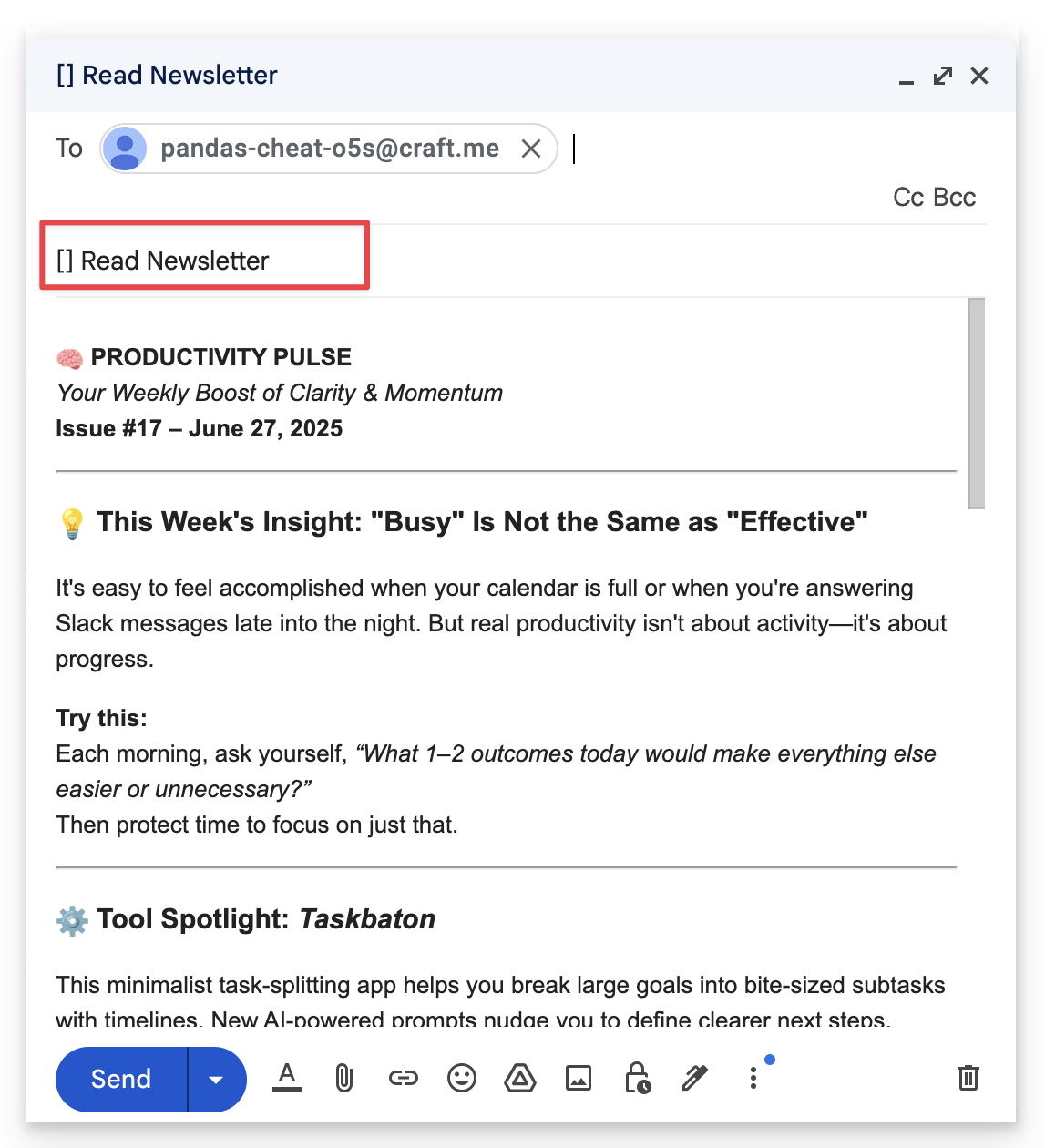
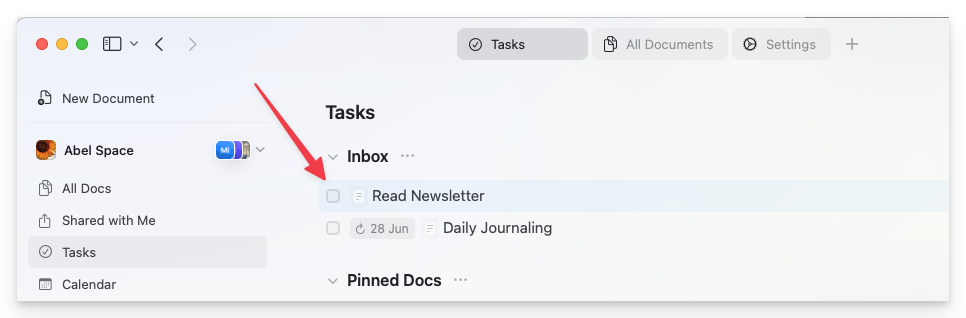
To turn your email into a task, begin the subject line with[ ].
Example: [ ] Read newsletter
Choose a Location
Use the> marker to set where the email should be sent:
>today,>tomorrow, or>yesterday– Adds the content to the corresponding Daily Note>YYYY-MM-DD– Adds the content to that day’s Daily Note>unsorted– Creates a new standalone document in the Unsorted folder
[ ] Team meeting notes >2025-07-01
Add a Deadline
To set a deadline for a task, use the! marker:
!today,!tomorrow, or!YYYY-MM-DD– Sets the deadline for the task
[ ] Submit report >today !tomorrow
This creates a task in today’s Daily Note with a deadline for tomorrow.
Default Behavior
If you don’t include any markers in the subject line, Craft will apply your default import setting, which you can configure on the Email to Craft Settings page.Attachments
- Attachments such as PDFs, images, and documents are supported and will be imported into the Craft document
- Videos are imported as downloadable file blocks, not as embedded video players
- Some email providers may not automatically forward attachments – use “Forward with attachments” to ensure they’re included. For Gmail, see this article
Formatting
Craft’s email import adapts to your email content and formatting to ensure clean and polished results:- Bullet points and line breaks are preserved
- Task markers like
[ ]or[x]within the email body will convert to checklist items - Divider lines like
---will be recognized as section breaks
Troubleshooting
If your forwarded email doesn’t appear in Craft:- Confirm the email address you’re sending from is authorized in your Email to Craft settings
- Make sure subject markers (
[ ],>today,!tomorrow) are correctly formatted - If you’re using automated forwarding or redirecting (e.g., via Gmail or Apple Mail), ensure full emails and attachments are sent
Use Cases
Email to Craft is perfect for:- Newsletter management: Forward newsletters to read and organize in Craft
- Task capture: Turn emails into actionable tasks with deadlines
- Daily logging: Send yourself emails that automatically go to today’s Daily Note
- Reference collection: Forward important emails for long-term reference
- Meeting notes: Email yourself meeting notes that land in the right Daily Note
Quick Reference
Tasks
Learn more about managing tasks in Craft
Daily Notes
Organize your day with Daily Notes