

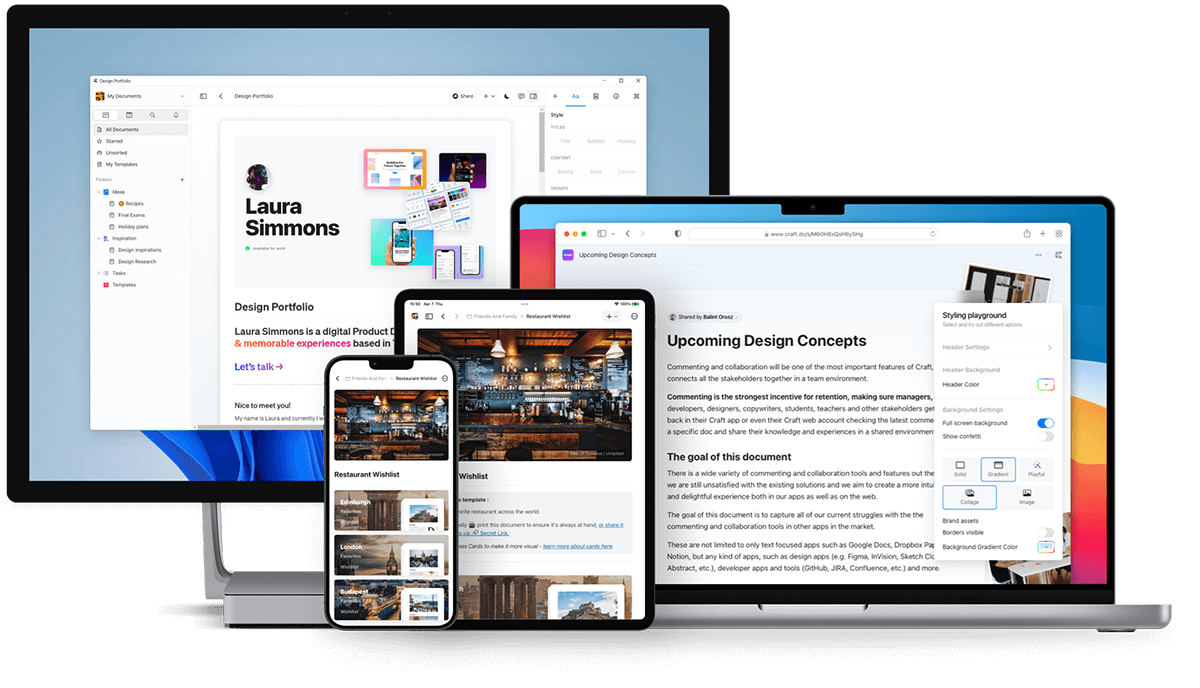
Download Craft
macOS and iOS
Download Craft from the App Store or visit craft.do to get started. Craft was originally released on macOS and iOS in 2020 and won the Mac App of the Year award.Web app
Access Craft from any browser at docs.craft.do. The Web app launched in beta in 2021 and became fully available in August 2022. The Web app includes nearly all features available in the native apps.Windows
Download the Windows app from craft.do/download. Two builds are available:- Windows x64 for Intel and AMD processors
- Windows ARM64 for ARM-based devices (such as Snapdragon PCs)
Android
Download Craft from the Google Play Store.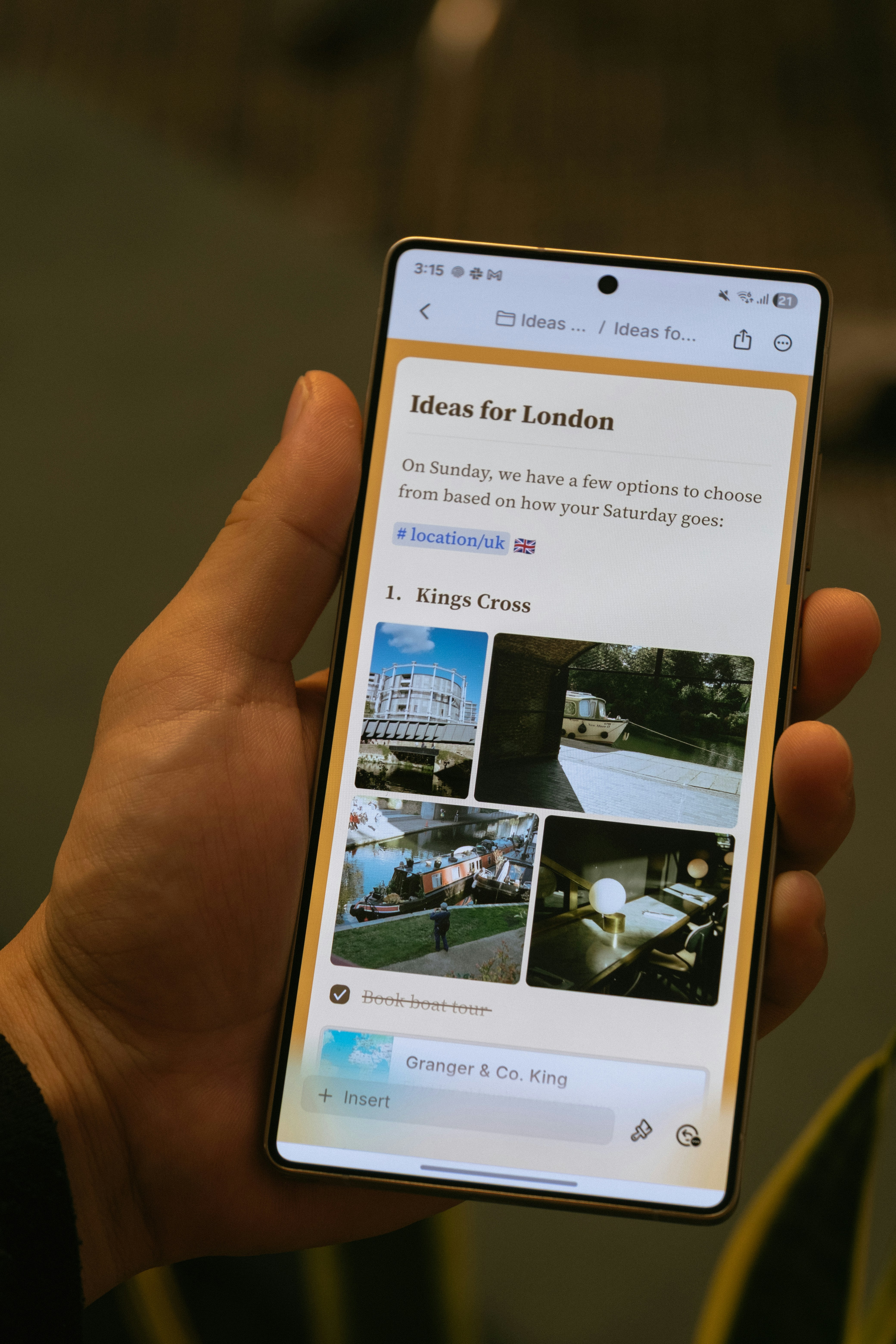
- Mobile-first navigation with bottom navigation bar
- Touch-friendly editing
- Images and attachments panel
- In-document search
- Core AI features including Craft Assistant
The Android app is actively being developed with regular updates, including offline support and AI capabilities.
Platform-Specific Features
Most Craft features work identically across all platforms. Some platform-specific features include:- Apple Shortcuts (iOS and macOS only)
- Apple Pencil support (iOS and iPadOS only)
- System calendar integration (macOS, iOS, and iPadOS)
- Desktop-specific keyboard shortcuts (macOS and Windows)
Offline Access
Craft works offline across all platforms. Native macOS and iOS apps support offline out of the box, while Web, Windows, and Android require a one-time setup in Settings. For full details, see Working Offline.Viewing Shared and Published Documents
Any document you publish or share can be viewed on mobile browsers across all platforms. Visitors can also leave comments without needing a Craft account.Windows-Specific Notes
Signing in with Apple
If you use Sign in with Apple, you’ll need to use your private relay email address to sign in on Windows:1
Find your private relay email address in Preferences → My Account on macOS or iOS.
2
Copy the email address and paste it into the Windows login field.
3
Click Continue and enter the 6-digit verification code sent to your email.
Related Articles
Account Setup
Create your account and set up your first space
Mobile Features
Learn about iOS and Android-specific features