

Adding Comments
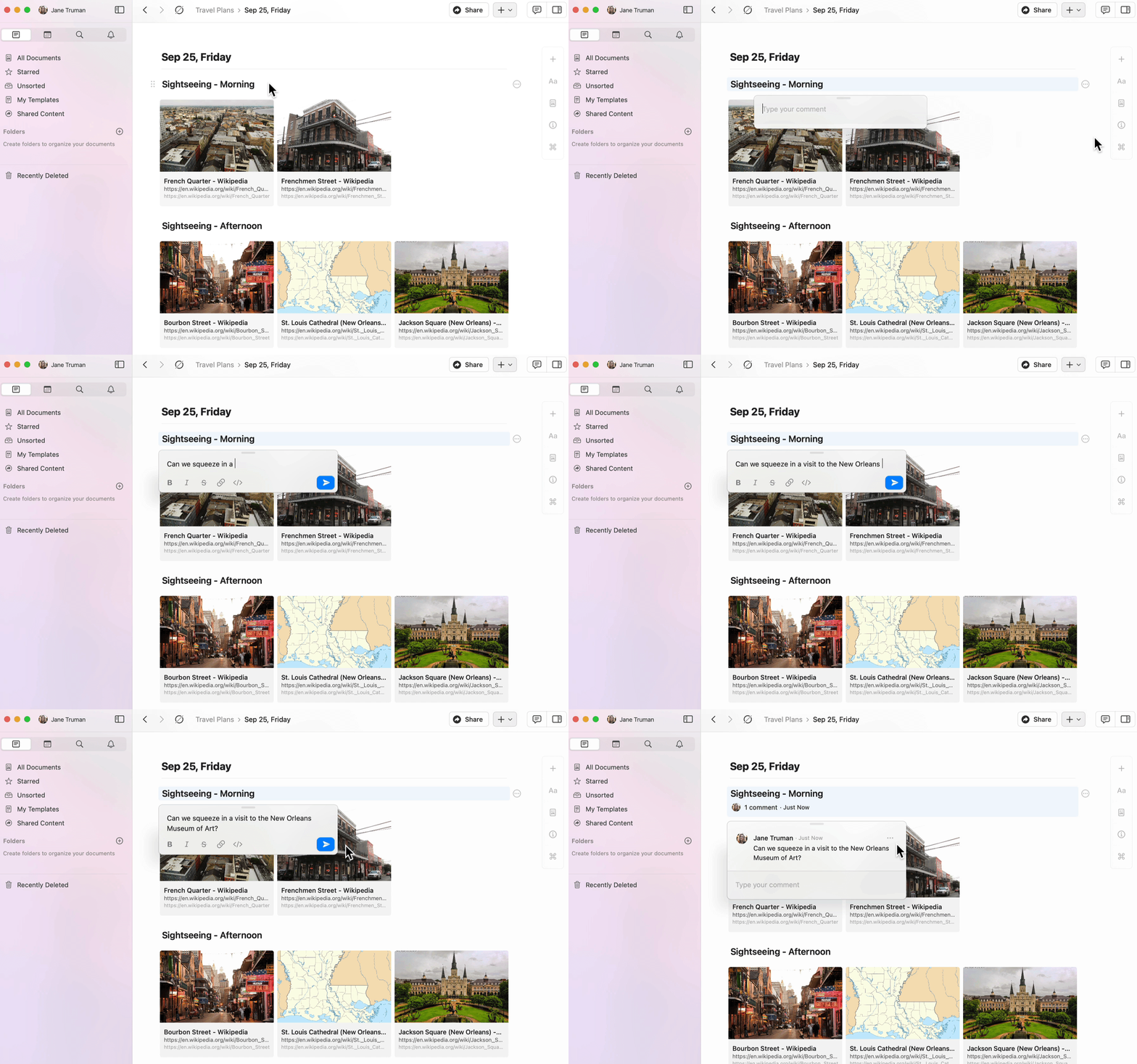
You can add comments to any block in a shared document.1
Select a block of content.
2
Click the three-dot menu (⋯) in the block menu.
3
Select Add comment.
Formatting Comments
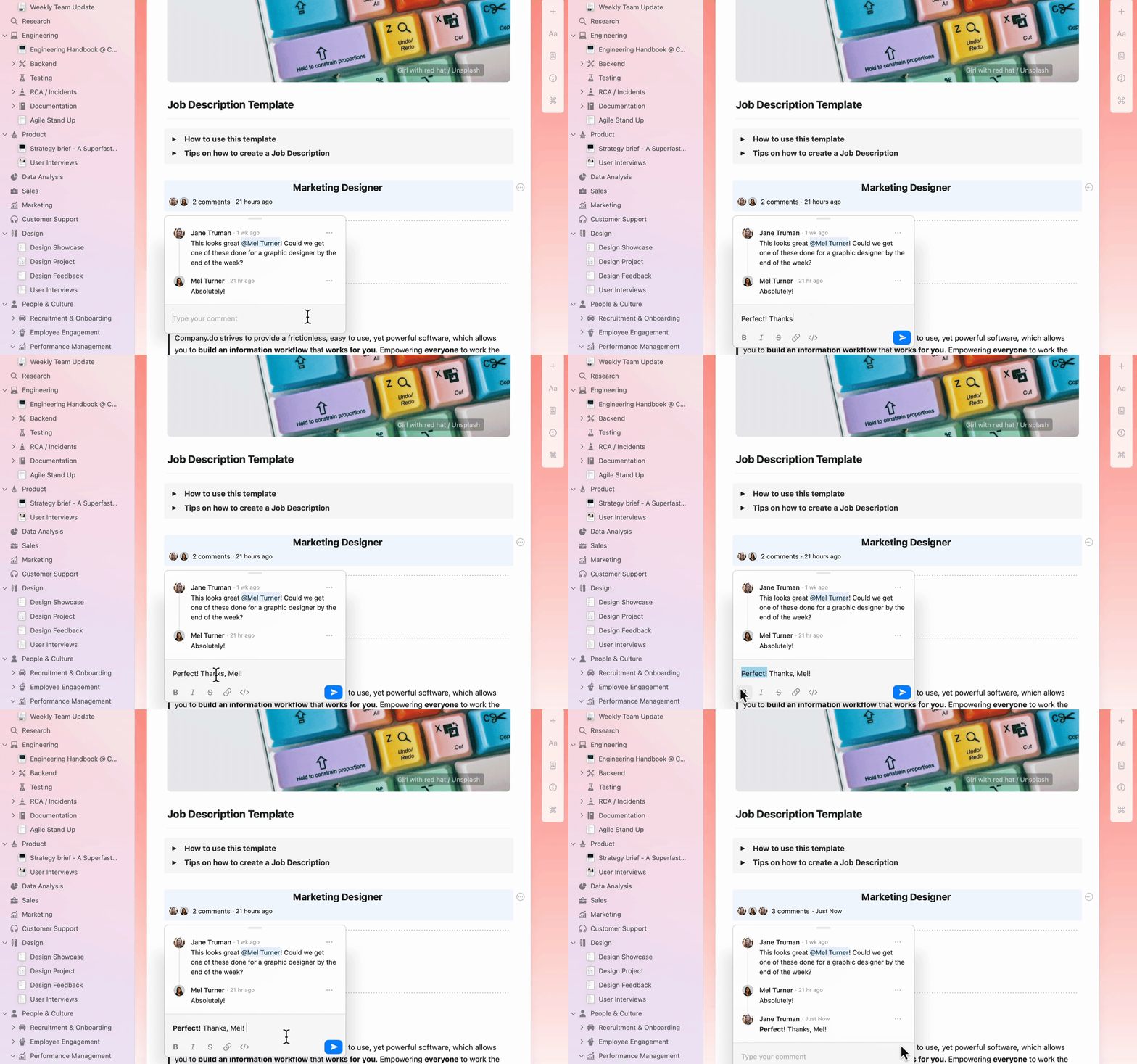
Comments support basic text formatting to help you communicate more effectively:- Bold, italic, and
strikethrough - Links
- Inline code
Viewing Notifications
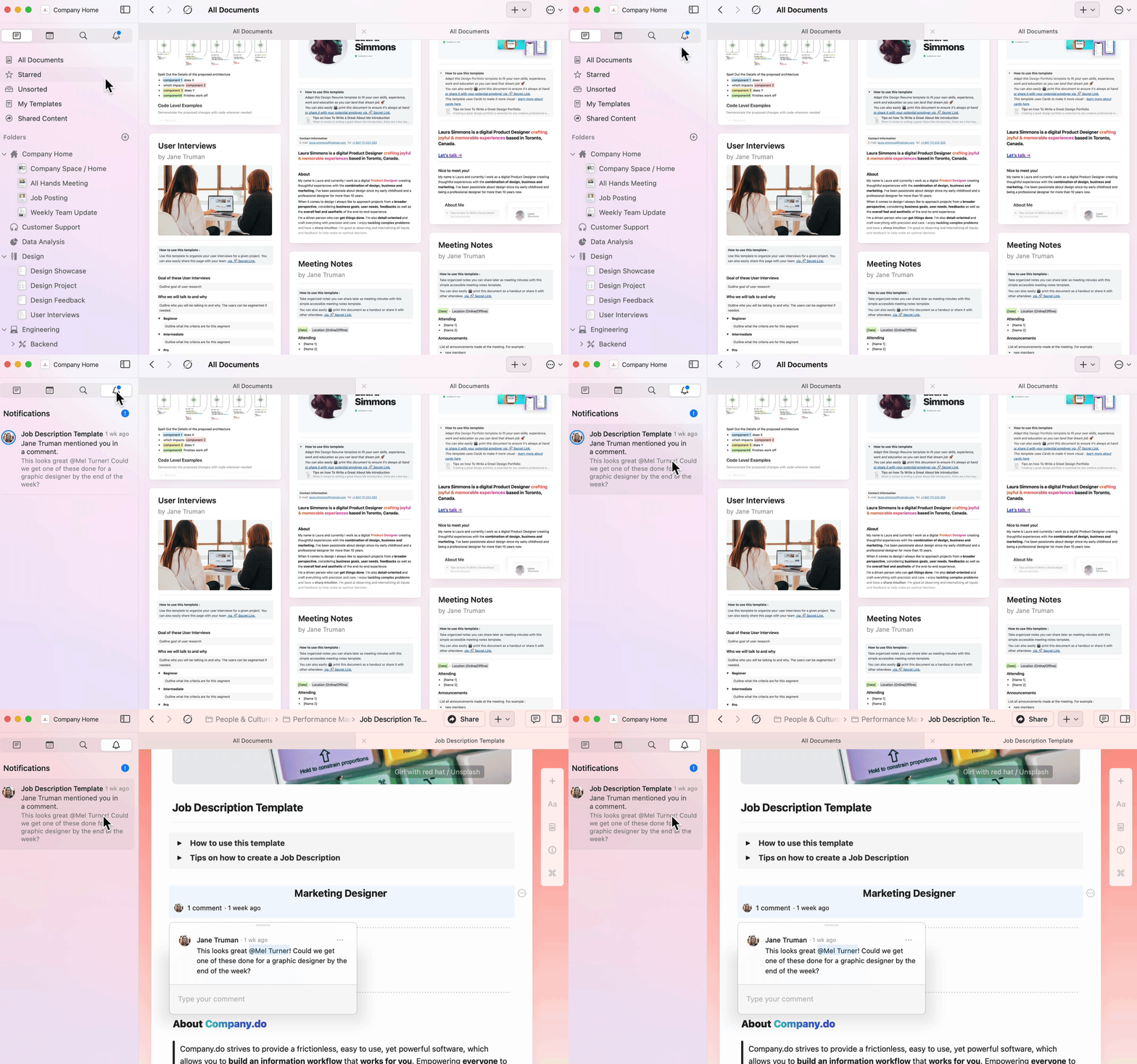
The notifications panel gives you a quick overview of all activity on your shared documents.1
Navigate to the notification bell icon in the sidebar.
2
View all unread notifications across your spaces.
3
Click into any notification to jump directly to the relevant document and comment.
You’ll receive notifications when:
- Someone comments on a block you created
- Someone mentions you in a comment or document
Replying to Comments
Navigate directly to comments from the notifications panel and reply in-line.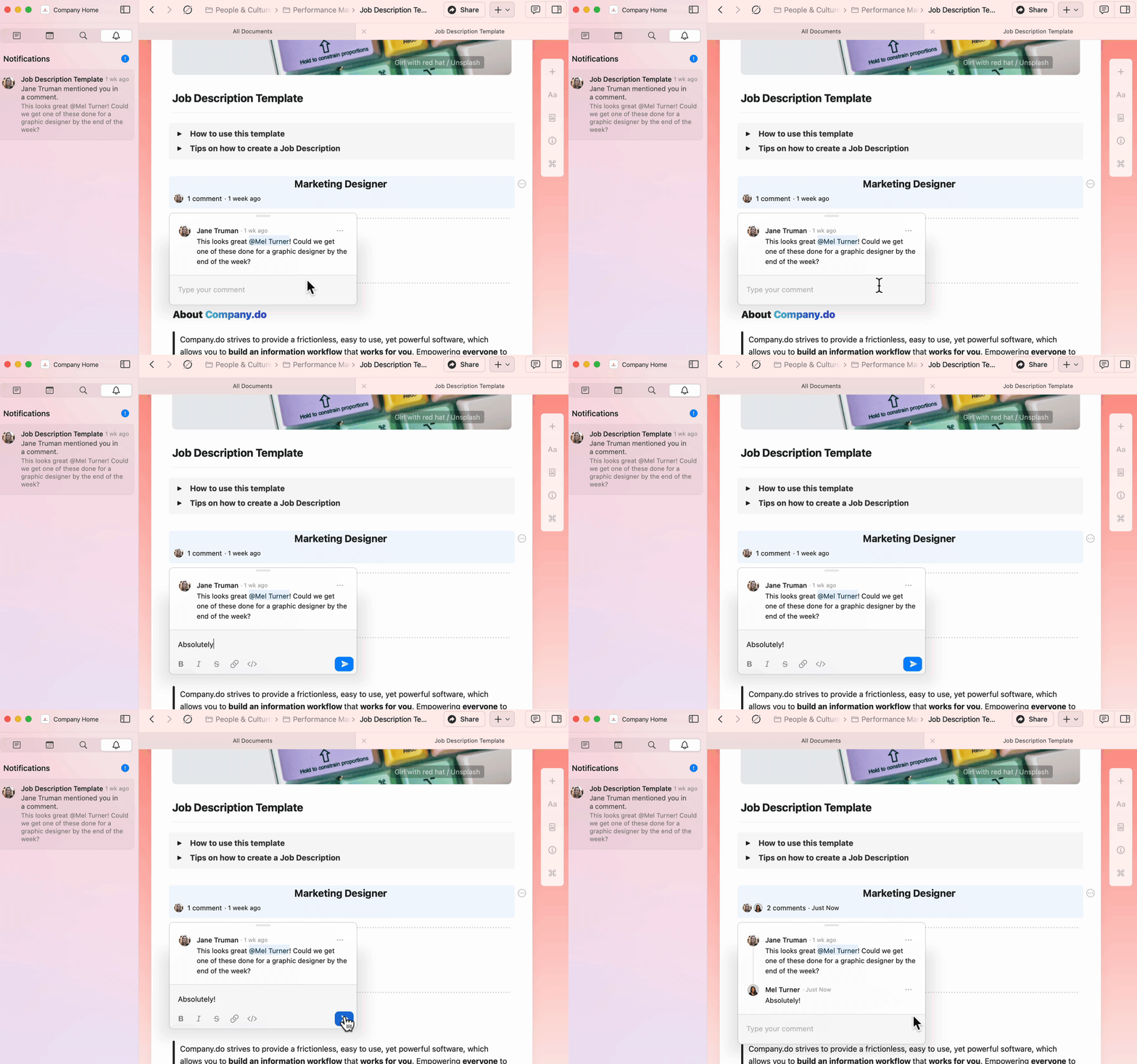
Email Notifications
Email notifications are sent hourly and contain all unread notifications from the previous time period. To enable or disable email notifications:1
Go to Preferences (macOS) or Settings (iOS, Web app, or Windows).
2
Under Space Management, select the space you want to configure.
3
Go to Space Settings.
4
Toggle Email notifications on or off.
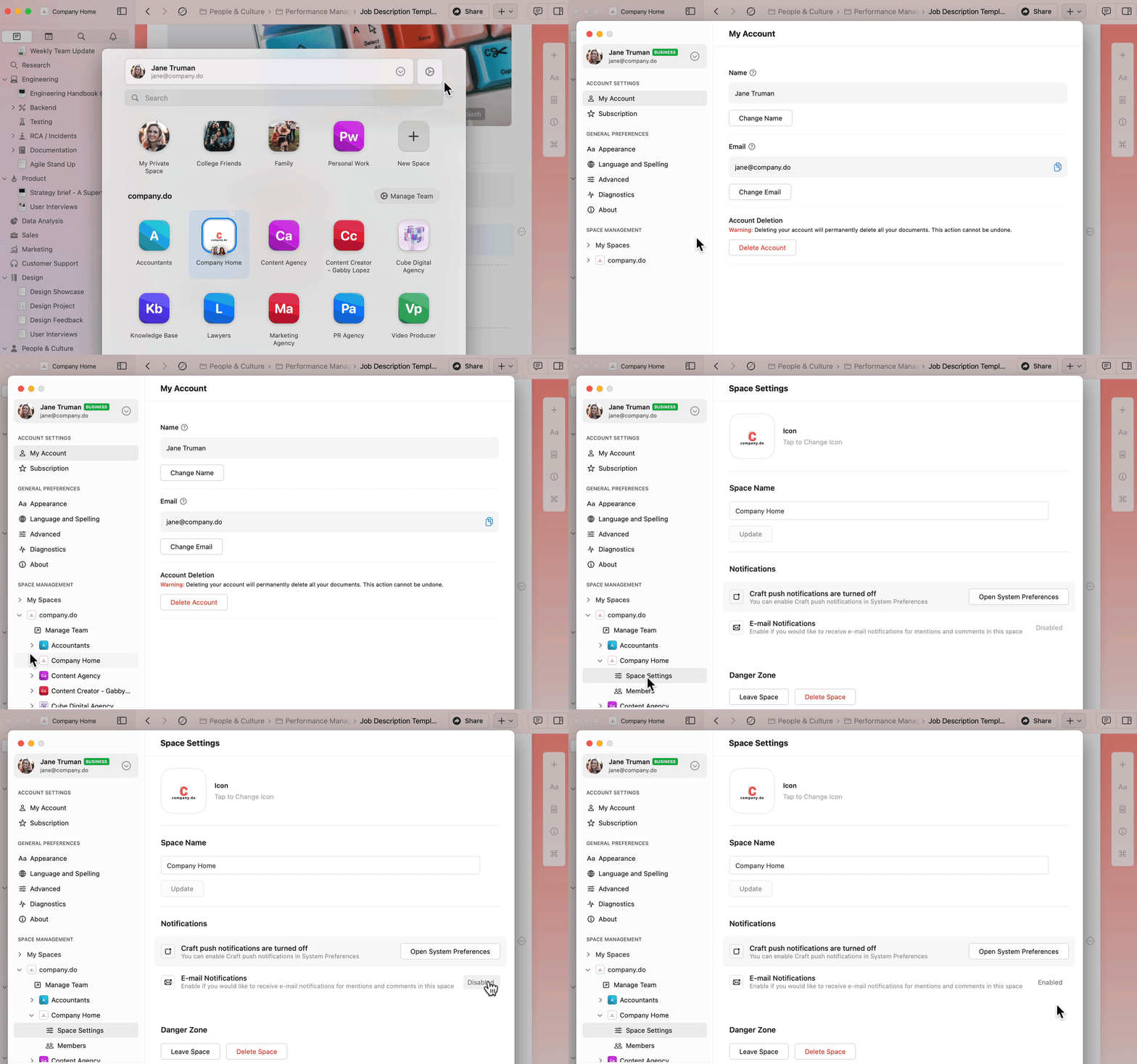
To enable or disable email notifications for multiple spaces, repeat these steps for each space individually.
Push Notifications
Push notifications provide real-time alerts for:- Comments on blocks you created
- Mentions in documents or comment threads
- macOS
- iOS
1
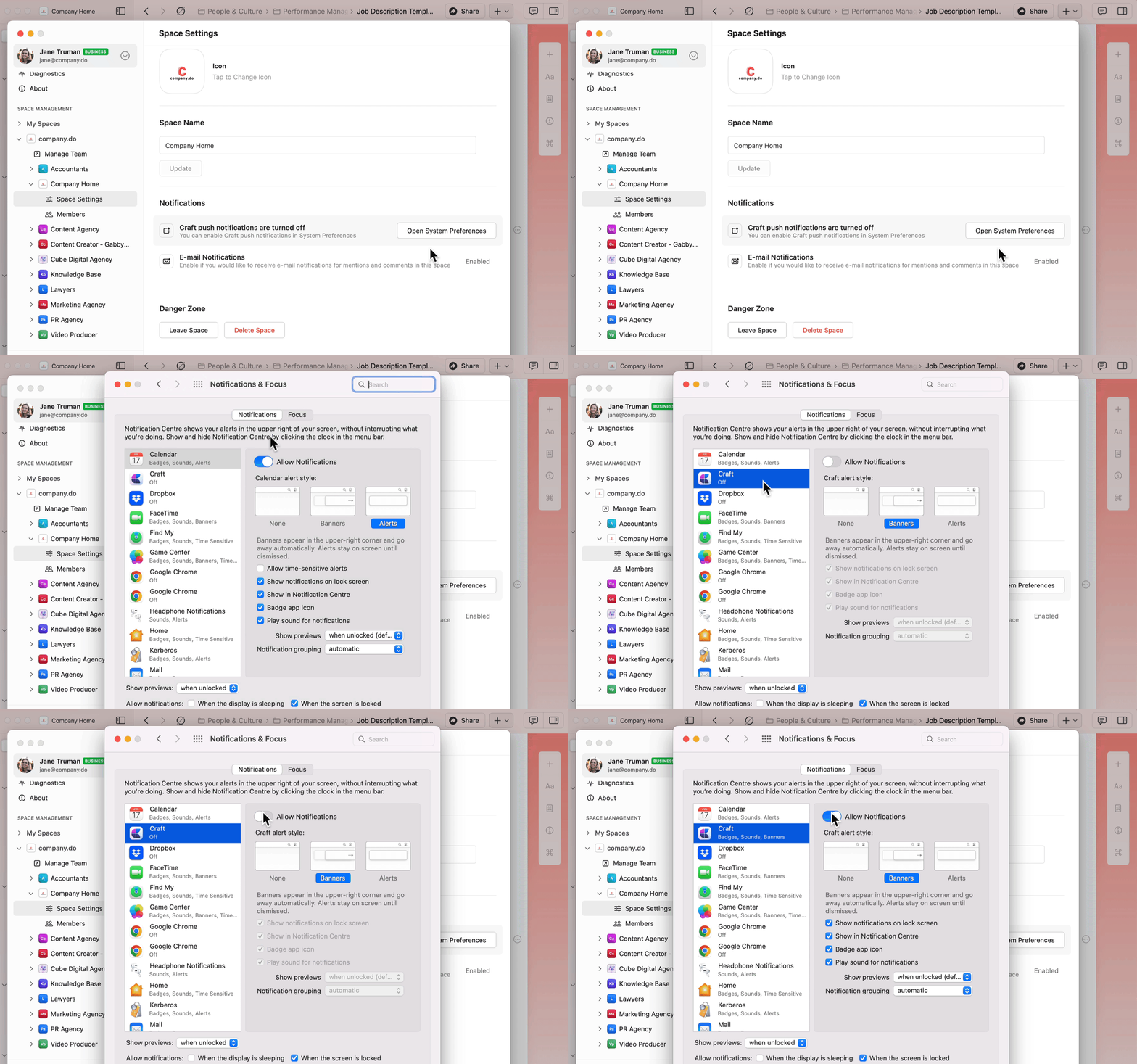
Go to Preferences in Craft.
2
Under Space Management, select your space.
3
Go to Space Settings.
4
Click Open System Preferences.
5
Navigate to Craft in System Settings.
6
Turn on Allow Notifications.
Related Articles
Sharing Documents
Learn how to share and collaborate on documents
Team Collaboration
Work together with team spaces and permissions