

What is MCP?
MCP (Model Context Protocol) is a standard that allows external applications to connect to a specific source of information. In Craft, MCP gives these tools controlled access to your selected content so they can read, process, and work with it safely. With MCP enabled, external tools can:- Read the content of your Craft documents
- Generate summaries, insights, or transformations
- Assist you with writing or restructuring content
- Use your documents as a live knowledge source
- Search across your selected documents
How MCP Works in Craft
Create an MCP Connection from the Connections tab in the sidebar to share the right parts of your workspace with external tools. You can choose between:- Creating an MCP connection that includes all your daily notes, or
- Setting up a custom connection where you pick specific documents (one or more) to include
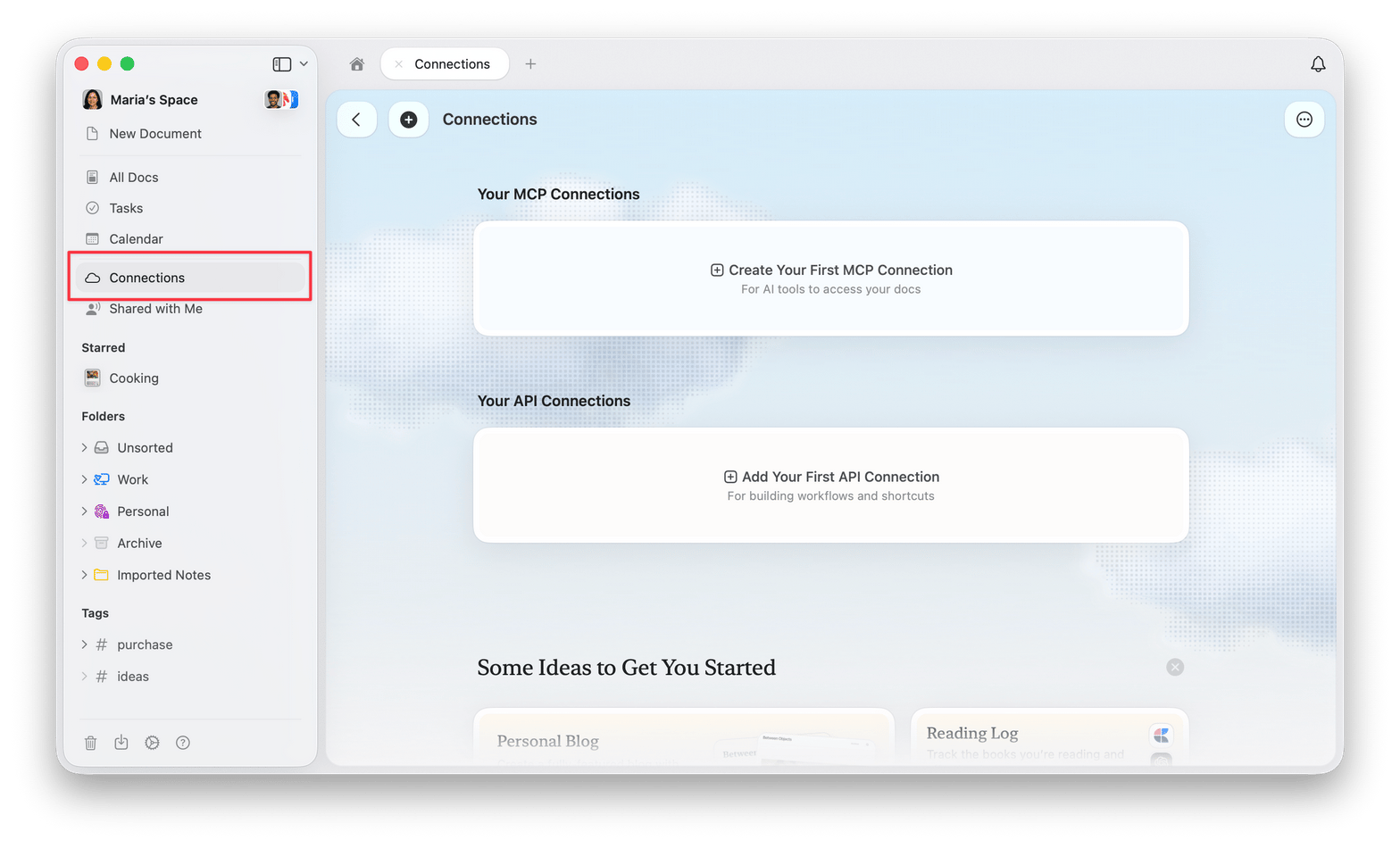
A connection with full space-level access supports:
- Search across all documents with tag and date filtering
- Daily notes and tasks are fully accessible via MCP
- Create, update, and delete documents programmatically
- Collection management including schema creation and editing
- Advanced search with regex support and timezone-aware date filters
Use Craft with ChatGPT
Use the Craft plugin to search your notes, summarize documents, and create or update content from ChatGPT.- Open the Craft plugin page and select Install plugin.
- Follow the connection prompts and sign in to Craft if asked.
- Review the requested access and complete authorization.
@ or select it from the chat tools menu. For example, ask: “Find my notes about onboarding and summarize the open questions.”
ChatGPT can access the content you authorize. You can manage or disconnect the connection in ChatGPT’s Apps or Plugins settings.
If Craft is unavailable, check the message on its plugin page. If access is disabled by an administrator, ask your workspace administrator to enable it.
Connect another MCP-compatible tool
For other MCP-compatible tools, create an MCP connection in Craft, copy the generated MCP link or credentials from the Connections tab, then add them in the external tool’s MCP or connector settings. The tool can access only the notes or documents included in that connection, based on the permissions you set.Supported MCP Connections
Craft currently supports MCP integrations with:- Claude (Desktop and Claude Code)
- ChatGPT (through the Craft plugin)
- Windsurf
- Cursor
- Visual Studio Code
- Raycast
- Other standard MCP clients
What You Can Do With MCP
With MCP enabled, you can:- Ask AI assistants to analyze or summarize your documents
- Generate or rewrite content based on your Craft documents
- Use developer tools to build custom workflows or scripts using your Craft content
- Interact with your documents from coding environments like VS Code, Cursor, or Windsurf
- Search and filter documents programmatically
- Extend Craft with your own MCP-compatible tools or automations
Using MCP with Multiple Spaces
ChatGPT plugin: You can connect multiple Craft spaces. Open the Craft plugin page in ChatGPT and, under Connected accounts, select Connect another account. In the Craft authorization flow, sign in if prompted, select the additional space, and approve access. Repeat for each space you want to add. Despite the button’s name, you can select another space from the same Craft account. Manual MCP connections: Each connection is linked to a single space. Create a separate MCP connection for each space you want to add:1
Open the space you want to connect
2
Go to the Connections tab in the sidebar and create an MCP connection for that space
3
Copy the MCP endpoint and add it to your external tool as a separate MCP server
4
Repeat for each additional space you want to connect
For manual MCP connections, add each space’s link separately in your external tool.
Full Guides & Documentation
All setup instructions and integration guides are available at: 👉 https://www.craft.do/imagine/ For the ChatGPT plugin, follow Use Craft with ChatGPT. The developer documentation covers manual MCP connections and other integrations.Troubleshooting
For a manual MCP connection that stops working, try the following steps. For the ChatGPT plugin, review the connection in ChatGPT’s Apps or Plugins settings and reconnect if prompted.1
Reconnect
Try disconnecting and reconnecting the MCP server in your client app.
2
Recreate the connector
If reconnecting didn’t help, remove the MCP connector from your client app and set it up again using the same link.
3
Recreate the link in Craft
If the issue persists, delete the MCP connection in Craft’s Connections tab and create a new one. Then add the new link to your client app.
Some MCP clients ship updates very frequently, which can occasionally break existing connections. These steps resolve most issues, though in rare cases you may need to wait for a fix from the client app.
MCP Security
Learn about MCP security features and access controls