

Creating Your Account
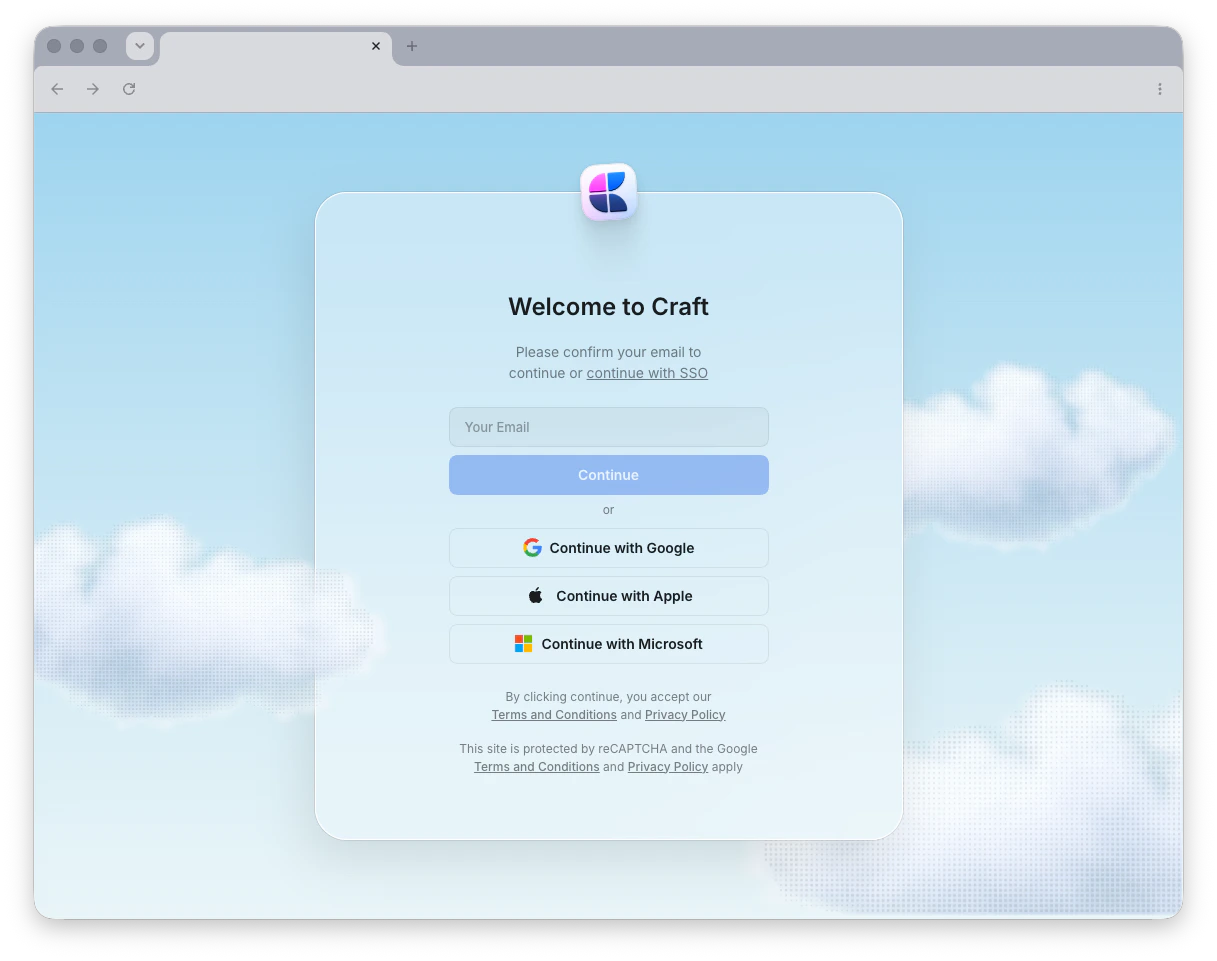
When you sign in with your email address, Craft sends a one-time login code to your inbox instead of using a password. Simply enter the code to access your account.
Creating Your Account
Sign up using email, Apple ID, Google, or Microsoft
Managing Spaces
After creating your account, you’ll work within spaces – separate workspaces where you organize your documents. Each space has its own settings, members, and content.Working with Spaces
Create, customize, and manage your spaces
Account Management
Need to remove your account? Learn how to properly delete your Craft account and what happens to your data.Deleting Your Account
Permanently remove your Craft account
Collaboration & Teams
Ready to work with others? Set up your team, invite members, and start collaborating on documents in real time.Team Collaboration
Add and manage team members across your spaces
Sharing Documents
Invite collaborators and set access controls
Managing Teams
Configure team spaces and settings
Next Steps
Once your account is set up, explore these features to get the most out of Craft:Learn About Documents
Understand how documents, pages, and blocks work in Craft
Navigation Basics
Learn how to move around and organize your workspace
Keyboard Shortcuts
Speed up your workflow with helpful keyboard shortcuts