

Start here
Three checks resolve most reports:- Update Craft to the latest version on every device you use.
- Restart the app, or reload the page on the Web app.
- Check your operating system version. Craft requires macOS 12 or later, iOS or iPadOS 15 or later, or Windows 10 or later.
Sync Issues
Most sync problems can be diagnosed and fixed from the Diagnostics panel. Open Settings → Diagnostics to see your current sync status, trigger a manual sync, or report a sync error directly to our team.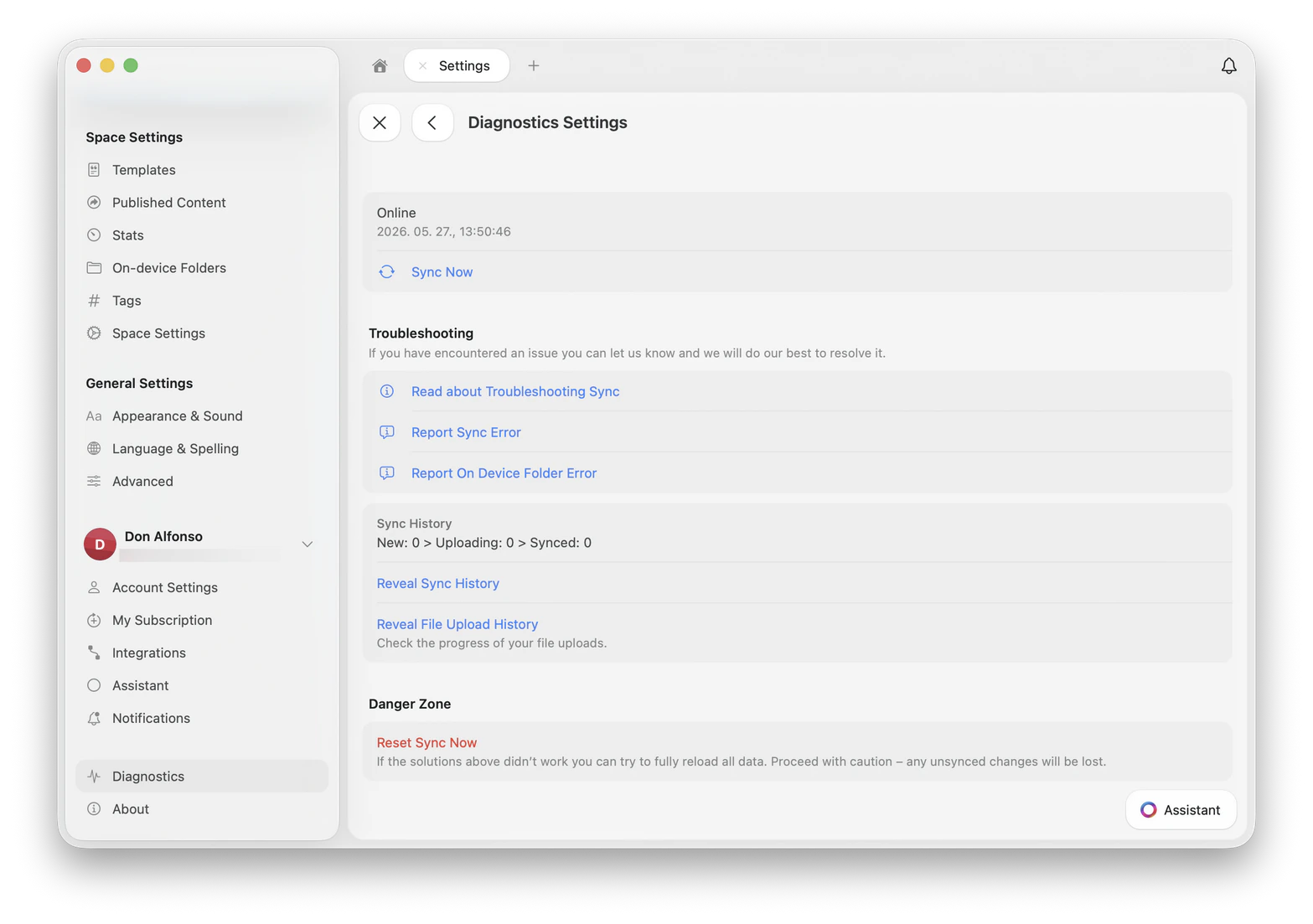
Sync shows as 'Offline' in diagnostics
Sync shows as 'Offline' in diagnostics
- macOS
- iOS / iPadOS
- Windows
- Open Activity Monitor (Spotlight search, or Applications → Utilities)
- Find Craft in the list
- Select it and click the Stop (⊗) button at the top
- Reopen Craft
Documents not syncing across devices
Documents not syncing across devices
- macOS
- iPad
- iPhone
@privaterelay.appleid.com, you signed up using Sign in with Apple. That’s a relay address generated by Apple, not your real email. Make sure you use the same Apple ID on every device.Manually trigger sync
Manually trigger sync
- macOS / iOS
- Windows / Web
- Sign out of Craft (Settings → Account → Sign Out)
- Force quit the app
- Wait 30 seconds, reopen Craft, and sign back in
VPN or ad blocker blocking sync
VPN or ad blocker blocking sync
- Temporarily disable the tool
- Restart Craft
- Check whether sync is restored
Corporate network blocking Craft
Corporate network blocking Craft
api.craft.dodocs.craft.dores.craft.do
Sync says everything is synced, but a document is missing
Sync says everything is synced, but a document is missing
0, nothing is waiting to upload, so the document is not stuck in the sync queue.Missing content in that situation usually comes down to one of these:- You are signed in to a different account. Email sign-in and Sign in with Apple create separate accounts. See Documents not syncing across devices above.
- You are looking at a different space. Open the Spaces list from your avatar and check each space.
- The document was deleted. Check Recently Deleted, then see Storage and Recovery.
Signing in with Apple opens an empty account
Signing in with Apple opens an empty account
An image or file won't finish uploading
An image or file won't finish uploading
- Check your internet connection, and check for a VPN, proxy, or ad blocker on the network.
- Delete the block and add the file again.
- If the file is large, try a smaller version. The maximum file size depends on your plan, and files above that size are rejected before the upload starts.
Login Issues
Unable to log in with Apple ID on macOS
Unable to log in with Apple ID on macOS
Unable to access Craft's website or apps
Unable to access Craft's website or apps
- Hush
- Plume Guard (the Secure DNS feature in the Plume HomePass app)
- Disable the extension or tool temporarily
- Mark Craft’s domain as secure in the tool’s configuration
- Try a different network
Performance Issues
Craft running slowly on macOS
Craft running slowly on macOS
- Restart the app via Activity Monitor (see Sync shows as ‘Offline’ above for steps)
- Close unused tabs and windows
- Check whether window management apps (e.g., Magnet, Rectangle) are up to date
- Are you using an External Storage space?
- Any window management apps in use?
- Any third-party text editing tools?
- Screenshot of System Settings → Privacy & Security → Accessibility
- Does restarting the app help?
- Do multiple tabs and windows trigger the issue?
Craft running slowly on Windows
Craft running slowly on Windows
- Which Windows version are you running?
- Are you connected to a company network or VPN?
- Does restarting the app restore normal performance?
- Does restarting the computer restore normal performance?
Using Grammarly Desktop with Craft on macOS
Using Grammarly Desktop with Craft on macOS
Download Grammarly
Launch Grammarly
Grant accessibility permission
Restart Craft
Editing Issues
Text reverts or disappears while typing
Text reverts or disappears while typing
- Close the document on your other devices. On the Web app, close any extra browser tab showing it.
- Let sync finish on each device before you continue editing. Check the sync status in Settings → Diagnostics on Mac, iPhone, and iPad.
- Update every device to the latest version of Craft.
Content flickers or flashes in the Web app
Content flickers or flashes in the Web app
- Reload the page.
- Open Craft in a private window with extensions disabled, to rule out an extension.
- Update your browser to the current version.
- Try a different browser to see whether the flickering follows.
macOS-Specific Issues
Latest update not showing in App Store
Latest update not showing in App Store
Force quit the App Store
Reopen the App Store
Search for 'Craft Docs'
Open the app details page
Check for the update button
Pop-up: 'Another Craft is already installed'
Pop-up: 'Another Craft is already installed'
Delete Craft from Applications
Clear container folders
Sweep for leftovers
craft, lukilabs, or lukiapp and delete them.Reinstall Craft
iOS / iPadOS-Specific Issues
Windows and Web App Issues
Can't access Craft on Web app or Windows
Can't access Craft on Web app or Windows
api.craft.dodocs.craft.dores.craft.do
'You Are Offline' message
'You Are Offline' message
- Check your internet connection. Make sure it’s active and stable.
- Pause editing. Avoid making changes until the connection is restored, to prevent potential data loss.
- Reload the page. If your connection is stable and you have no unsaved changes, refresh the page.
Thumbnail failed to fetch data
Thumbnail failed to fetch data
- Clicking the link opens it normally
- Only the Web app is affected
- Only personal LinkedIn profile links are affected
- Company LinkedIn links display correctly
- All LinkedIn thumbnails render correctly on macOS, iOS, and iPad
How to update Craft for Windows
How to update Craft for Windows
- Uninstall Craft for Windows
- Download the latest version from craft.do/download or the Microsoft Store
Craft keeps running after I close the window
Craft keeps running after I close the window
- To quit Craft completely, right-click the Craft icon in the system tray and choose Quit Craft.
- To bring the window back, click the tray icon, or choose Open Craft from its right-click menu.
Sync troubleshooting on Windows
Sync troubleshooting on Windows
Restart the app
Update to the latest version
Check for a VPN, proxy, or DNS filter
Confirm your account and sign-in method
Ask IT to allow Craft's domains
*.craft.do. Craft uses several subdomains for sync, resources, and content, so allowing only some of them leaves parts of the app broken.'Disk space is critically low' or 'Couldn't save tab state'
'Disk space is critically low' or 'Couldn't save tab state'
- Disk space is critically low. Craft has run out of room to write. Free up space on your system drive, then restart Craft.
- Couldn’t save tab state. Another program has locked Craft’s data files. Restart Craft, and restart Windows if it continues.
Subscription Issues
Still seeing the block limit after upgrading
Still seeing the block limit after upgrading
- Sign out of Craft (Settings → Account → Sign Out)
- Close the app completely
- Reopen Craft and sign back in
Data & Storage Issues
Recently Deleted folder disappeared
Recently Deleted folder disappeared
- The deleted documents are older than 30 days
- The content of the deleted folder was emptied manually
Error: External location already added
Error: External location already added
Sign out of Craft
Sign back in
Try adding the external location again
- Delete the Craft app from your device
- Reinstall the app
- Try adding the external location again
What an iCloud backup of your iPhone or iPad covers
What an iCloud backup of your iPhone or iPad covers
- Craft sync copies your documents to our servers. This is what restores your content when you sign in on a new device, and it is the path to rely on.
- An iCloud device backup backs up your device as a whole. It restores the whole device, not a single document, so you cannot pull one Craft document out of it.
iCloud sync issues with External Storage
iCloud sync issues with External Storage
- Trigger sync manually. Open Finder (macOS) or the Files app (iOS) and navigate to your iCloud Drive folder.
- Edit a document. Changing content kicks off syncing.
- Check internet access. Use Wi-Fi or a fast cellular connection. Make sure your device is charged.
- Toggle Airplane Mode. Reconnecting can restart iCloud Drive sync.
- Check cellular sync settings:
- Enable System Services under Settings → Cellular Data
- Enable Use Cellular Data under Settings → iCloud → iCloud Drive
- Check battery level. Low battery slows sync to preserve power.
- Check iCloud storage limit. Sync stops if you’ve hit your storage quota.
- Restart your devices. Ensures iCloud services are running.
- Verify iCloud is enabled:
- iOS: Sign in to iCloud and enable iCloud Drive
- macOS: Sign in to iCloud and enable iCloud Drive in Apple ID settings
- Disable ‘Optimize Mac Storage’. With this on, your Mac offloads files to the cloud, which can cause missing files.
- Be patient. First-time syncing can take up to a day.
- Sign out and back in. If iCloud Drive is hanging, sign out of iCloud and back in.
- Set time automatically. Make sure all devices have automatic time enabled.
- Update your OS. Apple improves iCloud with each OS version.
- Check Apple’s System Status page.
Reporting bugs
If you’ve encountered a bug in Craft, we’d love your help tracking it down. Clear reports help us investigate and resolve issues faster.Before you report
- Make sure you’re using the latest version of Craft
- Restart the app, or refresh the Web version
- If the issue persists, continue below
What to include
Confirm your version
Share your environment
- Device model (e.g., MacBook Pro M2, iPhone 15, Windows laptop)
- Operating system and version (e.g., macOS Sequoia 15.4, iOS 18.5, Windows 11 23H2)
- Platform (desktop app, mobile app, or Web)
Describe the steps to reproduce
Attach a screen recording
Attach a diagnostic file (if applicable)
How to record your screen
- iPhone / iPad
- macOS
- Windows
- Enable Screen Recording in Settings → Control Center
- Open Control Center and tap Record
- Stop the recording by tapping the red status bar
- Apple’s official guide
Capture diagnostic data
For persistent crashes, freezes, or sync issues, our team may ask for a diagnostic file. The exact format depends on your platform, but the goal is always the same: capture what your system was doing when the problem happened.- macOS
- iOS / iPadOS
- Windows
- Web
Reproduce the issue
Open Activity Monitor
Create the Spindump
Save the file
Send it to support
.txt file to your support ticket along with a short description of what you did right before the issue.What happens after you report
- One-off issues: We log it and monitor for related cases
- Reproducible bugs: We escalate internally for investigation and resolution