

Sharing Methods
You can share documents in Craft using two main approaches:Invite by Email
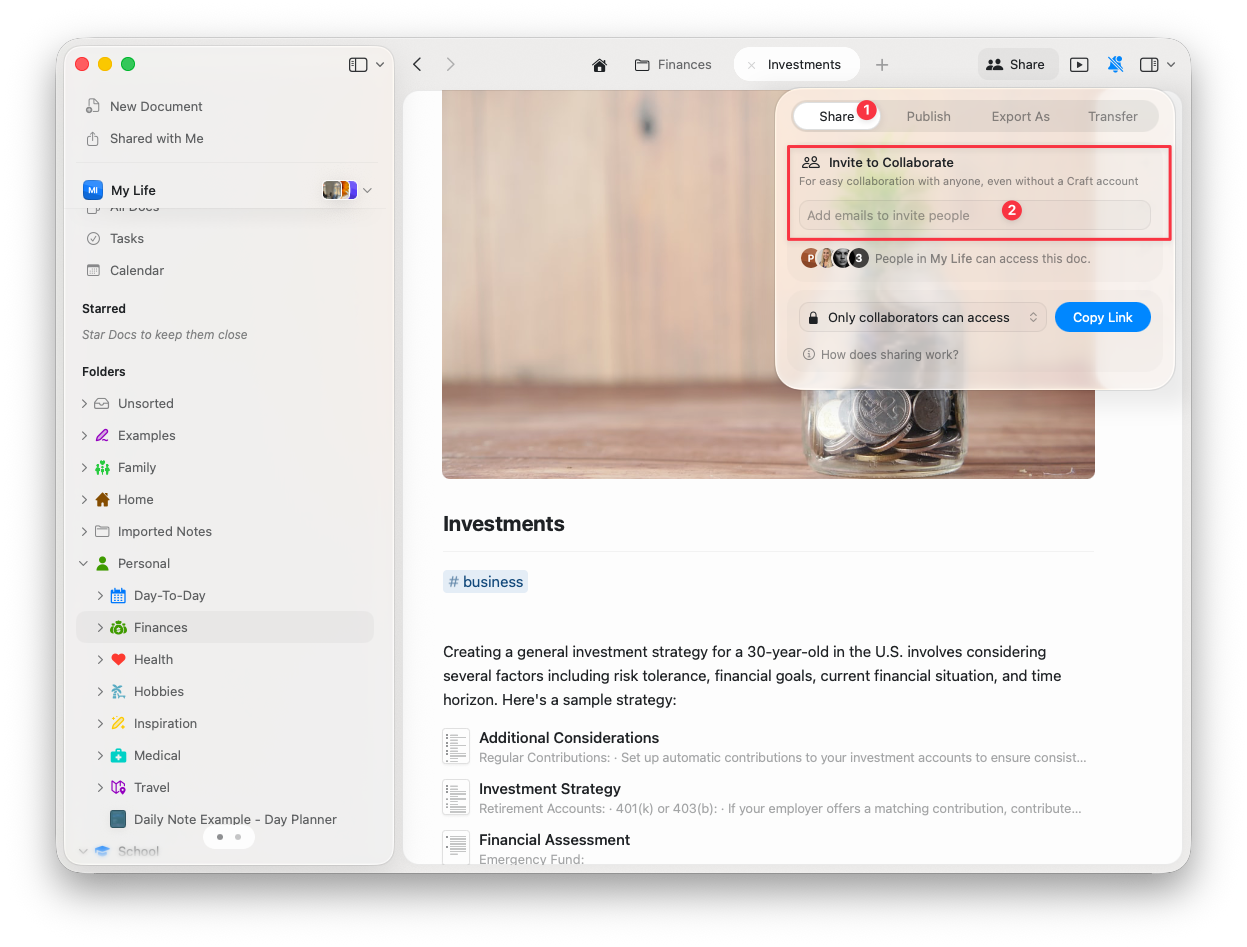
Invite specific people to collaborate on your documents:1
Click the Share button in the top-right corner of your document
2
Enter the email addresses of people you want to invite
3
Choose their access level: Viewer or Editor
4
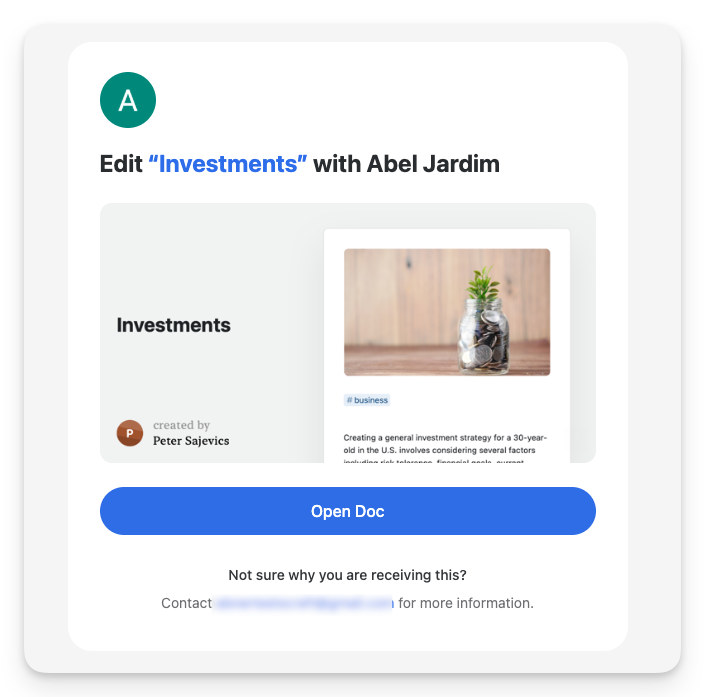
Click Invite to send them an email notification
- Paid plans: Unlimited collaborators
- Starter (Free): Up to 50 people per day (maximum 10 in any 24-hour period)
Invitation Links
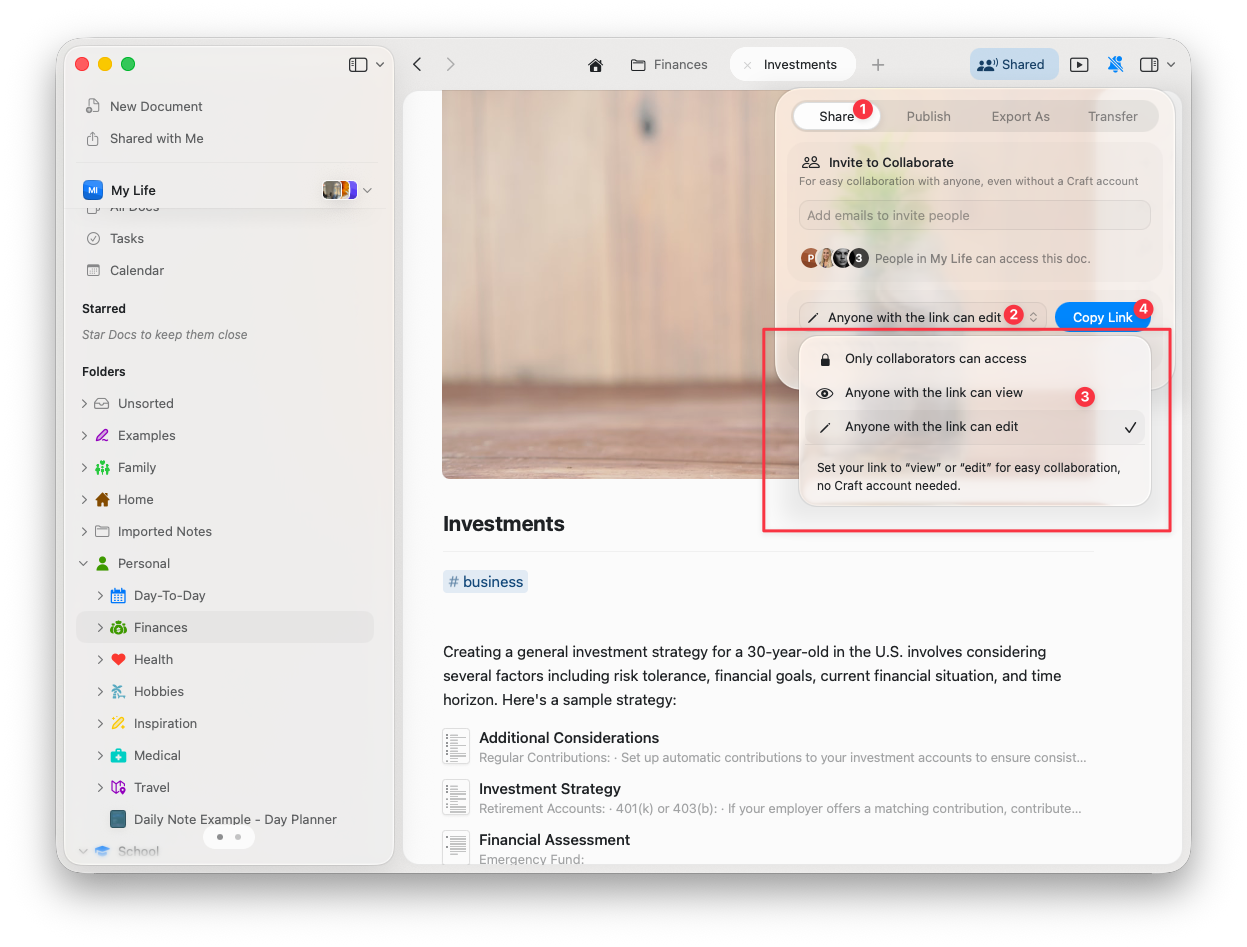
Generate a shareable link that grants access to anyone who has it:1
Click the Share button on your document
2
Select the access level the link should provide (View or Edit)
3
Copy the invitation link and share it wherever needed
Access Levels
When sharing documents, you can assign two types of access: Viewer - Can read the document and add comments, but cannot make edits Editor - Can make changes to the document content and structureTo edit a shared document, collaborators must sign in with a Craft account. However, viewing access works without requiring login.
Real-Time Collaboration
Craft supports real-time editing, allowing multiple users to work on the same document simultaneously. Changes appear instantly for all collaborators, making it easy to work together without delays or version conflicts.Collaborator Identity
Temporary Profiles
If someone joins a document without signing in to Craft, a random name will be assigned to their temporary profile. Any comments and edits will be tied to this temporary identity.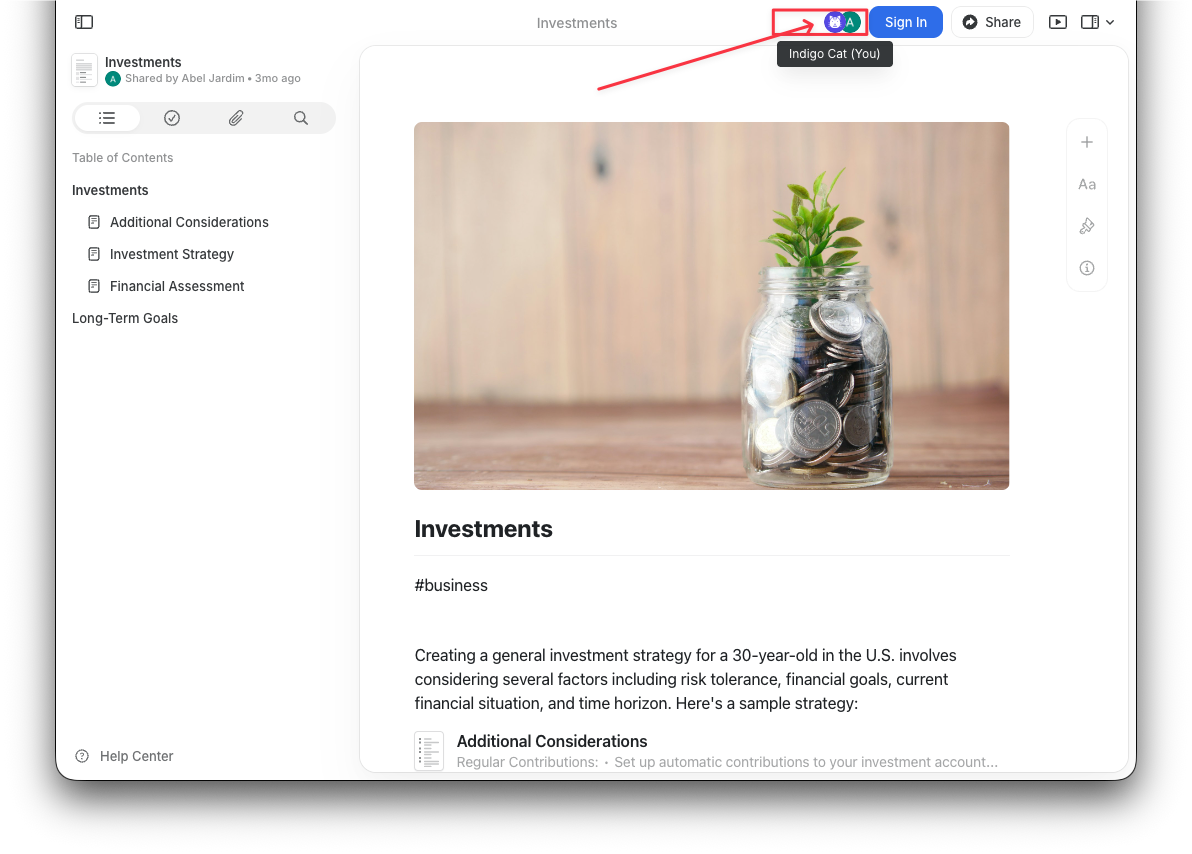
Permanent Profiles
If tracking authorship is important for your workflow, ensure all collaborators sign in to Craft and set their names in their profile. This creates a permanent identity tied to all their actions across documents.Comments
All collaborators - whether they have viewer or editor access - can always comment on documents. Comments are a great way to provide feedback without directly editing content.If you want to completely disable comments on a document, publish it as a web link instead of sharing it for collaboration. Published pages have a separate comments setting you can control.
Folder Sharing
Currently, Craft does not support folder sharing. Collaboration is limited to individual documents, meaning you must share each document separately.Team vs. Individual Collaboration
You do not need a Team plan to collaborate on documents. You can share documents with anyone, even if they’re not on your subscription plan. However, the Family, Team, or Business plans offer additional collaboration features:- Shared Spaces for organizing team projects
- Centralized billing and team management
- Administrative controls for managing team access
- Team member permissions at the space level
Troubleshooting
For general troubleshooting, sync, or platform-specific issues, see the Troubleshooting Guide.
Team Collaboration
Learn how to add and manage team members in shared spaces
Publishing Documents
Make your documents publicly accessible on the web
Links and Backlinks
Create internal links within shared documents
Spaces
Organize shared content with spaces
Document Styling
Make shared documents visually appealing