

What are whiteboards?
Whiteboards are freeform canvases embedded directly in your documents. Unlike structured text, whiteboards let you place elements anywhere, connect ideas with arrows, and think visually without constraints. Use whiteboards for:- Brainstorming and mind mapping
- Creating flowcharts and diagrams
- Planning projects with visual layouts
- Sketching wireframes and mockups
- Organizing ideas spatially
- Visual collaboration with team members
Creating a whiteboard
- macOS
- iOS
- Windows
- Web
1
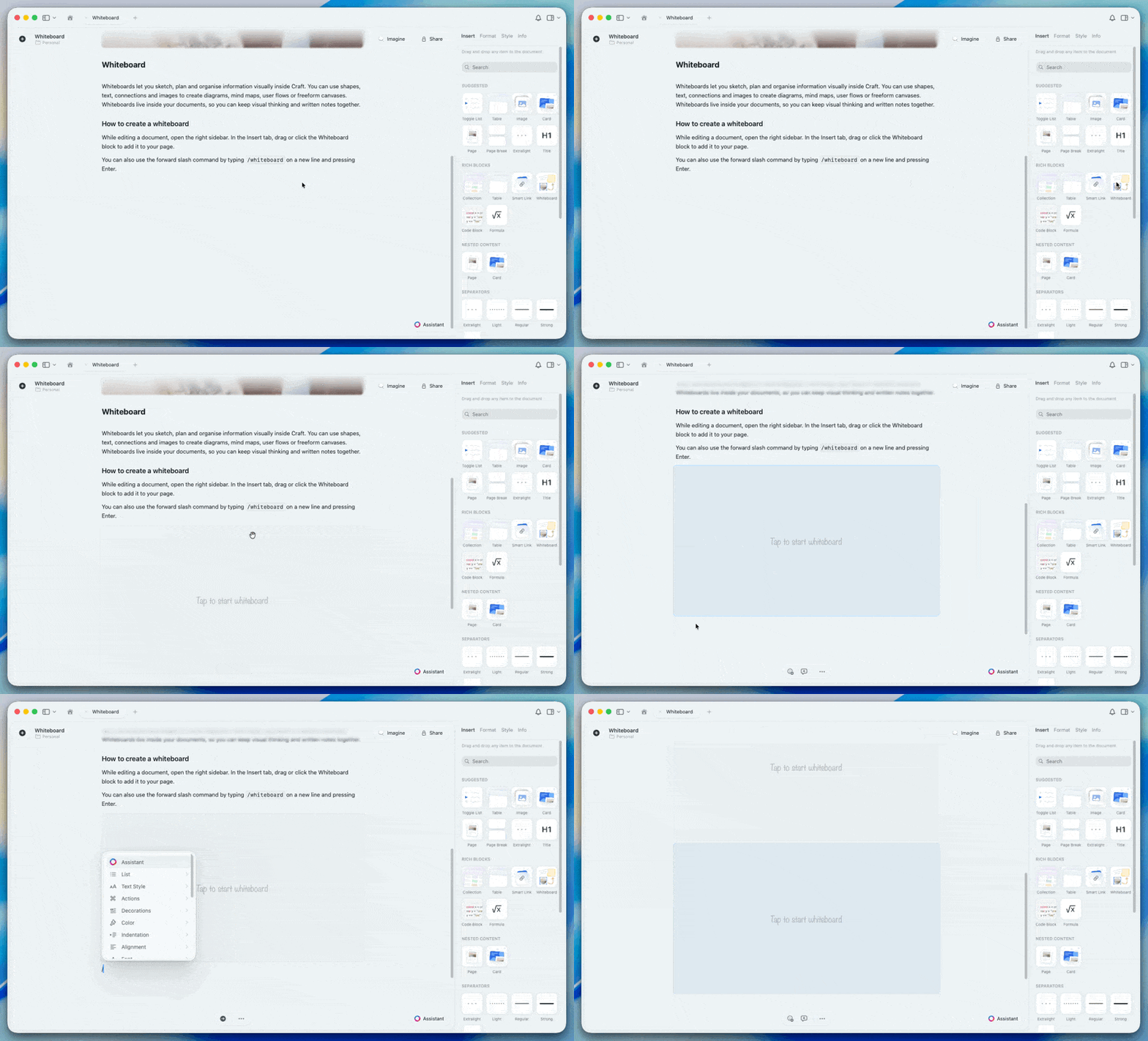
In a document, position your cursor where you want the whiteboard
2
Type
/whiteboard and press Return, or click + and select Whiteboard3
A new whiteboard block appears. Click it to open the editing canvas
Whiteboard tools
The toolbar provides everything you need to create visual content.Selection tool
Use the selection tool to move, resize, and modify existing elements.- Select elements: Click to select one element, or drag to select multiple
- Move: Drag selected elements to reposition them
- Resize: Drag corner handles to change size
- Delete: Select and press Delete or Backspace
Drawing tools
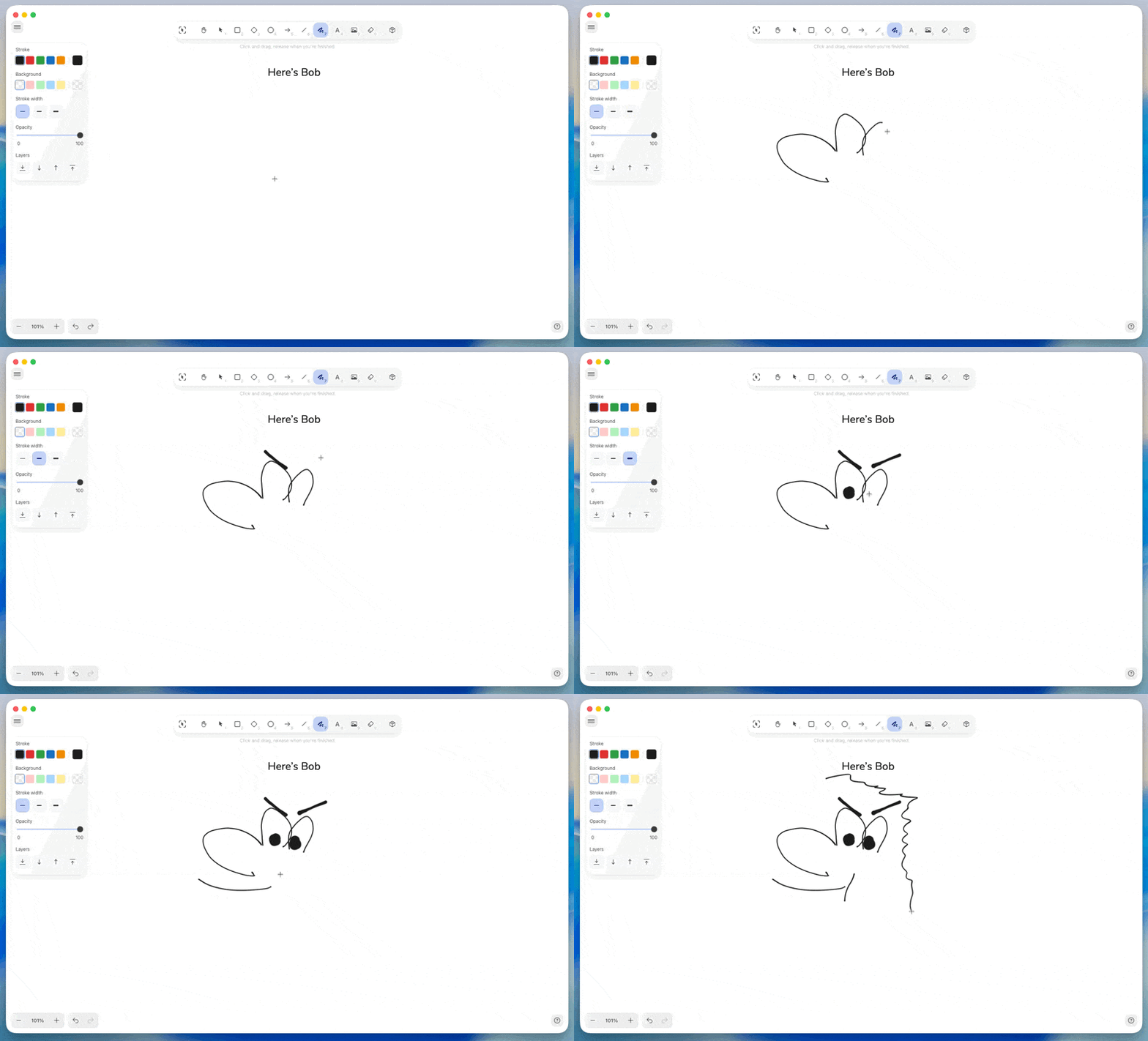
Pencil Draw freeform strokes with the pencil tool. Perfect for sketching, handwriting, or creating organic shapes.- Click the pencil icon or press P
- Adjust stroke width and color from the toolbar
- Draw naturally with mouse, trackpad, or stylus
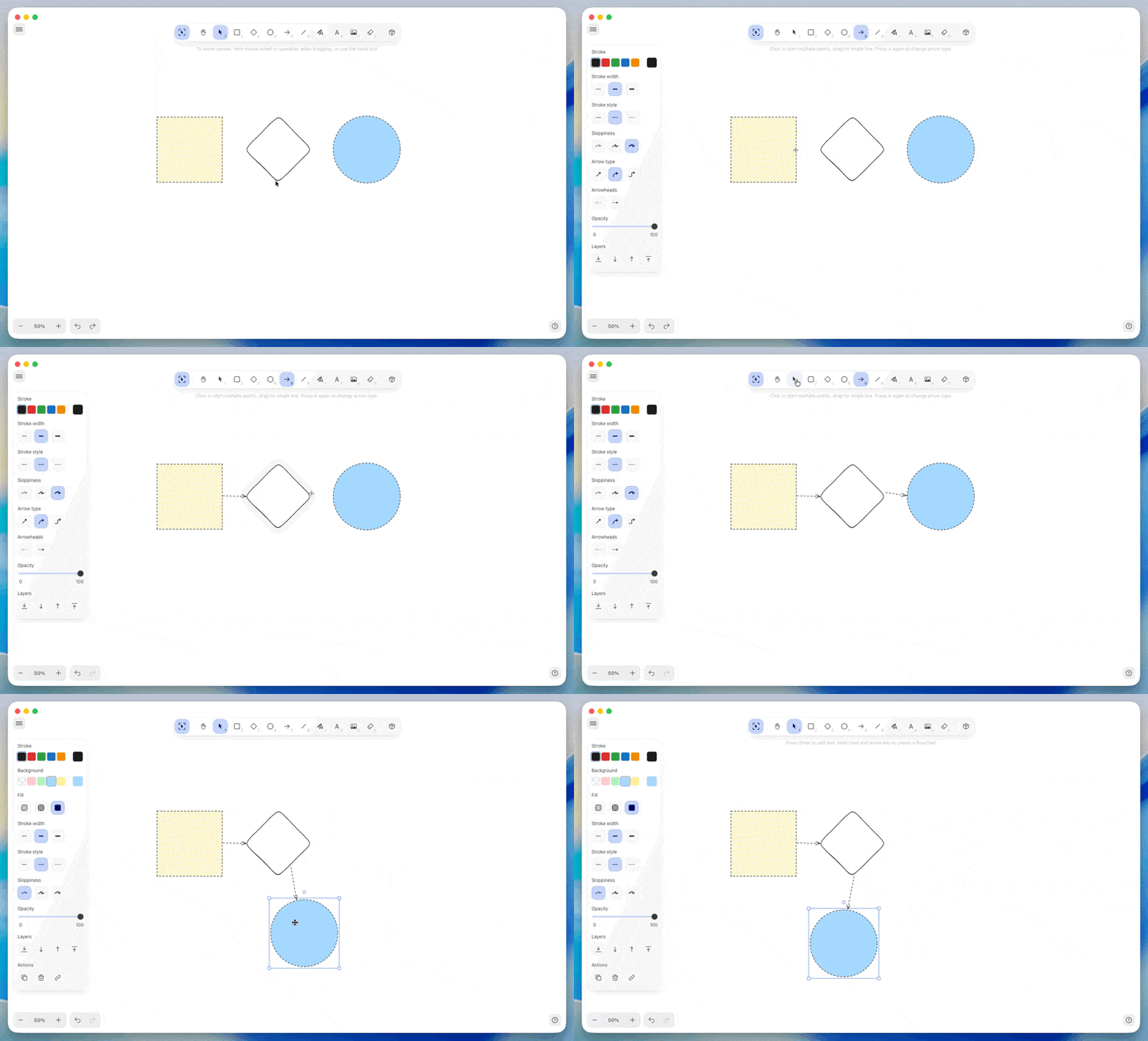
- Click the arrow icon or press A
- Drag from start point to end point
- Customize arrowhead style for both ends
- Adjust line thickness and color
Shape tools
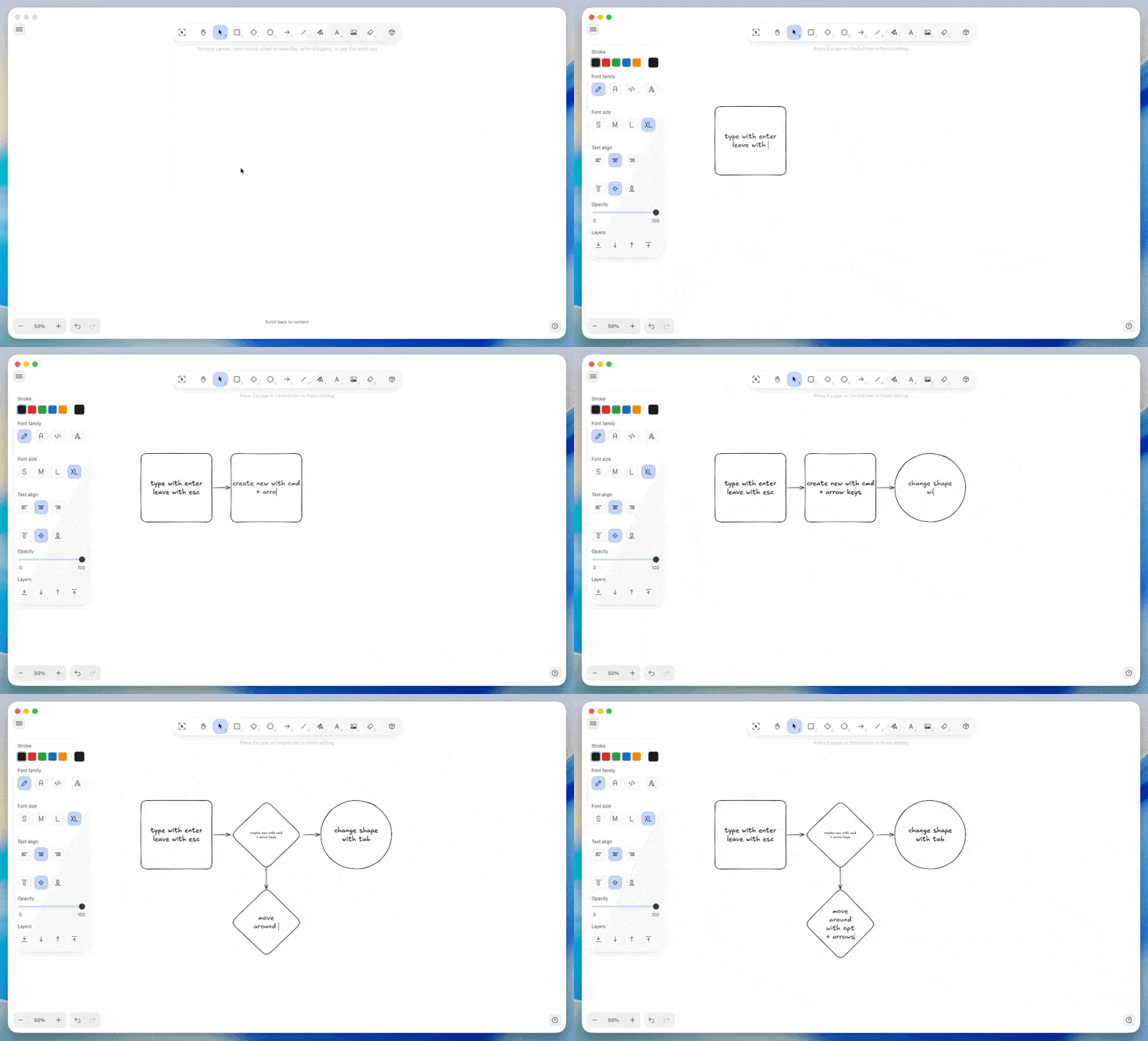
Add geometric shapes for diagrams and structured layouts.- Rectangle: Click the shape icon and select rectangle
- Diamond: Click the shape icon and select diamond
- Ellipse: Click the shape icon and select ellipse
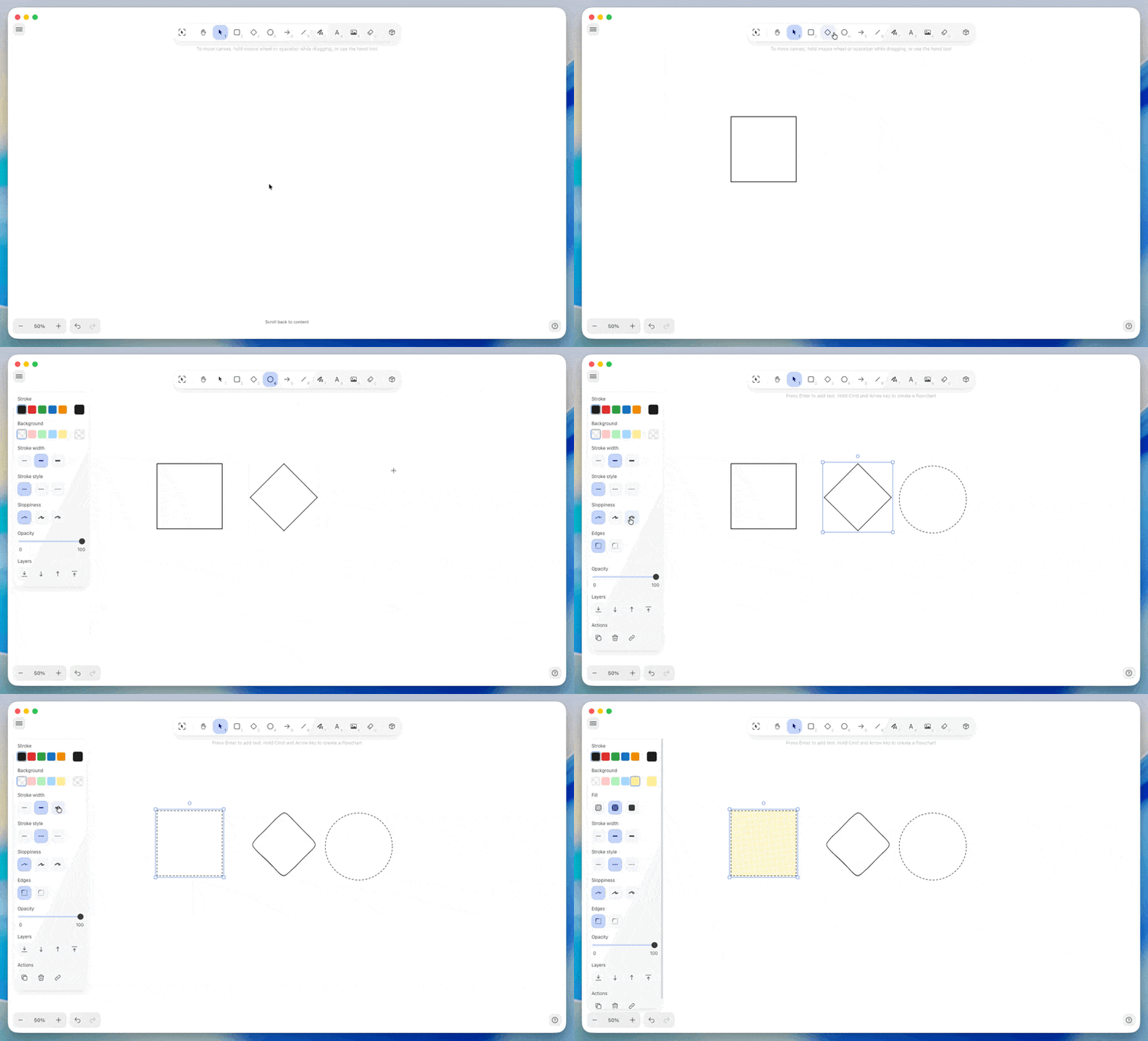
- Fill color and opacity
- Stroke color and width
- Text inside shapes (double-click to add)
Text and sticky notes
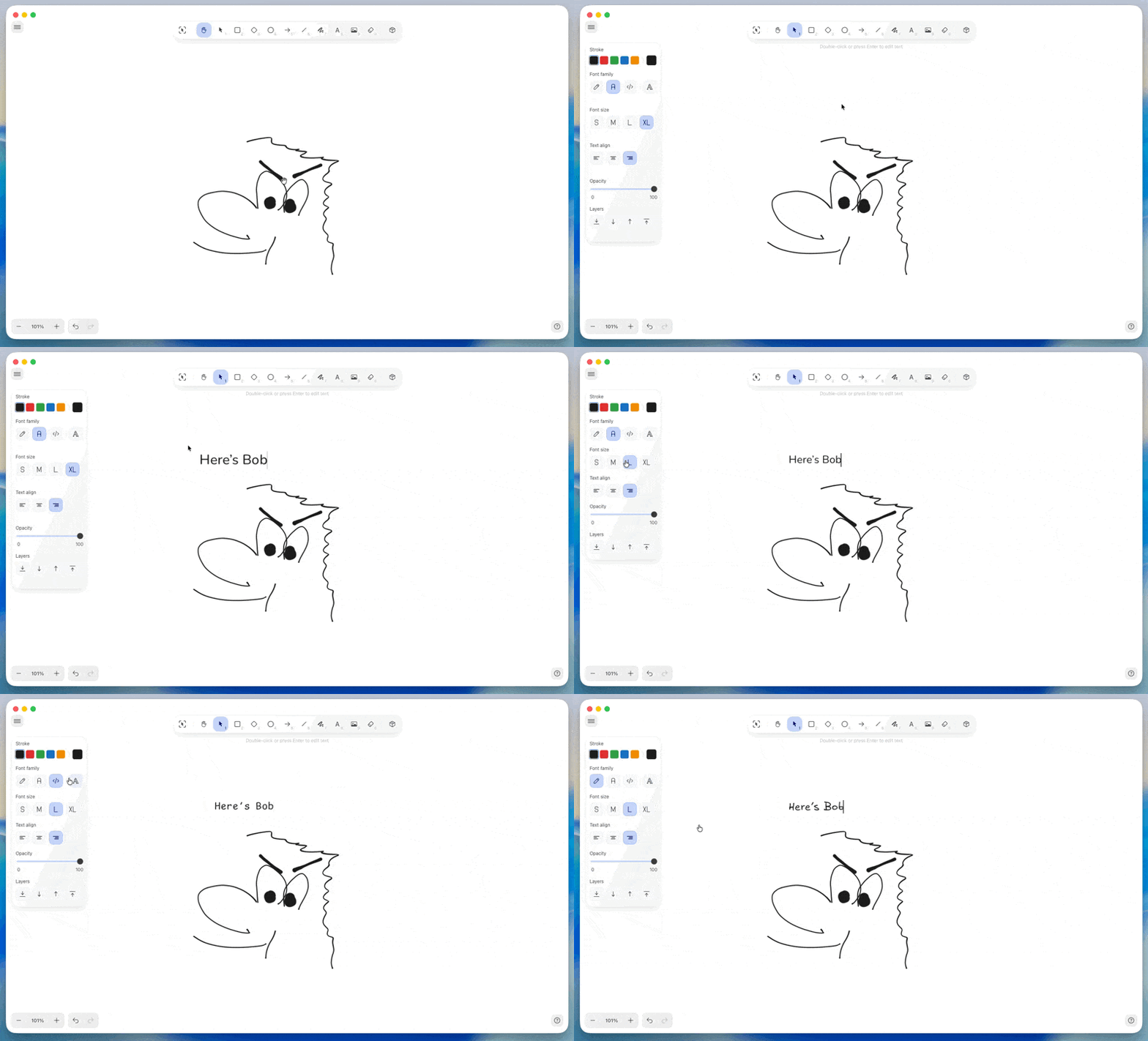
Text Add standalone text labels anywhere on the canvas.- Click the text icon or press T
- Click where you want text to appear
- Type your content
- Format with font, size, and color options
- Click the sticky note icon
- Click where you want the note
- Type your content
- Choose background color
Images and media
Add visual assets directly to your whiteboard.- macOS
- iOS
- Windows
- Web
1
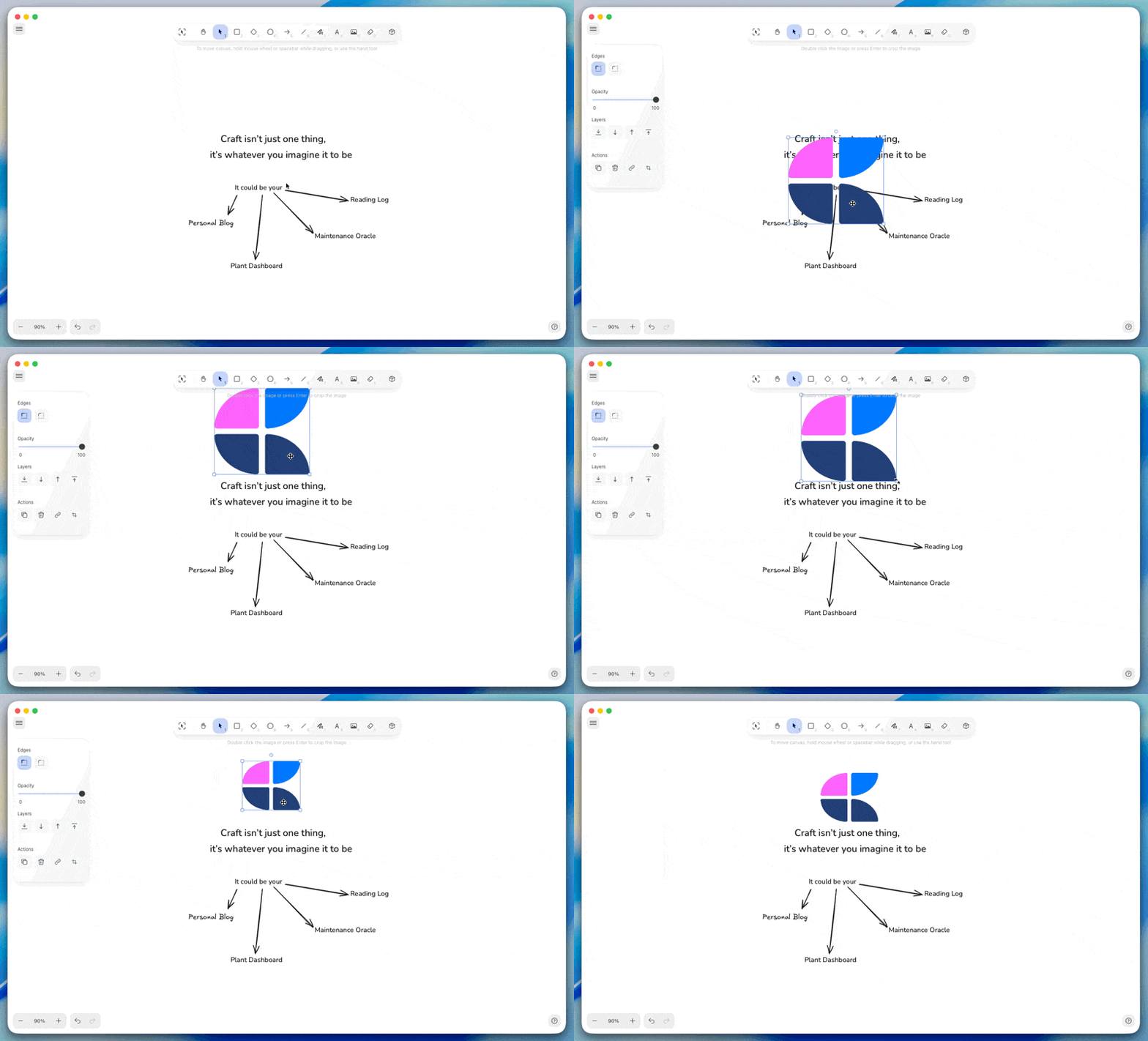
Click the image icon in the toolbar
2
Select an image file from your device
3
The image appears on the canvas, ready to position and resize
Navigation and view
Zoom and pan
Move around your whiteboard and adjust the view level.- Pan: Drag with two fingers (trackpad) or hold Space and drag (mouse)
- Zoom in: Pinch out (trackpad), Cmd/Ctrl + +, or use zoom controls
- Zoom out: Pinch in (trackpad), Cmd/Ctrl + -, or use zoom controls
- Fit to view: Click the zoom reset button to see all content
Background customization
Customize the whiteboard background to match your workflow. Grid options:- Dots: Subtle alignment reference
- Lines: Traditional grid lines
- Squares: Graph paper style
- None: Clean, blank canvas
- macOS
- iOS
- Windows
- Web
Access background settings by clicking the background icon in the toolbar. Choose your preferred grid style and color.
Editing whiteboards
Arranging elements
Control how elements overlap and relate to each other. Layer order:- Bring forward: Right-click → Arrange → Bring Forward
- Send backward: Right-click → Arrange → Send Backward
- Bring to front: Right-click → Arrange → Bring to Front
- Send to back: Right-click → Arrange → Send to Back
Copying and duplicating
- Duplicate: Select and press Cmd/Ctrl + D
- Copy/Paste: Use standard shortcuts Cmd/Ctrl + C and Cmd/Ctrl + V
- Cut: Cmd/Ctrl + X to remove and place on clipboard
Exporting content
Export your whiteboard as an image for use outside of Craft.- macOS
- iOS
- Web
- Windows
The macOS app doesn’t have an Export menu for whiteboards. Select the whiteboard and press Shift + Option + C to copy it to the clipboard as a PNG, then paste it where you need it. To save a PNG or SVG file, open the same document in Craft for web and use Export image.
Collaboration
Whiteboards support real-time collaboration just like documents. When multiple people work on the same whiteboard:- See cursors: Each person’s cursor appears with their name
- Live updates: Changes appear instantly for everyone
- No conflicts: The whiteboard merges edits automatically
Whiteboard access follows document permissions. Anyone with edit access to the document can edit the whiteboard. Viewers can see the whiteboard but cannot modify it.
Whiteboard previews
In your document, whiteboards display as preview blocks showing a snapshot of the canvas. Preview updates:- Automatically after you close the whiteboard
- Shows the current state of your whiteboard
- Adapts to light/dark mode in your document
Tips and best practices
Start simple Begin with basic shapes and text. Add complexity as your idea develops. Use color meaningfully Assign colors to categories or themes. Consistent color coding makes complex diagrams easier to understand. Leverage arrows Show relationships, flow, and dependencies with arrows. Customize arrowhead styles to indicate different connection types. Combine with documents Whiteboards work best alongside text. Use whiteboards for visual thinking, then document conclusions in structured text. Template-ready Create reusable layouts (Kanban boards, flowchart structures, etc.) and duplicate them for new projects.Troubleshooting
Updating legacy whiteboards
Updating legacy whiteboards
This section explains how to update legacy whiteboards created with the previous whiteboard framework. These older whiteboards cannot be opened directly in the new version of the Craft application.
When an update is required
If a document contains a legacy whiteboard, you will see an Update Needed label on the board preview. The whiteboard block remains visible and can still be duplicated or moved, but it cannot be opened until it is updated.Starting the update
When you attempt to open a legacy whiteboard, you’ll see a migration dialog. Select Create new version to continue. A new whiteboard will be generated directly below the original block.What happens during migration
The migration copies all items from the legacy board into the new framework. The original whiteboard block remains untouched. The migration can be repeated if needed.Current limitations:- Only the original version of a whiteboard will migrate. Duplicates of legacy whiteboards do not migrate
- In some layouts with complex layering, text can temporarily appear behind shapes. This can be corrected by adjusting the layer order in the new board
After migration
Once the new version is created, you can open and edit it normally. If the result is not what you expected, you can run the migration again or manually adjust the content. The legacy block will remain in place as a reference until you choose to delete it.Migration is intended to preserve content as accurately as possible. If you notice any issues that cannot be resolved by reordering layers or repeating the migration, please contact support for assistance.
Performance with large whiteboards
Performance with large whiteboards
Very large whiteboards with hundreds of elements may experience slower rendering.To improve performance:
- Split complex boards into focused sections
- Use separate whiteboards for different topics
- Limit the number of high-resolution images
- Close other tabs and applications while working
Preview not updating
Preview not updating
If the whiteboard preview in your document doesn’t reflect recent changes:This triggers a new preview generation. The preview typically updates within a few seconds.
1
Open the whiteboard
2
Make any small change (move an element)
3
Close the whiteboard
For general troubleshooting, sync, or platform-specific issues, see the Troubleshooting Guide.