

Important Limitations
Before using External Locations, be aware of these important limitations:- Manual re-adding required: Since we don’t store any information about which folder you’re using, you have to manually re-add your folder as a space if you log out from your account or switch between devices
- Not recommended for multi-device use: The upload and syncing process depends entirely on third-party services. Using External spaces across different devices can lead to data conflicts and data loss
If you’re unsure about how to use External Locations safely, please reach out to our support team for guidance.
How to Enable External Locations
1
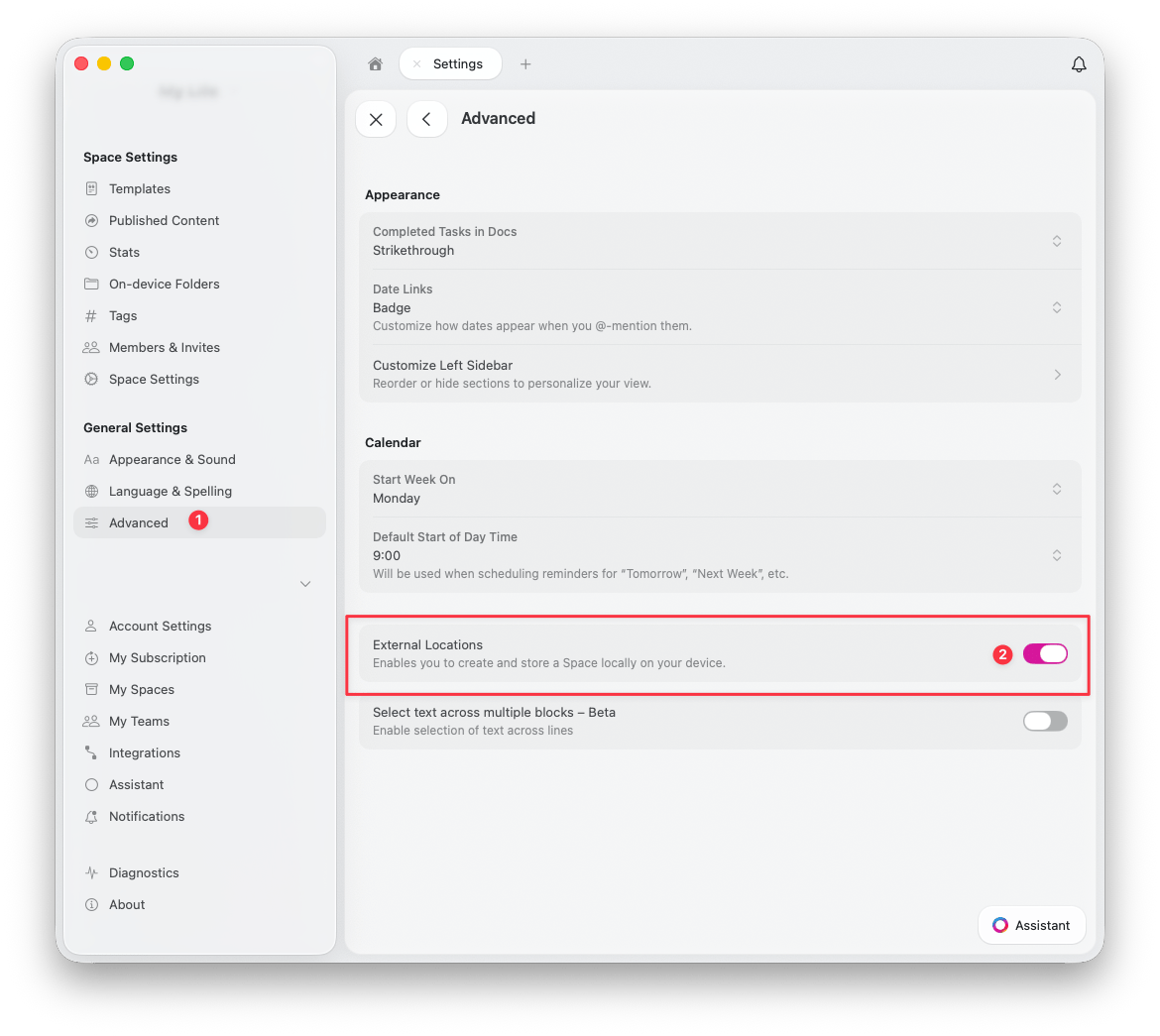
Open Advanced Settings
Go to Settings > Advanced
2
Enable the toggle
Turn on the External Locations toggle
How to Add an External Location
Once enabled, you can add an External Location from Settings > My Spaces: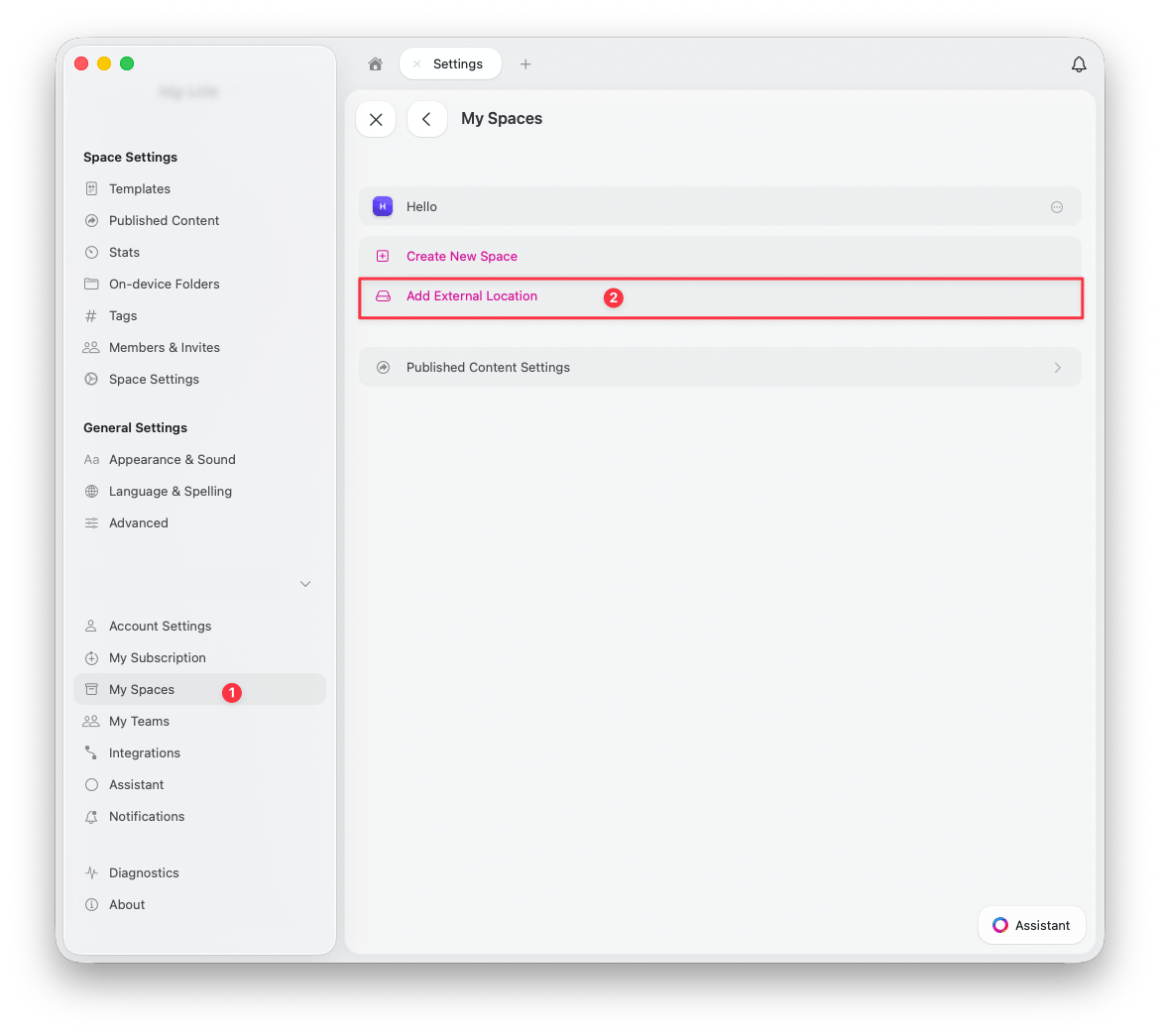
1
Open My Spaces
Go to Settings > My Spaces
2
Add External Location
Click Add External Location
3
Choose a folder
Create or select a folder at your preferred location — this is where all your documents and assets will be saved
Using Third-Party Sync Services
macOS
On macOS, you have full control over where you would like to store the folder containing your Craft documents. The sync quality and reliability will depend on your cloud provider (such as Dropbox, Google Drive, etc.).iOS and iPadOS
On iOS and iPadOS, Apple currently doesn’t allow access to most third-party sync services as a location when selecting a folder. The only available option in this case is iCloud Drive. If this changes in future iOS updates, Craft will support the latest available options.When to Use External Locations
External Locations are best suited for:- Users who need complete control over where their data is stored
- Scenarios where cloud collaboration features are not needed
- Single-device workflows (not recommended for multi-device)
- Compliance requirements that mandate local-only storage
When NOT to Use External Locations
Avoid External Locations if you:- Need to share or collaborate on documents
- Work across multiple devices
- Want automatic syncing without third-party tools
- Rely on Craft’s cloud-based features like version history and backups