

How Version History Works
Automatic Backups Every Hour
- A snapshot of your document is created every 60 minutes while you’re actively making changes
- After you make an edit, the system starts a timer
- If you continue making changes, a snapshot is automatically saved once one hour has passed
- The process then repeats: as long as you keep editing, new snapshots are created every hour
- You update a document at 10:00 AM → The timer starts
- You continue making changes until 11:00 AM → A backup is saved
- The timer resets and tracks your changes until 12:00 PM, when the next backup is saved
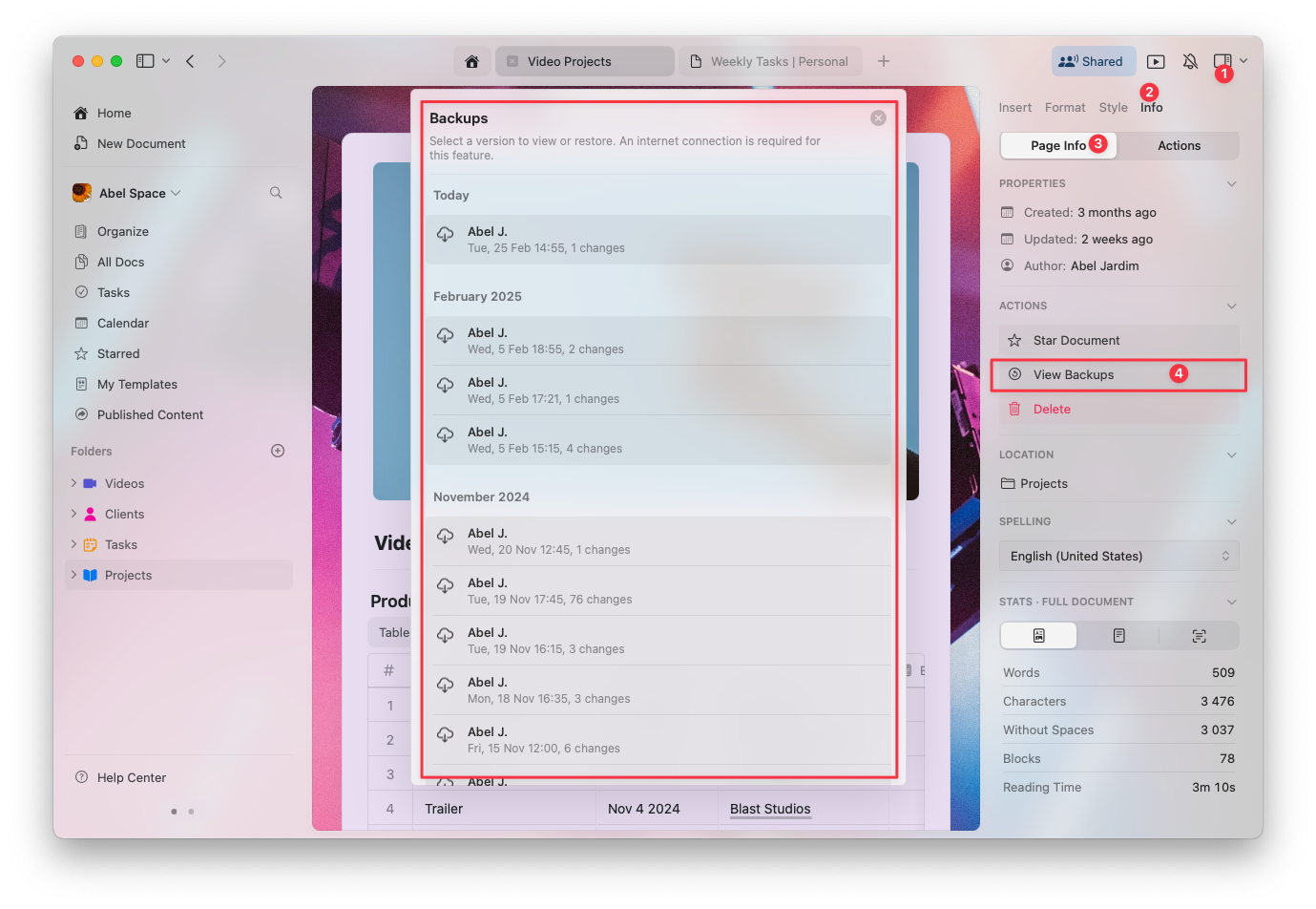
How to View Document Backups
1
Open the document you want to review
2
Click on the Info tab in the right sidebar
3
Select View Backups to access the list of saved versions
4
Choose a backup from the list to preview and restore it if needed
Backup Retention by Plan
The number of days your document versions are available depends on your Craft subscription plan:
After the retention period for your plan, older backups are automatically deleted and no longer accessible.
Troubleshooting
If you can’t see a previous version of your document, see Troubleshooting Version History for common causes and solutions.Related Articles
Recovering Deleted Content
Learn how to recover deleted documents, folders, and pages
Version History Troubleshooting
Fix issues with document version history
Subscription Plans
Compare storage limits across plans