

File Attachments
You can upload any type of document to a Craft document – Word files, PDFs, Excel spreadsheets, and more.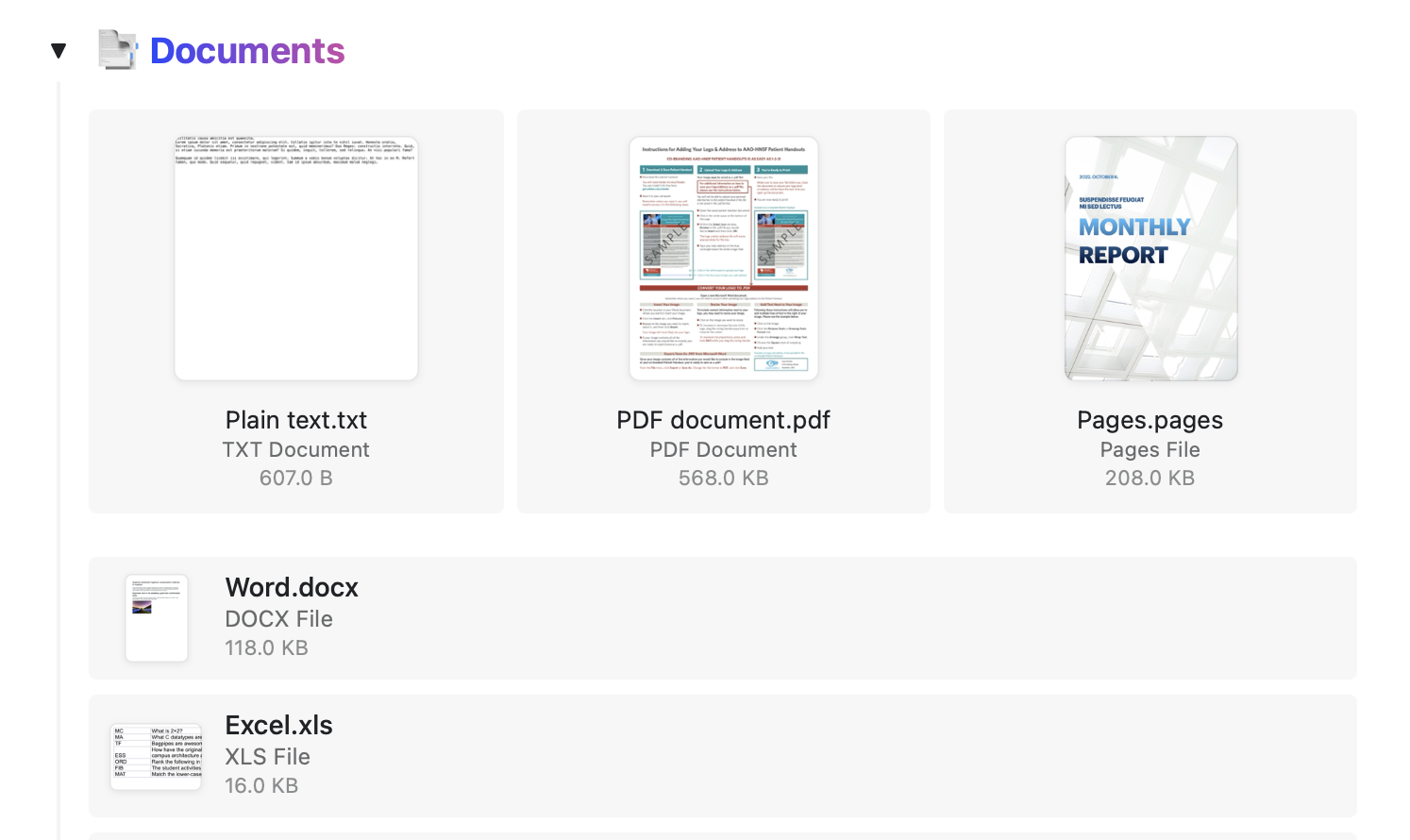
Opening Files
- macOS/iOS
- Web
- Windows
Editable documents such as Word, PDF, or Excel files can be opened directly from the Craft app. Files open in their respective applications.
Links
Craft provides powerful link handling with automatic rich previews and customization options.Automatic Rich Links
When you paste a link into an empty block, Craft automatically creates a rich link with a thumbnail, title, and description.
Link Layouts
Change the visual appearance of rich links using the … menu. Choose from three layouts:- Small – Compact preview
- Regular – Standard size with thumbnail
- Card – Full-width card layout
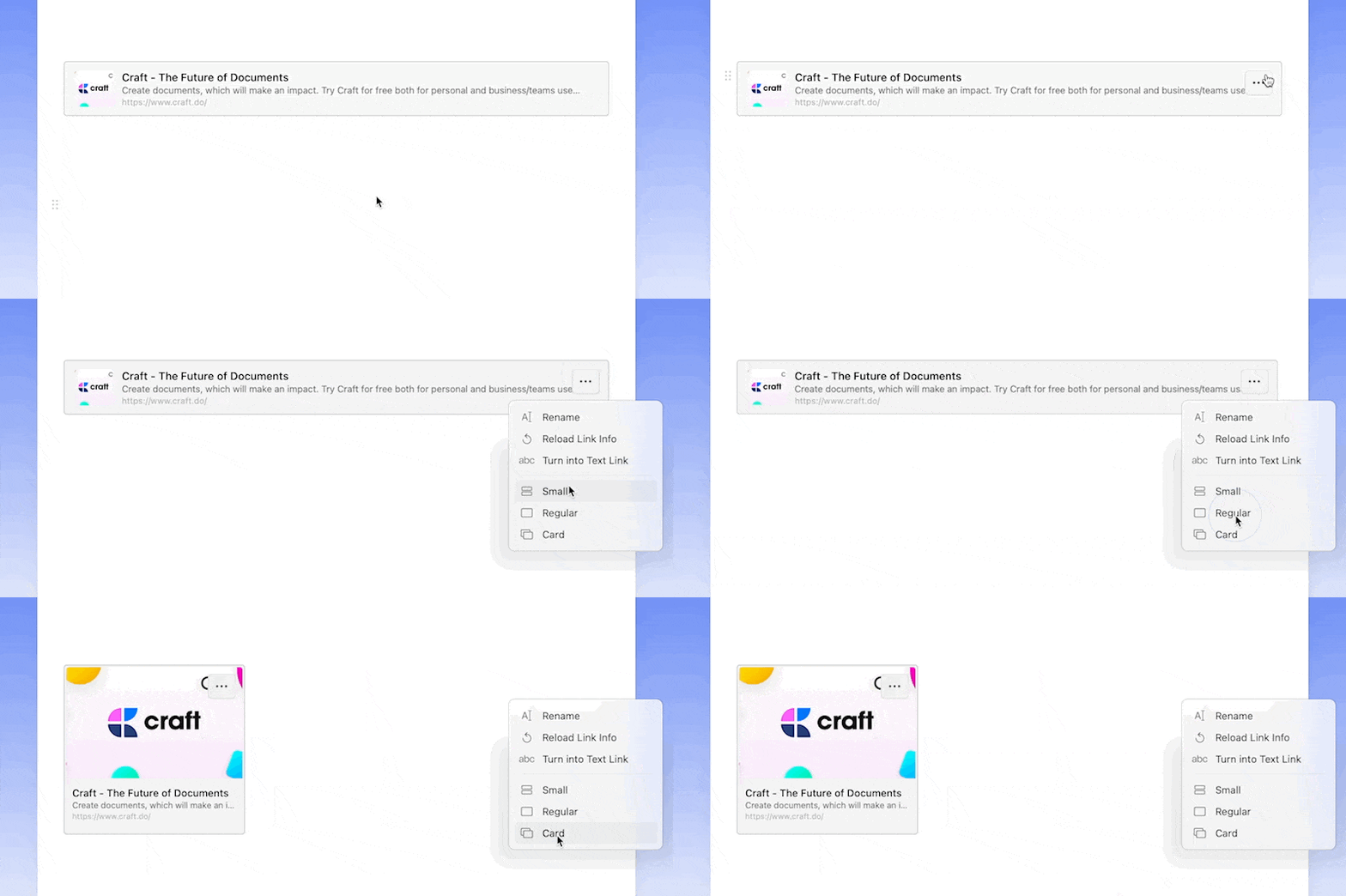
Customizing Links
Edit the title and description of rich links to make them more relevant to your content. Use the … menu to open the Rename panel, edit the Title and Description fields, and select Save. The fields grow with their content, so the whole description stays visible while you edit.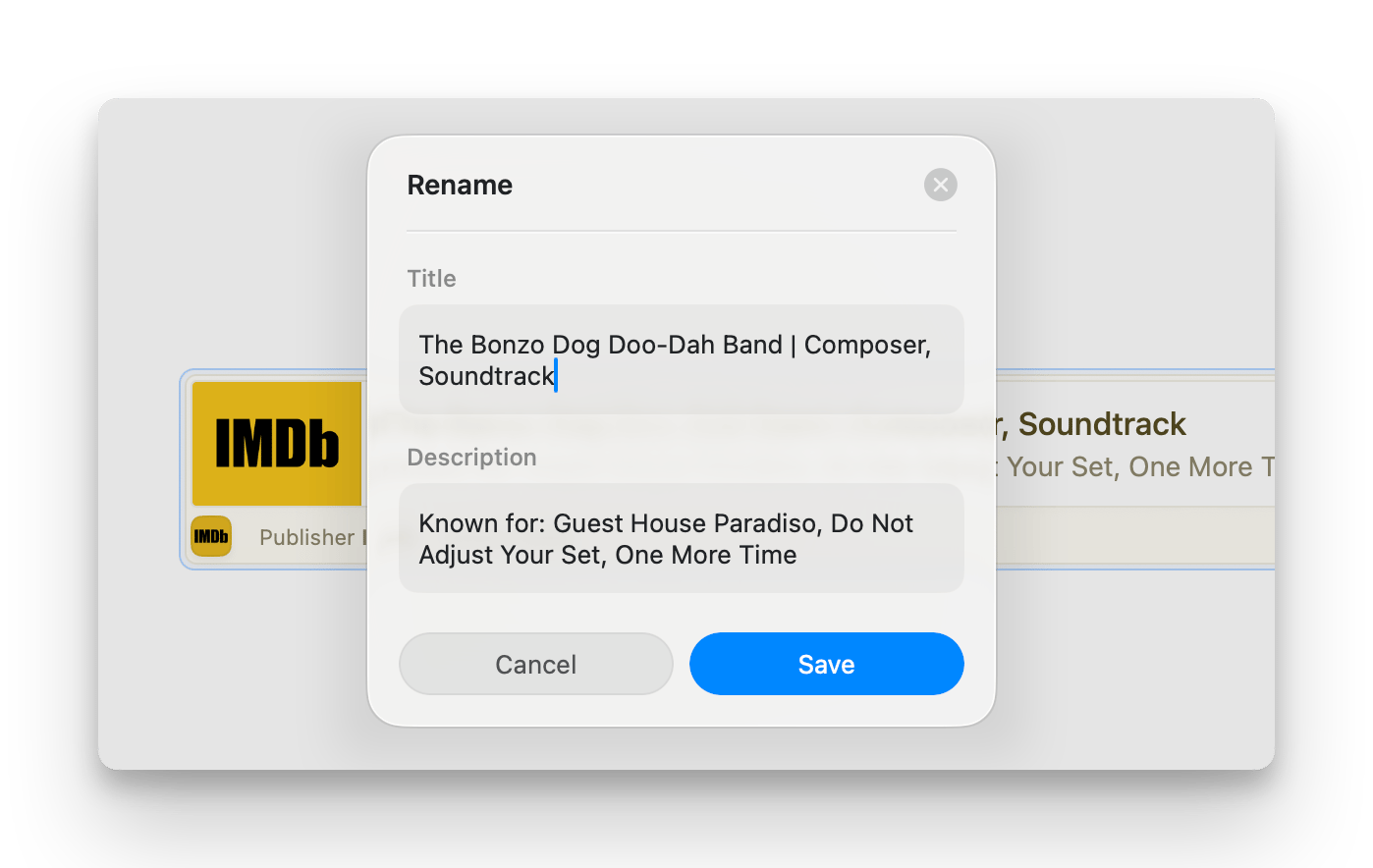

Preventing Rich Links
If you prefer plain text links, you can prevent Craft from automatically creating rich links:- Insert the link in the middle of a sentence
- Hit space before pasting the link in an empty block
- Convert a rich link to text using the … menu

Creating Text Links
Paste a link into highlighted text usingCmd+V (macOS) or Ctrl+V (Windows) to instantly turn it into an inline link.

Link Color Customization
Change the color of text links by navigating to Account → Preferences → Appearance → Accent color.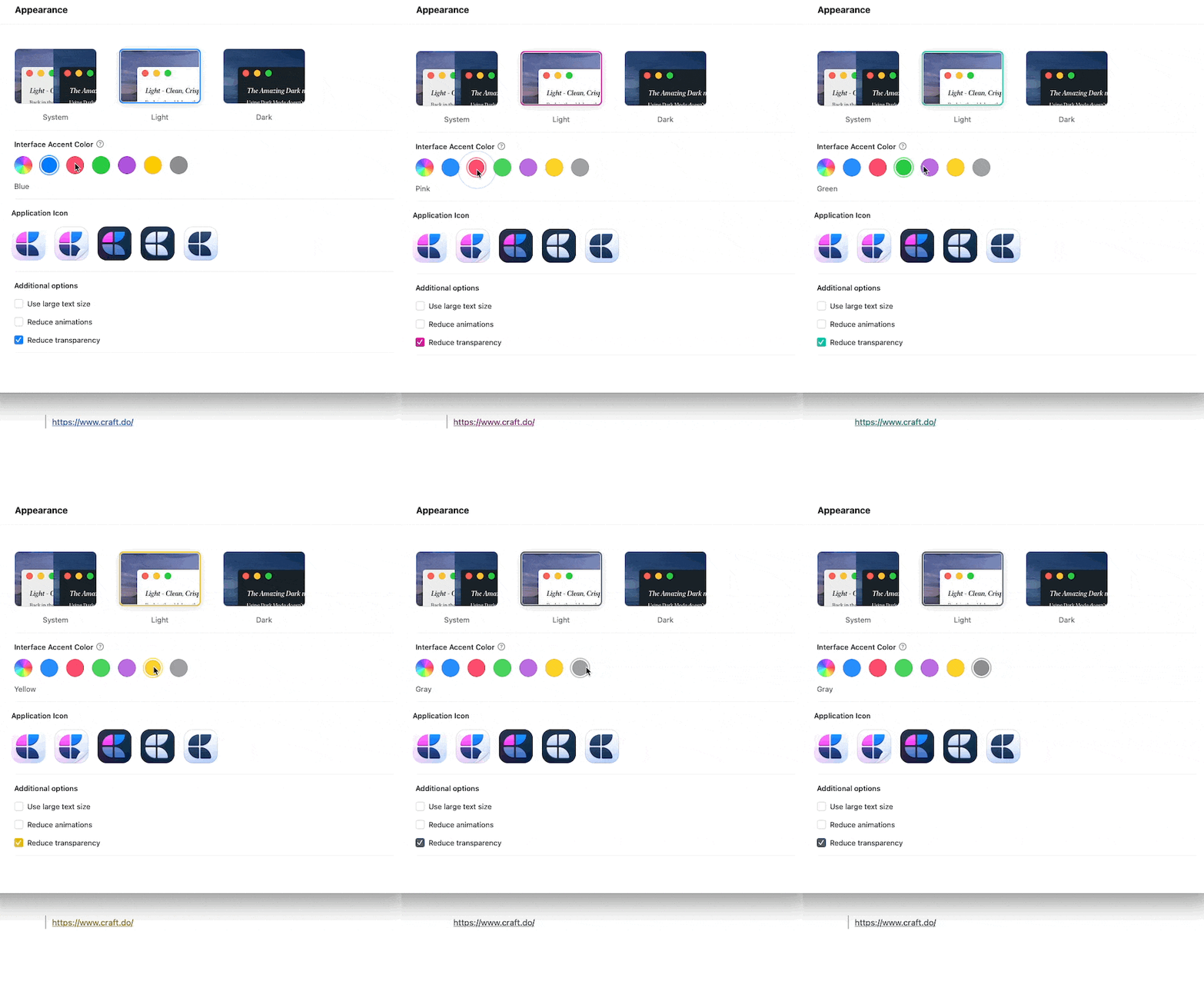
Craft for Windows does not currently create rich links automatically. Links appear as standard text links.
Converting Between Link Types
You can easily convert between rich links and text links:- Rich to text: Use the … menu and select Change to Text Link
- Text to rich: Right-click on a plain link and select Change to Preview Link