

Where Craft Assistant is available
Craft Assistant works across all major platforms:- macOS
- iOS
- Windows
- Web
Available at space-level and document-level. Works in Documents, Tasks, Calendar, Collections, Code Editor, and browse views.
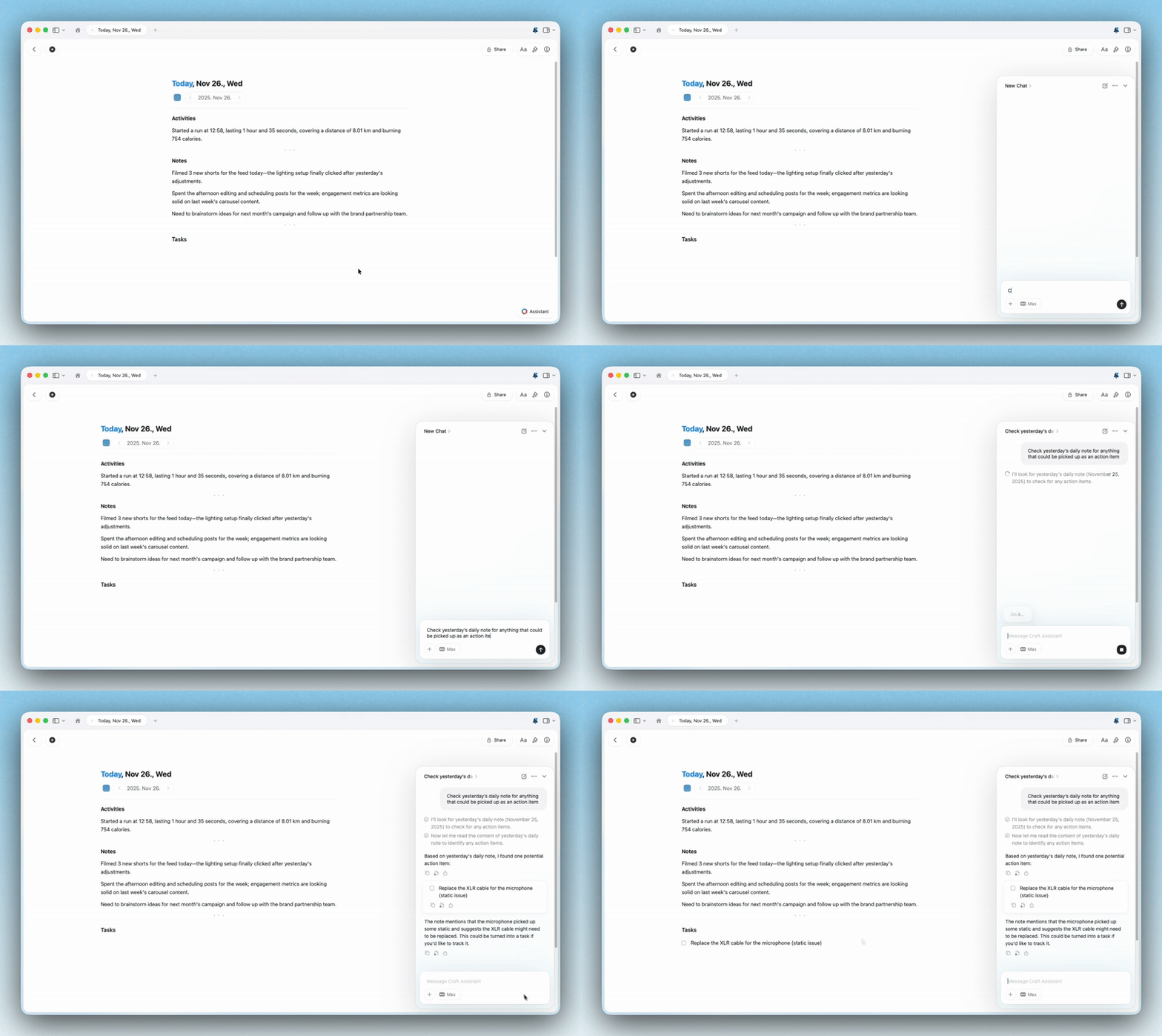
Start a conversation
1
Open a document or stay in your Space view.
2
Open the Assistant panel.
3
Choose a model and mode, then type your prompt.
4
Review the response or applied changes.
Sessions
Craft Assistant sessions are designed for continuity: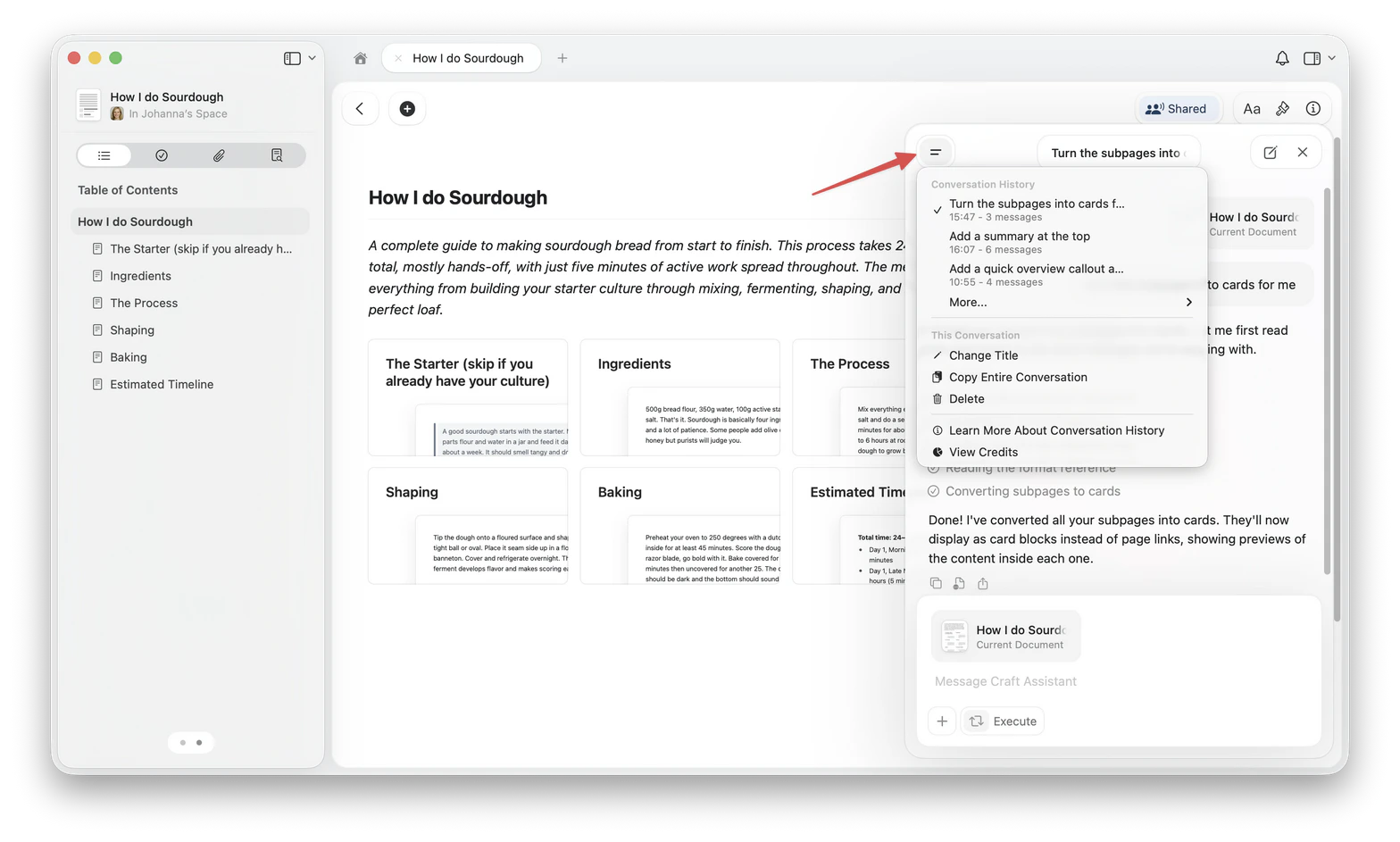
- Sessions sync between the macOS and iOS apps. Sessions you start in a browser are stored in that browser and do not sync to the apps or to another browser.
- Conversation history is kept for 30 days. Sessions older than that are deleted.
- Each session belongs to the agent you started it with (Auto, Help Center, and the others in the agent list). Selecting a different agent for a session that already has messages starts a new session rather than continuing the current one.
- Sessions pause after 5 minutes of inactivity. Your conversation history is preserved.
- You can reopen previous sessions from the list.
- You can run parallel sessions.
- A notification dot appears when a background session completes.
Editing your documents
On macOS and iOS, use Execute mode to apply changes directly. Use Explore mode when you want to review proposed changes first.- Explore — proposes changes and waits for your approval before modifying anything.
- Execute — applies changes directly.
- macOS
- iOS
- Windows
- Web
Full editing support at document-level and space-level.
Example questions you can ask
Understanding your content:- “What did I write about this topic last year?”
- “What tasks are still open for Project Y?”
- “Summarize all notes related to onboarding new hires.”
- “Summarize this document in 3 bullet points”
- “Extract all action items from this meeting note”
- “What are the key decisions mentioned here?”
- “Add a summary callout at the top of this document”
- “Restyle the headings with colors and add dividers”
- “Break this into subpages, one per section”
- “Create a new document with meeting notes from this page”
- “Find all documents about marketing campaigns”
- “What deadlines do I have this week?”
- “Show me everything related to the Q4 project”
The Assistant can understand Collections, including properties and relationships.
Privacy and your data
Craft Assistant is designed with privacy first:- Sessions sync between the macOS and iOS apps for continuity.
- Craft does not use your content to train AI models.
- Only the minimum data required to process a request is sent to the model provider.
- Token usage and cost are recorded for usage tracking.
Choosing a model
The model you select changes speed, capability, and AI usage:- Core: Everyday in-document queries. Uses a low amount of AI usage. Read-only.
- Fast: Good for space-level questions and supports editing.
- Max: Best for complex reasoning and editing quality.
- Local: On-device models (Apple Foundation Model, LLaMa 3.2) that run locally on your device. Always free. Read-only.
Preferences
Add a preference
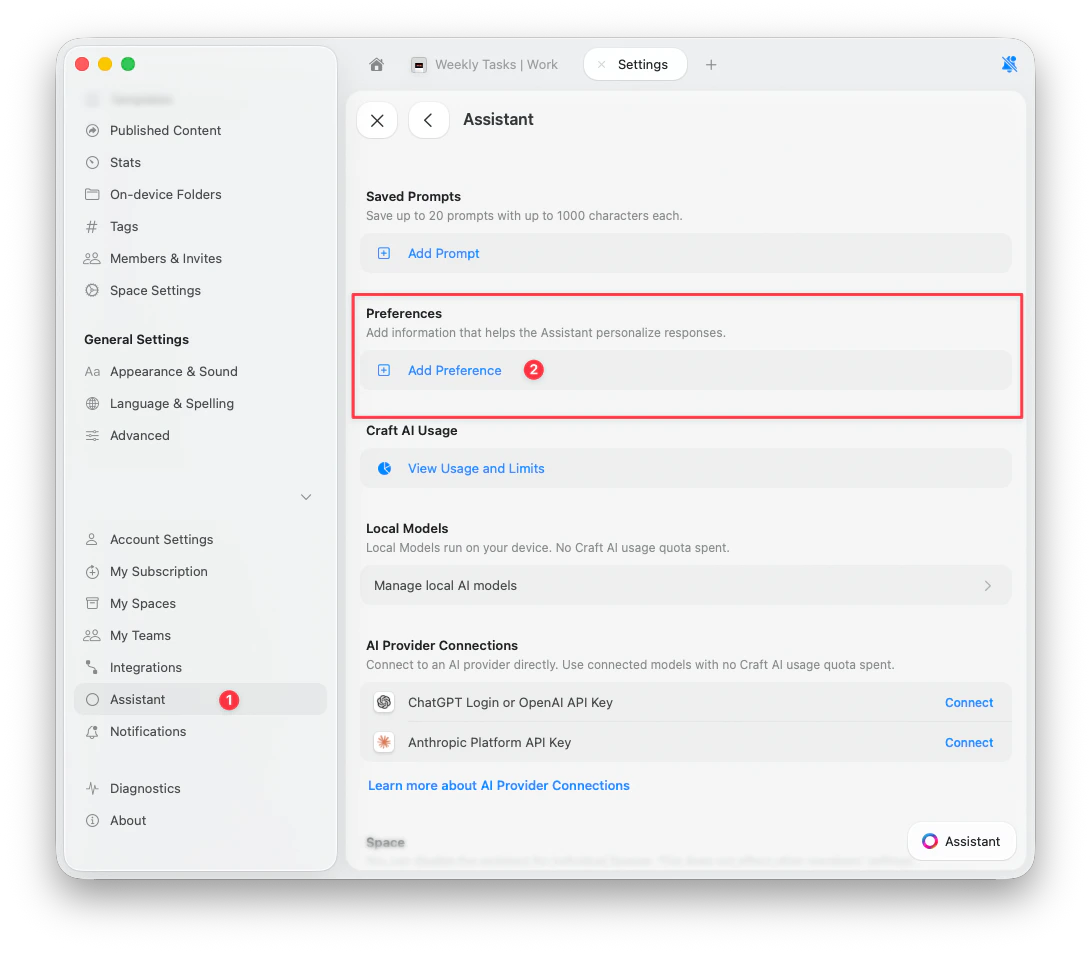
1
Open Settings
Go to Settings > Assistant.
2
Find Preferences
Scroll to the Preferences section.
3
Add Preference
Tap Add Preference, type your instruction, and tap Add.
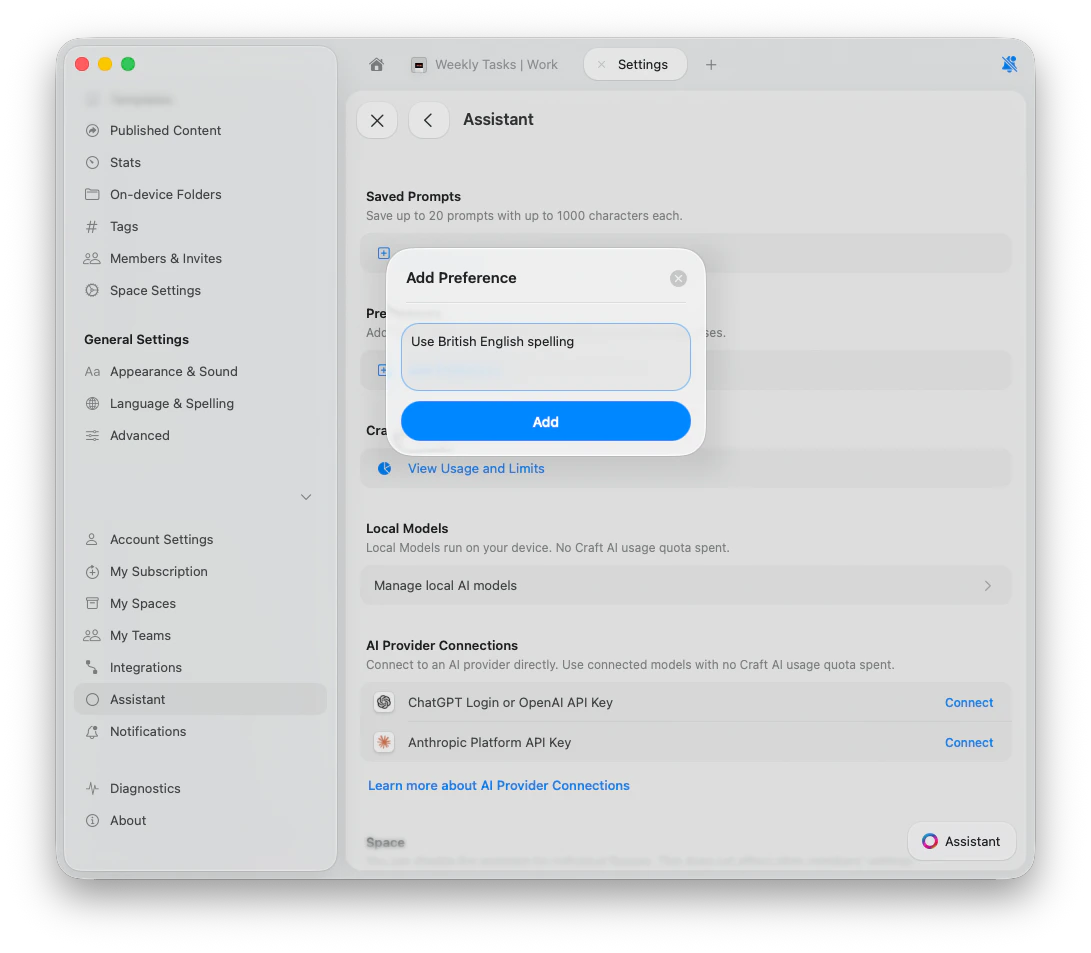
Example preferences
- “Use British English spelling”
- “Keep responses under 3 paragraphs”
- “I work in marketing. Use brand-friendly language”
- “Always respond in Spanish”
- “When summarizing meetings, always extract action items with owners”
Manage preferences
To edit or delete a preference, tap the 3-dots button next to it and choose Edit or Delete.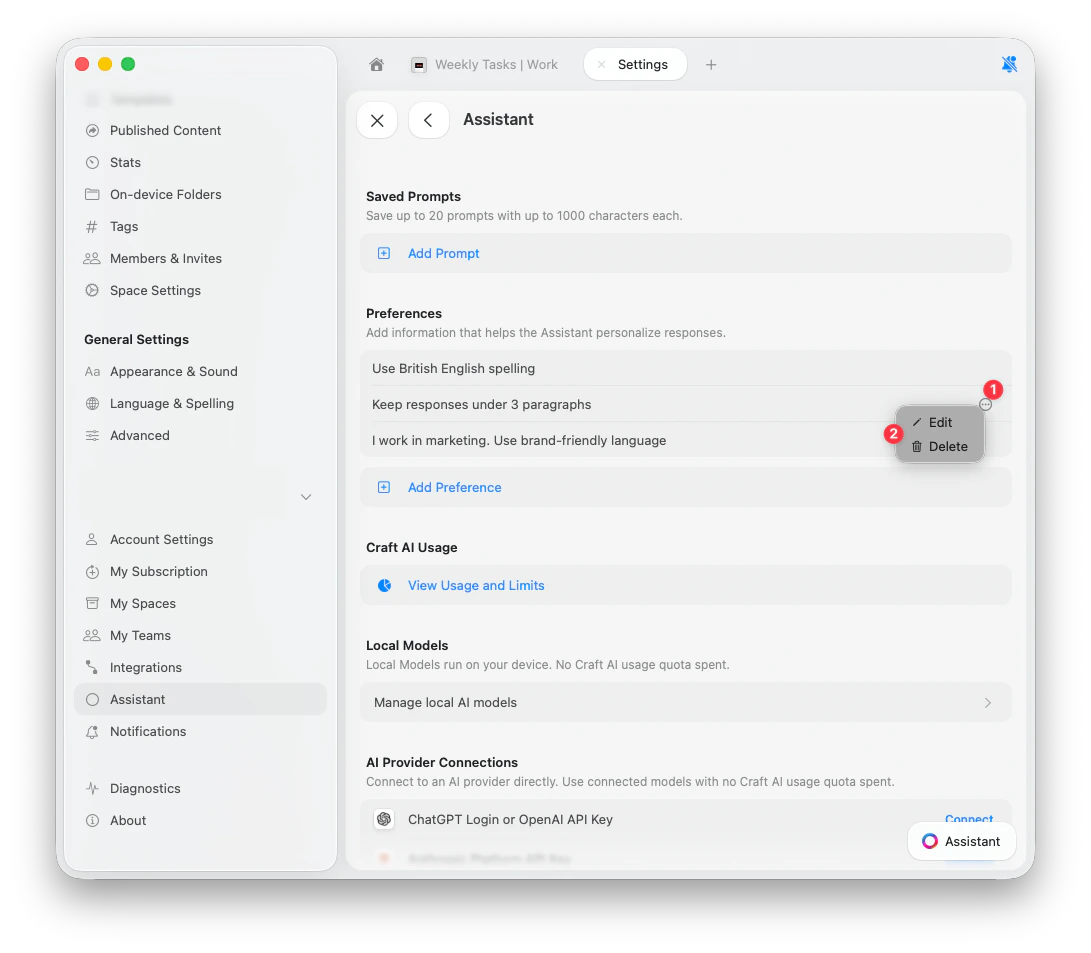
Disable the Assistant
You can turn the Assistant off per Space:1
Open Space settings.
2
Turn off the Assistant toggle.
Related Articles
Choosing AI Models
Select the right model for your task and editing needs
Editing with Craft Assistant
Let the Assistant make changes directly in your documents
Custom Prompts
Create reusable instructions for consistent results
Image and PDF Support
Use OCR to extract text and generate descriptions
Help Agent
Get instant help about Craft features without leaving the app