

Accessing Team Settings
To manage your team settings, navigate to the Team Settings panel:1
Click on Settings in the main menu
2
Select My Team
3
Click on Team Settings
Team Configuration
Change Team Name
You can customize your team’s name at any time to better reflect your organization, project, or group. The team name is visible to all team members and helps identify the team across your Craft account.1
Navigate to Team Settings
2
Find the Team Name field
3
Enter your desired team name
4
Save your changes
Change Team Logo
Upload a custom logo or icon to personalize your team. The team logo is visible inside the Craft app and can also appear on published pages if Share Page Branding is enabled.1
Navigate to Team Settings
2
Click on Change Team Logo
3
Upload your image file
4
Adjust the positioning if needed
5
Save your changes
Your team logo will only appear on published pages if you enable the Share Page Branding feature in your publishing settings.
Team Management Overview
The “My Team” section provides access to several key management areas:Members and Invites
Manage all team members and send invitations to new people. This section allows you to:- View all current team members
- Send invitations via email
- Manage pending invitations
- Remove team members (if you have admin permissions)
Billing & Subscription
All subscription and billing management can be handled from this section:- View your current plan details
- Upgrade or downgrade your subscription
- Manage payment methods
- View billing history and invoices
- Cancel your subscription
Spaces
The Spaces section lists all spaces nested under your team. From here you can:- View all team spaces
- Create new spaces
- Manage space settings
- Move spaces between teams
Team Settings
The Team Settings panel is where you can:- Configure team name and logo
- Manage published content branding
- Access admin controls
- Delete the team (if you’re the owner)
Moving Spaces Between Teams
You can move spaces between teams within the same account by following these steps:1
Access Settings by clicking on your Avatar profile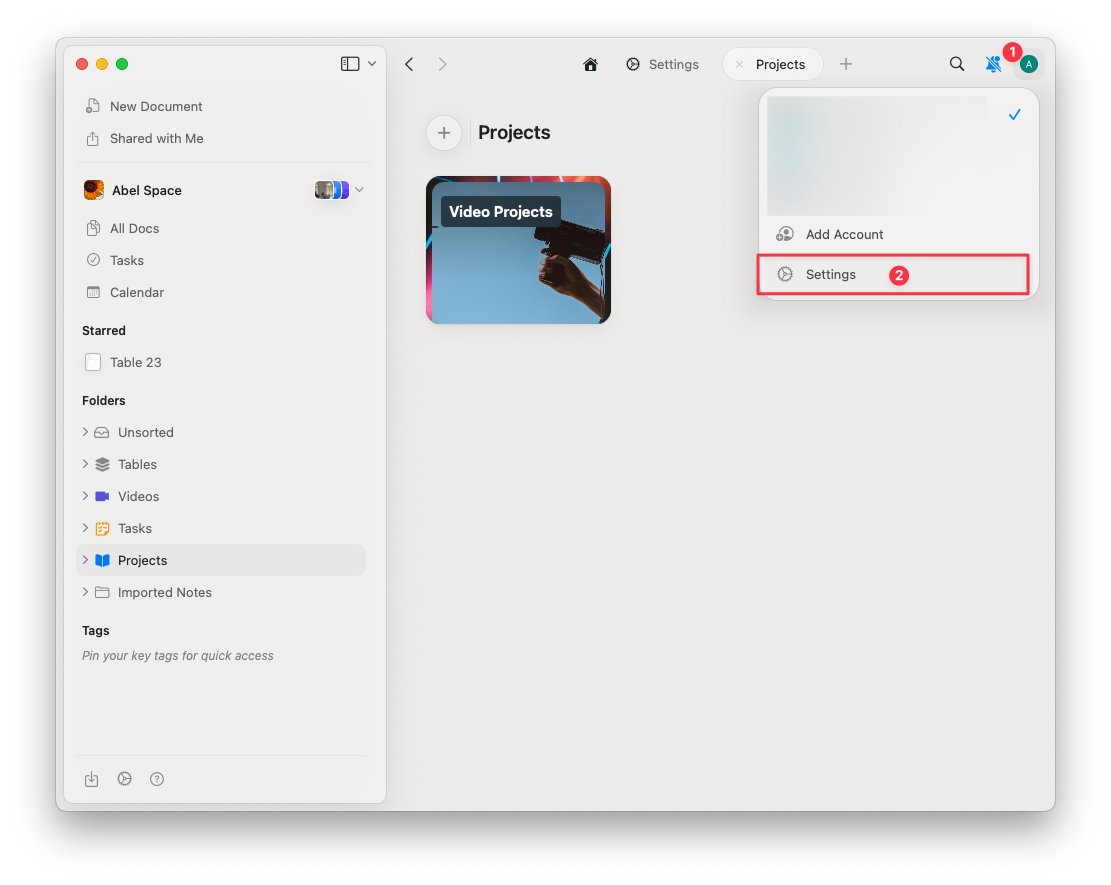
2
Select Space Settings
3
Click on Move Space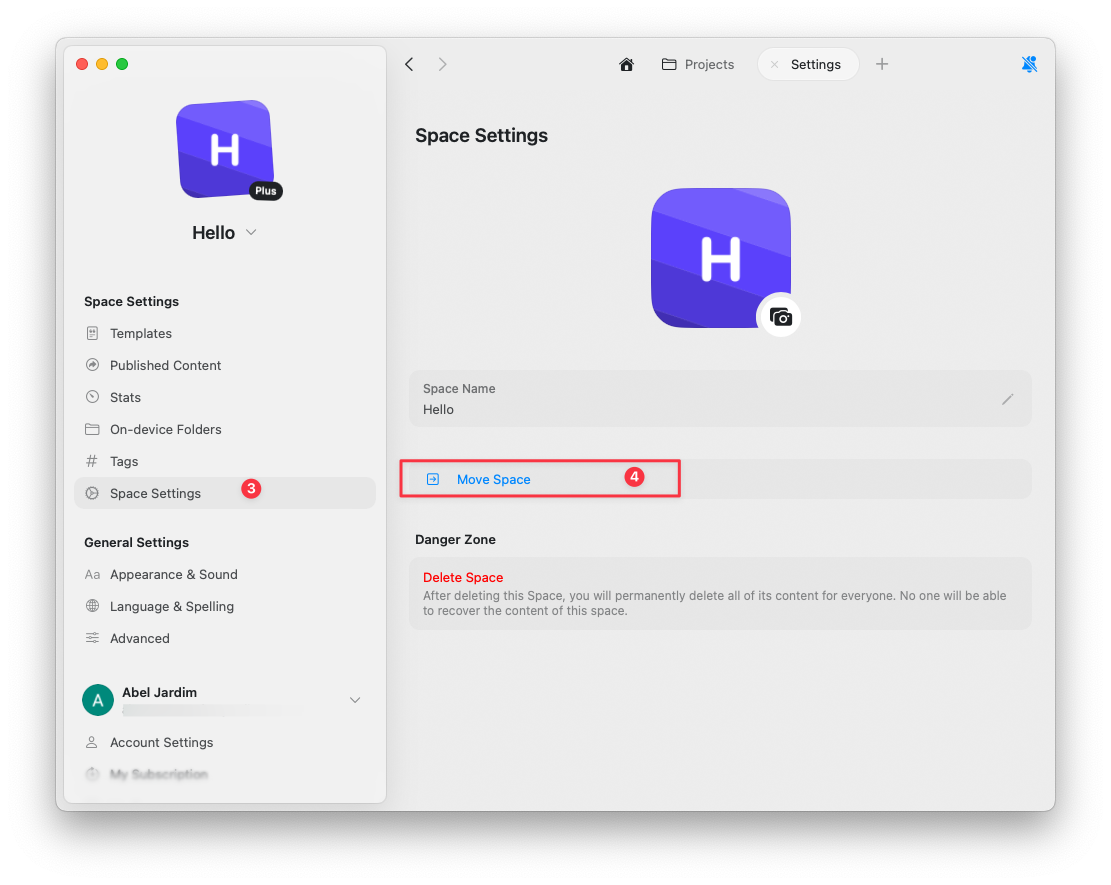
4
Select the Target TeamChoose the destination team from the list of available teams within the same account.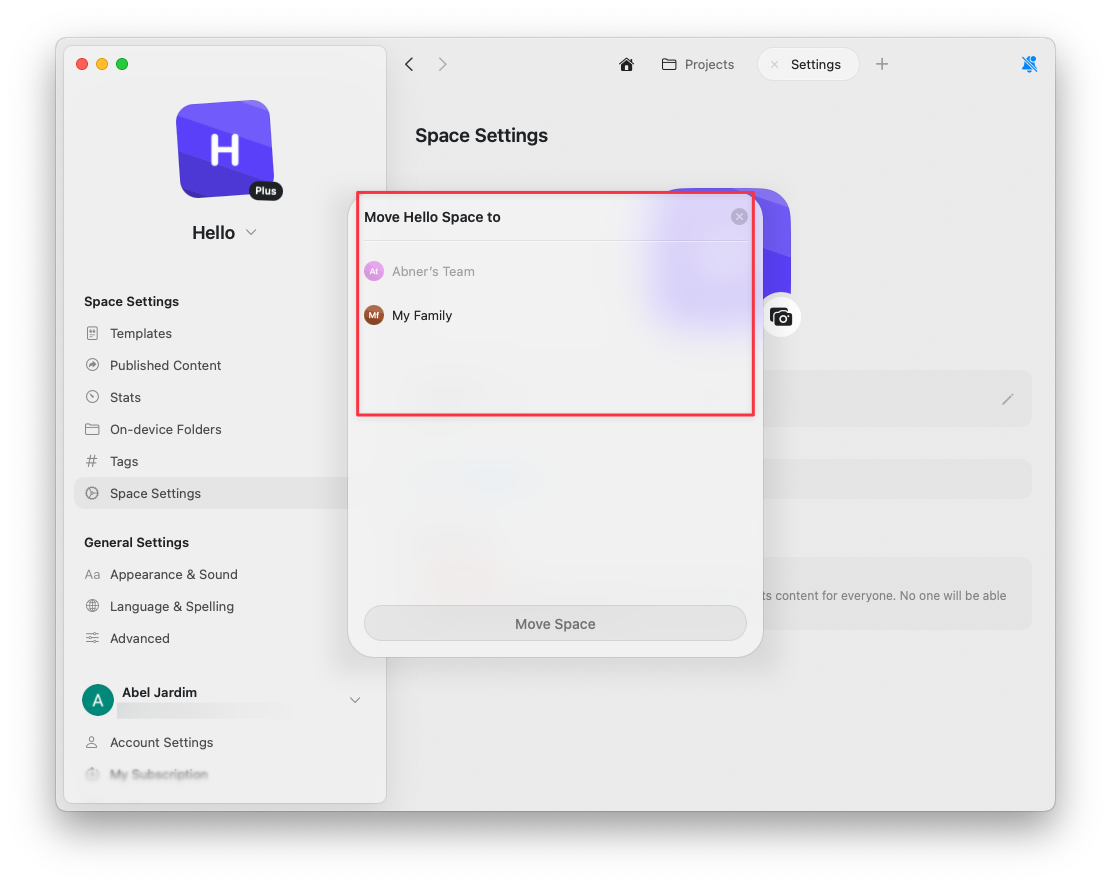
Related Articles
Spaces
Learn about organizing work with spaces
Team Collaboration
Share and collaborate on documents with your team
Account Setup
Learn about creating and managing teams