

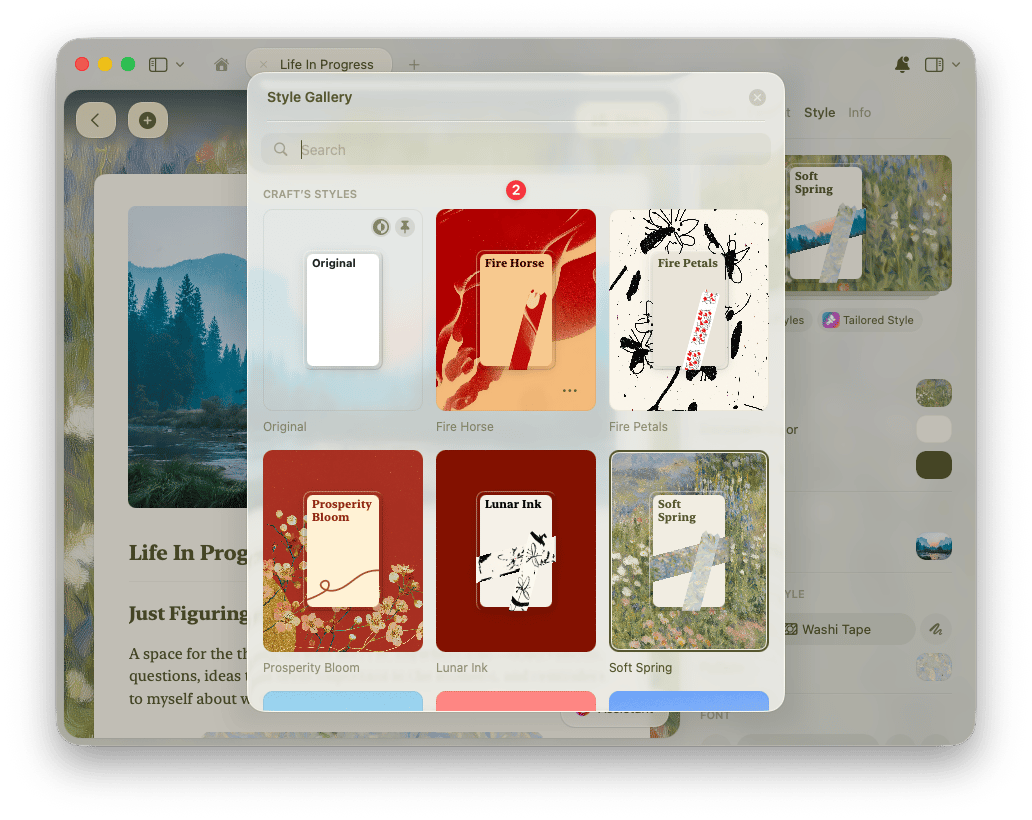
Style Preview and Styles Gallery
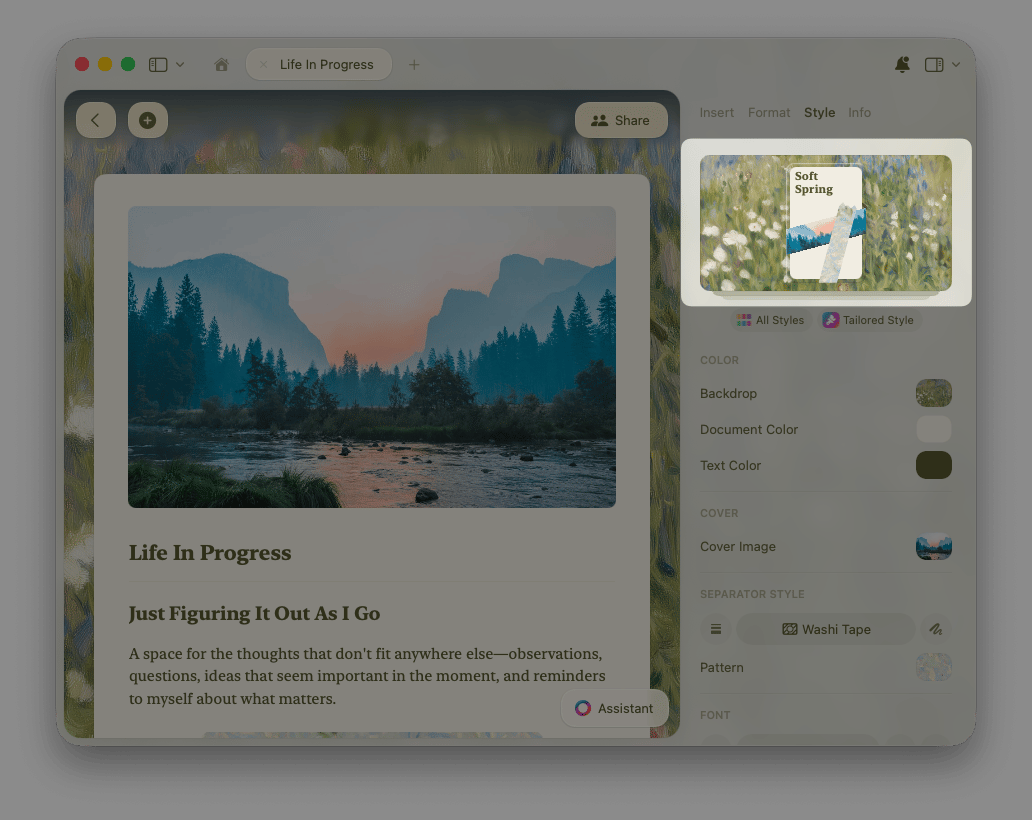
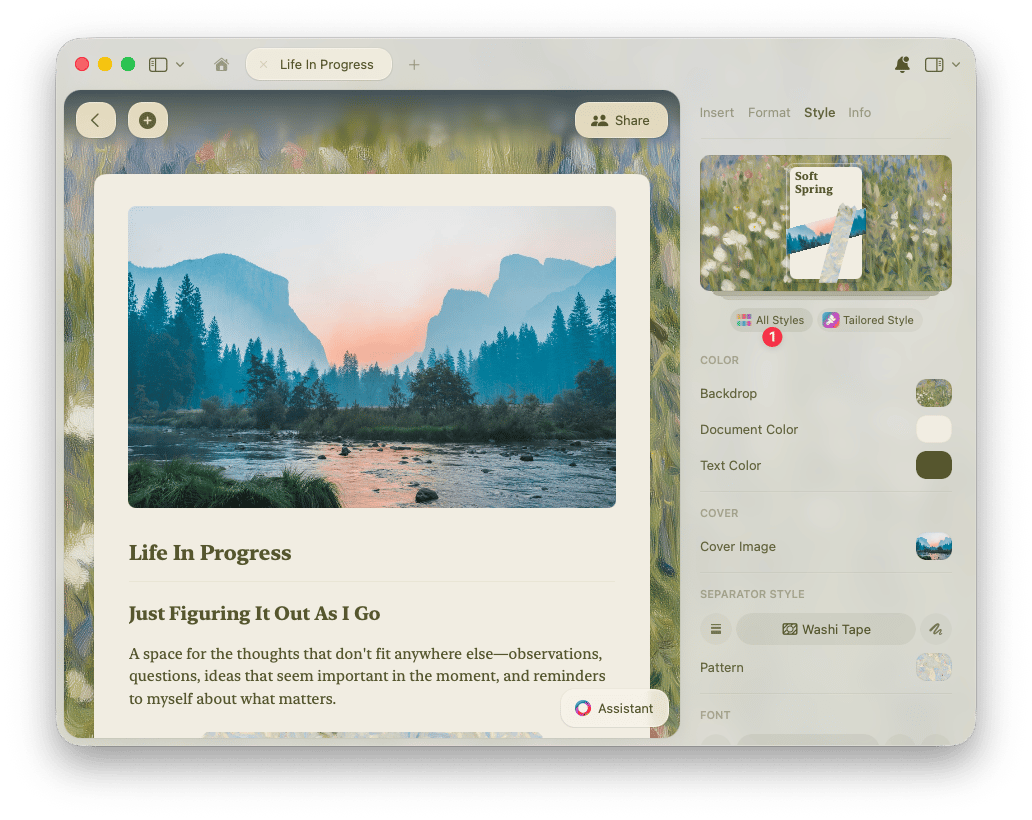
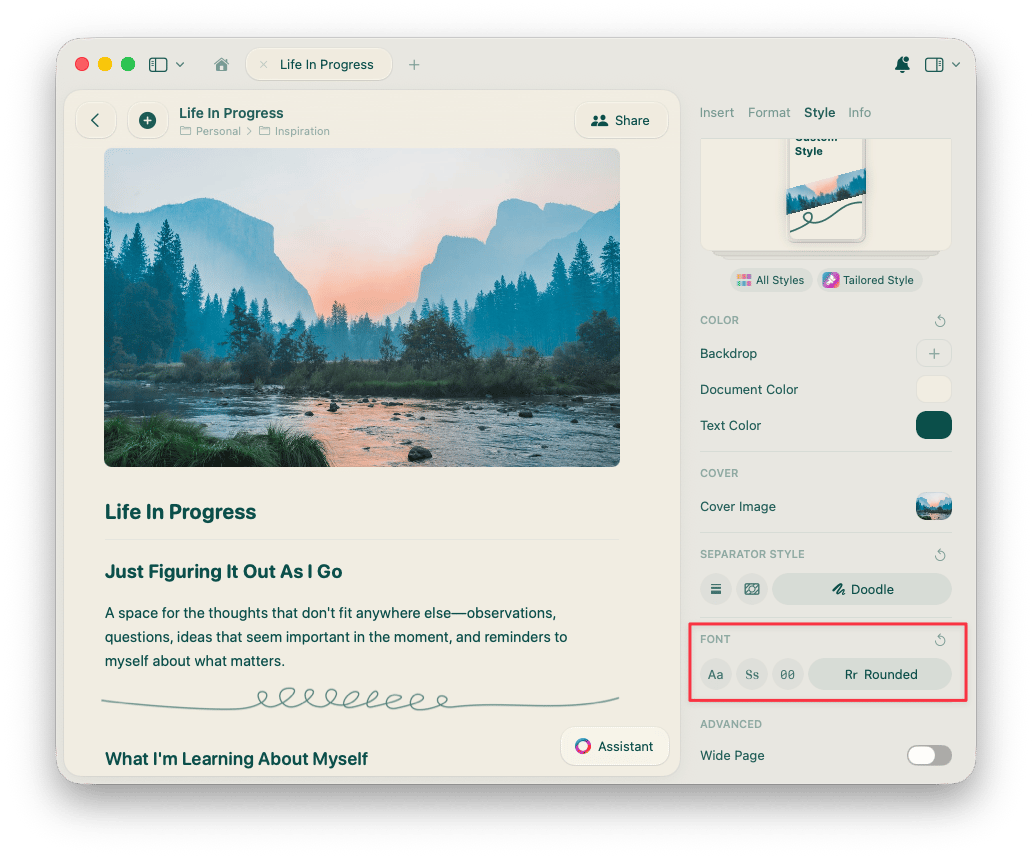
The Styles menu shows a minimalistic preview of your current font, cover, and backdrop settings - a quick visual reference of how your document’s style elements work together.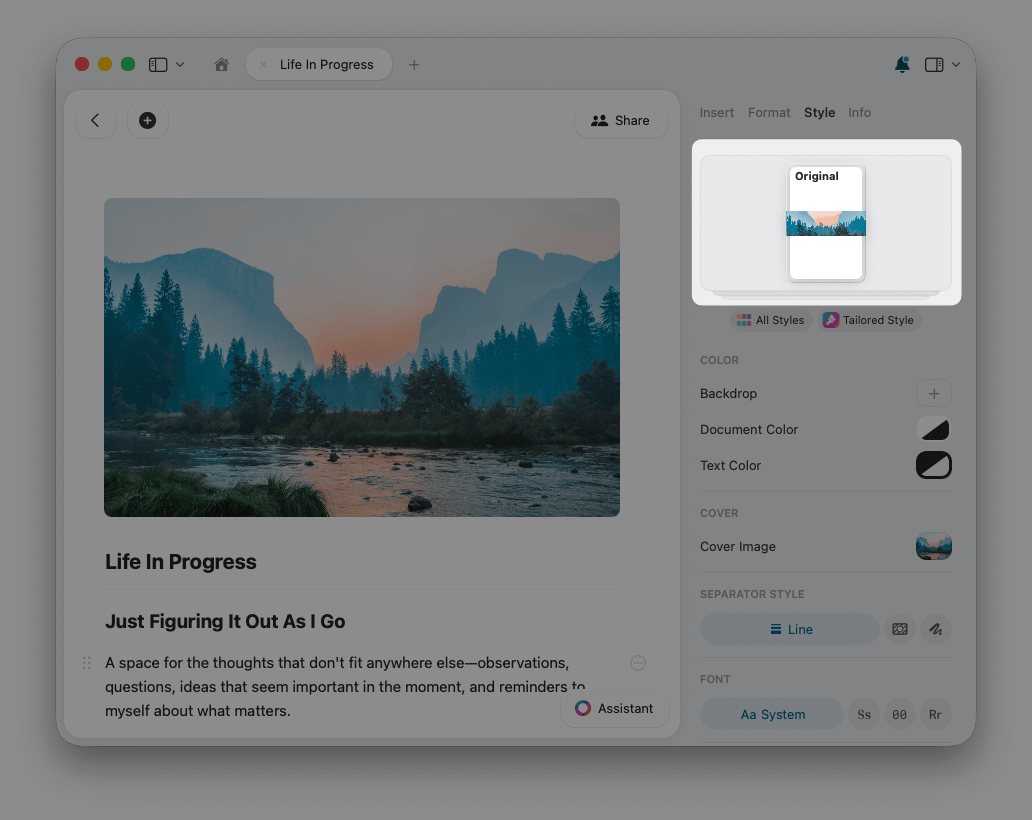
Custom Styling
Beyond preset styles, you can create your own custom colors for the backdrop, text, and document itself. To customize the backdrop, open the Style panel and select Backdrop under Color.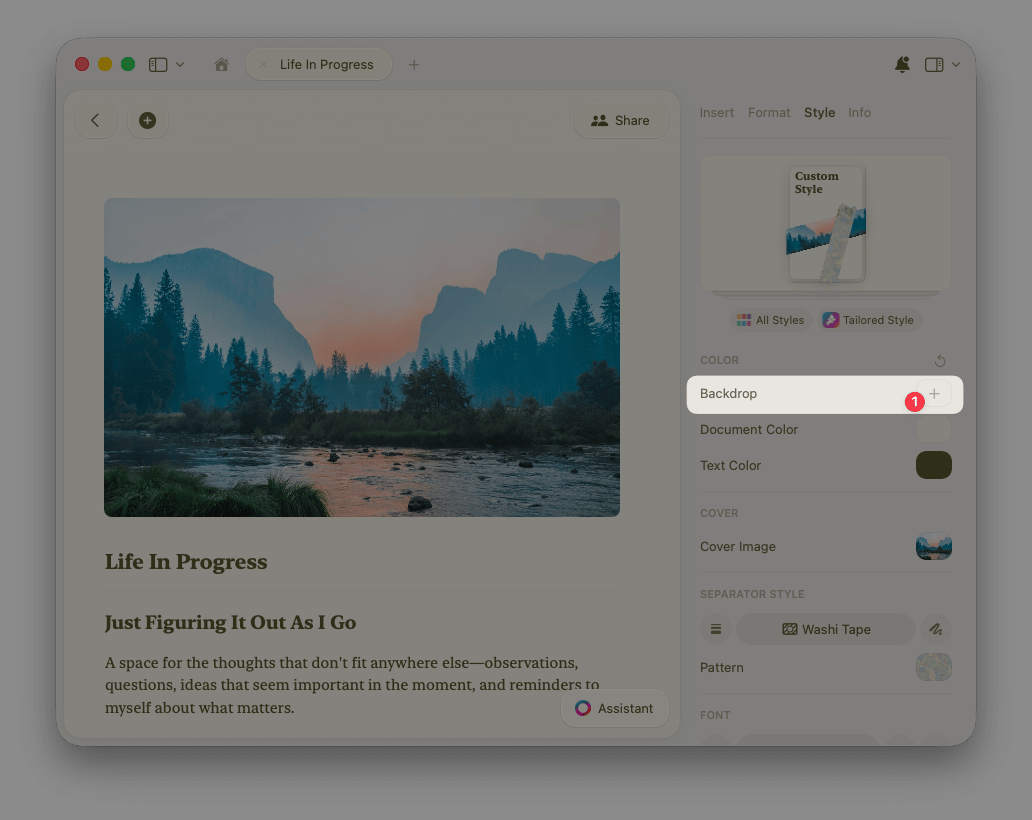
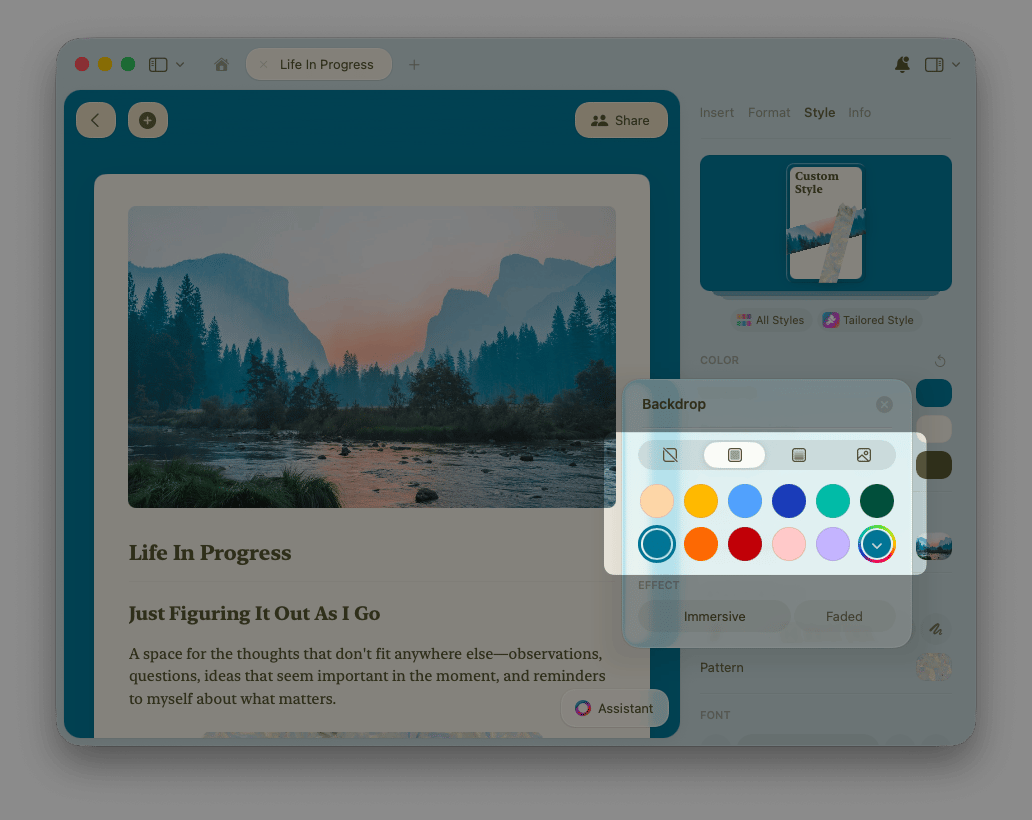
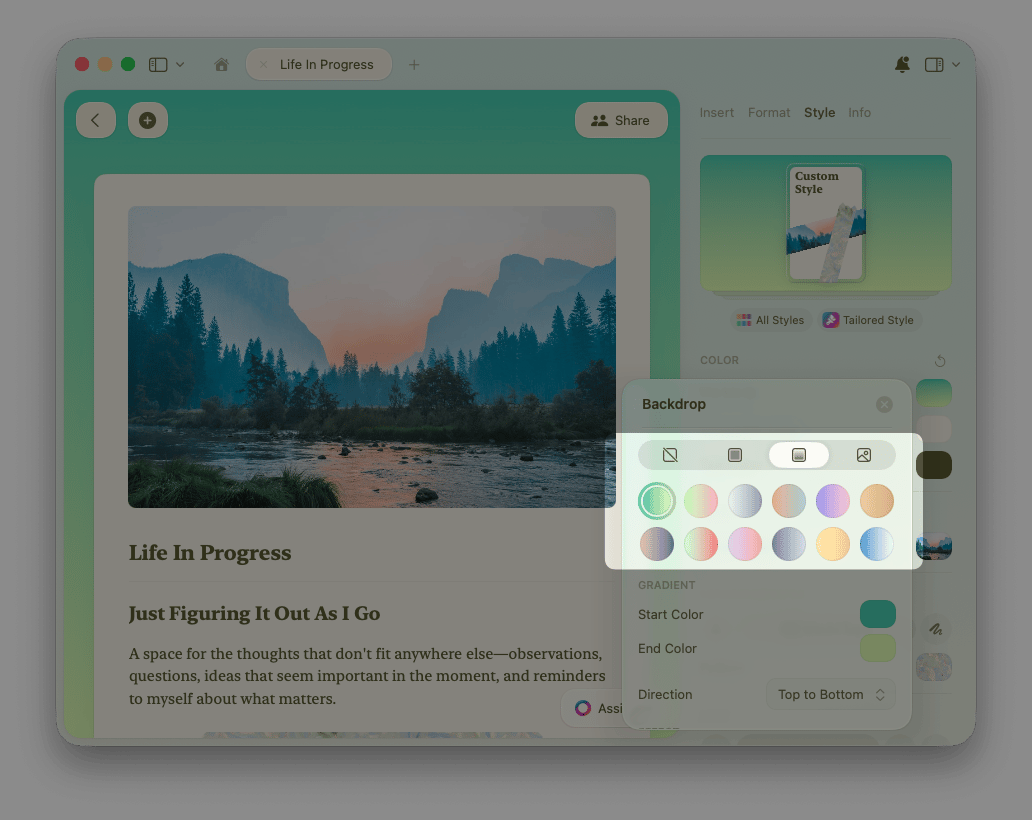
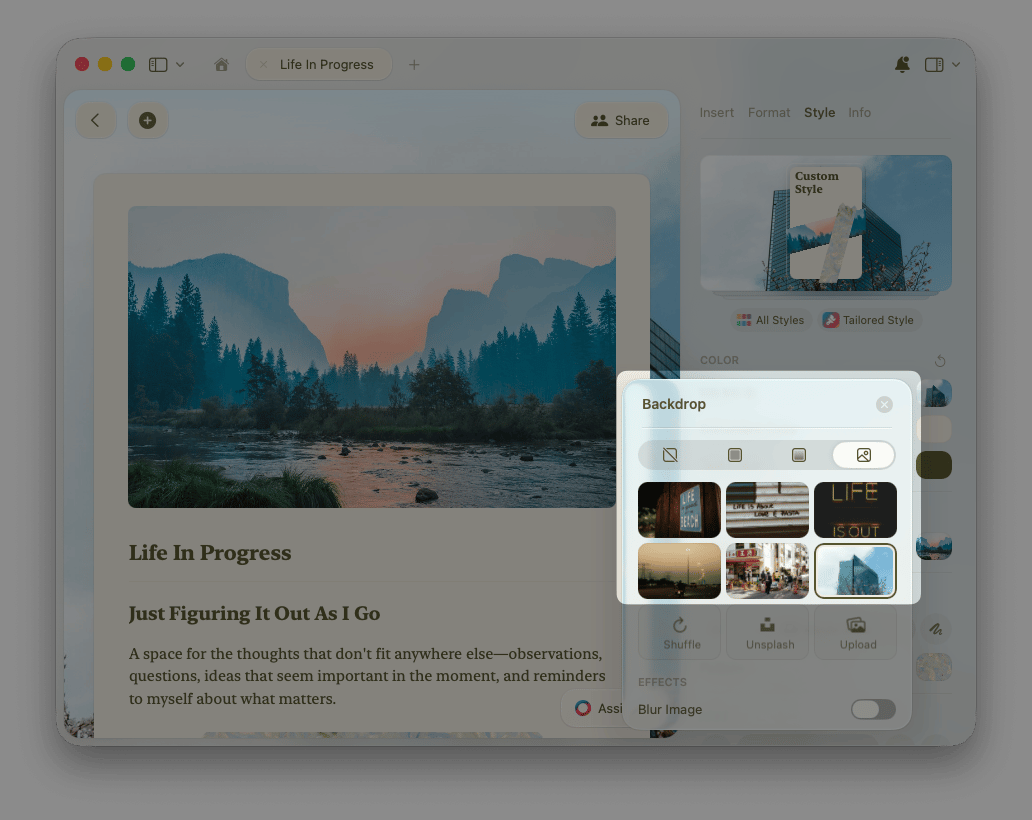
Looking to add a visual header to your document? See the dedicated Cover Images article for uploading, cropping, and Unsplash options.
Separators and Washi Tapes
Separators help structure content within a document. Craft takes this to the next level with Washi tapes, uniquely decorated strips that serve as visual separators. Pick a style in the Style panel under Separator Style: Line. The classic separator style with clean horizontal lines.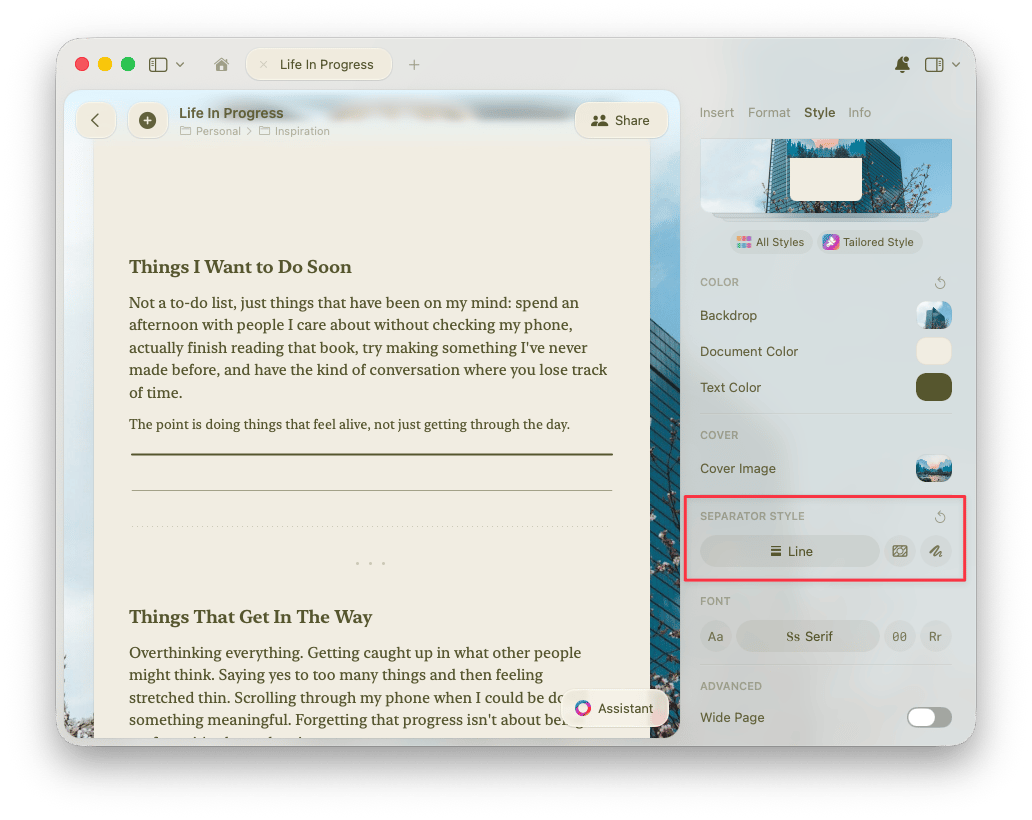
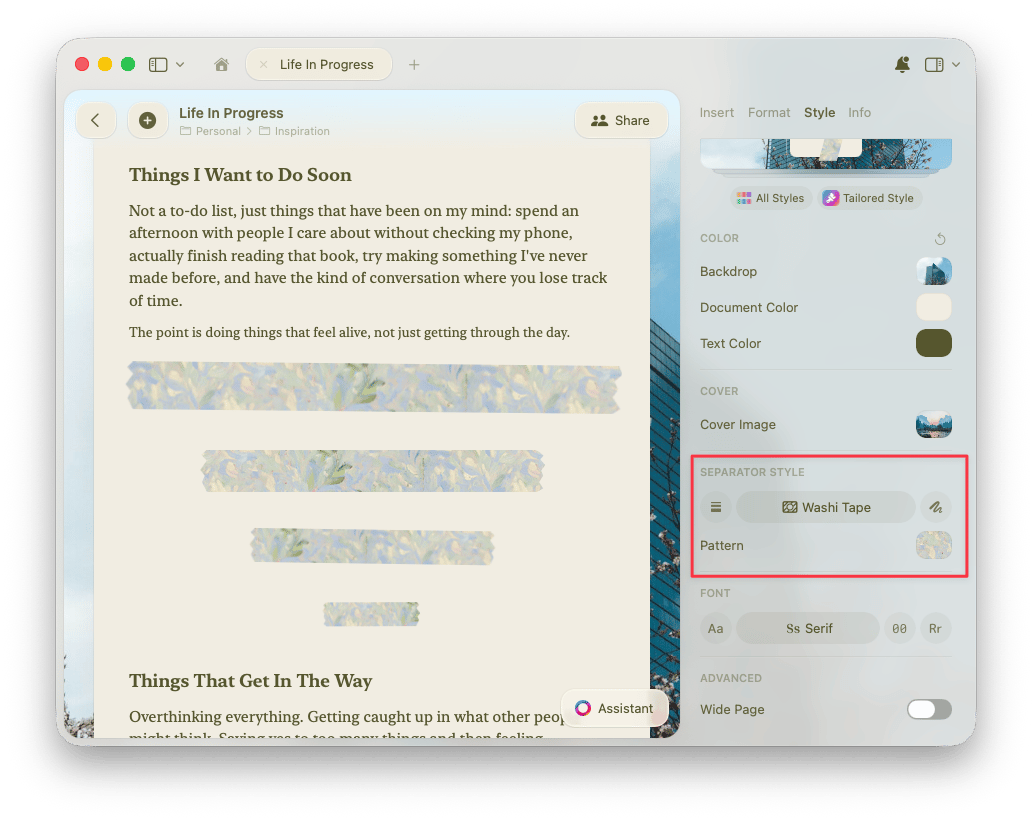
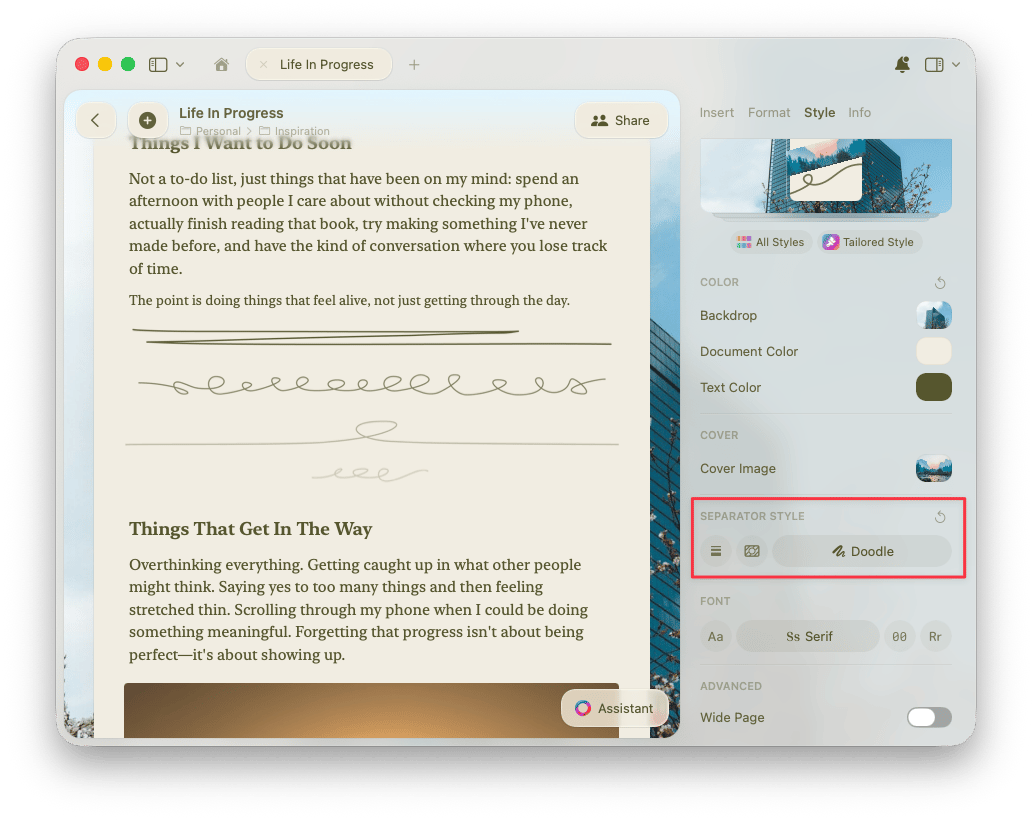
Type three dashes (
---) to instantly add a separator in whatever style you have set for your document.Washi Tape Styling
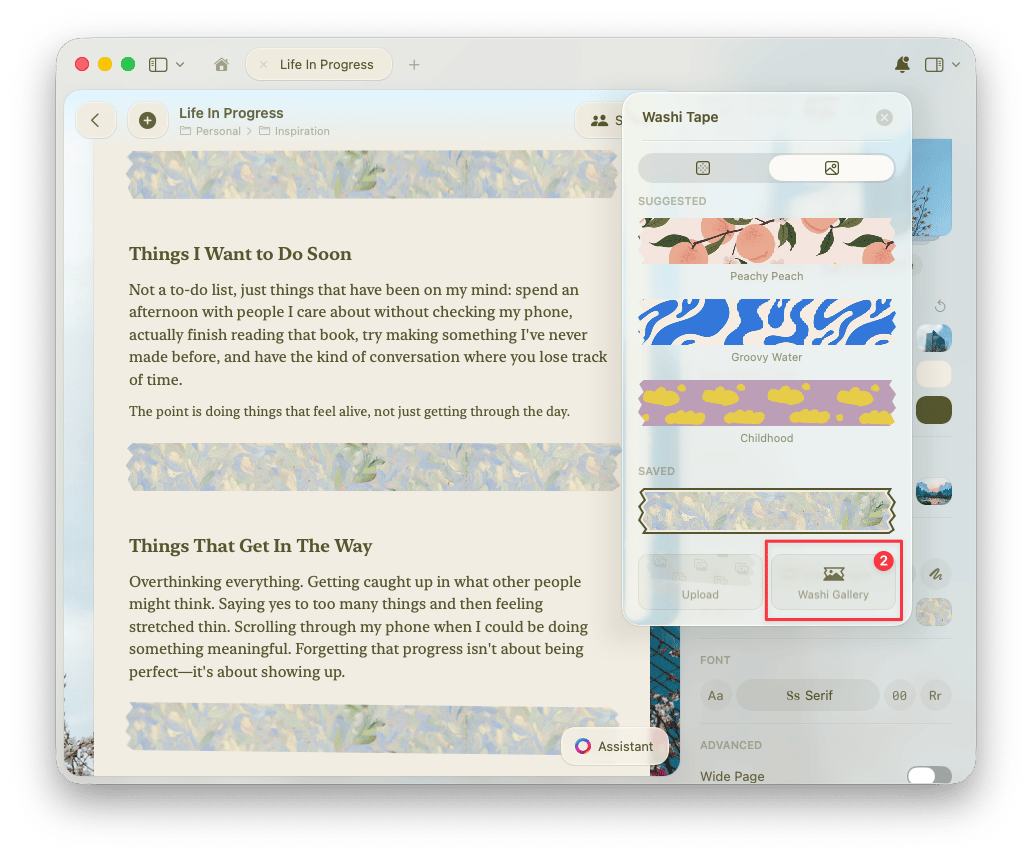
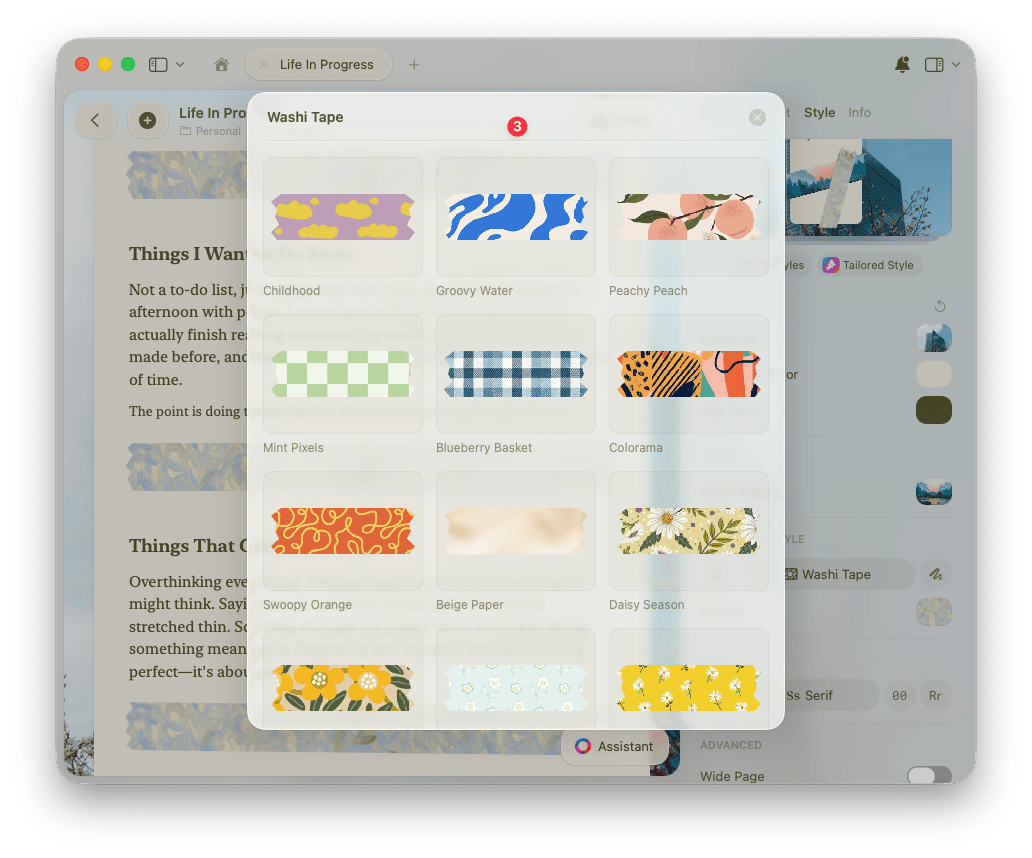
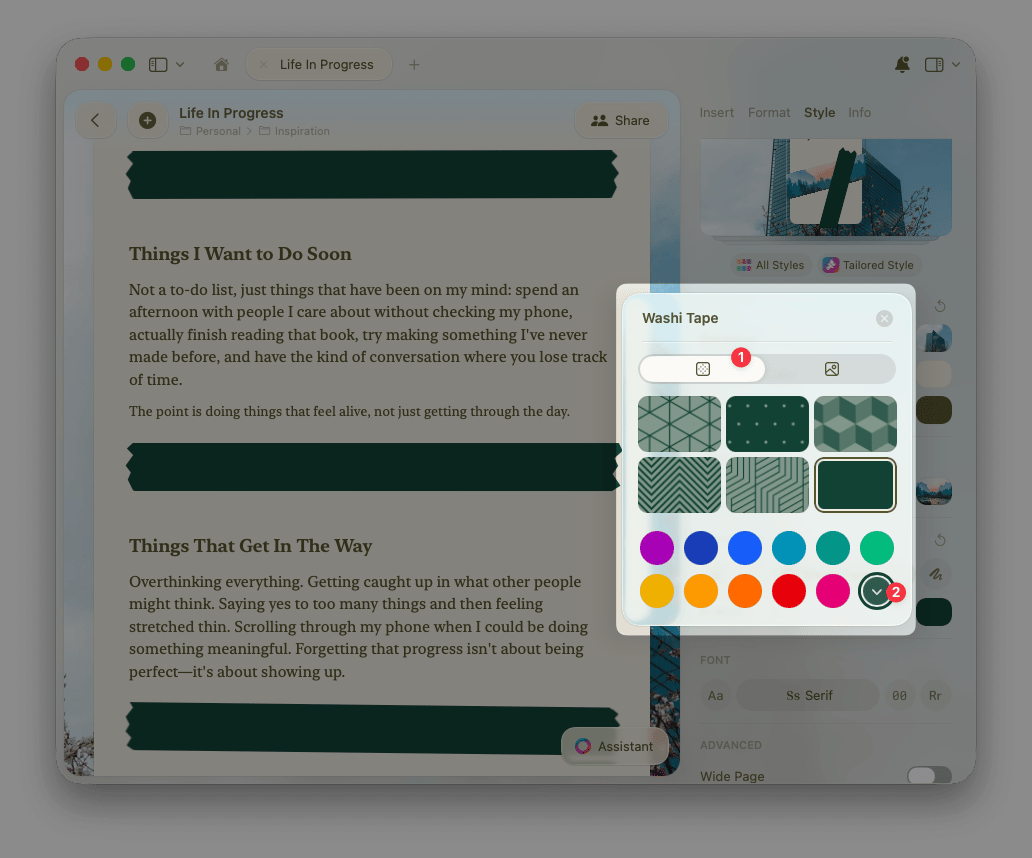
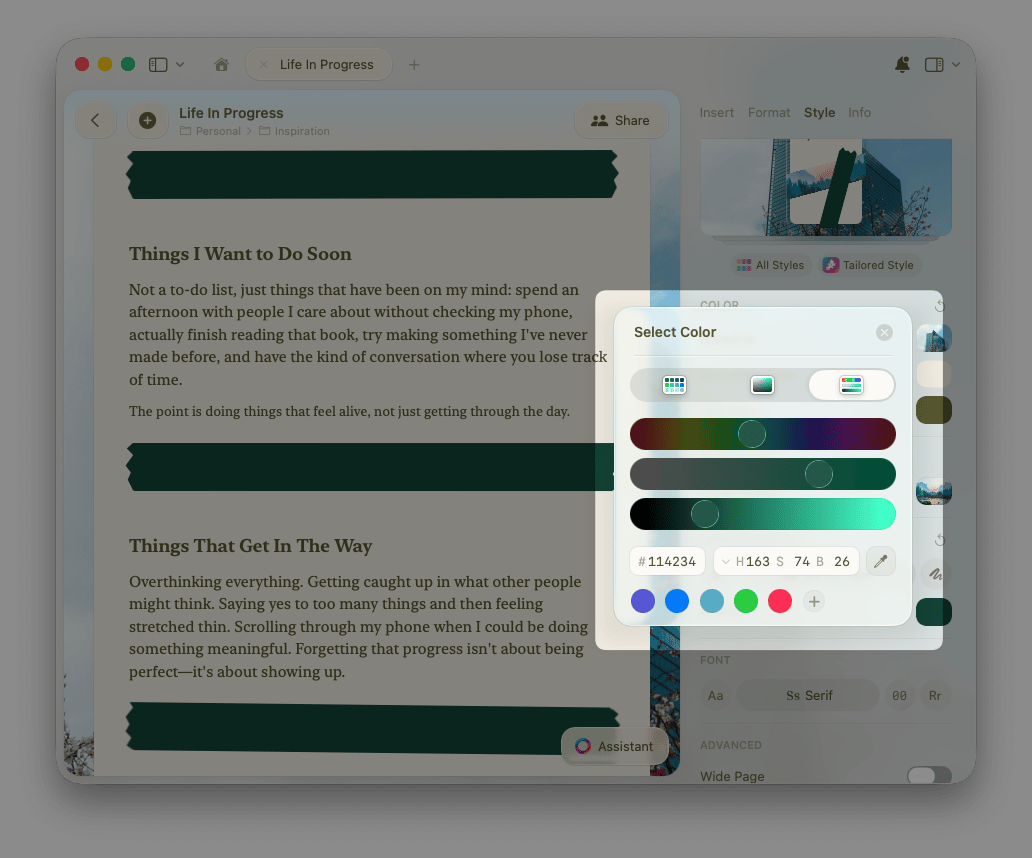
Similar to backdrop and cover image options, you can customize Washi tape separators with solid colors or patterns. With Washi Tape selected as your separator style, select the Pattern option to start customizing.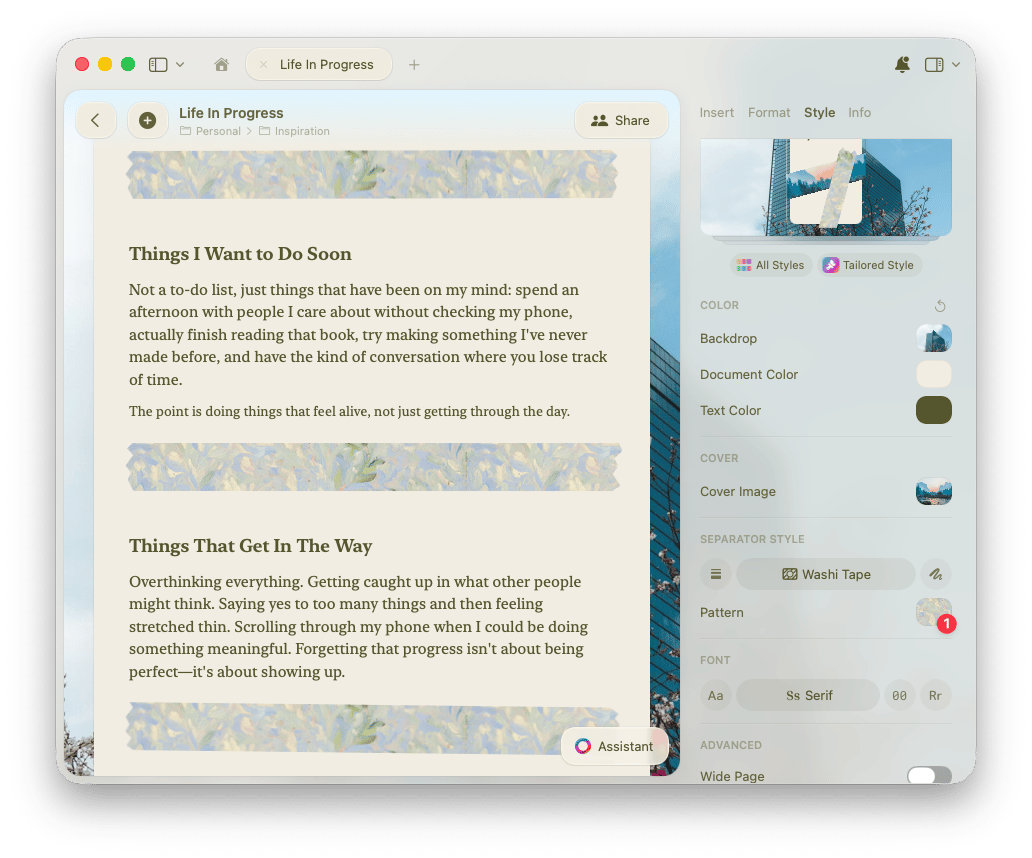
Text and Document Color
You have full control over your document and text colors. In the Style panel under Color, select Document Color or Text Color.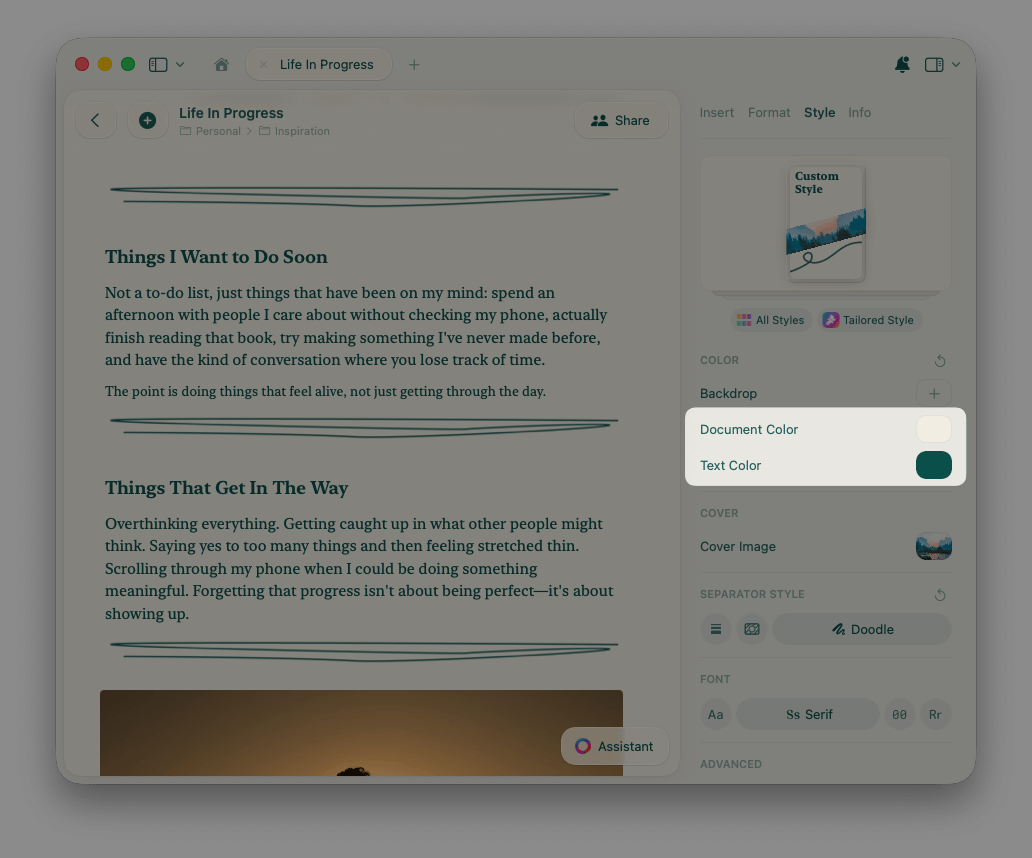
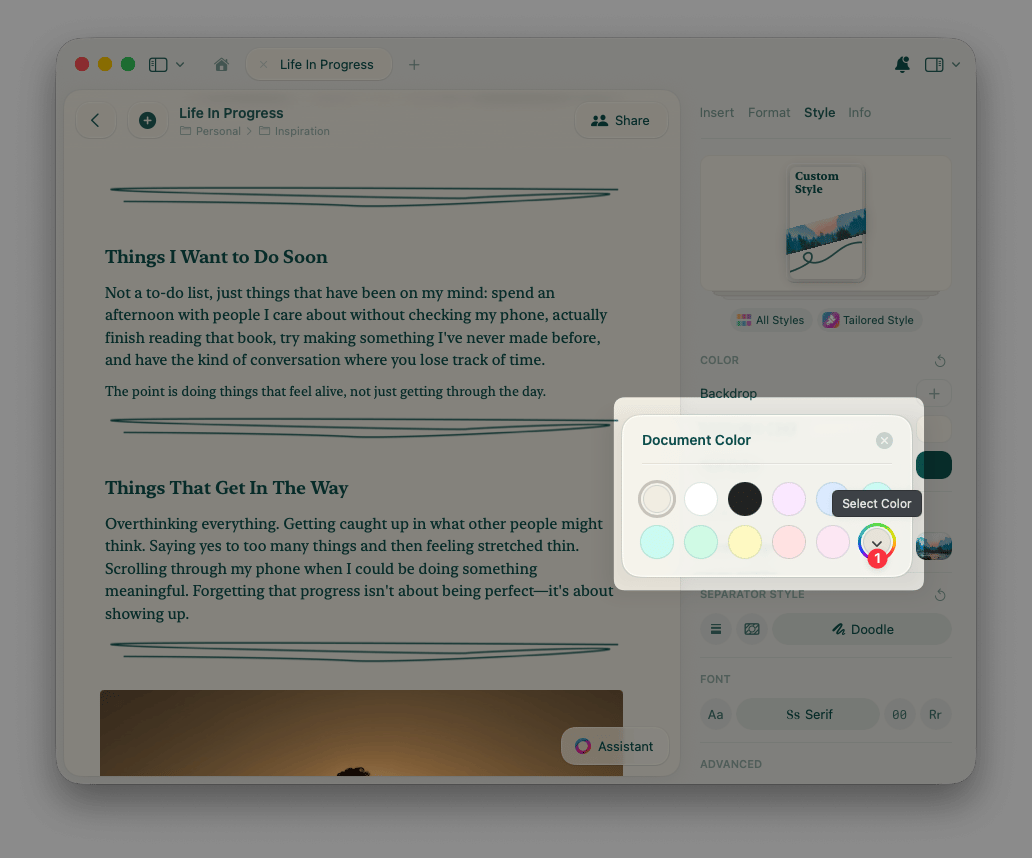
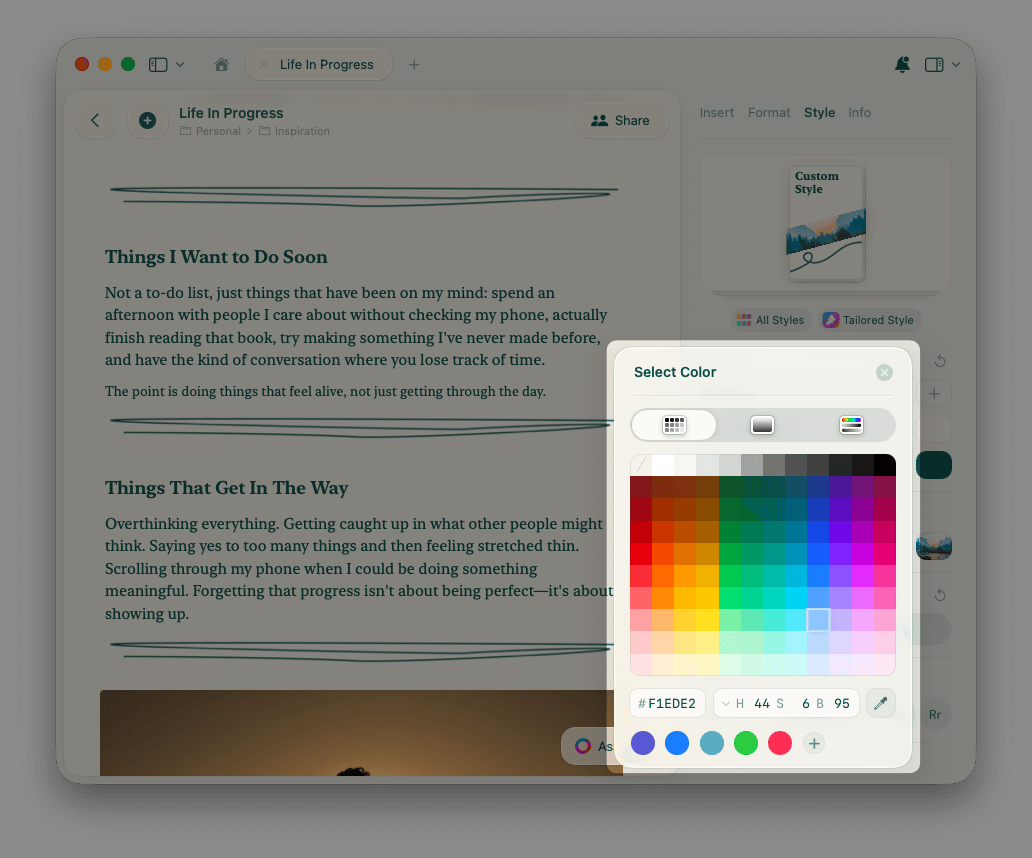
Contrast Checking
If the text and document colors you pick are too similar, the color panel shows a low contrast warning so you know the text may be hard to read. You can keep your selection, or use the automatic adjustment option to let Craft find the closest color that stays readable.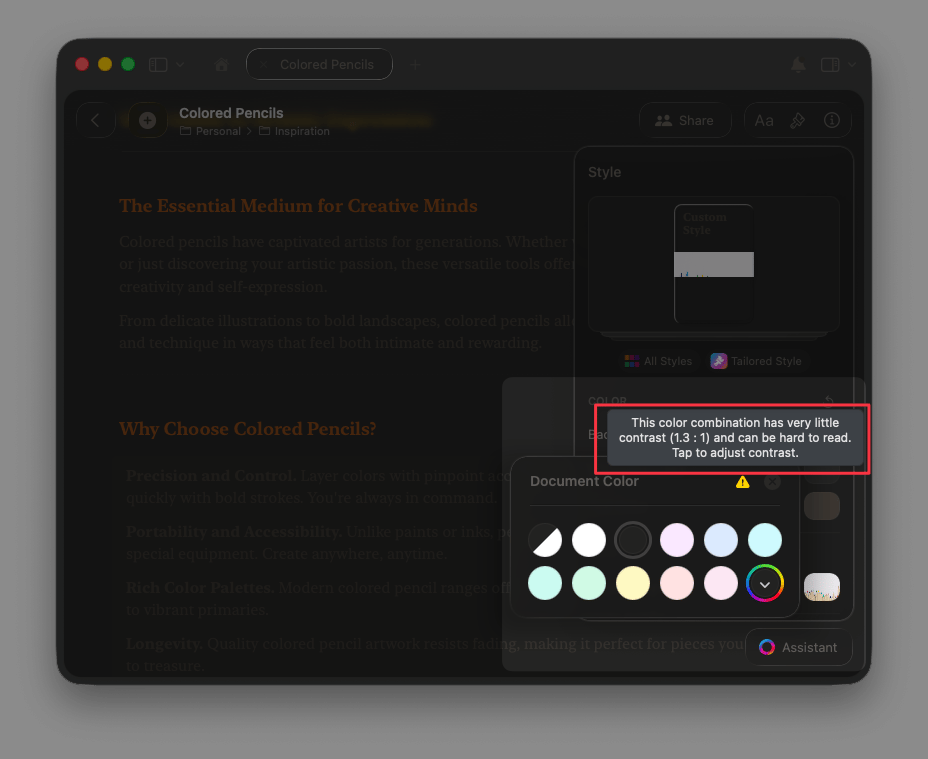
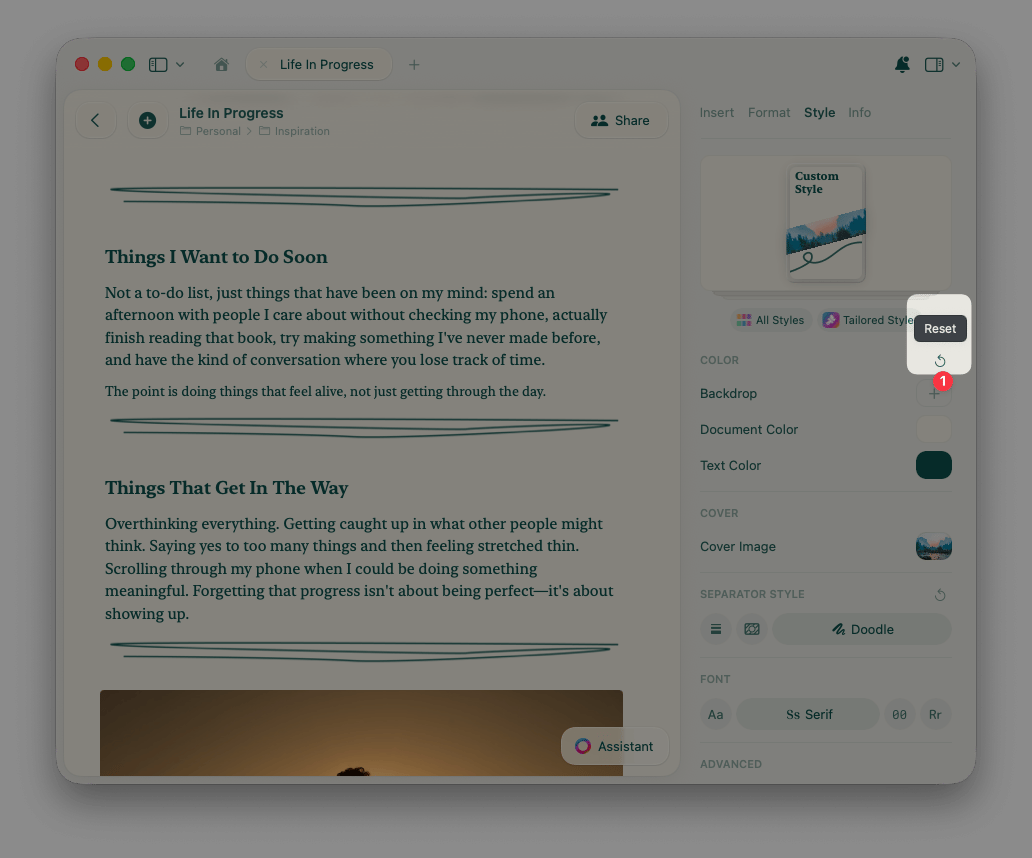
Use the reset button next to the Color heading to instantly return your document to the default system color.
Fonts
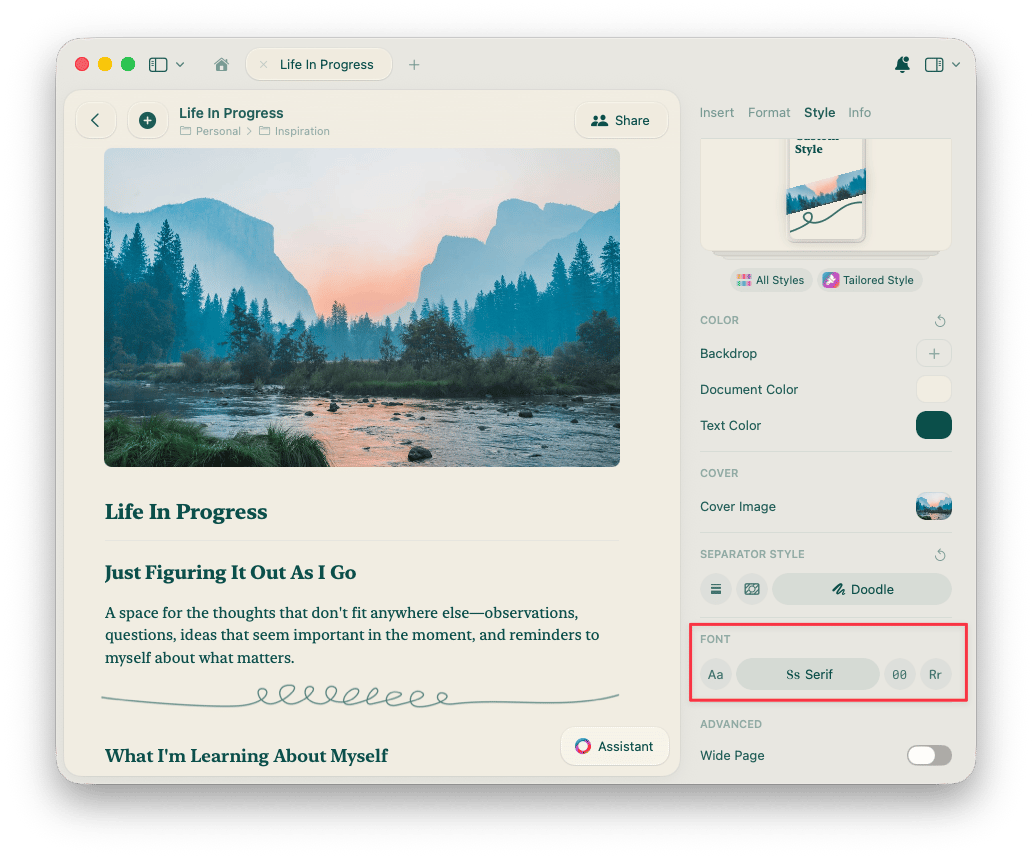
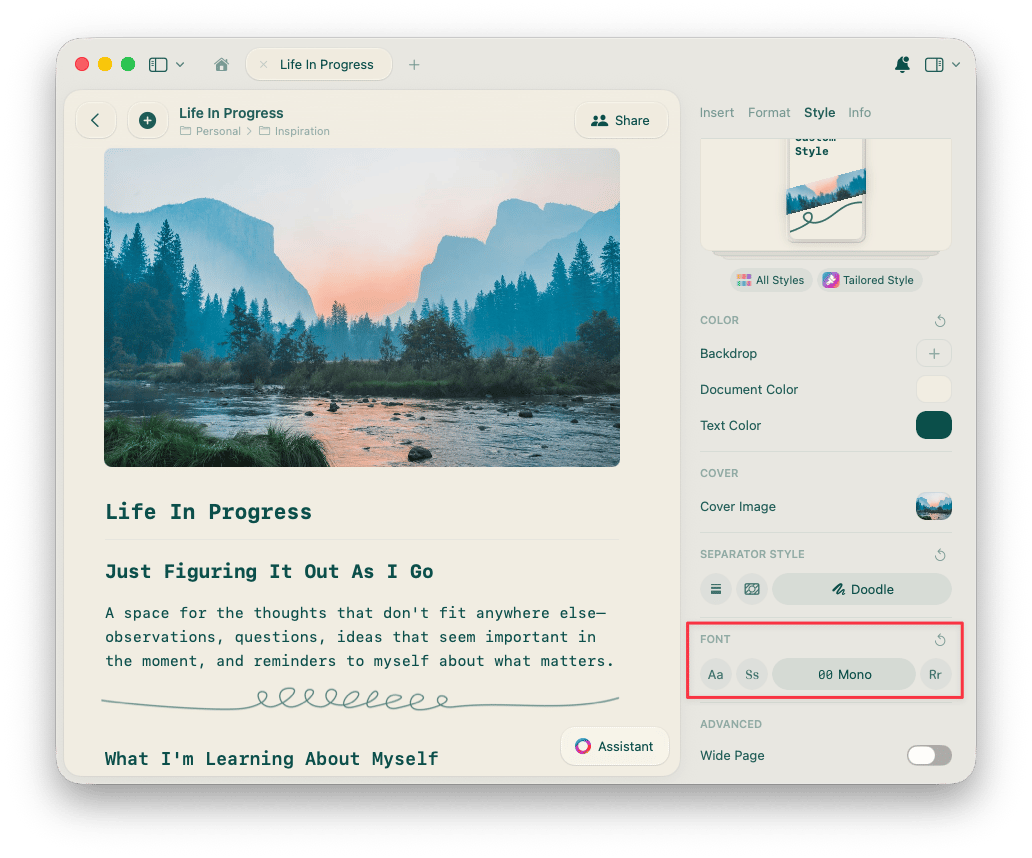
Change the font style of your entire document with one click in the Style panel under Font. System. Uses your device’s default font.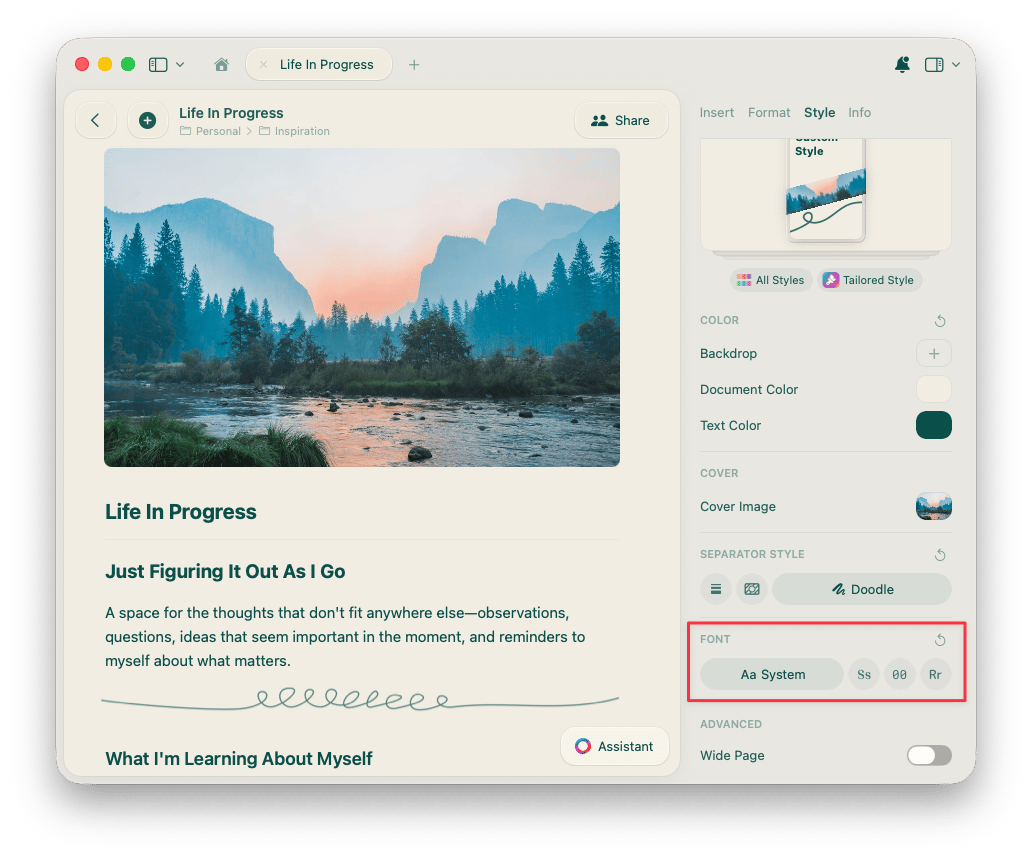
Exporting Styled Documents to PDF
The Styles feature is designed to help you express yourself and create your preferred visual environment when editing. If you need to disable styling when exporting your content to PDF, turn off the Use Style toggle under Appearance in the export options.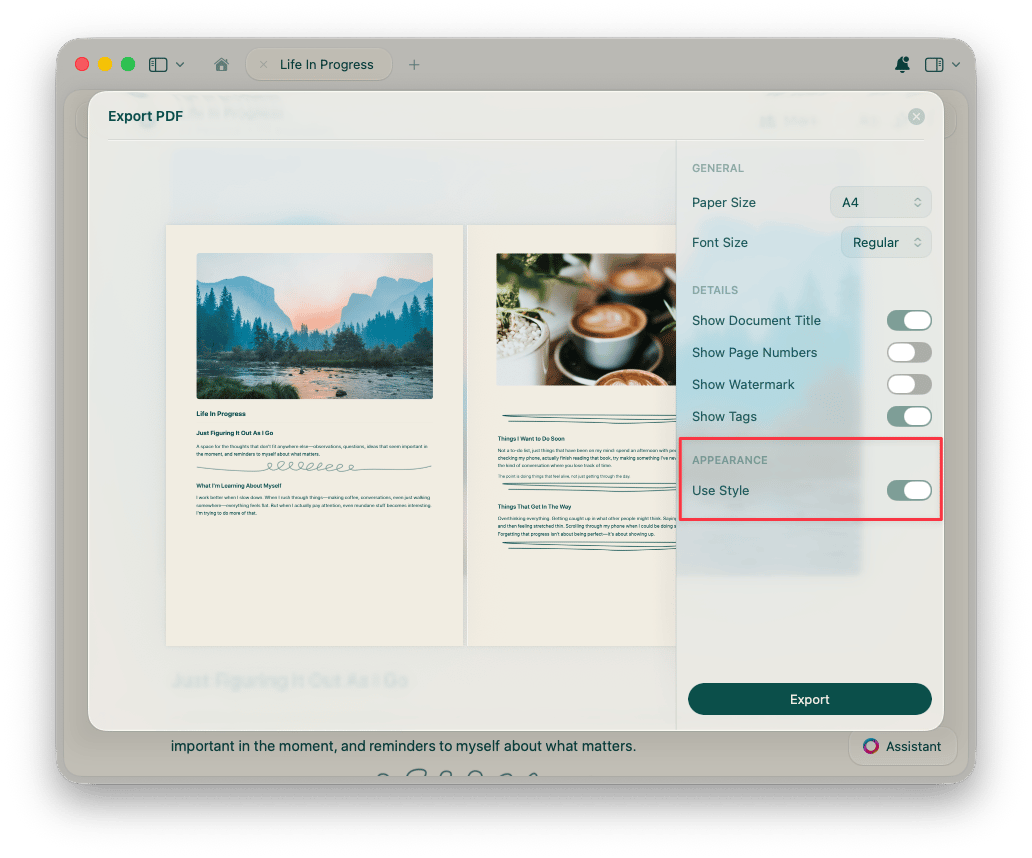
Related Articles
Cover Images
Customize cover images for your documents
Cards
Turn pages into visual card layouts
App Styles
Extend document styles to the app interface
Default Styles
Set your preferred style as the default