

Sharing & Publishing
In Craft, you can share or publish your documents with just a few clicks. Whether you want to invite collaborators or create a public link, sharing is built right into every document.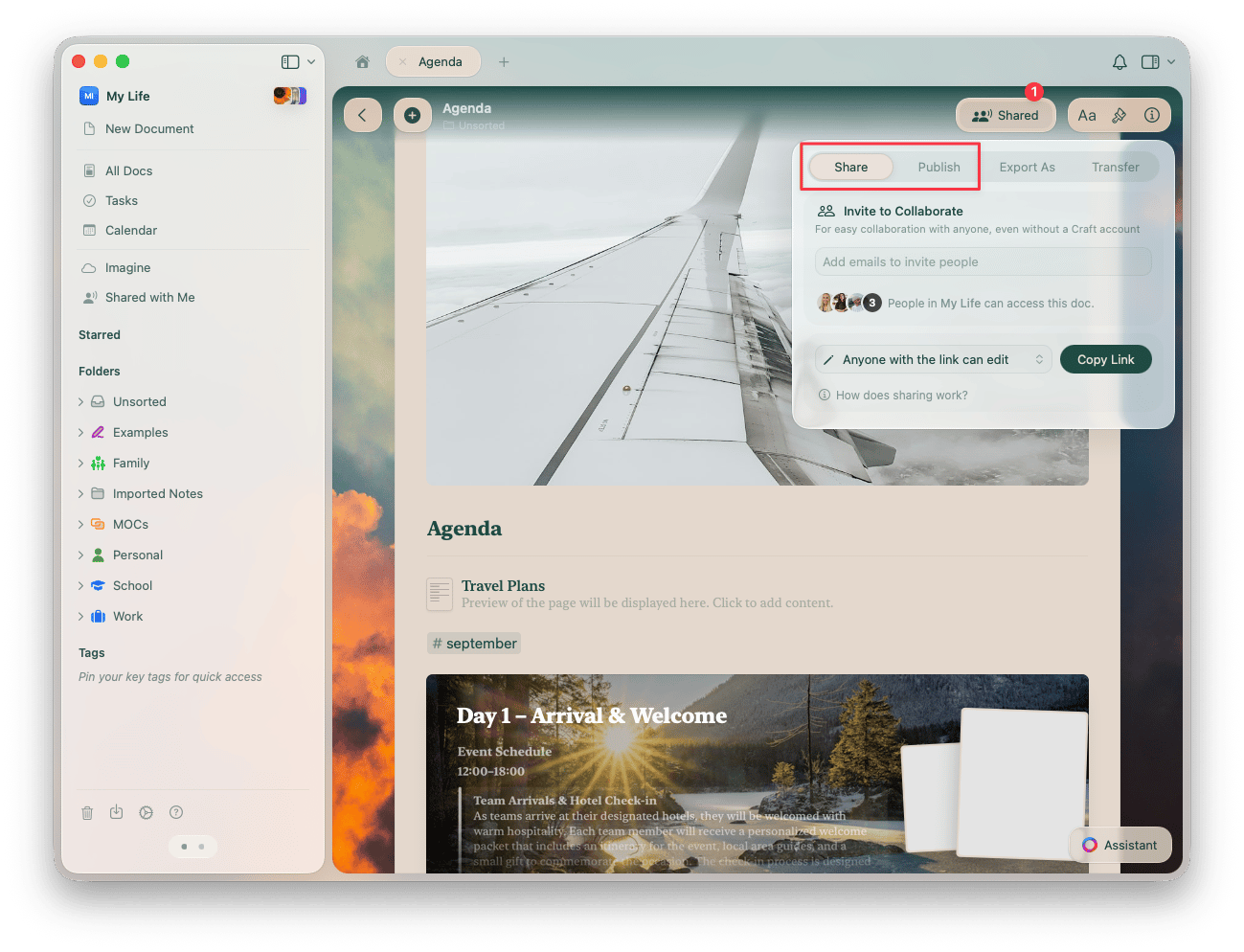
Link to a Craft Document or Block
You can link another document or block inside the same Space. This is really powerful when you want to reference another piece of information. There are two ways to do this:Using the @ Command
After typing @ you will see a dropdown of options to link. Typing the first few characters will help you to find the block / page / document you are looking for. You can also create a new page with a link by typing a title not currently in this Space.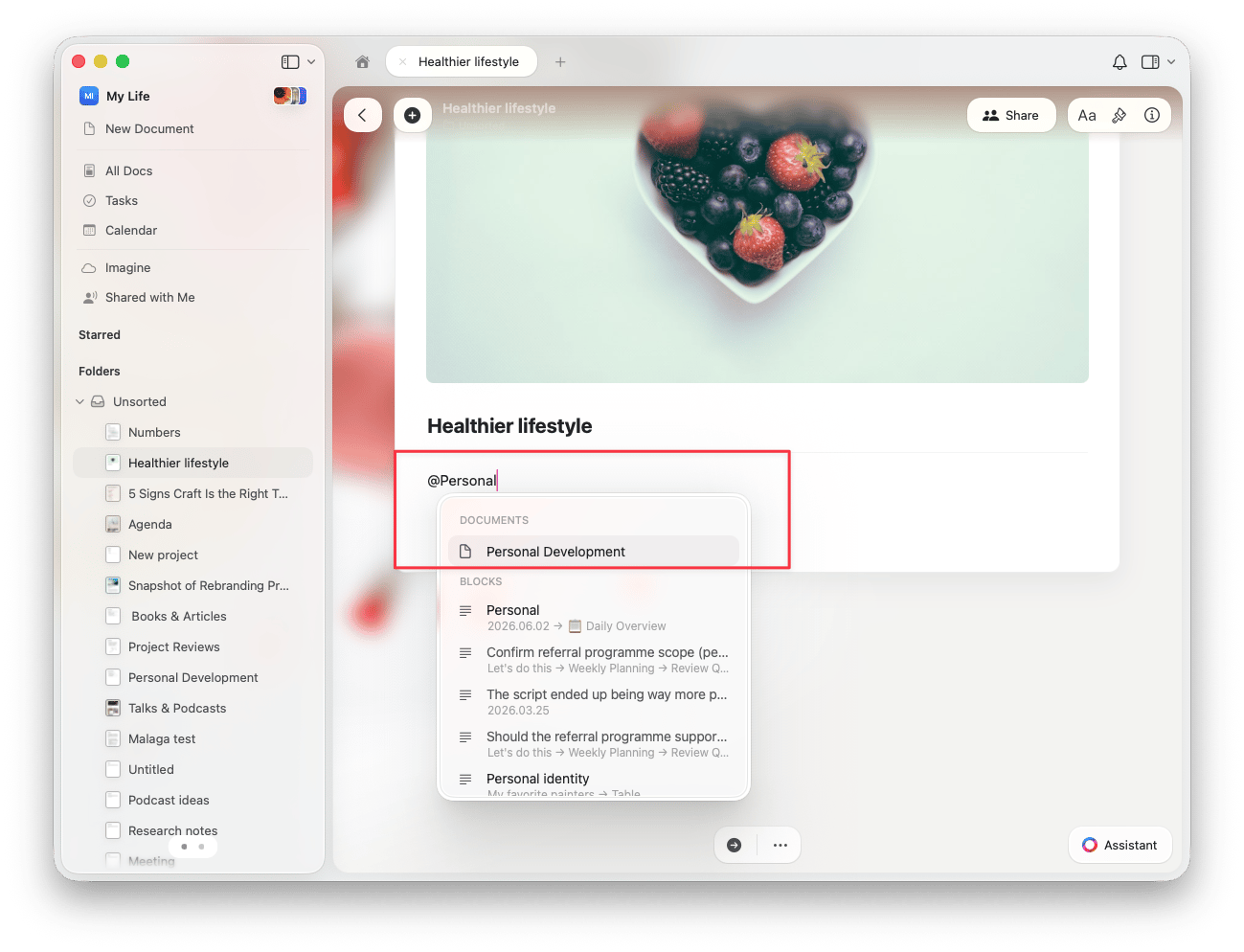
Using the [[ Command
Typing [[ will convert to @, and the same dropdown will appear.Backlinks
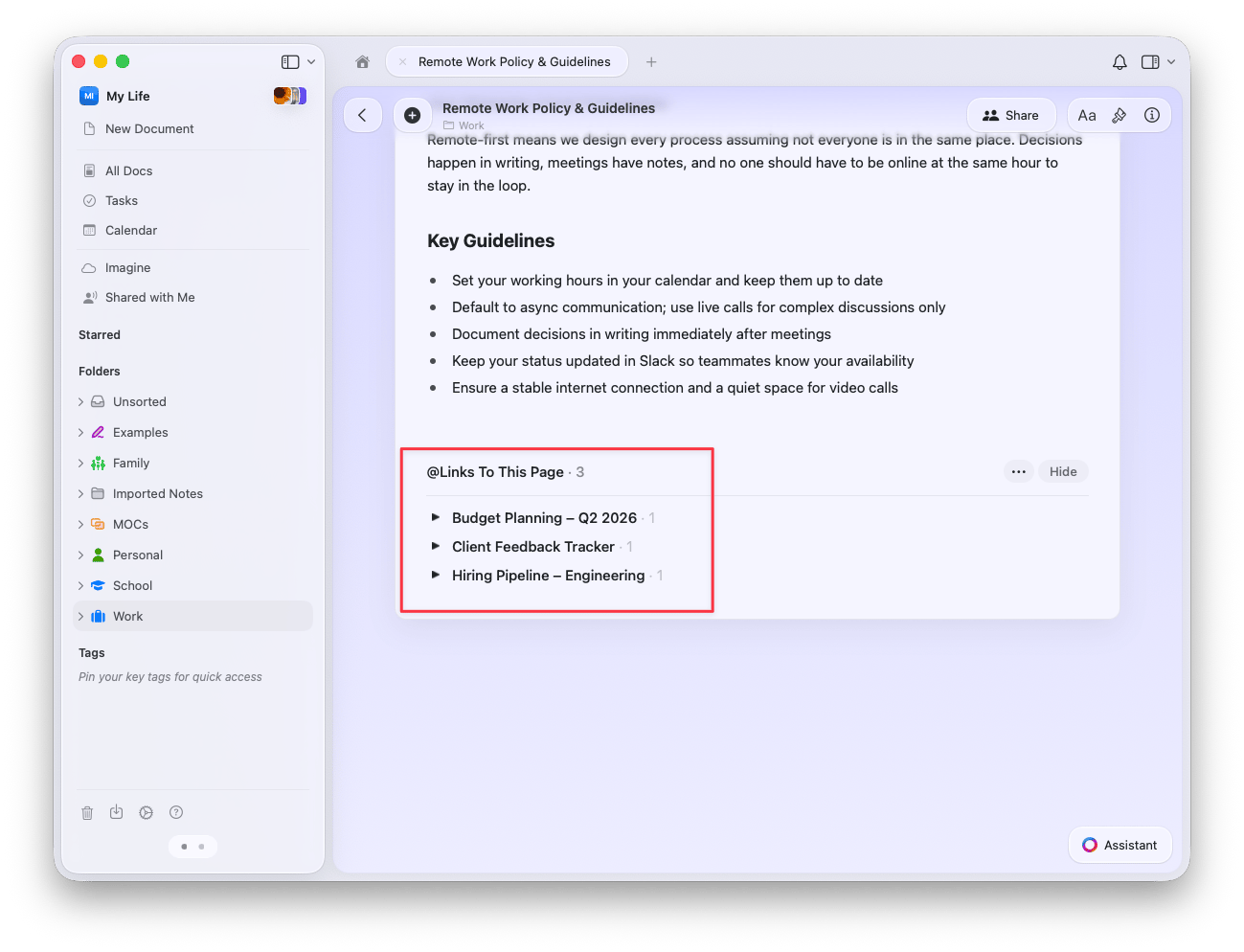
Backlinks show you all the blocks linked to the current document. You can use these to quickly navigate around your Space and see the connections between your documents and blocks.- Backlinks are created automatically! Anytime you @-mention a document / block, a backlink will be added to the content that you linked.
- Backlinks appear at the bottom of the linked content under Links To This Page. If a document doesn’t have any links, this section is not visible.
Related Articles
Deeplinks
Create direct links to specific pages and blocks
Embedding Maps
Embed Google Maps into your documents
Blocks and Pages
Learn how blocks and pages create the foundation for linking
Sharing Documents
Share linked content with collaborators
Collections
Link collection entries to other documents and blocks