

What is Quick Open?
Quick Open is a universal search and navigation tool built right into Craft. It allows you to:- Instantly find and open any document or page in your workspace
- Jump to recently viewed content
- Open your daily note or create a new one
- Access starred documents or shared pages quickly
Quick Open’s main focus is to help you navigate between documents, pages, and daily notes faster. If you’d like to find specific content within documents, make sure to use the Search feature.
How to Open It
To bring up Quick Open, use the following shortcut:- macOS
- iOS
Press
Cmd + O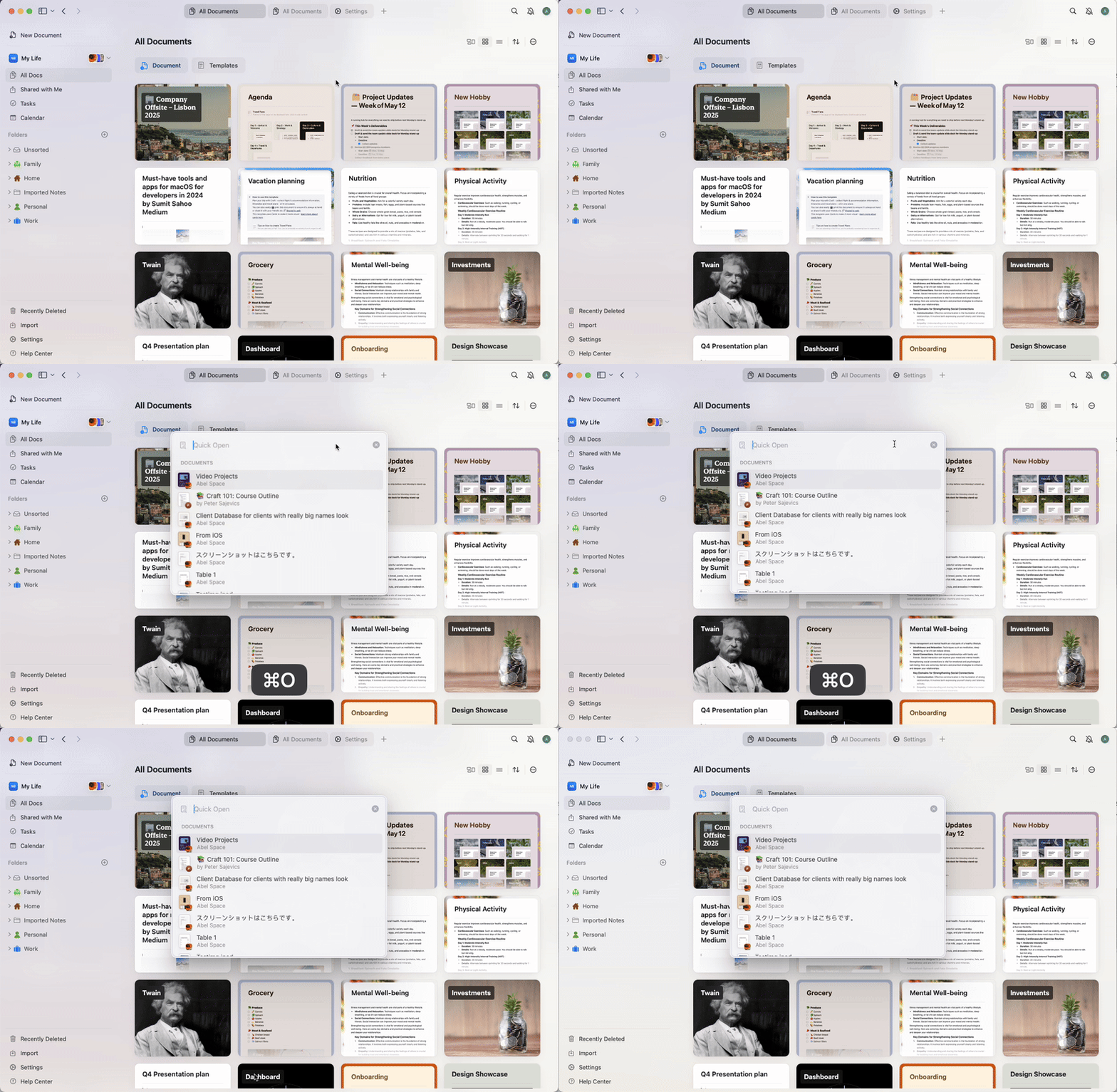
How It Works
Once Quick Open is active:1
Start typing any part of a document title or content to search across your workspace.
2
Craft will display a list of matching results, including documents, pages, daily notes, starred or recently accessed content.
3
Use the arrow keys to scroll through the list.
4
Hit Enter to open the selected item instantly.
- Type “today” to jump to your daily note
- Type “new” to create a new document
- Search by keyword, not just title – content blocks and subpages are included in the results
Tips for Power Users
- You can open multiple documents quickly without using the sidebar or mouse
- Use Quick Open as your primary way to move around your space and reduce context switching
- It’s especially useful in large workspaces where browsing folders would take more time
Limitations
Quick Open is currently optimized for searching content within your own workspace. Shared documents that you haven’t yet opened may appear with limited preview information.Troubleshooting
If you’re not seeing expected results:- Make sure your Craft app is up to date
- Confirm that the content you’re looking for is part of your current workspace
- Try searching with different keywords or phrases – Quick Open matches from the beginning of words only
Related Articles
Search in Craft
Find content across your entire workspace
Find in Document
Search within a specific document