

- Global Search finds results across all spaces and documents.
- Document Search looks within one document and its subpages. Learn more.
Search Bar
You can find the search bar while browsing through your documents, in any of the views in the left sidebar.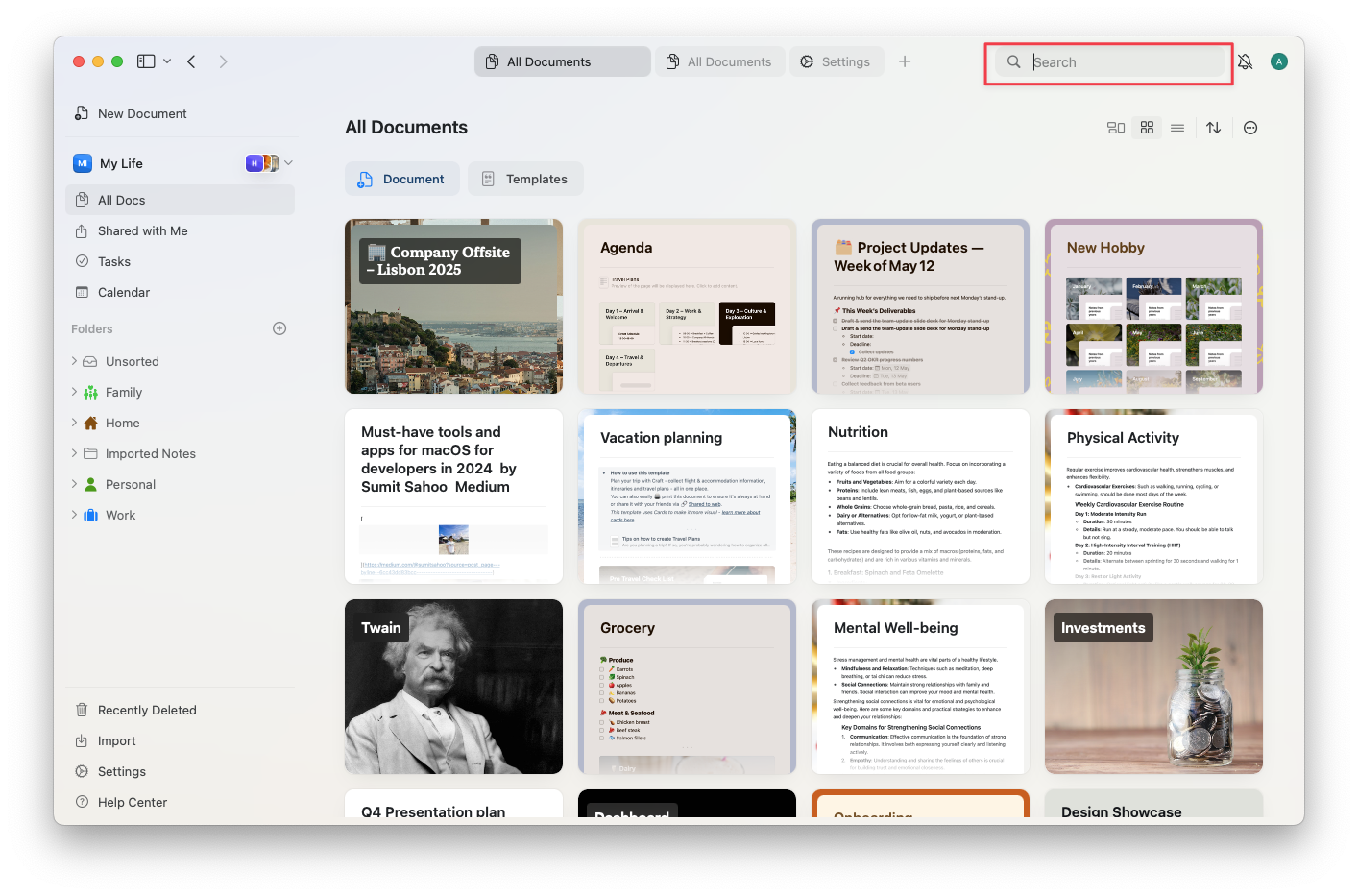
On macOS, press Cmd+F to bring up the search function. On Windows and Web, Ctrl+F only works when you already have a document open — it opens Find in Document, not global search. From the browse screen (All Docs, folders), use the search bar in the left sidebar directly.
Searching Logic
As you type into the search bar, Craft checks for matches across your entire workspace. The results you see are sorted based on a few factors:- Title matches are prioritized – if your search term appears in a title, that result is ranked higher.
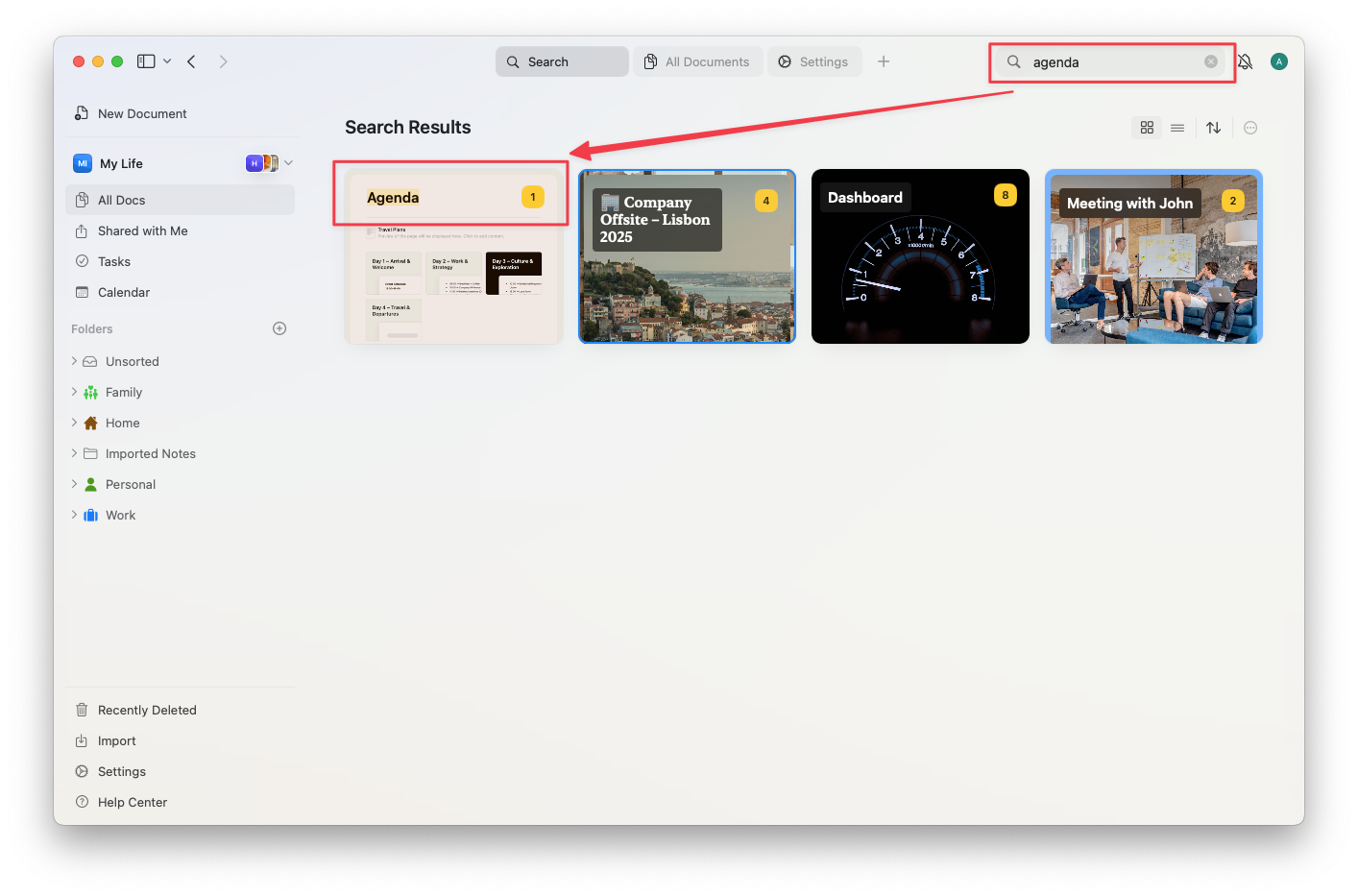
- Exact phrase matches come next, especially those found earlier in the document.
- Recency and frequency can affect relevance – more recent or frequently opened documents may appear higher in your results.
- Starred documents may also receive a relevance boost.
- Searches match the beginning of words, not the middle or end (e.g., “Pors” will find “Porsche”, but “orsche” won’t).
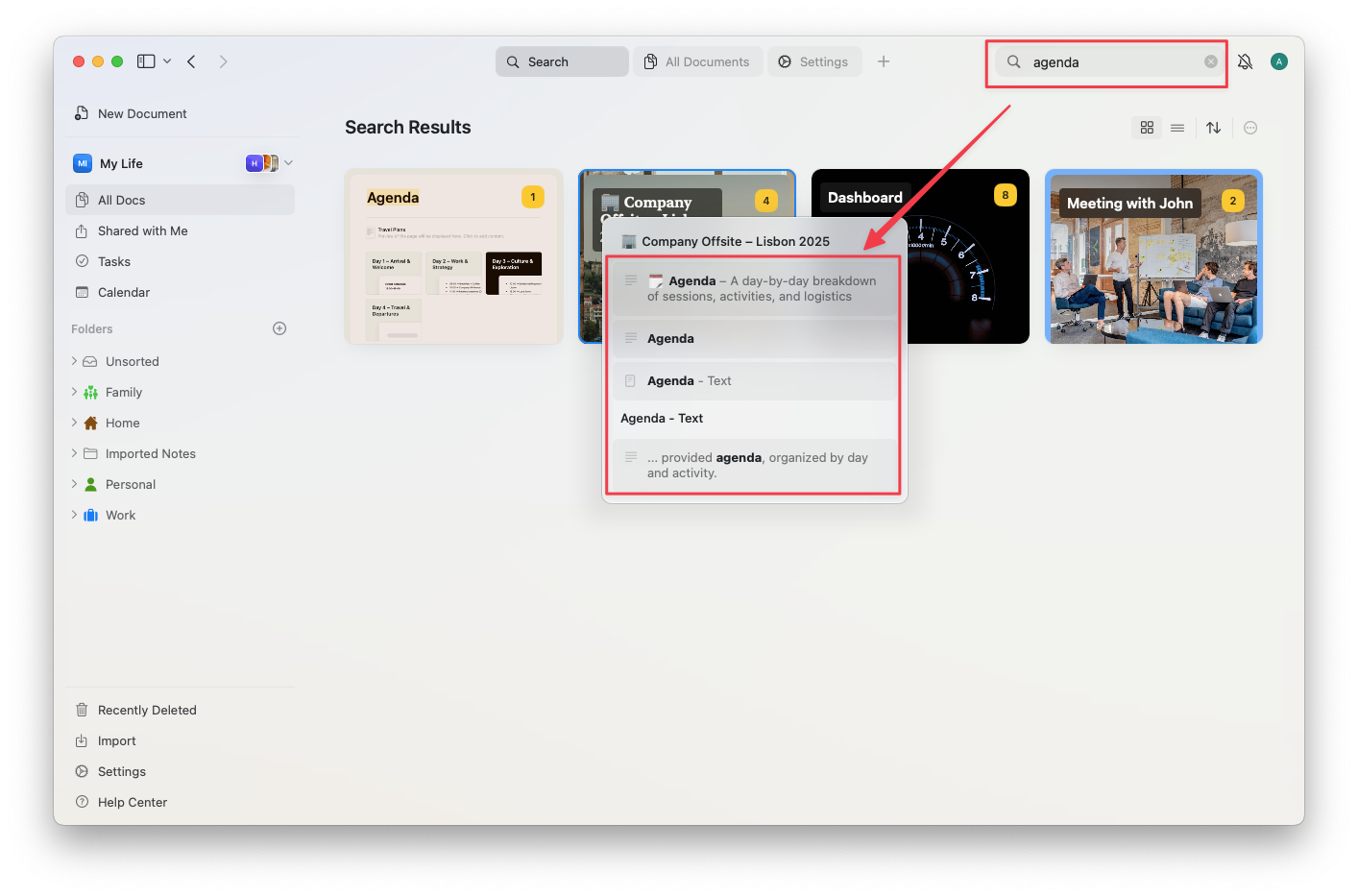
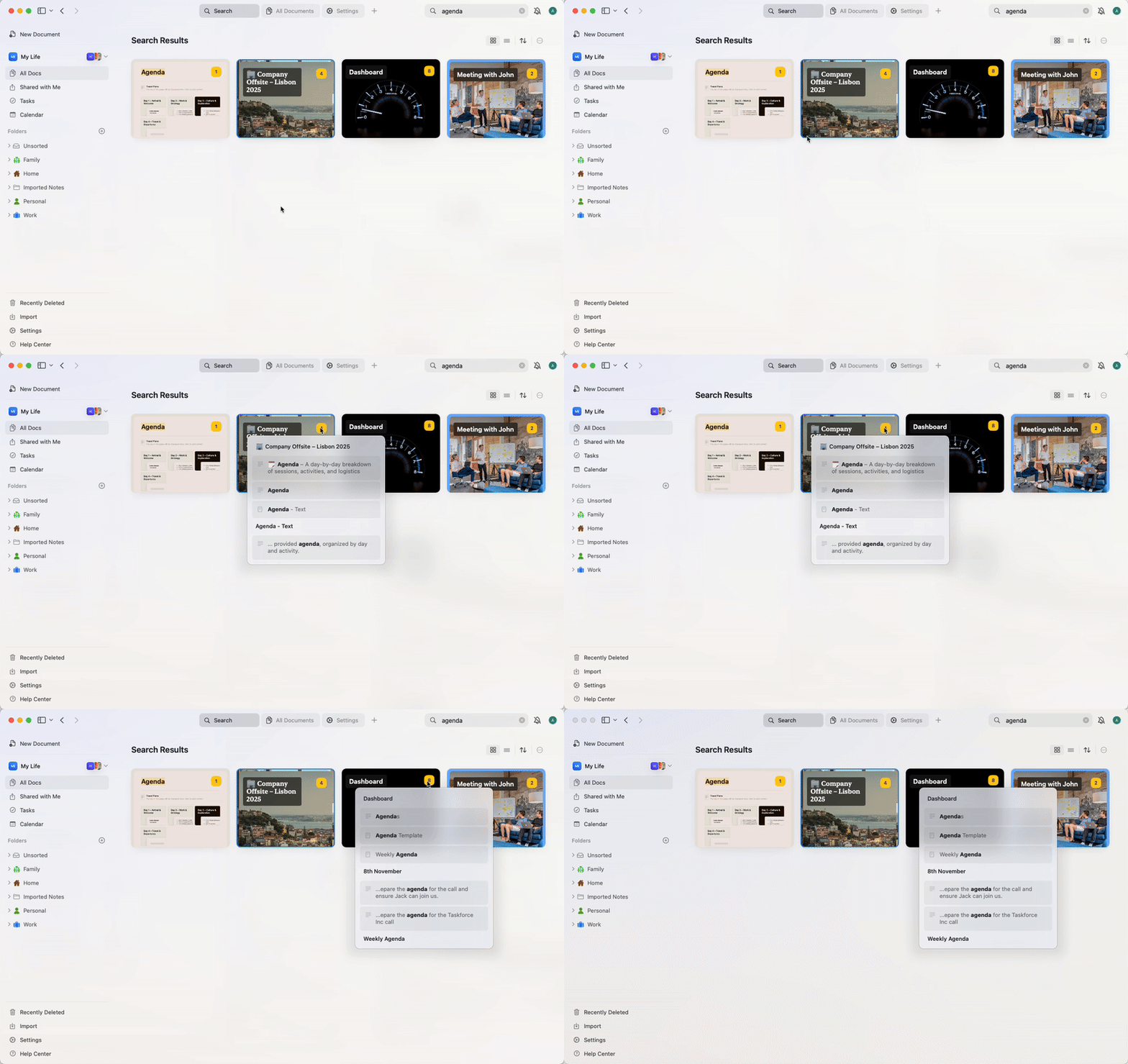
The yellow number indicates how many instances of the results are matching your search inside that document. Hover over the number to get a preview of the results inside the document.
Supported Content
Craft can search through:- Text blocks (titles and body)
- Pages and subpages
- Tasks inside documents (title and description) – only on macOS and iPad
- Events (title and content) – only on macOS and iPad
- Collection rows and columns
- Code blocks and table cells
- Rich link previews (title and description)
- File and image names
Advanced Search Options
You can refine your searches using advanced syntax:Exact Phrase Matching
Use quotes to search for exact phrases. This is useful when you want to find specific multi-word terms. Examples:"meeting notes"- finds documents containing exactly “meeting notes”"project plan 2024"- matches the exact phrase “project plan 2024”"to do"- finds “to do” but not “todo” or “to-do”
Excluding Terms
Use a hyphen (minus sign) to exclude specific words from your search results. Examples:project -draft– finds documents with “project” but excludes those containing “draft”notes -archived– shows notes that don’t contain “archived”meeting -canceled -postponed– finds meetings that aren’t canceled or postponed
Regular Expressions
Use regular expressions for advanced pattern matching. Prefix your regex pattern withregex:.
Examples:
regex:(draft|final)– finds documents containing either “draft” or “final”regex:202[0-9]– matches any year from 2020-2029regex:task-[0-9]+– finds task IDs like “task-123”, “task-456”regex:(urgent|high priority)– matches documents with “urgent” or “high priority”
Combining Techniques
You can combine multiple advanced search techniques for powerful queries: Examples:"project plan" -draft regex:202[0-9]– finds exact phrase “project plan” from 2020s, excluding draftsmeeting "Q1 2024" -canceled– finds Q1 2024 meetings that weren’t canceledregex:(client|customer) -archived– finds client/customer documents that aren’t archived
Quick Open
The Quick Open feature is designed to help you navigate your workspace faster. It’s a keyboard-first experience that saves you time and keeps you in your flow.What is Quick Open?
Quick Open is a universal search and navigation tool built right into Craft. It allows you to:- Instantly find and open any document or page in your workspace
- Jump to recently viewed content
- Open your daily note or create a new one
- Access starred documents or shared pages quickly
Quick Open’s main focus is to help you navigate between documents, pages, and daily notes faster. If you’d like to find specific content, use the Search feature instead.
How to Open Quick Open
- macOS
- Windows / Web
- iPad
- iPhone
Press Cmd + O to bring up Quick Open.
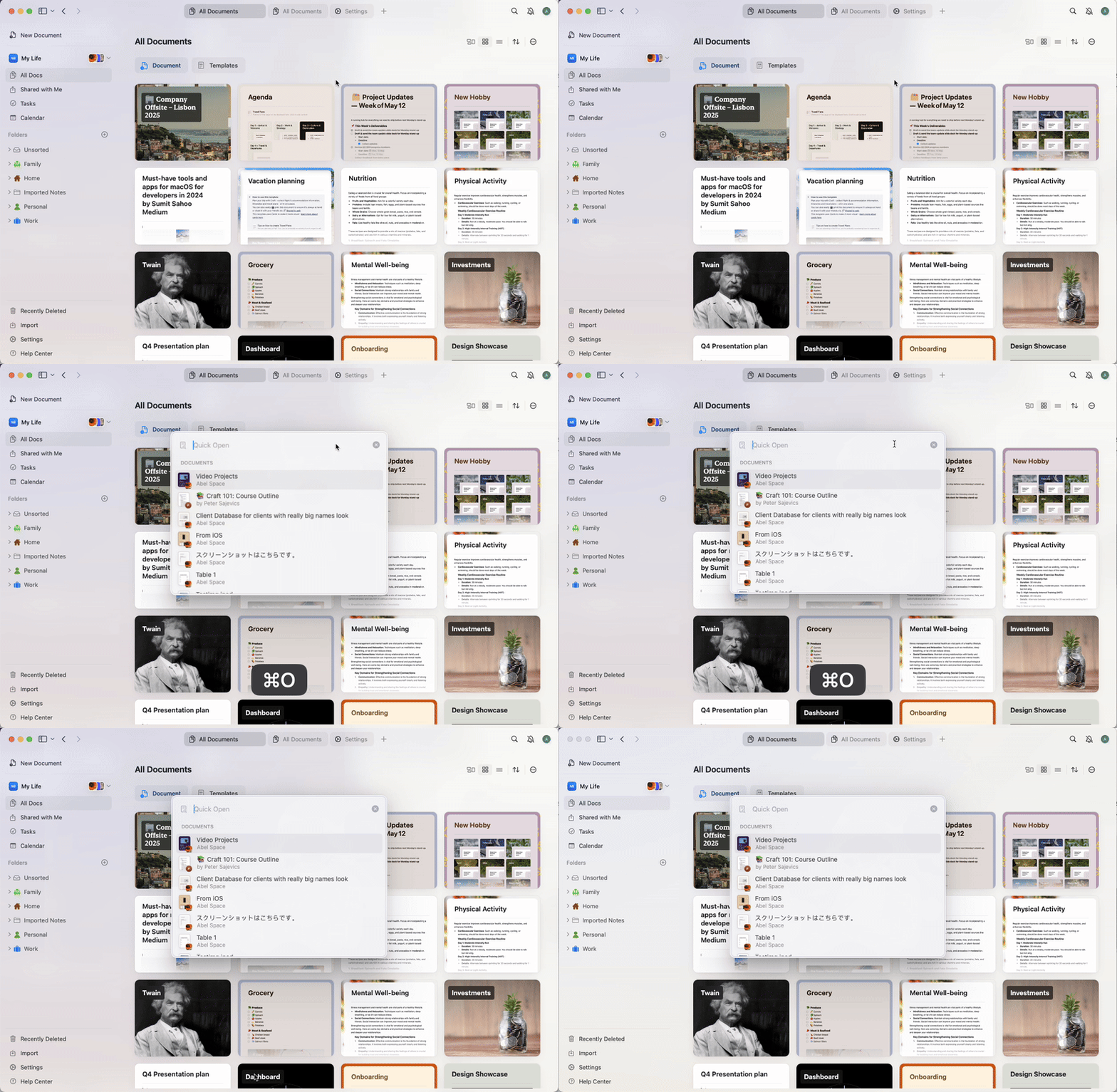
How Quick Open Works
Once Quick Open is active:1
Start typing any part of a document title or content to search across your workspace.
2
Craft will display a list of matching results, including:
- Documents
- Pages
- Daily notes
- Starred or recently accessed content
3
Use the arrow keys to scroll through the list.
4
Hit Enter to open the selected item instantly.
- Type “today” to jump to your daily note
- Type “new” to create a new document
- Search by keyword, not just title – content blocks and subpages are included in the results
Tips for Power Users
- You can open multiple documents quickly without using the sidebar or mouse
- Use Quick Open as your primary way to move around your space and reduce context switching
- It’s especially useful in large workspaces where browsing folders would take more time
Limitations to be Aware Of
Search in Craft does not yet support filters for narrowing by document type, folder, or author. There are also a few specific things to keep in mind:- Tasks in Inbox will not be found via search
- Only exact beginnings of words are matched
- Shared docs that you haven’t opened yet may not be fully indexed (only title and preview)
- Clicking a match in a code or table block will open the block, but won’t highlight the exact row
- Search doesn’t cover emojis, and requires:
- At least 3 characters for Latin-based languages
- At least 2 characters for others
Index Updates
Your space’s search index refreshes automatically every 24 hours. You don’t need to manually update or trigger anything to keep search results up to date.Related Articles
Quick Open
Navigate your workspace faster with keyboard-driven search
Search in a Document
Find and replace text within a specific document
AI Assistant
Use natural language to find and understand your content
Tags
Organize documents with tags for easier searching
Collections
Search within structured collection data