

- Global Search helps you find content across all your documents, spaces, and pages. Learn more
- Document Search lets you find text within a specific document (and optionally its subpages).
How to Access Document Search
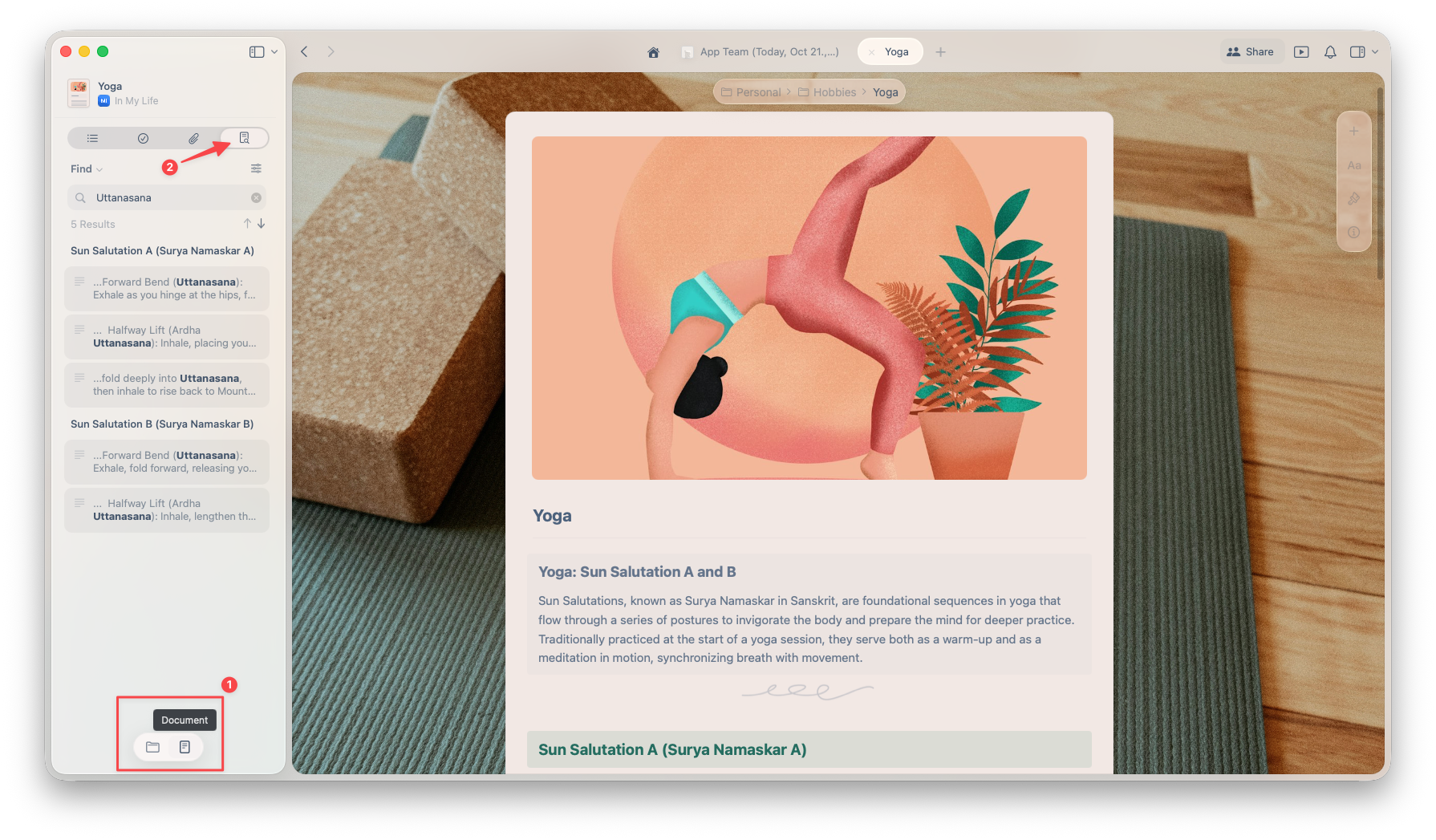
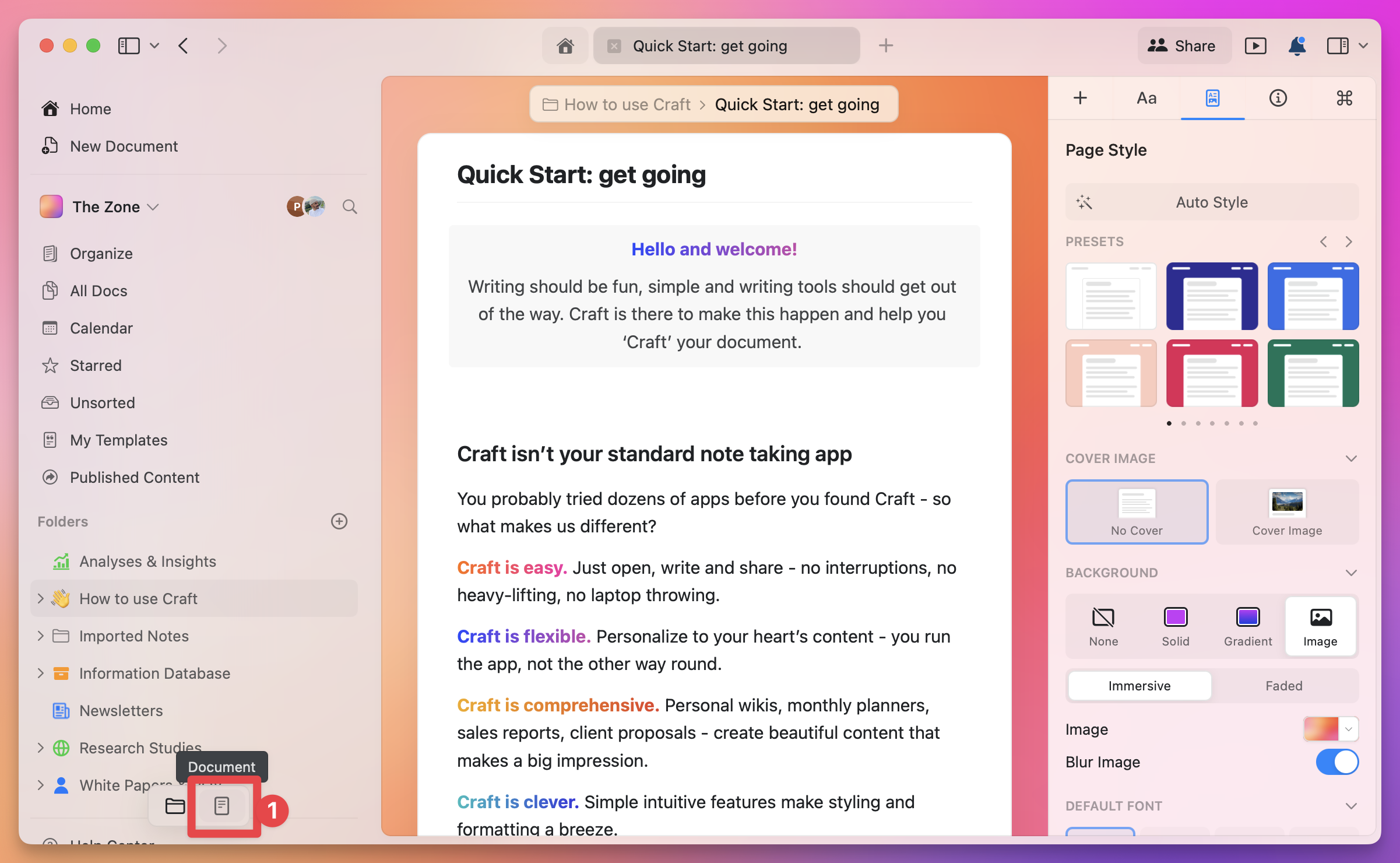
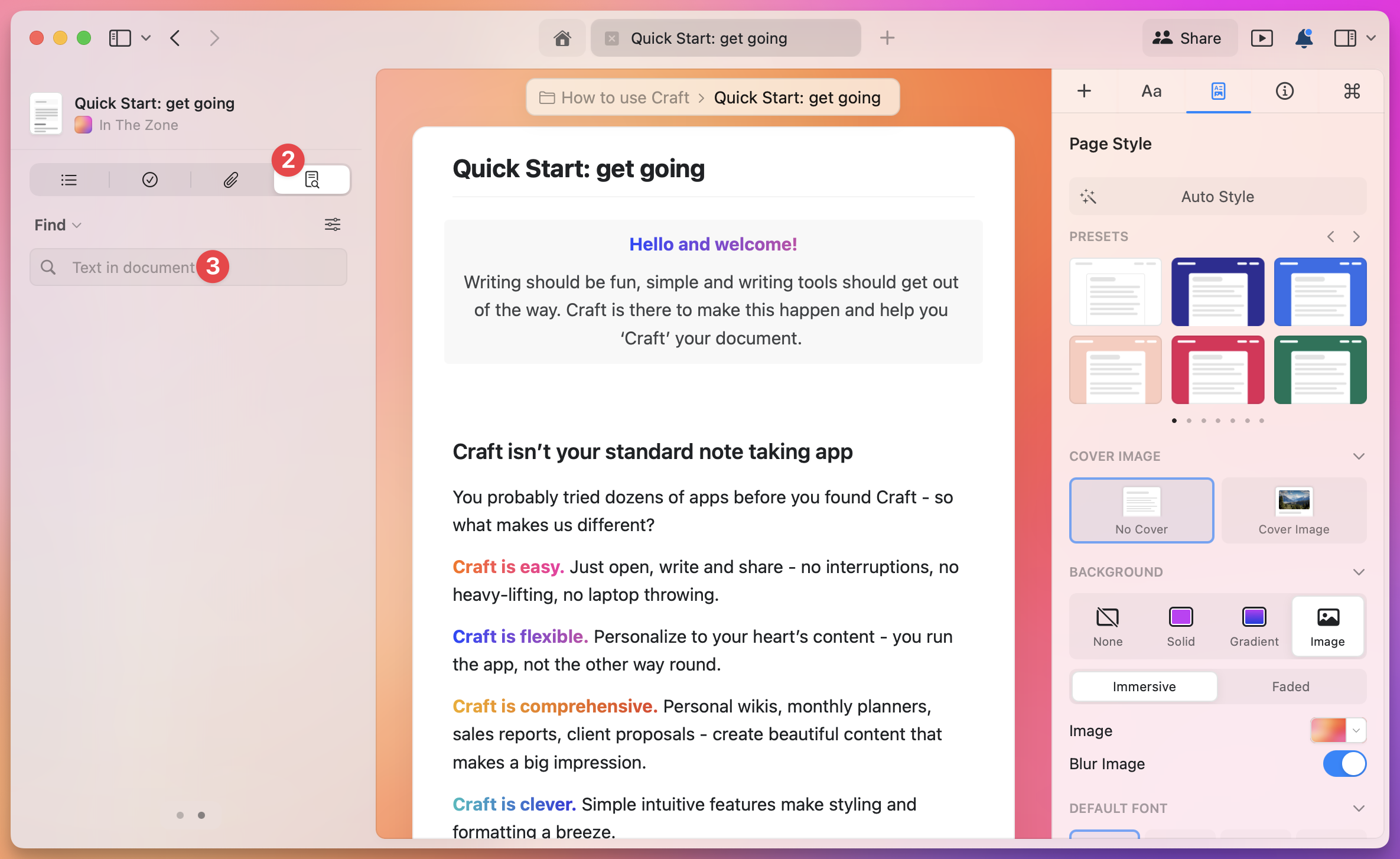
You can open search from the left sidebar in Document View:- macOS
- Windows
- Click the magnifying glass icon (the last tab)
- Or use the keyboard shortcut Cmd + F
Search Options
Once the search panel opens, you’ll see several useful options.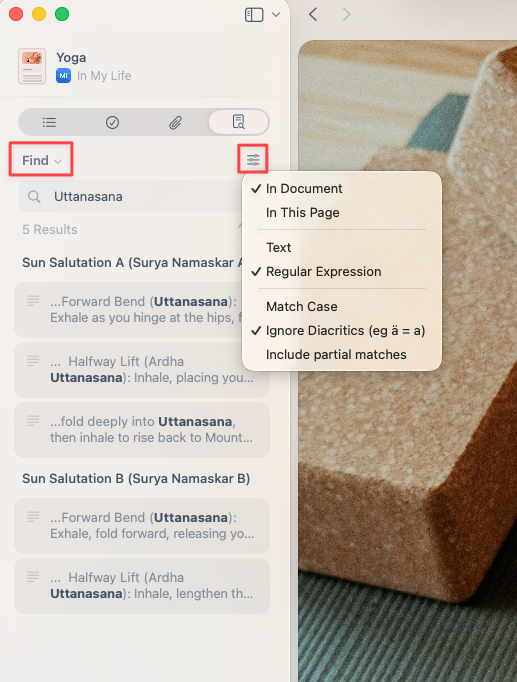
Regular Find or Find & Replace
You can simply search for text within the document or use Find and Replace to update multiple matches in bulk.Search Scope
Click the filter icon on the right to choose where you want to search:- This Document only – searches just the current document
- This Document + Subpages – includes all subpages nested under it
Search Mode
You can choose between:- Simple text – standard keyword search
- Regex – for advanced, pattern-based searches
Additional Filters
You’ll also find these toggles to refine your search results:- Match case – distinguish between uppercase and lowercase letters
- Ignore diacritics – treat accented and non-accented characters as the same
- Include partial matches – find words that contain your search term
Example: Using the Document Search
Tip: Regex is Really Powerful
Regex (short for regular expressions) lets you search using patterns instead of exact text. It’s perfect for more advanced find and replace operations. Example: If you’ve used#todo, #inprogress, and #done tags, and want to rename them all to #task, regex can do that in one go.
Search for:
Regular expressions are incredibly powerful for pattern matching. Consider learning the basics to unlock advanced search capabilities.