

Collections now support Gallery View — display your entries as visual cards with image previews. The collection toolbar has been redesigned with a new configure menu and view tabs. Your existing data and views are unchanged. Learn about Gallery View.
What is a Collection?
A Collection is more than just a table. It’s a fully customizable set of fields where each entry can hold more detailed information.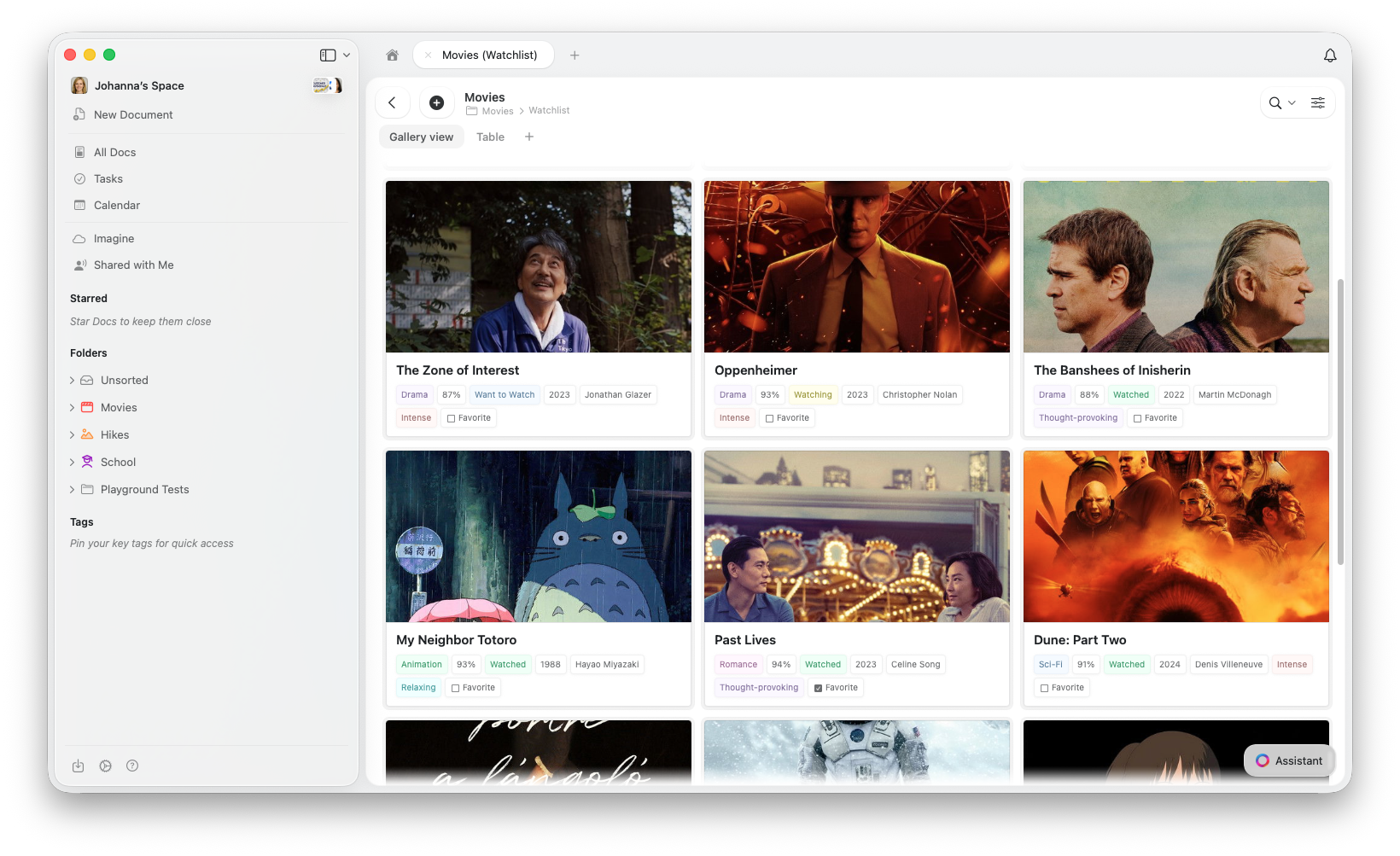
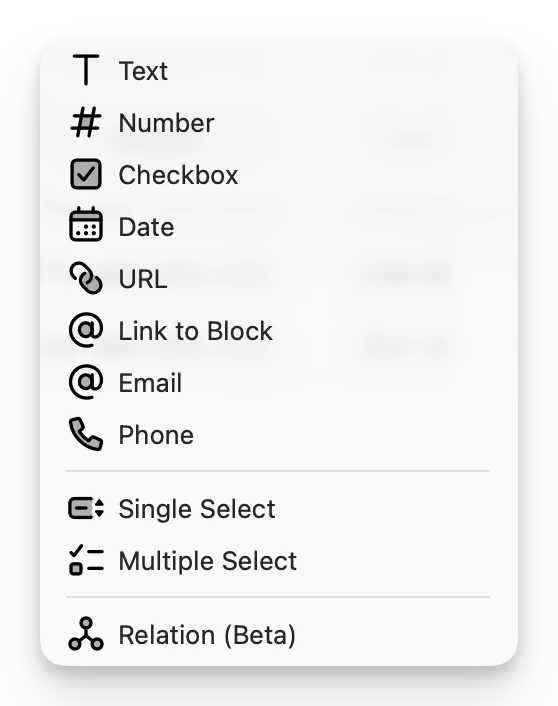
- Title (renamable): The default column for each entry. You can rename this column to suit your needs (e.g., “Product Name”, “Task Title”, “Client”).
- Text: Use this to capture notes, descriptions, or any other textual data.
- Number: Ideal for tracking quantities, scores, or any numeric values. Supports custom formatting (see below).
- Checkbox: Great for marking tasks as complete or tracking boolean values (yes/no).
- Date: Set important dates like deadlines, creation dates, or event schedules.
- URL: Include relevant links to resources, websites, or shared documents.
- Link to block: Link any block (paragraph or document title) within the same space, creating contextual links to relevant information.
- Email: Ideal for quickly initiating a new message for an email address.
- Phone: Store phone numbers with tap-to-call support on mobile.
- Single Select: Choose one option from a predefined list, perfect for categories or statuses.
- Multiple Select: Select more than one option from a predefined list.
- Relational Field: Link other Collections or create two-way linking between Collections; multi-select allows adding multiple related fields.
Craft Assistant understands collection properties and relationships, making it easy to query and analyze your structured data using natural language.
Number Field Formatting
Number fields in Collections support advanced formatting options to display values in the format that best suits your needs:- Percent display: Show values as percentages (e.g., 0.85 → 85%)
- Currency symbols: Add currency symbols like $, €, £, ¥, and more to display monetary values
- Decimal precision: Control the number of decimal places (0-5) to display for precision or simplicity
Column Management
Customize your Collection’s layout to focus on what matters most:- Resizable columns: Click and drag column borders to adjust width – perfect for fitting long text or narrowing unused fields
- Persistent width: Column widths are automatically saved, so your layout stays consistent across sessions
Quick Search
Find specific entries in your Collection instantly:- Search within rows: Use the search bar to filter Collection entries in real-time
- Type-as-you-filter: Results update as you type, making it easy to locate specific items without scrolling through large Collections
Working with Collections
Once you have your Collection ready, you can: Sort, Filter, and Group: Organize the information in your smart table the way that suits your workflow best. You can sort, filter, and group data by different fields, allowing you to view your information in meaningful ways. Customize the Display: Choose which fields you want to display, keeping your interface clean and focused on the information that matters most. Choose a layout that fits your content: Start with a Table Collection for structured data, a Gallery Collection for visual browsing, or a Kanban Collection for workflow and status tracking. You can switch between layouts at any time. Learn about Gallery View or Kanban View. Set new Views: Views are customizable ways to display your Collection based on your specific needs. Instead of manually adjusting the sorting, filtering, or field visibility every time you work with a Collection, you can save different configurations and switch between them with ease. Learn more about Collection Views. Build Sub-Pages (or sub-documents) for each entry, adding depth and context where needed. Each item in your Collection can expand into its own sub-page, giving you more flexibility to track details or create related content. Share or Publish Sub-Pages: Just like any other document, sub-pages in a Collection can be shared with anyone for easy collaboration and updates.How to Add a Collection
To add a Collection to your document:1
Use the slash menu and start typing 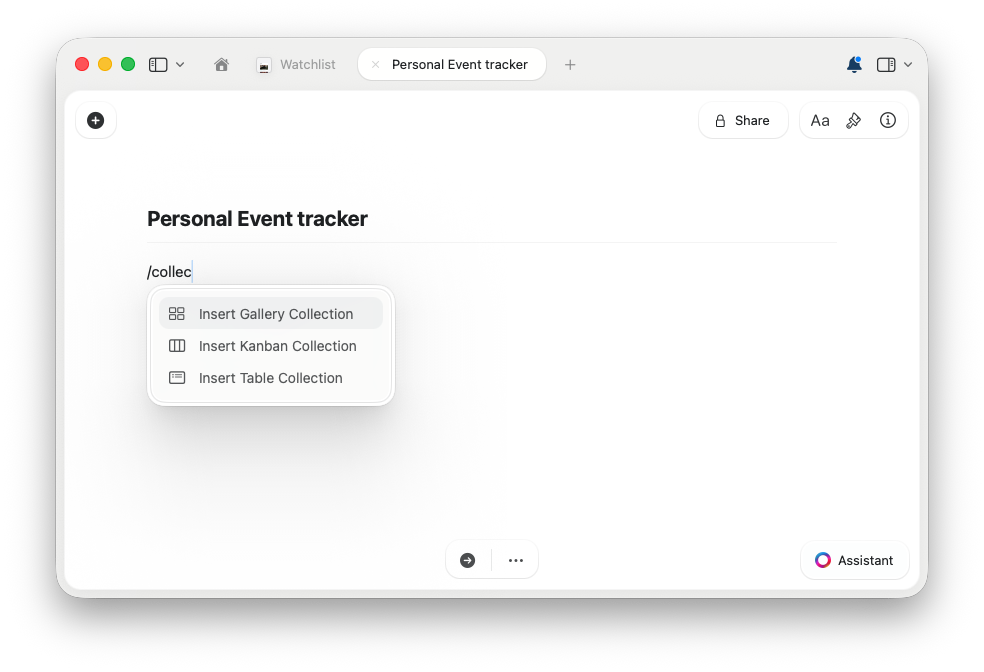
/collection, /gallery, or /kanban. Then choose whether you want to insert a Gallery Collection, Table Collection, or Kanban Collection.2
Or open the right-hand sidebar and choose Collections from the block menu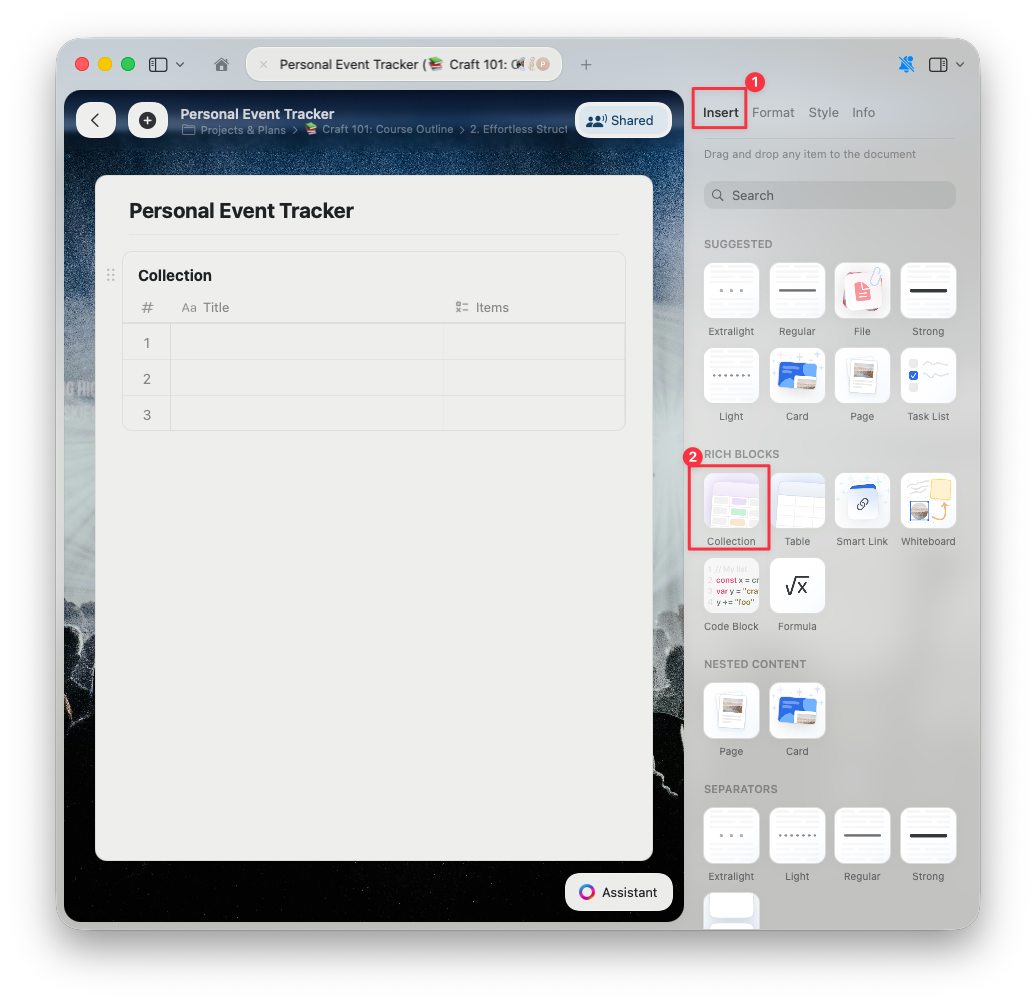
3
Add your entries, then customize fields and views as needed
Limitations
Collections are flexible, but there are a few important constraints to keep in mind:- Up to 20 custom fields plus the Title field (21 total). You will not be able to add additional fields once this limit is reached.
- No hard limit on rows, but performance may degrade after approximately 1,000 rows, especially on older or less powerful devices.
Where Collections Shine
Here are some common use-cases where Collections elevate your workflow:- Project & Task Management – Track tasks, set deadlines, mark platforms, monitor statuses, and group by team or stage
- Client & CRM Management – Maintain client records, meeting notes, communication history, and link to sub-pages for full context
- Knowledge Management – Organize research, ideas, documentation, or articles in a structured format with relational links and multiple views
- Inventory & Asset Tracking – Manage items, monitor stock levels, linked suppliers, and custom fields tailored to your process
- Portfolio & Media Management – Use Gallery View to browse images, designs, or video thumbnails visually
- Mood Boards – Create visual inspiration boards with cover images and categorized entries
Video Tutorials
Related Articles
Collection Views
Organize and analyze your data with sorting, filtering, and grouping
Gallery View
Display your Collection as visual cards with image previews
Reordering Fields and Columns
Customize the order of fields and columns in your Collections
Using Collections on iOS
Touch-optimized Collections on iPhone and iPad
Blocks and Pages
Understand how collection entries work as subpages
AI Assistant
Let AI help you analyze and query collection data