

Reorder Fields in Your Collection
Changing the order of fields affects how they’re displayed on individual item pages and sets the default order for all new views.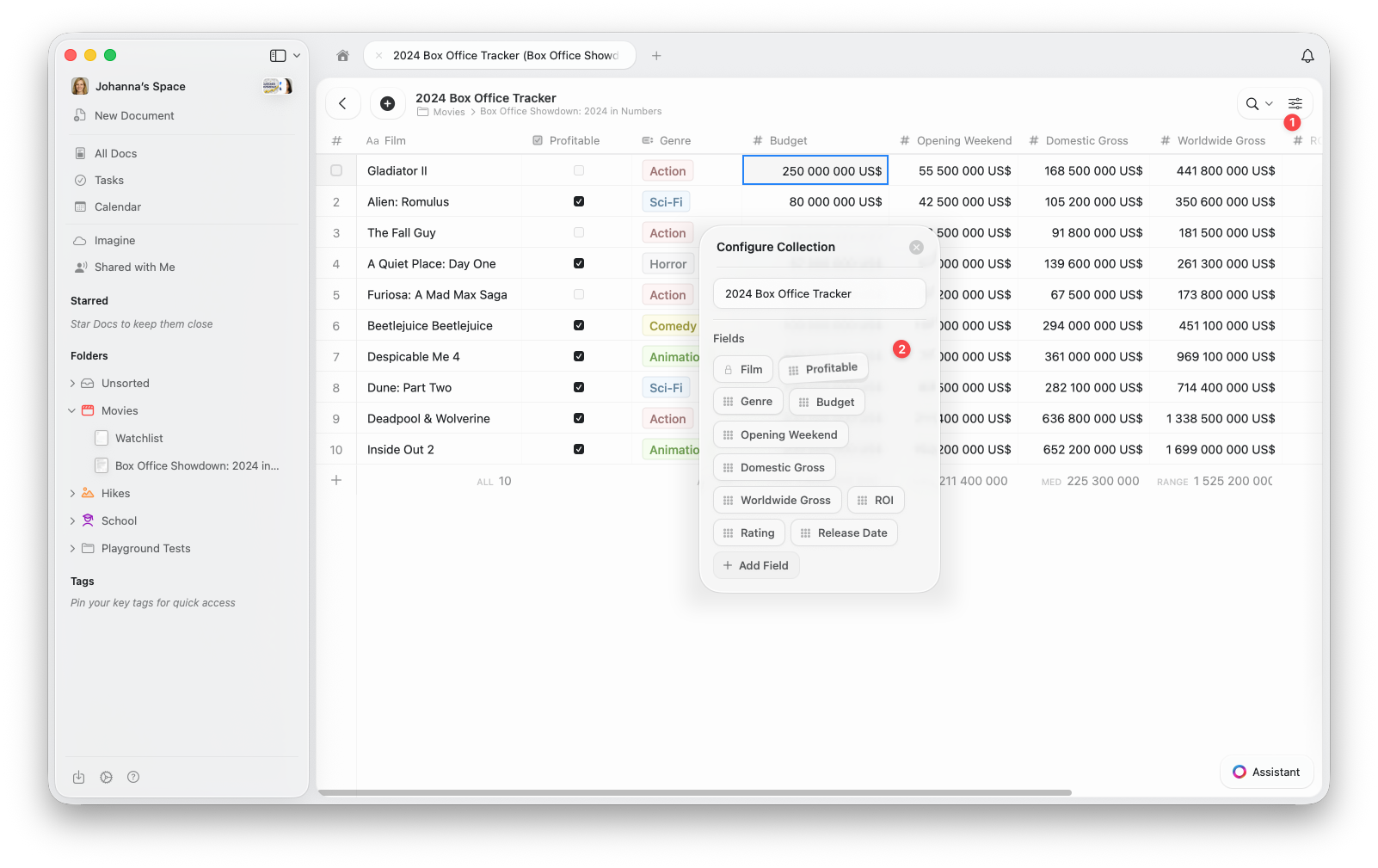
1
Open the configure menu (⋯) at the top of your Collection
2
Select Configure Collection from the menu
3
In the Configure Collection window, drag and drop your fields to reorder them. You can also add new fields or remove existing ones here.
Reorder Columns in a View
You can also rearrange columns for a specific view. This gives you flexibility to customize what’s visible and how it’s arranged without changing your Collection’s default field order.1
Open the configure menu (⋯)
2
Select Show/Hide Fields
3
Drag and drop the fields to reorder the columns as you like. You can toggle which fields you’d like to display in your view here.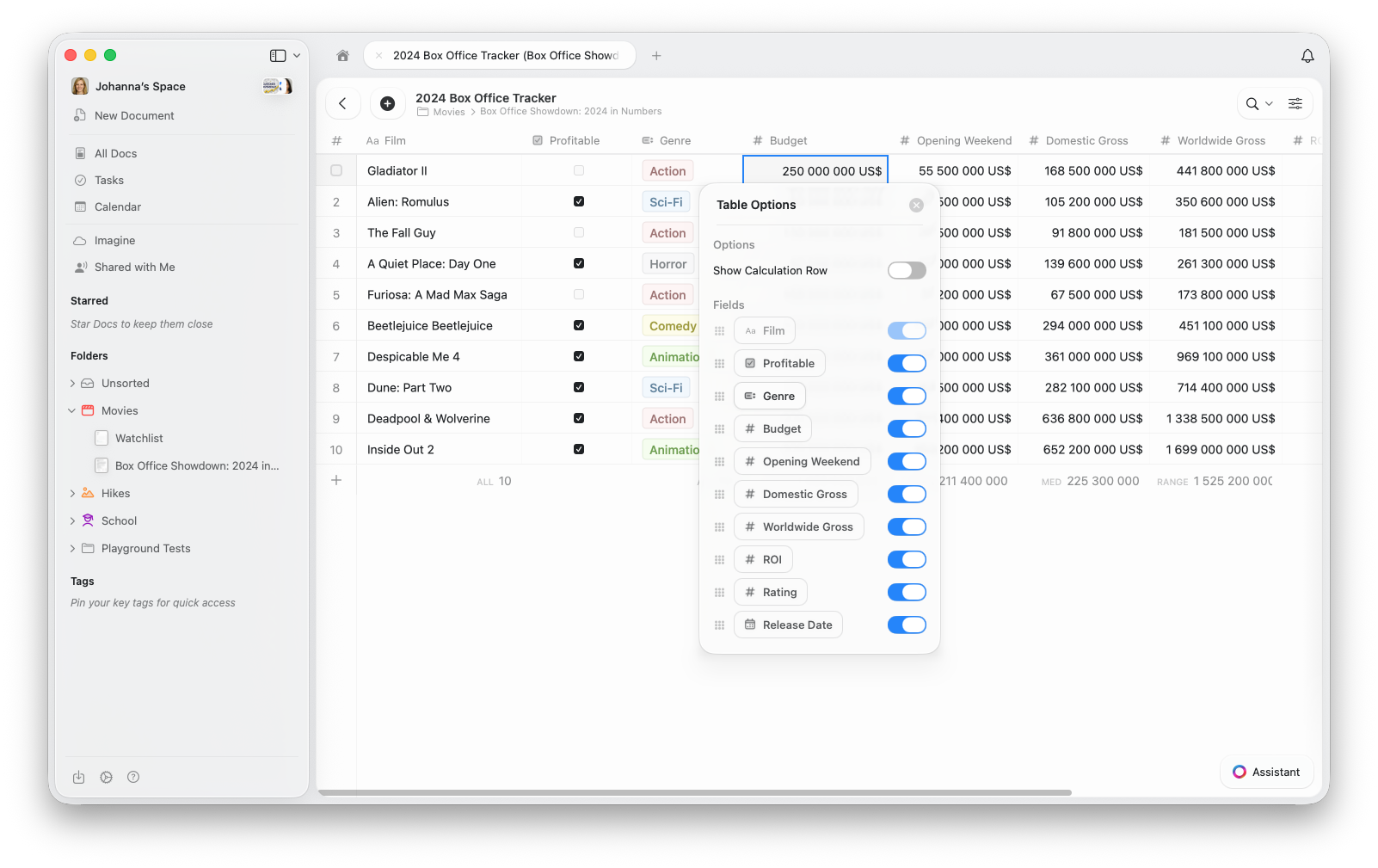
In Gallery View, field visibility controls which properties appear on each card. The order in Show/Hide Fields determines the display order on each card.
Related Articles
Collection Views
Learn about sorting, filtering, and grouping in Collection views
Gallery View
Display your Collection as visual cards with image previews
Collections
Learn about Craft Collections and field types